
Introduction
The Roku Premiere is a powerful and simple streaming media player designed to deliver incredible picture quality in HD, 4K, and HDR. It provides access to a massive selection of free, live, and premium TV content, including Roku Originals. With its user-friendly interface and included accessories, setting up and enjoying your favorite entertainment is straightforward.

What's in the Box
Your Roku Premiere package includes everything you need to get started:
- Roku Premiere streaming player
- Removable Adhesive Strip
- Remote
- Power Adaptor
- USB power cable
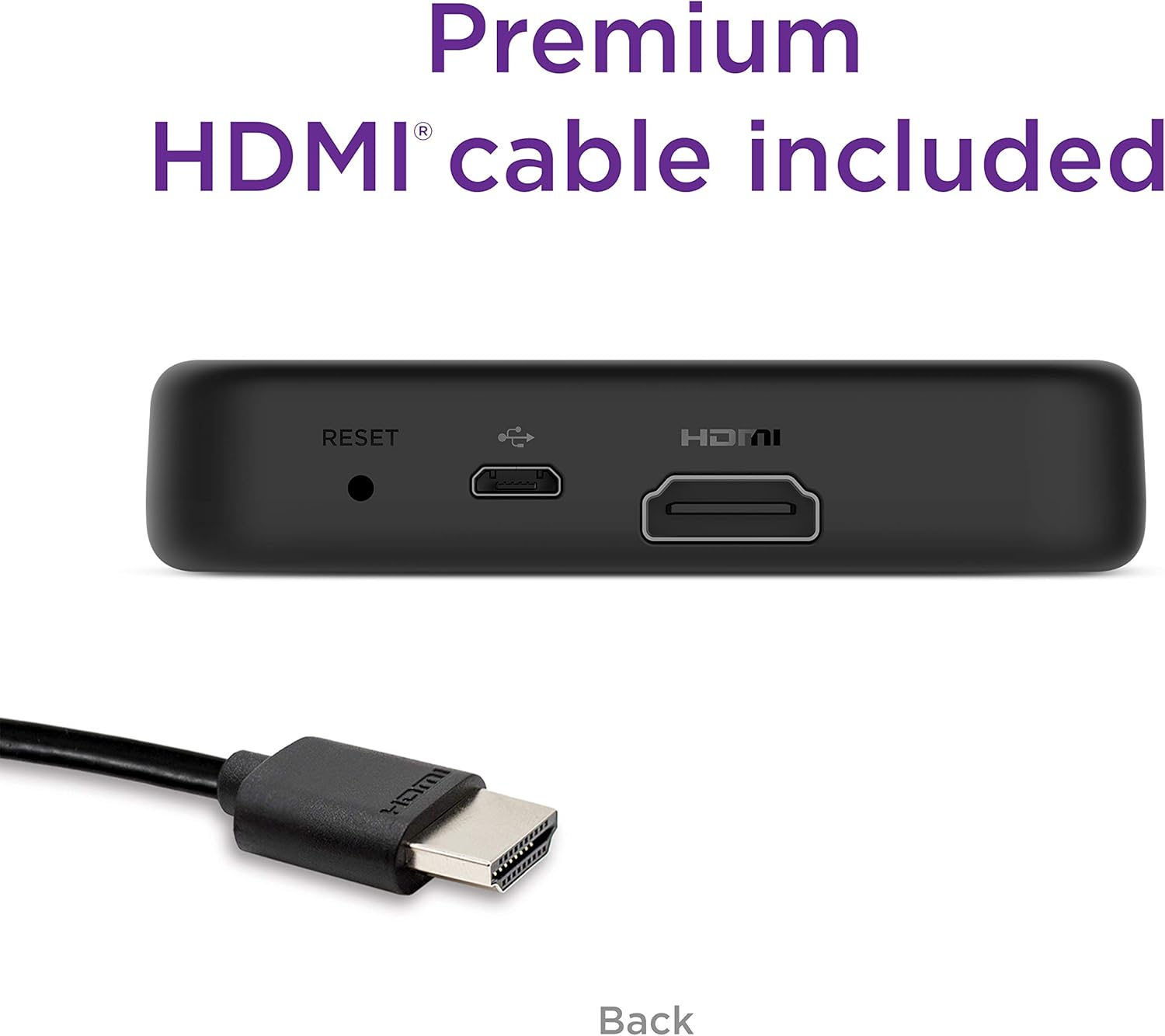
- Premium High Speed HDMI Cable
- Two AAA batteries

Setup Guide
Follow these steps to set up your Roku Premiere:
Step 1: Connect to TV
Plug the included Premium High Speed HDMI Cable into the HDMI port on your Roku Premiere and the other end into an available HDMI input on your TV. Note the HDMI input number (e.g., HDMI 1, HDMI 2).

Step 2: Power On
Connect the USB power cable to your Roku Premiere and then plug the power adaptor into a wall outlet. Alternatively, you can plug the USB power cable directly into a USB port on your TV if available and it provides sufficient power.
Step 3: Connect to Internet
Turn on your TV and select the HDMI input where your Roku Premiere is connected. Follow the on-screen instructions to connect your Roku Premiere to your wireless network. You will need your Wi-Fi network name and password.
Step 4: Activate Roku Device
Once connected to the internet, your Roku Premiere will guide you through the activation process. You will be prompted to create or sign in to a Roku account. This is necessary to access channels and features.
Operating Your Roku Premiere
The Roku Remote
The included simple remote provides intuitive control over your Roku Premiere. It features navigation buttons, playback controls, and dedicated shortcut buttons for popular streaming channels.

Navigating the Home Screen
The Roku home screen is your central hub for all content. Use the directional pad on your remote to navigate through channels, search options, and settings. Your favorite channels can be customized and arranged for quick access.
Streaming Content
The Roku Premiere supports streaming in HD, 4K, and HDR, providing optimized picture quality for your TV. Simply select a channel from your home screen to begin browsing and watching movies, TV shows, and live content.


Using the Roku Mobile App
Download the free Roku mobile app for iOS or Android devices to use your smartphone as a second remote. The app also offers voice search, private listening with wireless headphones, and the ability to cast content from your device to your TV.
Maintenance
Cleaning Your Device
To clean your Roku Premiere, gently wipe the exterior with a soft, dry cloth. Avoid using liquid cleaners or abrasive materials, as these can damage the device.
Software Updates
Your Roku Premiere automatically receives software updates, ensuring you always have the latest features, newest channels, and improved performance without any manual intervention.

Troubleshooting
If you encounter issues with your Roku Premiere, try the following solutions:
No Power
- Ensure the power adaptor is securely plugged into a working wall outlet.
- Verify the USB power cable is firmly connected to both the Roku Premiere and the power adaptor.
- If using a TV's USB port for power, try plugging the power adaptor into a wall outlet instead.
No Picture/Sound
- Check that the HDMI cable is securely connected to both the Roku Premiere and your TV.
- Confirm your TV is set to the correct HDMI input for the Roku Premiere.
- Try a different HDMI port on your TV or a different HDMI cable.
Wi-Fi Connection Issues
- Restart your wireless router by unplugging it for 30 seconds and then plugging it back in.
- Go to Settings > Network > Set up connection on your Roku device to re-enter your Wi-Fi password.
- Ensure your Roku Premiere is within range of your wireless router.
Remote Not Responding
- Replace the AAA batteries in the remote.
- Ensure there are no obstructions between the remote and the Roku Premiere.
- If the issue persists, try re-pairing the remote by opening the battery compartment and pressing the pairing button (if available) or following specific instructions in the Roku support section.
Specifications
| Feature | Value |
|---|---|
| Product Dimensions | 3.3 x 1.4 x 0.7 inches |
| Item Weight | 1.28 ounces |
| ASIN | B07HDBZN7Q |
| Item model number | 3920R |
| Batteries | 2 AAA batteries required. (included) |
| Connectivity Technology | Wi-Fi |
| Connector Type | HDMI |
| Special Feature | Foldable |
| Resolution | 4k |
| Supported Internet Services | Amazon Instant Video, Netflix, Pandora, Vudu, YouTube |
| Controller Type | Voice Control |
| Form Factor | TV Stick |
| Color | Black |
| Manufacturer | Roku |
| Date First Available | September 24, 2018 |
Warranty Information
Roku products typically come with a limited manufacturer's warranty. For specific details regarding the warranty period and coverage for your Roku Premiere (Model 3920R), please refer to the warranty card included in your product packaging or visit the official Roku support website.
Support
For further assistance, troubleshooting tips, or to access the full knowledge base, please visit the official Roku support website:
You can also find helpful community forums and frequently asked questions on their support portal.


