
1. Introduction
The STEREN SHOME-110 Dual Wi-Fi Touch Switch allows you to transform your home or office lighting into a smart system. Control and schedule your lights remotely using your smartphone from anywhere. This smart switch connects to your modem via Wi-Fi and can be synchronized with multiple mobile devices. It is compatible with Android and iPhone, and integrates with Google Assistant and Alexa for voice control. Enjoy the convenience of a timer function and manual touch controls. The switch is designed to fit any standard electrical box and supports a maximum load of 700 W.
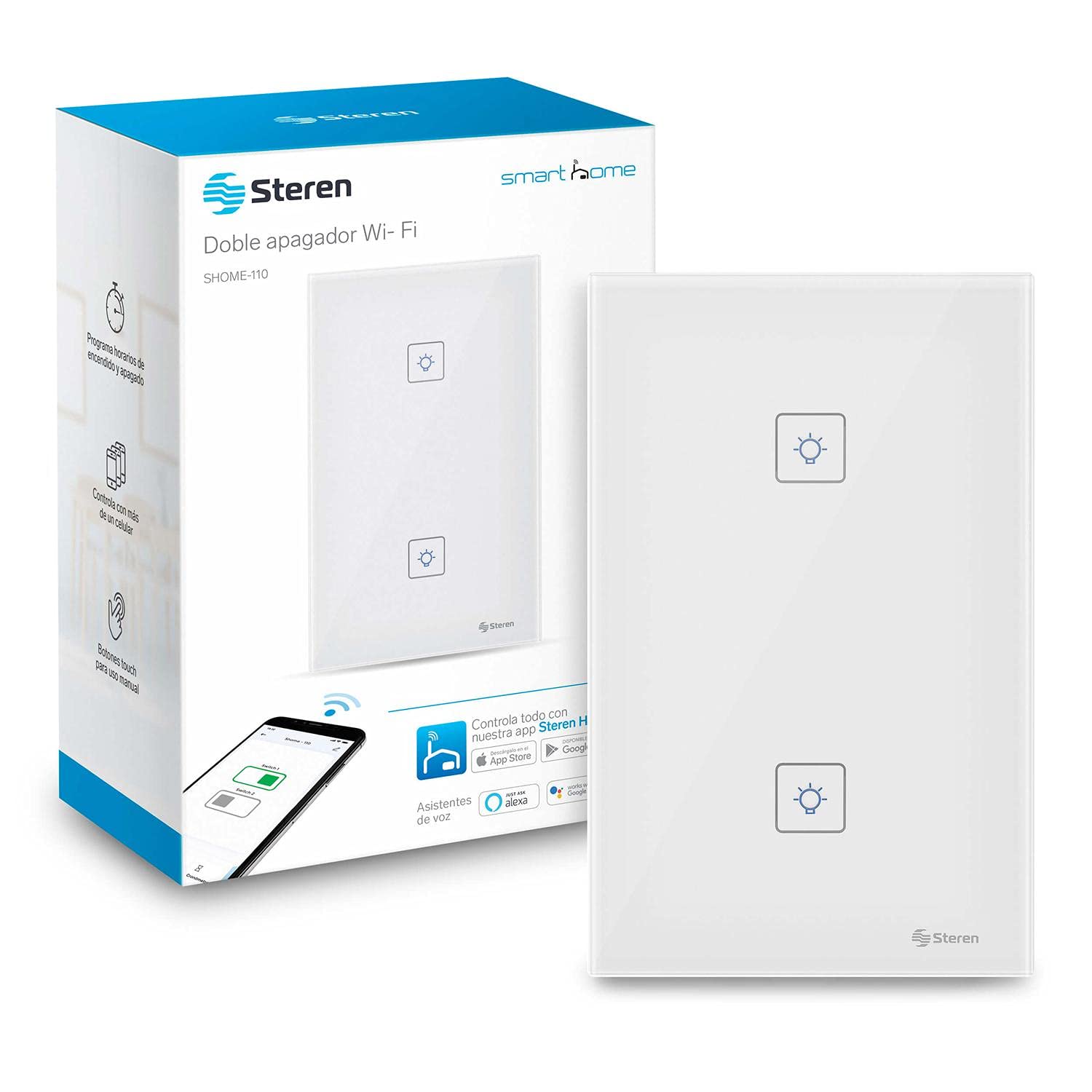
Figure 1: Front view of the STEREN SHOME-110 Dual Wi-Fi Touch Switch.
2. Product Overview
The STEREN SHOME-110 is a dual-gang Wi-Fi enabled touch switch designed for modern smart homes. Its key features include:
- Smart Lighting Control: Manage your lights from anywhere using your smartphone.
- Wi-Fi Connectivity: Easily connects to your home Wi-Fi network (2.4 GHz).
- Multi-Device Sync: Control the switch from multiple smartphones.
- Voice Control: Compatible with Google Assistant and Amazon Alexa for hands-free operation.
- Timer Function: Schedule lights to turn on or off automatically.
- Manual Touch Controls: Physical touch buttons for direct control.
- Standard Compatibility: Fits into any standard electrical box.
- High Load Capacity: Supports a maximum load of 700 W.
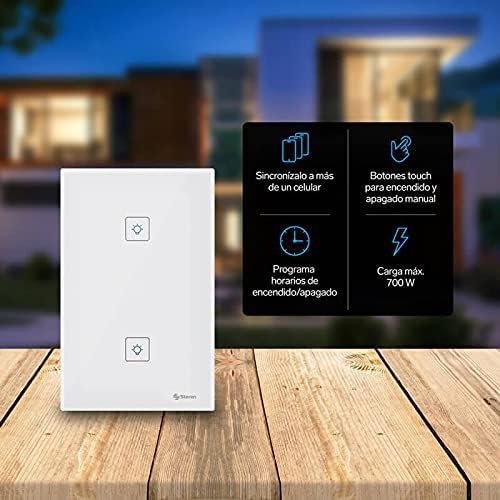
Figure 2: Overview of the STEREN SHOME-110's main features.
3. Safety Information
WARNING: Electrical shock hazard. Installation should only be performed by a qualified electrician or a person with a thorough understanding of electrical wiring.
- Always disconnect power at the circuit breaker before installing or servicing the switch.
- Ensure your electrical box has a neutral wire. This switch requires a neutral wire for operation.
- Do not exceed the maximum load capacity of 700 W.
- Use appropriate wire connectors and ensure all connections are secure.
- Keep the device away from water and high humidity environments.
4. Installation
Follow these steps carefully to install your STEREN SHOME-110 Dual Wi-Fi Touch Switch:
- Disconnect Power: Before beginning any installation, turn off the main power switch at your circuit breaker to prevent electrical accidents.
- Identify Wires: Carefully remove your existing switch. Identify the Line (Live), Neutral, and Load wires. This switch requires a neutral wire.
- Connect Power to Switch: Connect the Line (Live) wire from your electrical supply to the 'L' terminal on the SHOME-110 switch. Connect the Neutral wire from your electrical supply to the 'N' terminal on the SHOME-110 switch.
- Connect Load Wires: Connect the load wire for the first light to the 'L1' terminal on the switch. Connect the load wire for the second light to the 'L2' terminal on the switch.
- Secure Switch: Mount the SHOME-110 switch into the standard electrical box and secure it with screws. Attach the faceplate.
- Restore Power: Turn the main power switch back on at your circuit breaker.
Video 1: This video demonstrates the electrical connection process for the STEREN SHOME-110 Dual Wi-Fi Touch Switch, showing how to connect the line, neutral, and load wires to the switch terminals. It also illustrates the physical installation into a wall box.
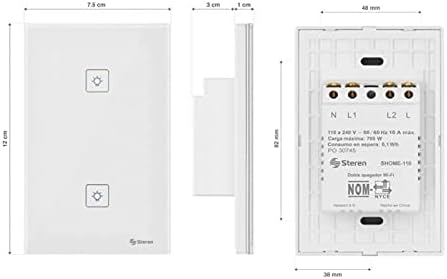
Figure 3: Dimensional diagram of the STEREN SHOME-110 Dual Wi-Fi Touch Switch, showing its measurements and terminal layout for wiring.
5. App Setup
To control your smart switch, you need to install the companion app and pair the device:
- Download the App: Search for "Smart Life - Smart Living" in your device's app store (available for iOS and Android) and install it.
- Register Account: Open the app and select "Register". Enter your email address to receive a verification code. Input the code and set a password for your account.
- Create a Home: Once logged in, select "Create Family" (or "Create Home"). Provide a name for your home and optionally specify different areas (e.g., Living Room, Kitchen) where you plan to install smart devices.
- Enter Pairing Mode: On the SHOME-110 switch, simultaneously press both touch buttons for approximately 15 seconds. You will hear a sound, and a green LED will flash rapidly, indicating the switch is in pairing mode.
- Add Device in App: In the app, press the "Add Device" button (usually a '+' icon or "Add Equipment"). Select "Hours" (or "Switch") from the device type list. Confirm that the LED on your switch is flashing rapidly.
- Connect to Wi-Fi: Enter the password for your 2.4 GHz Wi-Fi network. Ensure your smartphone is connected to the same Wi-Fi network. The app will then connect to the switch.
- Name the Switch: Once connected, assign a name to the switch (e.g., "Living Room Lights") and press "Finish".

Figure 4: Screenshot of the app interface showing the configuration process for the STEREN SHOME-110 switch.
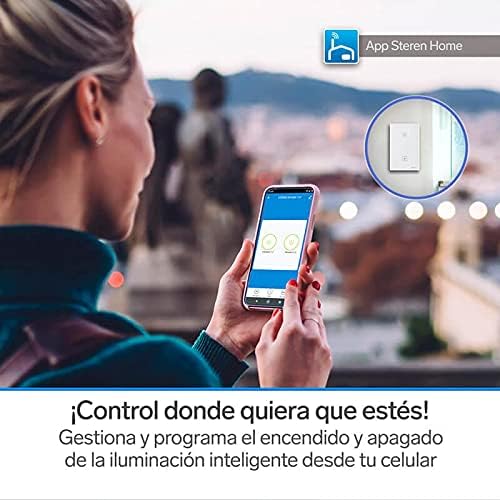
Figure 5: Illustrates remote control of the STEREN SHOME-110 switch using the mobile app from a distance.
6. Operating Instructions
Once your STEREN SHOME-110 Dual Wi-Fi Touch Switch is installed and paired with the app, you can control your lighting in several ways:
6.1. Manual Control
Simply touch the respective buttons on the switch's glass panel to turn the connected lights ON or OFF.
6.2. App Control
Open the "Smart Life - Smart Living" app. You will see the named switches. Tap on a switch icon to toggle the corresponding light ON or OFF. You can also rename the switches within the app for easier identification (e.g., "Living Room Light 1", "Kitchen Light").

Figure 6: Demonstrates voice control functionality of the STEREN SHOME-110 switch using Amazon Alexa or Google Assistant.
6.3. Voice Control
Integrate your STEREN SHOME-110 with Google Assistant or Amazon Alexa. Once linked, you can use voice commands such as: "Alexa, turn on the living room light" or "Hey Google, turn off the kitchen light."
6.4. Scheduling and Timers
The app allows you to set schedules for your lights:
- In the app, select the "Timer" option.
- Choose the specific switch (e.g., "Sala" or "Cocina" from the video) you wish to schedule.
- Tap "Add Timer".
- Set the desired time for the event (e.g., 8:00 AM to turn off, 9:00 PM to turn on).
- Choose whether the event should repeat (e.g., daily, specific days) or occur only once.
- Specify if the event is for turning the light ON or OFF.
- Save the timer. You can add multiple timers for each switch.

Figure 7: Visual representation of setting schedules for lights to turn on and off automatically using the app.
7. Specifications
| Feature | Specification |
|---|---|
| Brand | STEREN |
| Model | SHOME-110 |
| Operation Mode | ON-OFF |
| Contact Type | Normally Open |
| Connector Type | Screw |
| Switch Type | Power Switch |
| Dimensions (L x W x H) | 30 x 25 x 20 centimeters |
| Circuit Type | 2-way |
| Mounting Type | Wall Mount |
| Actuator Type | Push Button |
| Controller Type | Steren Home, Amazon Alexa, Google Assistant |
| Control Method | Touch |
| Connectivity Protocol | Wi-Fi (2.4 GHz) |
| Electrical Power | 700 watts (Max Load) |
| Color | White |
| Contact Material | Copper |
| Country of Origin | China |
8. Troubleshooting
- Switch not responding:
- Ensure power is supplied to the switch. Check your circuit breaker.
- Verify all wiring connections are secure and correct (Line, Neutral, Load).
- If using manual touch, ensure your fingers are clean and dry.
- Cannot connect to Wi-Fi:
- Ensure your Wi-Fi network is 2.4 GHz. The switch does not support 5 GHz networks.
- Check that your Wi-Fi password is entered correctly in the app.
- Make sure the switch is in pairing mode (LED flashing rapidly). If not, press both buttons for 15 seconds to re-enter pairing mode.
- Ensure your smartphone is connected to the same 2.4 GHz Wi-Fi network during setup.
- The switch might be too far from your Wi-Fi router. Try moving closer or using a Wi-Fi extender.
- Voice control not working:
- Ensure your Smart Life account is correctly linked to your Google Assistant or Amazon Alexa app.
- Check your internet connection.
- Verify the device name in the Smart Life app matches the name you are using in voice commands.
- Lights flicker or don't turn off completely:
- This can sometimes happen with low-wattage LED bulbs. Ensure your bulbs are compatible with smart switches.
- Verify the neutral wire connection.
9. Maintenance
- Clean the touch panel with a soft, dry cloth. Do not use abrasive cleaners or solvents.
- Regularly check for firmware updates in the Smart Life app to ensure optimal performance and security.
- If the switch is not going to be used for an extended period, consider disconnecting power at the circuit breaker.
10. Warranty and Support
This STEREN product comes with a standard manufacturer's warranty. For specific warranty details, please refer to the documentation included with your purchase or visit the official STEREN website. If you encounter any issues or require technical assistance, please contact STEREN customer support through their official channels. Keep your proof of purchase for warranty claims.

