
Intel BX80621E52670-cr
Intel Xeon E5-2670 Processor User Manual
Model: BX80621E52670-cr
1. Introduction
This manual provides essential information for the proper installation, operation, and maintenance of your Intel Xeon E5-2670 processor. Please read this manual thoroughly before proceeding with any installation or operation to ensure optimal performance and longevity of your component.
The Intel Xeon E5-2670 is an 8-core processor designed for server and workstation environments, offering high performance and reliability. This renewed product has been tested and certified to function like new.
2. Product Overview
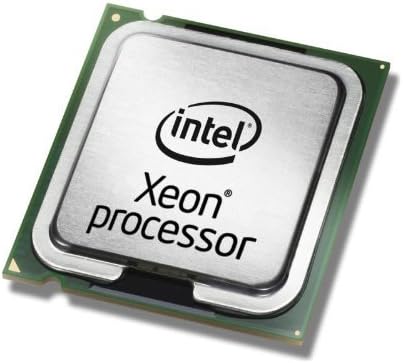
Figure 2.1: Top view of the Intel Xeon E5-2670 processor, showing the integrated heat spreader with Intel branding.
Figure 2.2: The Intel Xeon processor logo, indicating the product family.
The Intel Xeon E5-2670 processor features 8 cores, a base clock speed of 2.6 GHz, and a 20 MB cache. It is designed for the LGA 2011 socket and has a Thermal Design Power (TDP) of 115W.
3. Setup and Installation
3.1. Before You Begin
- Ensure your motherboard supports the LGA 2011 socket and the Intel Xeon E5-2670 processor. Refer to your motherboard's documentation for compatibility.
- Gather necessary tools: anti-static wrist strap, thermal paste, clean lint-free cloth.
- Work in a clean, static-free environment.
- Disconnect power from your system before beginning installation.
3.2. Processor Installation Steps
- Prepare the Motherboard: Locate the CPU socket on your motherboard. Gently push down the load lever and swing it out to the side to open the retention frame.
- Handle the Processor: Carefully remove the processor from its packaging. Hold the processor by its edges, avoiding contact with the gold contacts on the bottom.
- Align and Insert: Align the triangular mark on the processor with the corresponding mark on the CPU socket. Gently place the processor into the socket. Do not force it. The processor should sit flat in the socket without resistance.
- Secure the Processor: Close the retention frame over the processor. Swing the load lever back into place and push it down until it clicks, securing the processor firmly.
- Apply Thermal Paste: Apply a small amount of high-quality thermal paste to the center of the processor's integrated heat spreader (IHS). A pea-sized dot is usually sufficient.
- Install CPU Cooler: Carefully place your CPU cooler onto the processor, ensuring even pressure distribution. Follow the cooler manufacturer's instructions for proper mounting and fan connection.
Note: Improper installation can damage the processor or motherboard. If you are unsure, consult a qualified technician.
4. Operating Guidelines
4.1. System Boot-up
- After installing the processor and cooler, reconnect all power cables and peripherals.
- Power on your system. The system should recognize the new processor automatically.
- Access the BIOS/UEFI settings to verify the processor is detected correctly and to configure any necessary settings, such as memory frequency or fan curves.
4.2. Driver Installation
While processors generally do not require specific drivers beyond what the operating system provides, ensure your motherboard chipset drivers are up to date. Visit your motherboard manufacturer's website for the latest drivers.
4.3. Performance Monitoring
Monitor your CPU temperature and utilization using system monitoring software. Maintaining appropriate temperatures is crucial for processor longevity and stable operation.
5. Maintenance
5.1. Dust Removal
Regularly clean dust from your CPU cooler and case fans to maintain optimal airflow and cooling performance. Use compressed air or a soft brush. Ensure the system is powered off and unplugged before cleaning.
5.2. Thermal Paste Reapplication
Consider reapplying thermal paste every 2-3 years, or if you notice significantly higher CPU temperatures. This involves carefully removing the CPU cooler, cleaning off old thermal paste from both the CPU and cooler base, and applying new paste.
6. Troubleshooting
| Problem | Possible Cause | Solution |
|---|---|---|
| System does not boot after CPU installation. | Improper CPU seating, bent pins, incompatible motherboard, power issues. |
|
| High CPU temperatures. | Insufficient thermal paste, improperly mounted cooler, poor case airflow, dust buildup. |
|
| System instability or crashes. | Overheating, unstable overclock, faulty RAM, power supply issues. |
|
7. Technical Specifications
| Feature | Detail |
|---|---|
| Processor Model | Intel Xeon E5-2670 |
| Cores | 8 |
| Threads | 16 |
| Base Clock Speed | 2.6 GHz |
| Max Turbo Frequency | 3.3 GHz |
| Cache | 20 MB SmartCache |
| Bus Speed | 8 GT/s QPI |
| TDP | 115 W |
| Socket | LGA 2011 |
| Product Dimensions | 4.9 x 2 x 1.8 inches |
| Item Weight | 2.5 ounces |
8. Warranty Information
This Intel Xeon E5-2670 processor is a Certified Refurbished product. It is tested and certified to look and work like new. The refurbishing process includes functionality testing, basic cleaning, inspection, and repackaging. The product ships with a minimum 90-day warranty from the seller.
For warranty claims or issues, please contact the seller directly through the platform where the purchase was made. Keep your proof of purchase for warranty validation.
9. Support and Contact
For technical support regarding the Intel Xeon E5-2670 processor, it is recommended to consult Intel's official support resources or your motherboard manufacturer's support documentation for system-specific inquiries.
For inquiries related to your purchase, shipping, or the refurbished status of the product, please contact the seller, Redefine IT, directly via the Amazon platform.
You can also find general information and support on the Amazon Renewed Store page.
Related documentsBX80621E52670-cr


Ask a question about this manual
Ask about setup, troubleshooting, compatibility, parts, safety, or missing instructions. Manuals+ will review the question and use this page’s manual context to help answer it.