
Onyehn SG_B07GZJP5BK_US
Onyehn SONOFF USB 5V 1-Channel WiFi Smart Switch Module User Manual
Model: SG_B07GZJP5BK_US
1. Introduction
This manual provides detailed instructions for the installation, configuration, and operation of the Onyehn SONOFF USB 5V 1-Channel WiFi Smart Switch Module. This device enables remote control of various appliances and systems via a smartphone application, offering both inching and self-locking modes for versatile applications.
2. Product Overview
The Onyehn SONOFF USB 5V 1-Channel WiFi Smart Switch Module is a compact and versatile device designed to integrate smart control into existing systems. It operates on a 5V USB power supply and features a single relay channel.

Image 2.1: Top-down view of the Onyehn SONOFF USB 5V 1-Channel WiFi Smart Switch Module, showing its compact design and components.
Key Features:
- Supports Inching / Self-Locking modes.
- Remote control via eWeLink App (Android and iOS).
- 5V USB power supply.
- 10A relay for controlling various devices.
- Device sharing and timing schedules available through the app.
3. Components and Connections
Familiarize yourself with the various components and connection points on the module.
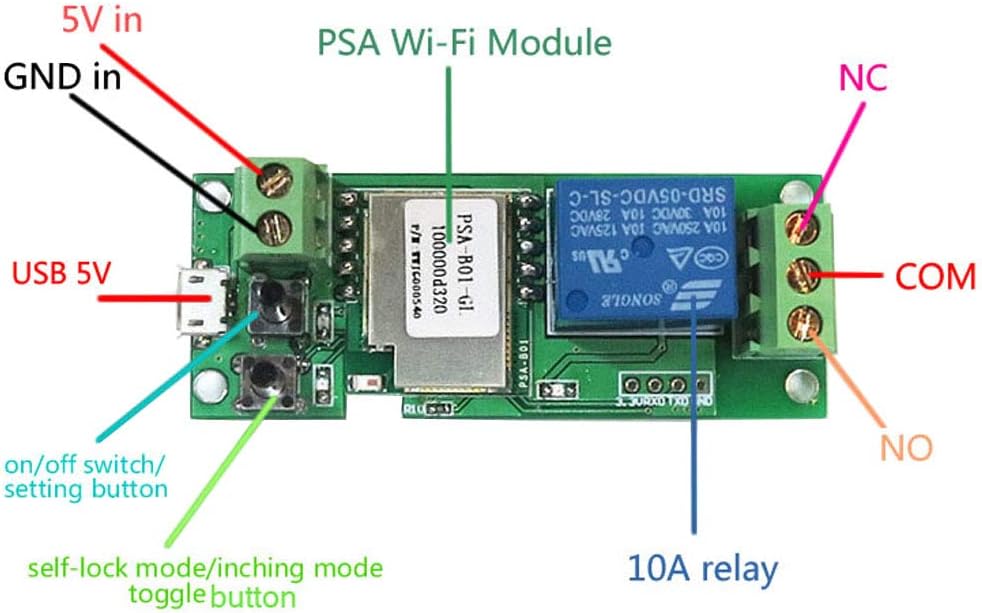
Image 3.1: Detailed diagram illustrating the components of the smart switch module, including the PSA Wi-Fi Module, 10A relay, USB 5V input, 5V/GND input terminals, on/off switch/setting button, self-lock mode/inching mode toggle button, and output terminals (NC, COM, NO).
Connection Points:
- USB 5V: Micro USB port for power input.
- +5V / GND: Screw terminals for alternative 5V DC power input.
- COM (Common): Common terminal for the relay output.
- NO (Normally Open): Normally open terminal. The circuit is open when the relay is off and closes when the relay is activated.
- NC (Normally Closed): Normally closed terminal. The circuit is closed when the relay is off and opens when the relay is activated.
- On/Off Switch/Setting Button: Used for manual control and pairing.
- Self-Lock Mode/Inching Mode Toggle Button: Used to switch between operating modes.
4. Setup
4.1 Powering the Module
Connect the module to a 5V DC power source using either the Micro USB port or the +5V and GND screw terminals. Ensure the power supply provides stable 5V DC.
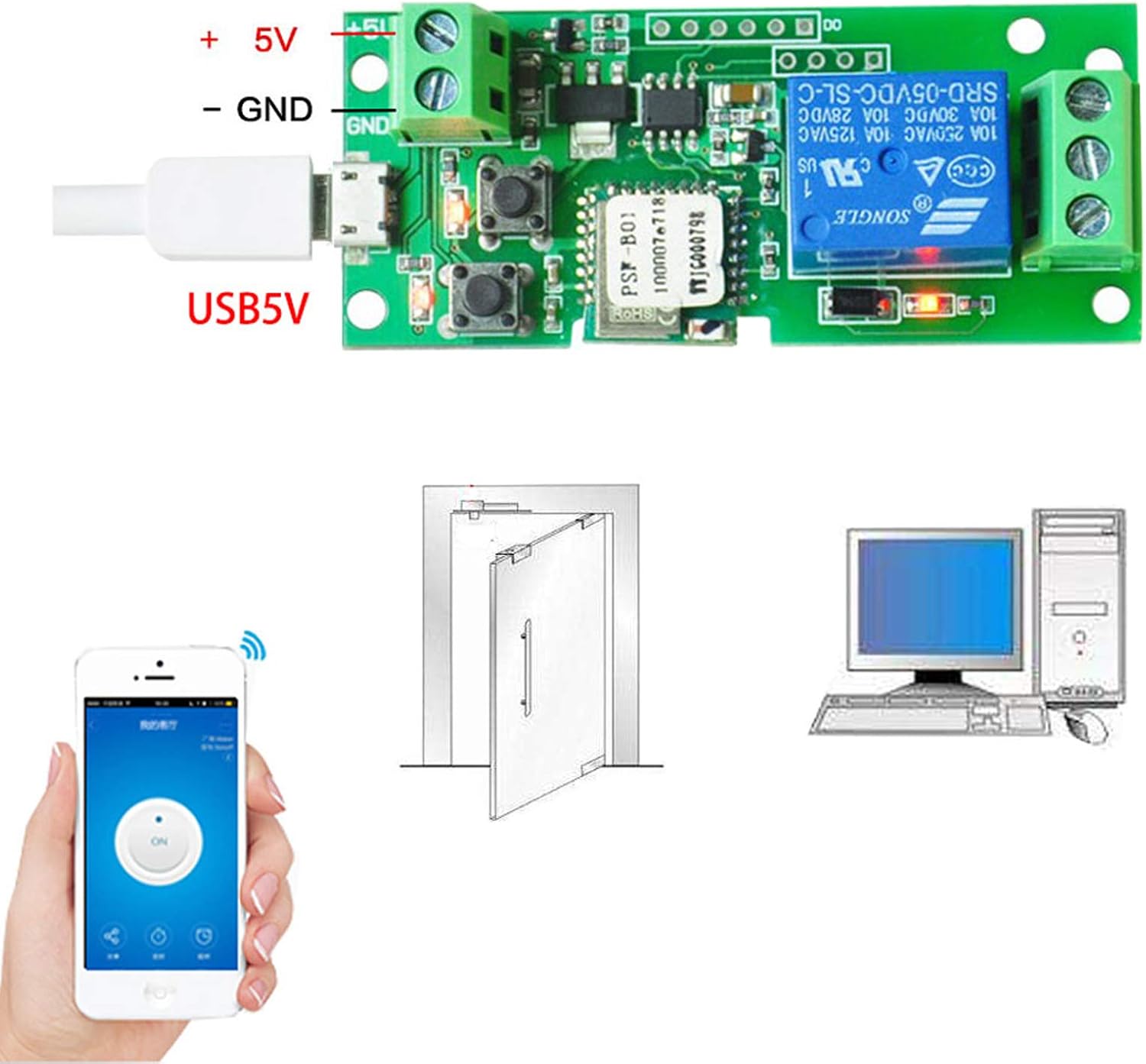
Image 4.1: The smart switch module powered via a USB 5V cable, illustrating the connection to the USB port and the alternative 5V/GND screw terminals.
4.2 App Installation
Download and install the eWeLink application on your smartphone. The app is available for both Android and iOS devices.
- Search for "eWeLink" in the Google Play Store (Android) or Apple App Store (iOS).
- Install the application and create an account if you do not already have one.
4.3 Wi-Fi Pairing
- Ensure your smartphone is connected to a 2.4GHz Wi-Fi network. The module does not support 5GHz networks.
- Open the eWeLink App and tap the "+" icon to add a new device.
- Follow the in-app instructions to put the device into pairing mode. This usually involves pressing and holding the on/off switch/setting button on the module until the LED indicator blinks rapidly.
- Select your 2.4GHz Wi-Fi network and enter the password in the app.
- The app will search for and connect to the module. Once connected, you can rename the device.
Important Wi-Fi Note: The Wi-Fi network name (SSID) and password should only contain English letters and numbers, without spaces or special characters. Only 2.4GHz Wi-Fi frequency is supported.
4.4 Wiring the Output
Connect the device you wish to control to the relay output terminals (COM, NO, NC). The choice between NO and NC depends on whether you want the circuit to be normally open or normally closed.
- Normally Open (NO) Configuration: Connect one wire from your device to COM and the other to NO. The circuit will be open (device off) by default and close (device on) when the relay is activated.
- Normally Closed (NC) Configuration: Connect one wire from your device to COM and the other to NC. The circuit will be closed (device on) by default and open (device off) when the relay is activated.
5. Operating Modes
The module supports two primary operating modes: Inching Mode and Self-Locking Mode. These modes determine how the relay behaves when activated.
5.1 Inching Mode
In Inching Mode, the relay activates for a brief, predetermined duration (e.g., 0.5 to 3600 seconds) and then automatically deactivates. This is suitable for momentary actions like triggering a garage door opener or a PC power button.

Image 5.1: Visual representation of Inching Mode. The top diagram shows a COM-NO circuit, where a brief activation turns on a light. The bottom diagram shows a COM-NC circuit, where a brief activation turns off a light.
5.2 Self-Locking Mode
In Self-Locking Mode, the relay toggles its state with each activation. One press turns the device on, and another press turns it off. This is ideal for controlling lights or other devices that require a continuous on/off state.

Image 5.2: Visual representation of Self-Locking Mode. The top diagram shows a COM-NO circuit, where activation switches the light on/off. The bottom diagram shows a COM-NC circuit, where activation switches the light off/on.
5.3 Switching Modes
Use the dedicated 'self-lock mode/inching mode toggle button' on the module to switch between these two modes. The current mode can also typically be configured within the eWeLink app.
6. Application Scenarios
This versatile module can be used in various smart home and DIY automation projects.

Image 6.1: Examples of how the smart switch module can be applied, including computer remote switching, access control systems, water pump control, and curtain automation.
- Garage Door Opener: Use inching mode to momentarily activate the garage door mechanism.
- PC Remote Power Switch: Connect to your computer's power button pins for remote power control.
- Access Control Systems: Integrate with electronic locks for remote access.
- Lighting Control: Use self-locking mode to turn lights on and off remotely.
- Water Pumps/Motors: Control small pumps or motors for irrigation or other tasks.
7. Specifications
| Specification | Value |
|---|---|
| Brand | Onyehn |
| Model Number | SG_B07GZJP5BK_US |
| Operating Voltage | 5V DC (via USB or screw terminals) |
| Current Rating | 10 Amps |
| Operating Mode | Inching / Self-Locking |
| Contact Type | Normally Open (NO), Normally Closed (NC) |
| Connector Type | USB, Wireless (Wi-Fi) |
| Terminal Type | Screw |
| Circuit Type | 1-way |
| Controller Type | Android, iOS (eWeLink App) |
| Connectivity Protocol | Wi-Fi (2.4GHz only) |
| Item Dimensions (L x W x H) | 5.91 x 3.94 x 0.39 inches |
| Item Weight | 1.58 ounces |
| Material | Copper (Contact Material) |
| International Protection Rating | IP65 |
8. Troubleshooting
- Device fails to connect to Wi-Fi:
- Ensure your Wi-Fi network is 2.4GHz. The module does not support 5GHz.
- Verify that your Wi-Fi network name (SSID) and password contain only English letters and numbers, without spaces or special characters.
- Move the module closer to your Wi-Fi router to improve signal strength.
- Temporarily disable 5GHz band on your router during pairing, if possible.
- For Android users: After connecting to the device's Wi-Fi network during pairing, confirm the connection if prompted by your phone (e.g., "Wi-Fi has no internet access. Stay connected?").
- Try resetting the module and attempting the pairing process again.
- Module disconnects frequently:
- Check the stability of your 5V power supply. Unstable power, especially from AC-derived DC sources, can affect Wi-Fi connectivity. Consider adding a capacitor (e.g., 1000uF 10V electrolytic) across the 5V input for power smoothing if experiencing issues with AC-DC adapters.
- Ensure the module is within good range of your Wi-Fi router.
- Relay not responding:
- Verify the module is powered on and connected to Wi-Fi (check LED indicator).
- Check the wiring to the COM, NO, and NC terminals for secure connections.
- Confirm the correct operating mode (Inching or Self-Locking) is selected for your application.
9. Maintenance
- Keep the module in a dry environment, away from moisture and extreme temperatures.
- Avoid exposing the module to direct sunlight or corrosive substances.
- Regularly check wiring connections to ensure they remain secure.
- Ensure the power supply is stable and within the specified 5V DC range.
- Periodically check for eWeLink app updates to ensure optimal performance and security.
Ask a question about this manual
Ask about setup, troubleshooting, compatibility, parts, safety, or missing instructions. Manuals+ will review the question and use this page’s manual context to help answer it.