
Introduction
Connect your Philips Hue Smart Play Light Bar Base Kit to a Hue Hub (sold separately) to control your lights with the Hue App, voice commands, or other Smart Home devices. This compact design offers a full light experience, allowing you to create a vibrant ambiance with 16 million colors and various light effects. The versatile design allows you to lay the light bars on the floor, stand them on a cabinet, or mount them behind your TV to illuminate your wall with light. Enhance your entertainment by syncing your lights to music or movies using the Hue Sync app. This base kit includes two light points, one power supply unit, two table stands, and two TV-mounting supports. A Hue Hub is required for the full Hue experience and voice activation capabilities.
What's in the Box
- 2x Philips Hue Play White & Color Ambiance Bar Lights, Black
- 1x Power Supply

Image: Included components of the Philips Hue Play Light Bar Base Kit.
Setup
Initial Connection
The Philips Hue Play Light Bars require a Philips Hue Bridge (sold separately) for full functionality, including automations, control from anywhere, and a stable connection. Ensure your Hue Bridge is set up and connected to your home network before proceeding.

Image: Connect the Philips Hue Bridge to unlock smart features.
Physical Placement
The versatile design of the Hue Play light bars allows for multiple placement options:
- Horizontal Placement: Lay the light bars flat on a surface, such as a cabinet or shelf, to cast light upwards or outwards.
- Vertical Placement: Use the included table stands to position the light bars vertically. This is ideal for accent lighting or illuminating corners.
- TV Mounting: Attach the light bars to the back of your TV using the provided TV-mounting supports and double-sided tape. This creates an immersive backlight effect that enhances your viewing experience.

Image: Light bar in vertical orientation.
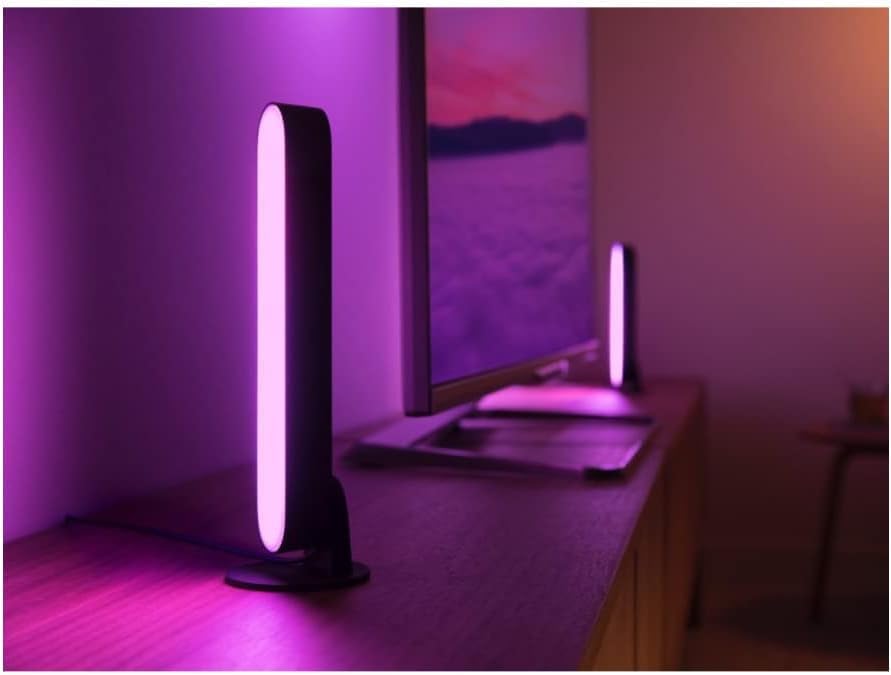
Image: Light bars mounted behind a TV for ambient backlighting.

Image: Light bars placed horizontally under a TV.
Power Connection
Connect each Play Light Bar to the provided power supply unit. The power supply unit is designed to accommodate up to three Play Light Bars, allowing for expansion if you purchase additional units. Plug the power supply unit into a standard electrical outlet.
App Download and Initial Setup
To control your Philips Hue Play Light Bars, download the Philips Hue app from your device's app store (available on Apple App Store and Google Play Store). Follow the in-app instructions to discover and add your new light bars to your Hue system.

Image: Download the Philips Hue app for control.
Operating
App Control
The Philips Hue app provides comprehensive control over your Play Light Bars. You can:
- Choose from 16 Million Colors: Select any color from the spectrum to match your mood or decor.
- Adjust Brightness: Dim or brighten your lights to the desired intensity.
- Set the Mood Instantly: Apply pre-set scenes or create your own custom lighting effects.

Image: Select your favorite scenes in the Hue app.
Voice Control
Integrate your Philips Hue Play Light Bars with popular voice assistants like Amazon Alexa and Google Assistant. Once set up in the Hue app, you can use simple voice commands to control your lights, such as turning them on/off, changing colors, or adjusting brightness.
Syncing with Media
For an immersive entertainment experience, sync your Play Light Bars with your movies, TV shows, or games using the Philips Hue Sync app (available for PC and Mac). The lights will dynamically change color and brightness to match the content on your screen, extending the ambiance beyond your display.
Video: Official Philips Hue video demonstrating light syncing with gaming and TV content for an immersive experience.

Image: Sync Philips Hue smart lights to media for immersive lighting experiences.
Automations
Set up routines, timers, and automations within the Hue app to personalize your lighting experience. For example, schedule your lights to turn on or off at specific times, or create custom routines for different activities throughout your day.

Image: Well-being lighting for your daily routine with Philips Hue.
Maintenance
To ensure the longevity and optimal performance of your Philips Hue Play Light Bars, follow these simple maintenance guidelines:
- Cleaning: Gently wipe the light bars with a soft, dry, lint-free cloth. Avoid using liquid cleaners, abrasive materials, or chemical solvents, as these can damage the finish or internal components.
- Power Supply: Ensure the power supply unit is placed in a well-ventilated area, away from excessive heat or moisture. Do not cover the power supply unit during operation.
- Storage: If storing the light bars for an extended period, disconnect them from power and store them in a cool, dry place.
Troubleshooting
Lights Not Responding
- Check Power: Ensure the light bars are securely connected to the power supply unit and the power supply is plugged into a working electrical outlet.
- Hue Bridge Connection: Verify that your Philips Hue Bridge is powered on, connected to your home router, and has a stable internet connection. Check the indicator lights on the Bridge.
- App Connection: Close and reopen the Philips Hue app. If using Bluetooth control, ensure Bluetooth is enabled on your device and you are within range of the light bars.
- Restart: Try unplugging the power supply unit for 10 seconds and then plugging it back in.
Color Inaccuracy or Flickering
- App Calibration: In the Hue app, navigate to the settings for your light bars and look for calibration options if available.
- Interference: Ensure there are no strong electromagnetic devices or Wi-Fi interference sources too close to the light bars or the Hue Bridge.
- Firmware Update: Check the Hue app for any available firmware updates for your light bars and Bridge.
Sync Issues with Media
- Hue Sync App: Ensure the Philips Hue Sync app is running on your PC or Mac and is properly connected to your entertainment area in the Hue app.
- Entertainment Area Setup: Verify that your light bars are correctly assigned to an entertainment area in the Hue app and their positions are accurately configured.
- Network Stability: A stable network connection is crucial for seamless syncing. Check your Wi-Fi signal strength.
Specifications
| Brand | Philips Hue |
| Model Name | Hue Play |
| Item Model Number | 7820230U7 |
| Color | Black |
| Material | Acrylic |
| Product Dimensions | 9.97"L x 1.74"W x 1.41"H |
| Item Weight | 1 pounds (454 Grams) |
| Power Source | Corded Electric |
| Wattage | 6.7 watts |
| Brightness | 530 Lumen |
| Control Method | Voice, App |
| Connectivity Protocol | Wi-Fi (via Hue Bridge) |
| Compatible Controllers | Apple HomeKit, Google Assistant, SmartThings, Amazon Alexa, Nest |
| Indoor/Outdoor Usage | Indoor |
Warranty and Support
This Philips Hue product comes with a limited warranty. For detailed warranty terms, conditions, and support resources, please refer to the official Philips Hue website or the documentation included with your purchase.
Additional resources:
- User Guide (PDF): Download Here
- User Manual (PDF): Download Here


