
1. Introduction
The Intel NUC 8 Mainstream Kit (NUC8i5BEK) is a compact, high-performance mini PC designed for a variety of computing tasks. This kit is built with an 8th Generation Intel Core i5 processor and features Intel Iris Plus Graphics 655, offering robust performance for productivity, entertainment, and light gaming. This manual provides essential information for setting up, operating, and maintaining your Intel NUC kit.
Please note that this is a kit and requires additional components such as RAM, storage (M.2 NVMe or SATA SSD), and an operating system to function.
2. Product Overview
The Intel NUC 8 Mainstream Kit is designed for easy assembly and integration into various environments. Below are images illustrating the device and its key components.
2.1. Device Appearance

Figure 1: Front view of the Intel NUC 8 Mainstream Kit (NUC8i5BEK). This image displays the compact size and overall design of the mini PC.
2.2. Front Panel Features

Figure 2: Detailed view of the front panel. It includes two USB 3.1 Gen2 Type-A ports (one yellow for charging), a 3.5mm audio jack (headphone/microphone combo), and the power button with an LED indicator. A small SD card slot is also visible on the side.
2.3. Rear Panel Features

Figure 3: Detailed view of the rear panel. This panel features the DC power input (19V), an HDMI port, a Gigabit Ethernet port, two additional USB 3.1 Gen2 Type-A ports, and a USB-C port with Thunderbolt 3 capabilities.
2.4. Internal Access
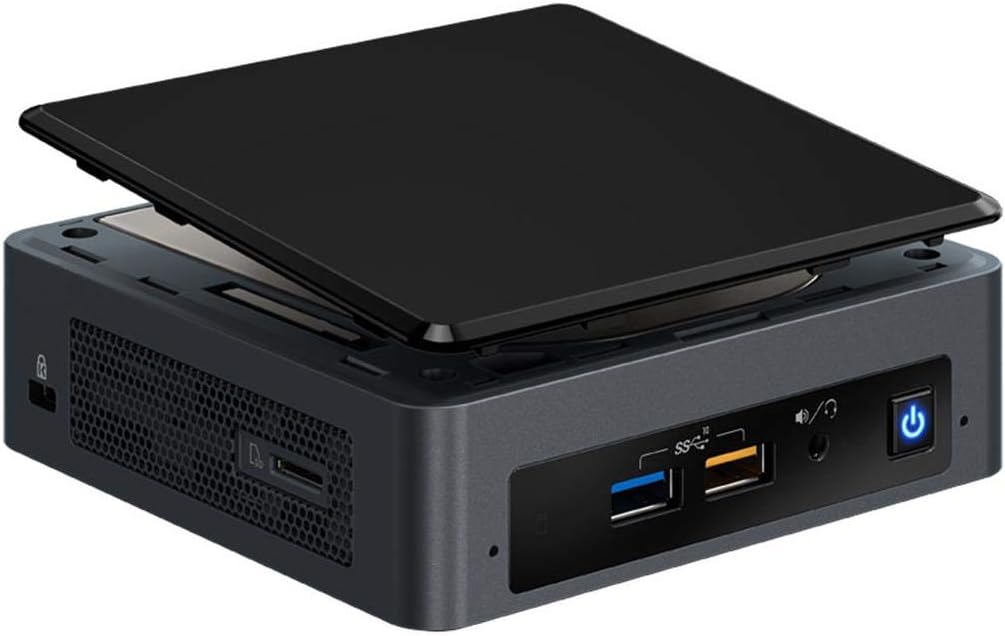
Figure 4: The Intel NUC with the top lid removed, illustrating access for installing internal components such as RAM and M.2 SSD. This design facilitates user upgrades and customization.
3. Setup
3.1. Unpacking the Kit
Verify that the following items are included in your package:
- Intel NUC Unit
- 19V Power Adapter
- VESA Mounting Plate
- Manual (this document)
3.2. Required Additional Components
To complete your Intel NUC system, you will need to acquire the following components separately:
- Memory (RAM): Dual channel DDR4 2400 SODIMM, up to 32GB maximum.
- Storage: M.2 22x42/80 slot for PCIe NVMe or SATA SSD.
- Operating System: Compatible with Windows 10 Home or other preferred operating systems.
3.3. Component Installation
Before proceeding, ensure the NUC is disconnected from the power adapter.
- Carefully remove the bottom cover or top lid of the NUC to access the internal slots. Refer to Figure 4 for visual guidance on accessing the interior.
- Install RAM: Insert the DDR4 SODIMM modules into the memory slots until they click into place.
- Install Storage: Insert the M.2 SSD into its designated slot and secure it with the provided screw.
- Replace the cover or lid, ensuring it is securely fastened.
3.4. Connecting Peripherals
- Connect your monitor to the HDMI port on the rear panel (Figure 3).
- Connect a keyboard and mouse to the available USB ports (front or rear panels).
- Connect the Ethernet cable to the Gigabit Ethernet port for wired network access, or ensure your wireless network is ready for setup.
- Plug the 19V power adapter into the DC input on the rear panel, then connect it to a power outlet.
3.5. Initial Power On and OS Installation
- Press the power button on the front panel (Figure 2). The power LED will illuminate.
- Follow the on-screen instructions to install your chosen operating system. You may need to boot from a USB drive containing the OS installation media.
- After OS installation, install the necessary drivers, which can typically be found on the Intel support website for your specific NUC model.
4. Operating
Once your Intel NUC is set up and the operating system is installed, you can begin using it for various tasks.
- General Use: The NUC is suitable for everyday computing, web browsing, office applications, and media consumption.
- 4K Ultra HD Support: With Intel Iris Plus Graphics 655, the NUC supports 4K Ultra HD video output, providing a high-quality viewing experience for movies and other content.
- Audio Features: Utilize the dual-array front microphones for voice commands and communication, compatible with features like Windows Cortana.
- Connectivity: Leverage the multiple USB 3.1 Gen2 ports for high-speed data transfer and peripheral connections. The USB-C port with Thunderbolt 3 offers versatile connectivity for external displays, storage, and other compatible devices.
5. Maintenance
Regular maintenance helps ensure the longevity and optimal performance of your Intel NUC.
- Cleaning: Periodically clean the exterior of the NUC with a soft, dry cloth. Ensure ventilation grilles are free from dust accumulation to maintain proper airflow. Do not use liquid cleaners directly on the device.
- Software Updates: Keep your operating system, drivers, and BIOS updated. Intel regularly releases driver updates to improve performance and stability.
- Environmental Conditions: Operate the NUC in a well-ventilated area, away from direct sunlight, excessive heat, and moisture.
6. Troubleshooting
If you encounter issues with your Intel NUC, consider the following basic troubleshooting steps:
- No Power: Ensure the power adapter is securely connected to both the NUC and a working power outlet. Test the outlet with another device.
- No Display: Verify that the monitor is properly connected to the NUC's HDMI port and is powered on. Try a different HDMI cable or monitor if available.
- System Instability: Ensure all internal components (RAM, SSD) are correctly seated. Check for and install any pending operating system or driver updates.
- Overheating: Ensure the NUC's ventilation grilles are not obstructed. Operate the device in a cool environment.
- Peripheral Issues: If a USB device is not recognized, try connecting it to a different USB port or restarting the NUC.
For more advanced troubleshooting or persistent issues, refer to the Intel support website or contact Intel customer support.
7. Specifications
Key technical specifications for the Intel NUC 8 Mainstream Kit (NUC8i5BEK):
| Feature | Specification |
|---|---|
| Processor | 8th Generation Intel Core i5-8259U (3.8 GHz) |
| Graphics | Intel Iris Plus Graphics 655 |
| Memory (RAM) | Dual channel DDR4 2400 SODIMM support, 32GB max |
| Storage | M.2 22x42/80 slot for PCIe NVMe or SATA SSD |
| Max Screen Resolution | 3840 x 2160 pixels |
| Wireless Type | 802.11a, 802.11b, 802.11g, 802.11n |
| USB Ports | 2x USB 2.0 (internal), Multiple USB 3.1 Gen2 (external), 1x USB-C with Thunderbolt 3 |
| Operating System | Windows 10 Home (or other compatible OS, user-installed) |
| Item Weight | 2.4 pounds |
| Product Dimensions | 6.1 x 5 x 4 inches |
| Model Number | NUC8i5BEK1 |
8. Warranty and Support
For information regarding product warranty, technical support, and additional resources, please visit the official Intel support website. You can find drivers, FAQs, and contact information for customer service there.
Intel Support Website: www.intel.com/support


