
1. Introduction
The Tenda W6-S is an N300 in-wall wireless access point designed to provide reliable Wi-Fi coverage in environments with densely divided rooms, such as hotels, villas, university dormitories, and hospitals. Its 86-type wall junction box design allows for seamless integration into existing wall outlets without disrupting decor. The W6-S supports Power over Ethernet (PoE) for simplified deployment, enabling both power and data transmission over a single Ethernet cable. This manual provides detailed instructions for the installation, configuration, and operation of your Tenda W6-S access point.
2. Product Overview
2.1 Key Features
- N300 Wireless Speed: Provides up to 300 Mbps on the 2.4 GHz frequency band for faster file transfers and smoother video streaming.
- In-Wall Design: Adopts an 86-type wall junction box design for discreet deployment in existing wall outlets.
- 802.3af PoE Compliant: Supports Power over Ethernet, allowing power and data to be transmitted via a single Ethernet cable, simplifying installation.
- Advanced Wireless Security: Offers multiple security mechanisms including 64/128-bit WEP, WPA-PSK, WPA2-PSK, WPA&WPA2-PSK, WPA, WPA2, MAC address-based access control, client isolation, and SSID isolation.
- VLAN Tagging for Multi-SSID: Configurable to broadcast up to two SSIDs, each taggable to a specific VLAN for different internet access rights.
- Easy Management: Can be managed by an AP Controller, allowing administrators to configure, manage, and monitor all online APs easily.
2.2 Product Diagram
Below is a front view of the Tenda W6-S Wireless Access Point, showcasing its compact and discreet design.

Figure 1: Front view of the Tenda W6-S Access Point. The device is white with the Tenda logo at the top and a blue Ethernet port visible at the bottom center.
The rear view illustrates the mounting mechanism and the LAN port for network connectivity.

Figure 2: Rear view of the Tenda W6-S Access Point. This image shows the back panel with the integrated mounting clips and a clearly labeled LAN port for network connection.
3. Package Contents
Please check the packaging for the following items:
- Tenda W6-S Wireless Access Point
- Quick Installation Guide
- Mounting Screws (if applicable)
If any item is missing or damaged, please contact your vendor or Tenda support.
4. Safety Information
- Do not open or attempt to repair the device.
- Keep the device away from water, fire, humidity, or hot environments.
- Use only the power source specified for this device (PoE 802.3af).
- Ensure proper ventilation around the device.
- Install the device according to local electrical codes and regulations.
5. Setup
5.1 Physical Installation (In-Wall Mounting)
The Tenda W6-S is designed for in-wall installation using a standard 86-type wall junction box. This ensures a clean and integrated appearance.
- Prepare the Wall Box: Ensure you have an existing 86-type wall junction box installed in your desired location. This box should have an Ethernet cable routed to it, connected to a PoE-enabled switch or injector.
- Connect Ethernet Cable: Connect the Ethernet cable from the wall box to the LAN port on the back of the W6-S.
- Mount the Device: Carefully insert the W6-S into the wall junction box. Secure it using the provided screws (if applicable) or by engaging its clips with the box. Ensure it sits flush with the wall surface.
- Verify Power: Once connected to a PoE source, the device should power on. Check the indicator lights (if any) for status.
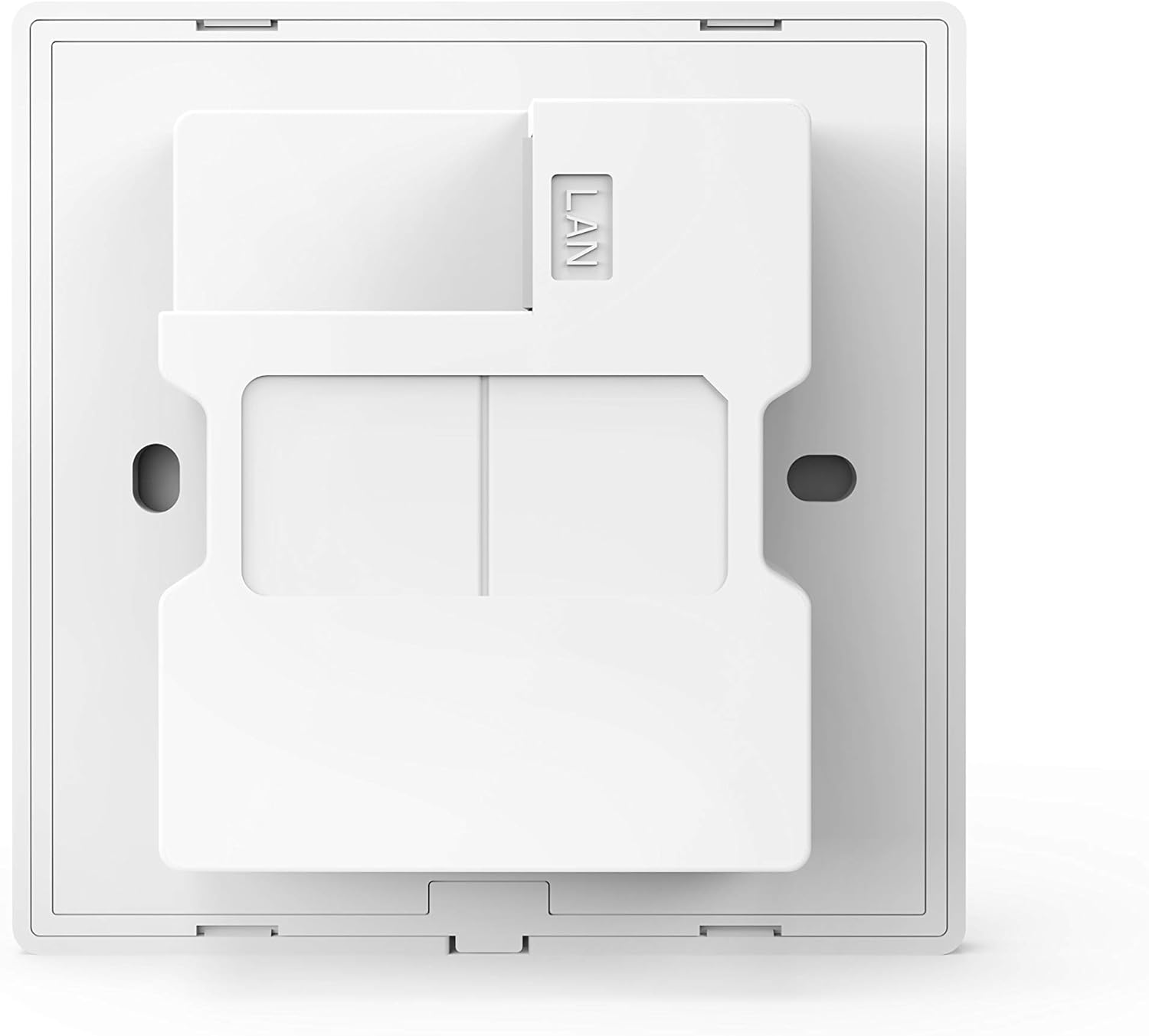
Figure 3: Detailed rear view of the Tenda W6-S, highlighting the mounting points and the LAN port for in-wall installation.
5.2 Power over Ethernet (PoE) Connection
The W6-S supports IEEE 802.3af Power over Ethernet. This means it can receive both power and data through a single Ethernet cable from a compatible PoE switch or PoE injector. This eliminates the need for a separate power adapter, simplifying installation and reducing cable clutter.
- Connect the Ethernet cable from your PoE switch/injector to the LAN port of the W6-S.
- Ensure your PoE source is active and providing power according to the 802.3af standard.
5.3 Initial Configuration
The Tenda W6-S is designed to be easily managed, especially in multi-AP deployments, through a central AP Controller. For initial setup and configuration, it is recommended to use the Tenda AP Controller software.
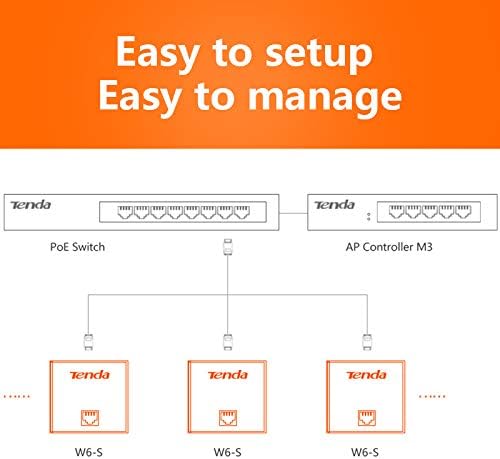
Figure 4: Network diagram illustrating the setup of multiple Tenda W6-S units connected to a PoE switch and managed by an AP Controller (e.g., AP Controller M3).
- Connect to Network: Ensure the W6-S is physically installed and powered via PoE, and connected to the same network as your AP Controller.
- Install AP Controller: Install the Tenda AP Controller software on a computer within the same network segment.
- Discover Devices: Launch the AP Controller software. It should automatically discover the W6-S access point(s) on the network.
- Configure Settings: Use the AP Controller interface to configure wireless settings such as SSID, security, VLANs, and other advanced features. Refer to the AP Controller's user manual for detailed configuration steps.
6. Operating
6.1 Wireless Network Configuration
Once configured via the AP Controller, the W6-S will broadcast its wireless network(s). Users can connect to these networks using their wireless-enabled devices.
- SSID (Network Name): The name of your wireless network.
- Security Type: WPA2-PSK is recommended for optimal security.
- Wireless Password: The key required to connect to the wireless network.
6.2 VLAN Tagging for Multi-SSID
The W6-S supports VLAN tagging, allowing you to create multiple virtual wireless networks (SSIDs) and assign each to a different VLAN. This is useful for segmenting network traffic, for example, providing separate internet access for guests and staff.

Figure 5: Conceptual diagram showing how VLAN tagging can be used with multiple SSIDs (e.g., 'Hotel Customer' and 'Hotel Office') to provide segregated network access.
- Up to two SSIDs can be broadcast by the W6-S.
- Each SSID can be associated with a specific VLAN ID.
- This requires a network infrastructure (e.g., a managed switch) that supports VLANs.
6.3 Advanced Wireless Security
To protect your network from unauthorized access and ensure data privacy, the W6-S offers robust security features:
- Encryption: Supports WEP (64/128-bit), WPA-PSK, WPA2-PSK, and WPA/WPA2-PSK. WPA2-PSK is recommended.
- MAC Address Filtering: Allows you to specify which devices can connect based on their unique MAC addresses.
- Client Isolation: Prevents wireless clients from communicating with each other, enhancing security in public Wi-Fi environments.
- SSID Isolation: Isolates different SSIDs from each other, further segmenting network access.
7. Maintenance
7.1 Firmware Updates
Periodically check the Tenda official website (www.tenda.com.cn) for the latest firmware updates. Firmware updates can improve performance, add new features, and fix bugs. Follow the instructions provided with the firmware update package carefully.
7.2 Cleaning
To clean the device, use a soft, dry cloth. Do not use liquid or aerosol cleaners. Ensure the device is powered off before cleaning.
8. Troubleshooting
- No Power: Ensure the Ethernet cable is securely connected to a functional 802.3af PoE source. Check the PoE switch/injector status.
- No Wi-Fi Signal: Verify that the device is powered on and configured correctly via the AP Controller. Check for any physical obstructions.
- Cannot Access AP Controller: Ensure the AP Controller software is running and the computer is on the same network as the W6-S. Check network connectivity.
- Slow Wi-Fi Speed: Check for interference from other wireless devices. Ensure the W6-S is placed optimally. Verify network bandwidth from your ISP.
- Forgotten Password: If you forget the administrative password, you may need to perform a factory reset. Refer to the AP Controller manual or Tenda support for specific instructions, as this will erase all configurations.
9. Specifications
| Feature | Specification |
|---|---|
| Brand | Tenda |
| Model Number | W6-S-EU |
| Wireless Standard | IEEE 802.11b/g/n |
| Wireless Speed | Up to 300 Mbps (2.4 GHz) |
| Ethernet Port | 1 x 10/100 Mbps LAN (PoE) |
| PoE Standard | IEEE 802.3af |
| Mounting | 86-type Wall Junction Box |
| Security | WEP, WPA-PSK, WPA2-PSK, WPA&WPA2-PSK, WPA, WPA2, MAC Filtering, Client/SSID Isolation |
| Special Features | Kit support |
| Color | White |
10. Warranty and Support
For warranty information and technical support, please refer to the warranty card included with your product or visit the official Tenda website:
You can find FAQs, driver downloads, and contact information for customer service on their website.


