
1. Introduction
This manual provides instructions for the proper setup, operation, and maintenance of your Acer B247Y 23.8-inch LED LCD Monitor. Please read this manual thoroughly before using your monitor to ensure optimal performance and to prevent damage.
The Acer B247Y is a 23.8-inch Full HD (1920 x 1080) monitor featuring an IPS panel for wide viewing angles, an anti-glare display, and a frameless design on three sides. It includes multiple connectivity options and an ergonomic stand for comfortable viewing.
2. Package Contents
Verify that all items are present in your package. If any items are missing or damaged, contact your retailer.
- Acer B247Y 23.8-inch LED LCD Monitor
- Monitor Stand (Base and Neck)
- Power Adapter (Internal) and Power Cable
- VGA Cable
- DisplayPort 1.2 Cable
- HDMI Cable
- Audio-in Cable (if included)
- Audio-out Cable (if included)
- User Manual (this document)
3. Setup
3.1 Assembling the Monitor Stand
The monitor comes with a detachable foot stand. Follow these steps to assemble:
- Carefully remove the monitor and stand components from the packaging.
- Attach the stand neck to the monitor panel. Ensure it clicks securely into place.
- Attach the stand base to the stand neck. Tighten any screws if provided, usually located on the underside of the base.
- Place the assembled monitor on a stable, flat surface.
Note: The monitor also supports VESA mount (100 x 100 mm) for wall or arm mounting. Refer to your VESA mount kit instructions for installation.
3.2 Connecting the Monitor
Connect the monitor to your computer or other devices using the appropriate cables.
- Video Connection:
- Connect one end of the DisplayPort cable to the DisplayPort output on your computer and the other end to the DisplayPort input on the monitor.
- Alternatively, connect an HDMI cable from your computer's HDMI output to the monitor's HDMI input.
- For older systems, connect a VGA cable from your computer's VGA output to the monitor's VGA input.
- Audio Connection:
- If using VGA or DisplayPort without audio, connect an audio cable from your computer's audio output to the monitor's audio-in port for integrated speakers.
- To connect external speakers or headphones, use the monitor's audio-out port.
- Power Connection:
- Connect the power cable to the monitor's power input, then plug the other end into a grounded electrical outlet.

Figure 3.2.1: Acer B247Y Monitor with Stand. This image illustrates the overall appearance of the monitor when fully assembled on its stand.
4. Operating Instructions
4.1 Powering On/Off
Press the power button, usually located on the bottom right or rear of the monitor, to turn the monitor on or off. The power indicator light will illuminate when the monitor is on.
4.2 Adjusting Monitor Settings (OSD)
The monitor features an On-Screen Display (OSD) menu for adjusting various settings. Use the control buttons (typically located near the power button) to navigate and select options within the OSD menu.
Common OSD settings include:
- Picture: Brightness, Contrast, Color Temperature, Gamma, Acer eColor Management modes (e.g., Dark Room, Eco).
- Audio: Volume control for integrated speakers or audio-out.
- Input: Select the active video input source (VGA, DisplayPort, HDMI).
- OSD: OSD timeout, language.
- Management: Reset to factory defaults.
4.3 Ergonomic Adjustments
The Acer B247Y monitor stand offers several ergonomic adjustments to optimize your viewing experience:
- Tilt: Adjust the screen angle from -5 degrees to 25 degrees (forward/backward).
- Swivel: Rotate the monitor horizontally up to +/- 45 degrees.
- Height Adjustment: Adjust the screen height by up to 120mm.
- Pivot: Rotate the screen 90 degrees for portrait viewing.
5. Maintenance
Proper maintenance ensures the longevity and optimal performance of your monitor.
- Cleaning the Screen: Gently wipe the screen with a soft, lint-free cloth. For stubborn marks, dampen the cloth with a small amount of water or a non-abrasive screen cleaner. Do not spray liquid directly onto the screen.
- Cleaning the Casing: Use a soft, dry cloth to clean the monitor casing. Avoid using strong detergents or abrasive cleaners.
- Ventilation: Ensure the ventilation openings on the monitor are not blocked to prevent overheating.
- Power Off: Always turn off the monitor and unplug it from the power outlet before cleaning or when not in use for extended periods.
6. Troubleshooting
If you encounter issues with your monitor, refer to the following common troubleshooting steps:
- No Power / Monitor Does Not Turn On:
- Ensure the power cable is securely connected to both the monitor and a working electrical outlet.
- Verify the power outlet is functional by plugging in another device.
- Press the power button firmly.
- No Image / "No Signal" Message:
- Check that the video cable (DisplayPort, HDMI, or VGA) is securely connected to both the monitor and your computer.
- Ensure your computer is powered on and not in sleep mode.
- Use the OSD menu to manually select the correct input source.
- Try a different video cable or port if available.
- Image is Distorted or Unclear:
- Ensure the display resolution on your computer is set to the monitor's native resolution (1920 x 1080).
- Adjust brightness, contrast, and other picture settings via the OSD menu.
- Check for any physical damage to the screen or cables.
- No Sound from Speakers:
- Increase the volume using the OSD menu or your computer's sound settings.
- Ensure the audio cable (if used) is properly connected.
- Verify that the correct audio output device is selected in your computer's sound settings.
7. Specifications
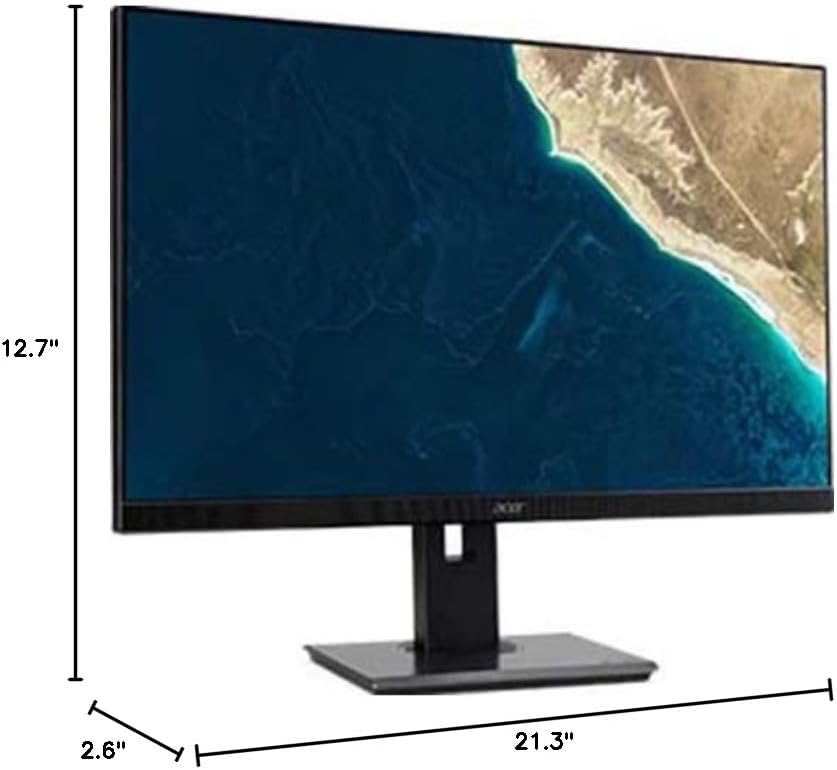
Figure 7.1.1: Acer B247Y Monitor Dimensions. This image shows the approximate height (12.7"), width (21.3"), and depth (2.6") of the monitor without the stand.
| Feature | Specification |
|---|---|
| Model Number | B247Y |
| Screen Size | 23.8 inches (60.5 cm) |
| Display Type | LED LCD, IPS Panel, Anti-glare (AG) |
| Maximum Resolution | 1920 x 1080 (Full HD) |
| Aspect Ratio | 16:9 |
| Refresh Rate | 75 Hz |
| Response Time | 4ms (gray-to-gray) |
| Brightness (typical) | 250 cd/m² |
| Native Contrast Ratio | 1,000:1 |
| Dynamic Contrast Ratio | 100,000,000:1 |
| Viewing Angles (H/V) | 178° / 178° |
| Connectivity | VGA, DisplayPort 1.2, HDMI, Audio-in, Audio-out |
| Integrated Speakers | 2 x 2.0W |
| Ergonomic Adjustments | Tilt (-5° to 25°), Swivel (+/- 45°), Height Adjustment (120mm), Pivot (90°) |
| VESA Mount Support | 100 x 100 mm |
| Dimensions with Stand (W x H x D) | 21.3" x 14.9"~19.6" x 7.6" (54.0cm x 37.9cm~49.9cm x 19.3cm) |
| Weight with Stand | 12.3 lb. (5.6 kg) |
| Power Adapter | Internal |
| Color | Black |
8. Warranty and Support
Your Acer B247Y monitor comes with a Limited Three-Year Warranty. Please retain your proof of purchase for warranty claims.
For technical support, service, or warranty inquiries, please refer to the official Acer support website or contact their customer service department. Contact information can typically be found on the Acer website or in the warranty card included with your product.
Kensington Lock: The monitor supports a Kensington lock for security. Attach a compatible Kensington lock (sold separately) to the security slot on the monitor to deter theft.


