
1. Introduction and Overview
This manual provides detailed instructions for the installation, operation, and maintenance of your XTRONS TM100L car stereo. The TM100L is an advanced in-car entertainment system featuring Android 8.1 Oreo, an Octa Core processor, and a 10.1-inch rotatable touch display. It offers a comprehensive suite of features designed to enhance your driving experience.
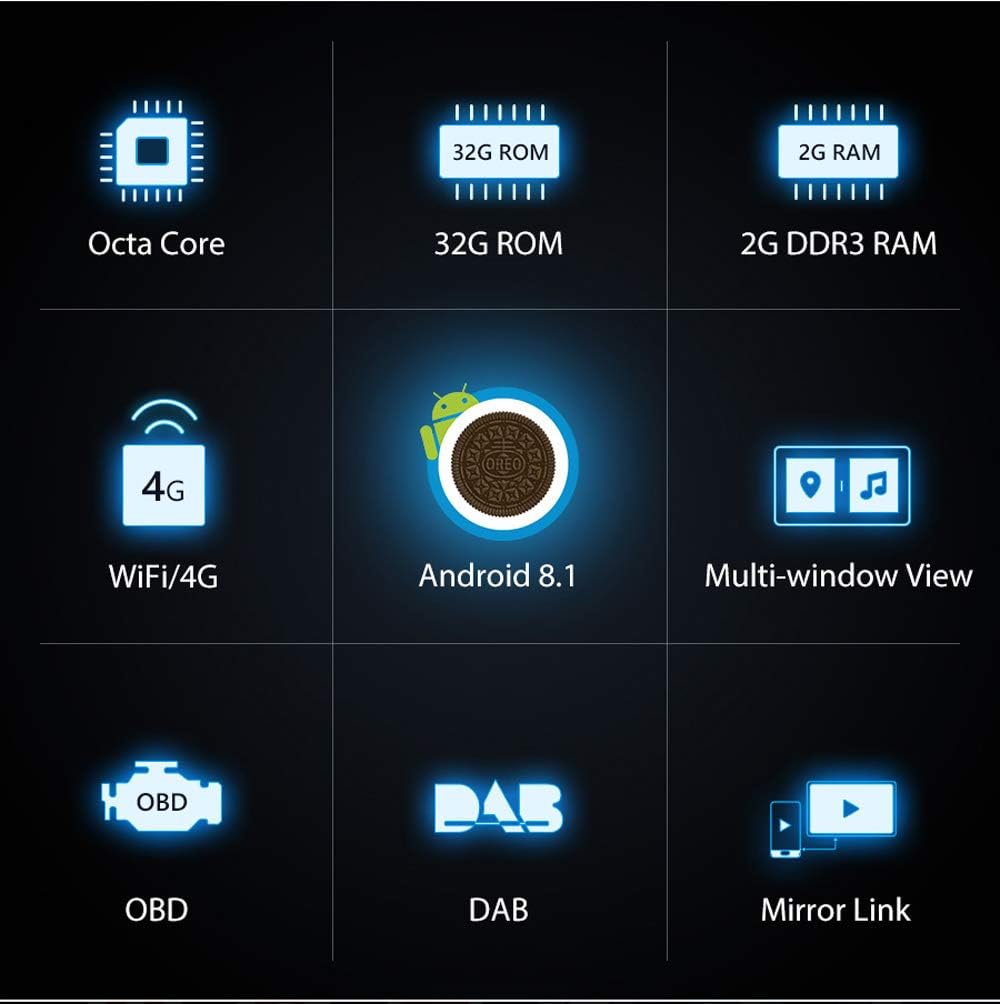
Image: Overview of the XTRONS TM100L's core features.
2. Product Features
- Operating System: Android 8.1 Oreo for improved compatibility and features.
- Processor & Memory: Powerful Octa Core Processor with 2GB DDR3 RAM and 32GB ROM for quick app launches and smooth performance.
- Display: 10.1-inch (1024x600 resolution) sensitive and intuitive touch screen with 2.5D curved glass edging. Supports 4K video playback.
- Rotatable Face Panel: Adjustable panel that can be rotated from 0° to 90° horizontally and 0° to 30° vertically for optimal viewing angles.
- Connectivity: Built-in Wi-Fi, supports optional 3G/4G dongle for internet access.
- Bluetooth 5.0: For hands-free calls and audio streaming, including phonebook access and call logs.
- Navigation: Built-in GPS, compatible with various Android navigation software (e.g., iGo, Google Maps).
- Radio Tuner: Built-in FM/AM tuner with 18 FM and 12 AM station presets. DAB+ tuner ready (optional receiver required).
- Multi-Window View: Run two applications side-by-side on the screen.
- Screen Mirroring: Connect your smartphone (Android USB, Android WiFi, iPhone WiFi) to display content directly on the head unit.
- OBD2 Support: Diagnose car status with an optional OBD2 device.
- DVR Input: Dedicated input for an optional DVR to record driving events.
- Multi-Color Buttons: Customizable button illumination to match your vehicle's interior.
- Front and Rear Camera Input: Supports external front and reversing cameras for enhanced safety.

Image: The XTRONS TM100L with its rotatable face panel, offering flexible viewing angles.

Image: The unit's display showcasing its 4K video playback capability.
Video: An overview of the XTRONS TM100L car stereo, highlighting its key features and functionalities.
3. What's in the Box
The XTRONS TM100L package includes the following components:
- 1 x XTRONS TM100L Head Unit
- 1 x ISO Wiring Harness
- 1 x GPS Antenna
- 1 x User Manual
- 2 x Fitting Kits
- 6 x Screws
- 1 x RCA Cable
- 1 x USB Cable

Image: All components included in the XTRONS TM100L product package.
4. Installation
The XTRONS TM100L is designed for universal fit in both single DIN and double DIN dashboard slots. A universal fitting kit is included. For single DIN installations, an optional fitting cage (XTRONS FRA002) may be required.
4.1. Preparing for Installation
- Ensure the vehicle's ignition is off and the battery is disconnected before starting installation.
- Identify the appropriate dashboard slot (single DIN or double DIN) in your vehicle.
- Gather all necessary tools, including screwdrivers, wire strippers, and electrical tape.
4.2. Connecting the Face Panel
- Connect the flat cable of the face panel with the head unit. Pinch the clip to unplug the cable when removing the face panel.
- Use both hands to pull the two clips (A, B) to both sides.
- Make the face panel back side get through the head unit's holder from top.
- Installation of the face panel is completed.

Image: The XTRONS TM100L is compatible with both single and double DIN slots.
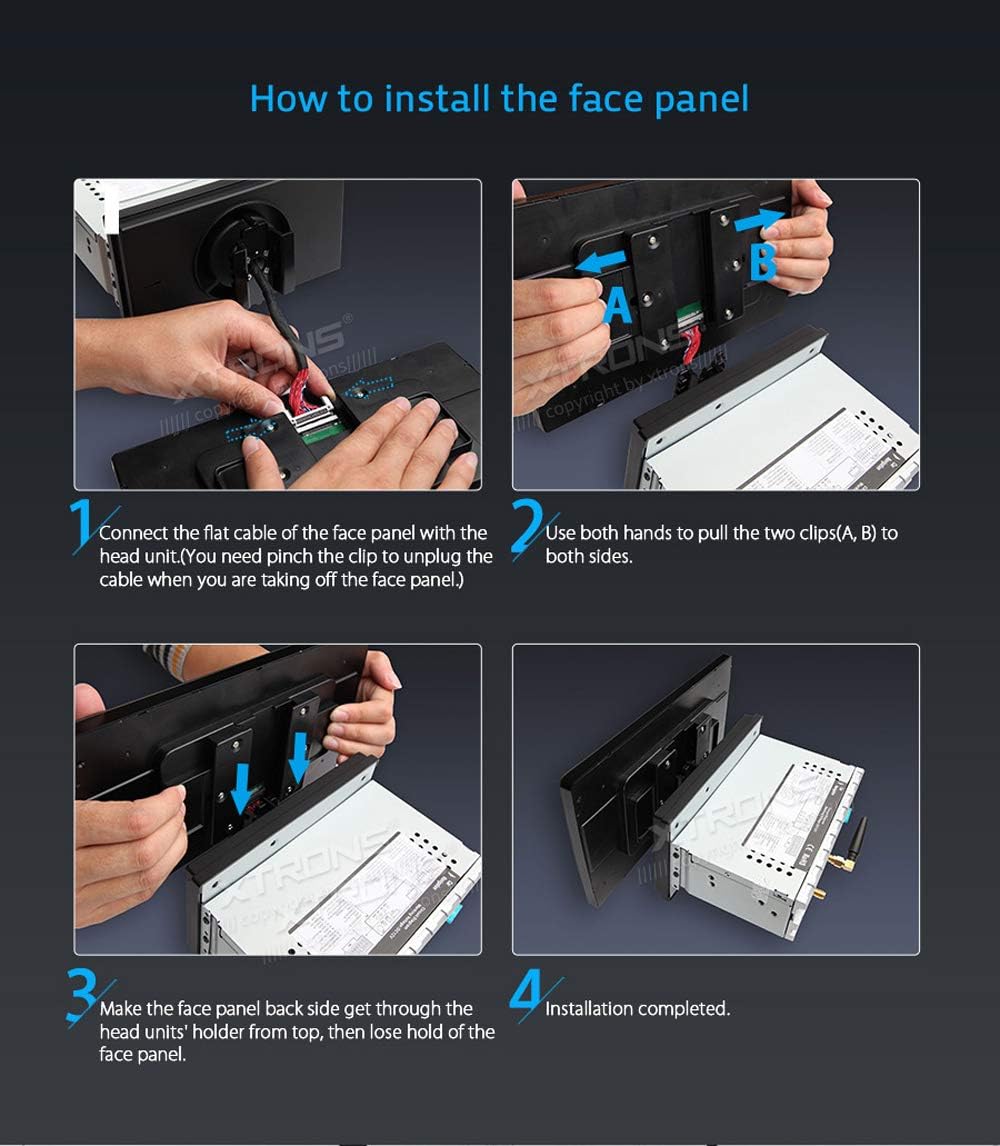
Image: Instructions for installing the rotatable face panel.
4.3. Dimensions

Image: Physical dimensions of the XTRONS TM100L unit.
5. Setup
5.1. Initial Power-On
- After successful installation, turn on your vehicle's ignition. The unit should power on automatically.
- Follow the on-screen prompts for initial setup, including language selection, time zone, and date.
5.2. Wi-Fi / 4G Connection
- Navigate to 'Settings' > 'Network & Internet' > 'Wi-Fi'.
- Select your desired Wi-Fi network and enter the password to connect.
- If using an optional 3G/4G dongle, ensure it is properly connected and configured according to its specific instructions.
5.3. Bluetooth Pairing
- Go to 'Settings' > 'Connected devices' > 'Bluetooth'.
- Enable Bluetooth on both the car stereo and your mobile device.
- Search for available devices on your mobile phone and select 'CarKit' (or similar device name) to pair.
- Enter the PIN (default is '0000') if prompted.
6. Operating Instructions
6.1. Navigation
The unit features built-in GPS and supports various Android navigation applications. Access the 'Navi' icon on the home screen to launch your preferred navigation software. Ensure the GPS antenna is properly installed for optimal signal reception.
6.2. Media Playback
- Music: Tap the 'Music' icon to play audio files from internal storage, USB drives, or SD cards.
- Video: Tap the 'Video' icon to play video files. The unit supports 4K video playback for high-quality viewing.
- USB/SD Card: Insert your USB stick or SD card into the designated ports to access media files.
6.3. Radio
Access the 'Radio' icon to use the built-in FM/AM tuner. You can scan for stations, save presets, and utilize RDS functions where available. For digital radio, connect an optional DAB+ receiver via USB and access it through the 'DAB+' app.
6.4. Screen Mirroring
The screen mirroring function allows you to display your smartphone's screen directly on the head unit. Connect your Android phone via USB or Wi-Fi, or your iPhone via Wi-Fi, and follow the on-screen instructions in the 'EasyConnection' app. This enables viewing messages, videos, and playing games safely on the larger display.
6.5. Multi-Window View
To use the multi-window view, open two desired applications. Then, use the recent apps button (usually a square icon) and drag one app to one side of the screen and the other app to the opposite side. This allows for simultaneous operation, such as navigating while listening to music.
6.6. Steering Wheel Control
The unit is compatible with existing steering wheel controls in most vehicles. Access the 'Steering Wheel' app in the main menu to configure and map your vehicle's steering wheel buttons to control functions like volume, track skipping, and hands-free calling.
6.7. Car Information Display (OBD2)
With an optional OBD2 diagnostic tool connected via Bluetooth, you can monitor various car information such as engine status, oil level, door status, and more. Use compatible apps like 'Torque' to display this data on the head unit.
6.8. DVR Input
Connect an optional XTRONS DVR (Dedicated Journey Recorder) to the unit's USB port. This allows you to record and capture live events while driving, providing an additional layer of security. Access the DVR functionality through the dedicated app on the head unit.
7. Maintenance
7.1. Cleaning
- Use a soft, dry cloth to clean the screen and exterior of the unit.
- Avoid using abrasive cleaners, solvents, or chemical sprays, as these can damage the surface.
7.2. Software Updates
Periodically check the official XTRONS website for available software or firmware updates. Updates can improve performance, add new features, and resolve potential issues. Follow the provided instructions carefully when performing updates.
8. Troubleshooting
If you encounter issues with your XTRONS TM100L, consider the following basic troubleshooting steps:
- No Power: Check all power connections and ensure the vehicle's ignition is on. Verify the fuse is intact.
- No Sound: Check speaker connections, volume levels, and audio source selection.
- GPS Signal Loss: Ensure the GPS antenna is securely connected and has a clear view of the sky.
- Bluetooth Connection Issues: Ensure Bluetooth is enabled on both devices and try re-pairing.
- Touchscreen Unresponsive: Try restarting the unit. If the issue persists, a factory reset might be necessary (note: this will erase all user data).
- App Malfunction: Try clearing the app's cache or reinstalling the app.
For more detailed troubleshooting or persistent issues, refer to the comprehensive user manual included with your product or visit the XTRONS support website.
9. Specifications
| Feature | Specification |
|---|---|
| Item Model Number | TM100L |
| Operating System | Android 8.1 Oreo |
| Processor | Octa Core |
| RAM | 2GB DDR3 |
| ROM | 32GB |
| Display Size | 10.1 inches |
| Display Resolution | 1024x600 |
| Video Support | 4K Video |
| Connectivity Technology | Bluetooth, USB, Wi-Fi |
| Bluetooth Version | 5.0 |
| Audio Output Mode | Stereo |
| Number of Channels | 4 |
| Output Wattage | 50 Watts |
| Item Weight | 3.75 pounds |
| Package Dimensions | 13.4 x 9.2 x 8.4 inches |
| Date First Available | August 14, 2018 |
10. Warranty and Support
For warranty information, please refer to the warranty card included in your product packaging or visit the official XTRONS website. For technical support, product registration, or further assistance, please contact XTRONS customer service through their official channels.
Official XTRONS Website: www.xtrons.com


