
Introduction
The Logitech G304 Lightspeed Wireless Gaming Mouse is engineered for high performance and reliability, featuring the advanced HERO sensor and LIGHTSPEED wireless technology. This manual provides detailed instructions for setting up, operating, maintaining, and troubleshooting your G304 mouse to ensure optimal performance.
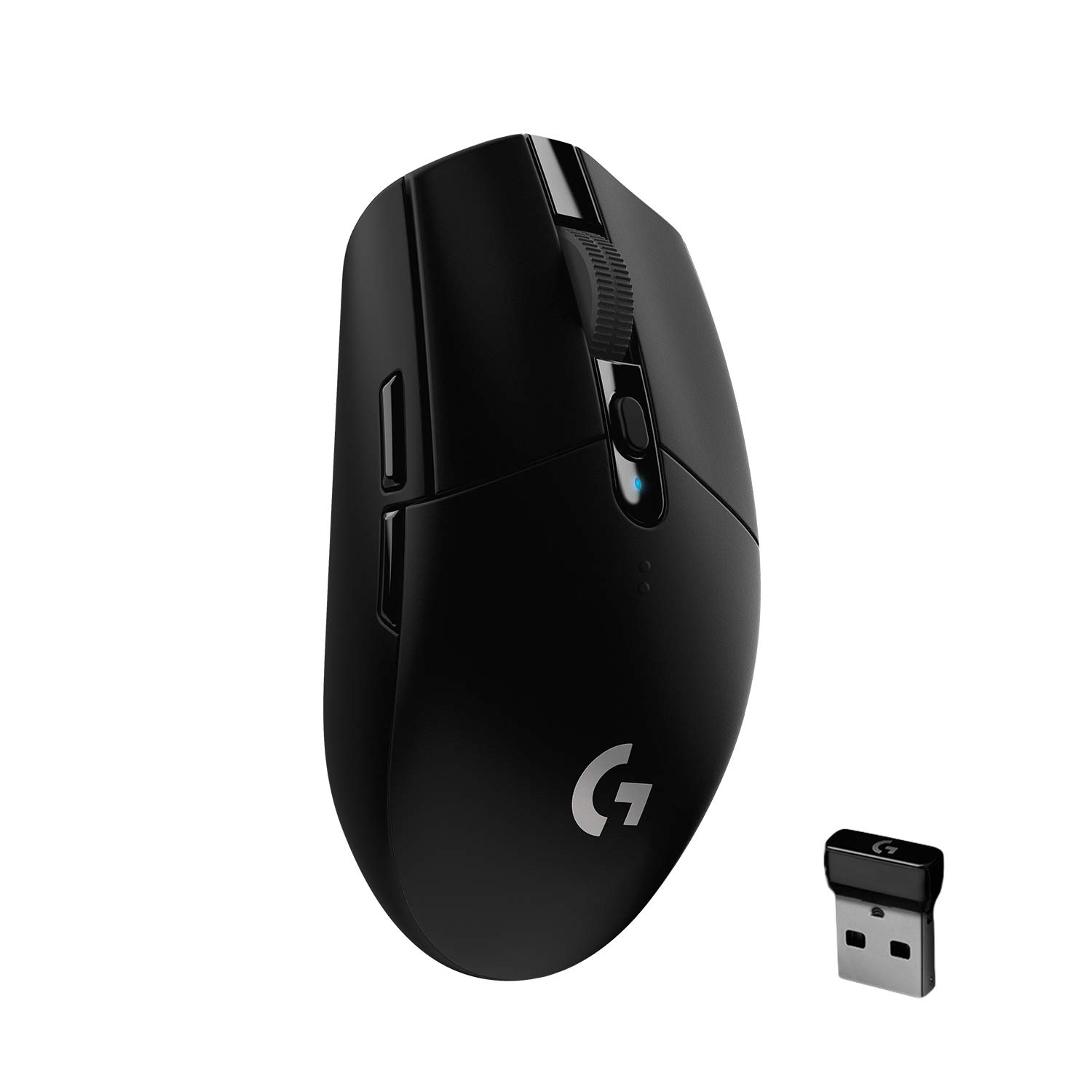
Figure 1: Logitech G304 Lightspeed Wireless Gaming Mouse with its USB receiver.
Package Contents
Verify that all items are present in your product packaging:
- Logitech G304 Lightspeed Wireless Gaming Mouse
- LIGHTSPEED USB Nano Receiver
- AA Battery
- User Documentation (this manual)
Setup
- Insert Battery: Open the top cover of the mouse by gently lifting it from the rear. Insert the provided AA battery into the battery compartment, ensuring correct polarity. Close the cover securely.

Figure 2: Battery compartment and insertion of AA battery.
- Connect USB Receiver: Plug the LIGHTSPEED USB Nano Receiver into an available USB port on your computer. For optimal signal strength, use a port that is not obstructed.
- Power On: Locate the power switch on the underside of the mouse and slide it to the ON position. The mouse will automatically attempt to connect to the USB receiver.
- Install Logitech G HUB Software (Recommended): For full customization and advanced features, download and install the Logitech G HUB software from the official Logitech website. This software allows you to customize DPI settings, program buttons, and manage profiles.
Note: The mouse is plug-and-play for basic functionality without the software.
Operating Instructions
The Logitech G304 is designed for intuitive use with its six programmable buttons and high-precision sensor.
- Basic Functionality: The left and right-click buttons, scroll wheel, and side buttons function as standard mouse controls.
- DPI Adjustment: The button located below the scroll wheel allows for on-the-fly DPI (Dots Per Inch) adjustment. Default DPI settings can be cycled through by pressing this button. Custom DPI levels can be configured via the Logitech G HUB software.

Figure 3: The HERO sensor provides precise tracking up to 12,000 DPI.
- LIGHTSPEED Wireless Technology: The mouse utilizes Logitech's LIGHTSPEED wireless technology for a 1ms report rate, ensuring a lag-free and responsive gaming experience.

Figure 4: LIGHTSPEED wireless technology ensures ultra-fast response times.
- Programmable Buttons: The G304 features 6 programmable buttons. These can be assigned various functions, macros, or key binds using the Logitech G HUB software.

Figure 5: Location of the 6 programmable buttons on the G304 mouse.
- Button Tensioning System: The primary left and right buttons feature a metal spring tensioning system for crisp, clean clicks with minimal force.

Figure 6: Metal spring button tensioning system for consistent clicks.
Battery Management
The G304 is designed for extended battery life, operating on a single AA battery.
- Battery Life: Expect up to 250 hours of continuous gameplay in Performance mode (1ms report rate). In Endurance mode (8ms report rate), battery life can extend up to 9 months.

Figure 7: The G304 offers ultra-long battery life on a single AA battery.
- Battery Indicator: The mouse features a battery indicator light that flashes red when approximately 15% battery life remains, signaling that the battery needs replacement soon.
- Battery Type: Uses one standard AA battery.
Maintenance
Proper maintenance ensures the longevity and optimal performance of your G304 mouse.
- Cleaning: Use a soft, dry, lint-free cloth to wipe the surface of the mouse. For stubborn dirt, slightly dampen the cloth with water. Avoid using harsh chemicals or abrasive materials.
- Sensor Cleaning: Occasionally inspect the optical sensor on the underside of the mouse for dust or debris. Use a can of compressed air to gently clear any obstructions. Do not insert objects into the sensor opening.
- Storage: When not in use for extended periods, store the mouse in a clean, dry environment. Consider removing the AA battery if storing for several months to prevent potential leakage. The USB nano receiver can be stored inside the mouse's battery compartment for convenience.
Troubleshooting
If you encounter issues with your Logitech G304 mouse, refer to the following common solutions:
| Problem | Possible Cause / Solution |
|---|---|
| Mouse not responding |
|
| Erratic cursor movement / Poor tracking |
|
| Buttons not working / Double-clicking |
|
| Cannot connect to G HUB software |
|
Specifications
| Feature | Detail |
|---|---|
| Model | G304 |
| Sensor | HERO Optical Sensor |
| DPI Range | Up to 12,000 DPI |
| Tracking Speed | 400 IPS |
| Report Rate | 1ms (LIGHTSPEED Wireless) |
| Buttons | 6 Programmable Buttons |
| Battery Type | 1 x AA Battery |
| Battery Life | Up to 250 hours (Performance Mode) |
| Weight | 99 grams |
| Dimensions (LxWxH) | 116 x 62 x 38 mm (approx.) |
| Connectivity | LIGHTSPEED Wireless (USB Receiver) |
| Operating System Compatibility | Windows® 7 or later, macOS 10.11 or later, Chrome OS |
Warranty and Support
The Logitech G304 Lightspeed Wireless Gaming Mouse typically comes with a 2-year limited hardware warranty. For detailed warranty information, technical support, or to access the latest drivers and software, please visit the official Logitech support website:
Logitech Support
For further assistance, you may also refer to the Logitech G Store on Amazon.


