
1. Introduction
The U-Reach UB940S is a standalone 1:39 USB duplicator designed for efficient and reliable copying and erasing of USB flash drives. This device operates independently, requiring no computer or software, and offers high-speed data transfer along with various data sanitization options. It is suitable for professional and industrial use where multiple USB drives need to be processed quickly and securely.
2. Safety Information
- Ensure the device is placed on a stable, flat surface with adequate ventilation.
- Use only the power adapter supplied with the unit.
- Do not expose the device to moisture, extreme temperatures, or direct sunlight.
- Avoid dropping or subjecting the device to strong impacts.
- Do not attempt to open or repair the device yourself. Refer to qualified service personnel.
- Keep the device away from children.
3. Package Contents
Verify that all items are present in the package:
- U-Reach UB940S USB Duplicator Unit
- Power Adapter
- User Manual (this document)
4. Product Overview
The U-Reach UB940S features a robust design with multiple USB ports for simultaneous operation. The front panel includes an LCD display and control buttons for easy navigation and operation.
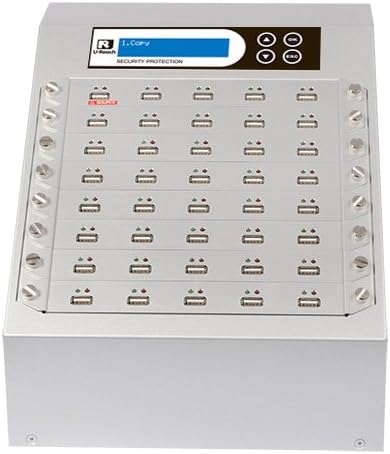
Figure 1: Front view of the U-Reach UB940S USB Duplicator. This image shows the device's front panel, including the LCD screen, control buttons, and 40 USB ports arranged in rows. The screen currently displays '1. Copy', indicating a copy operation is selected.
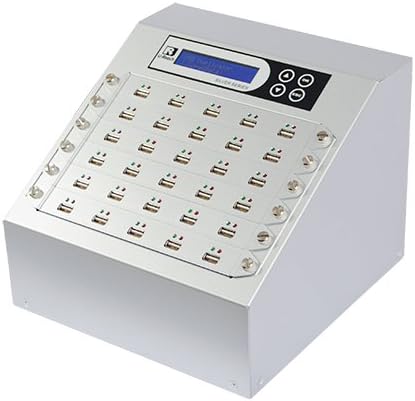
Figure 2: Angled view of the U-Reach UB940S USB Duplicator. This image provides a perspective of the device from an angle, showcasing the numerous USB ports on the front and sides, and its overall compact, silver-colored chassis.
4.1. Components
- LCD Display: Shows menu options, operation status, and error messages.
- Control Buttons: Used for menu navigation (Up, Down, Enter, Esc).
- USB Ports: One source port (typically labeled) and 39 target ports for USB flash drives.
- Power Input: Connector for the power adapter.
5. Setup
- Place the UB940S duplicator on a stable, flat, and well-ventilated surface.
- Connect the provided power adapter to the power input port on the duplicator and then plug it into a standard electrical outlet.
- Insert the source USB drive (the drive you want to copy from) into the designated source port. This port is usually clearly marked.
- Insert the target USB drives (the drives you want to copy to) into the available target ports. Ensure all drives are securely seated.
6. Operating Instructions
6.1. Powering On/Off
- To power on the device, ensure it is connected to a power source. The device will typically power on automatically or have a dedicated power button.
- To power off, disconnect the power adapter from the electrical outlet.
6.2. Menu Navigation
Use the control buttons located on the front panel to navigate through the menu options displayed on the LCD screen:
- Up/Down Arrows: Scroll through menu options.
- Enter Button: Select a highlighted option or confirm an action.
- Esc Button: Go back to the previous menu or cancel an operation.
6.3. Copy Functionality
The UB940S supports bit-by-bit copying for all data formats, including Linux (ext2/ext3/ext4), Mac (HFS/HFS+/HFSX), NTFS, FAT16/32/64, and proprietary or unknown formats. It achieves peak transfer speeds of up to 2GB per minute (33MB per second).
- From the main menu, use the arrow buttons to select the "Copy" option and press Enter.
- The device will scan the source and target drives. Ensure the source drive is correctly identified.
- Confirm the operation on the LCD screen.
- Press Enter to start the copying process. The LCD will display the progress.
- Once the copying is complete, the LCD will indicate success or any errors. Safely remove the USB drives.
6.4. Erase Features
The device offers three data sanitization methods to securely remove data from USB drives:
- Quick Erase: Deletes the file allocation table (FAT) and directory structure, making data inaccessible but recoverable with specialized tools.
- Full Erase: Overwrites the entire storage area of the drive with zeros, making data recovery significantly more difficult.
- DoD Erase: Complies with the U.S. Department of Defense 5220.22-M standard, performing multiple passes of overwriting to ensure data is irrecoverable.
- From the main menu, use the arrow buttons to select the "Erase" option and press Enter.
- Choose the desired erase method (Quick Erase, Full Erase, or DoD Erase) from the sub-menu and press Enter.
- The device will scan the target drives. Confirm the drives to be erased.
- Press Enter to start the erasing process. The LCD will display the progress.
- Once the erasing is complete, the LCD will indicate success or any errors. Safely remove the USB drives.
6.5. Compatibility
The U-Reach UB940S supports USB 2.0, USB 3.0, and USB 3.1 devices. It is also compatible with external USB-powered HDD devices. For specialized applications, optional eUSB (USB DOM) 2.54mm and 2.00mm adapters can be used.
7. Maintenance
The UB940S features a modular socket design, which allows for quick and easy replacement of individual USB ports. This design minimizes downtime and simplifies maintenance procedures. If a USB port becomes damaged or malfunctions, it can be swapped out without needing to replace the entire unit.
8. Troubleshooting
- Device does not power on: Check that the power adapter is securely connected to both the duplicator and a working electrical outlet.
- Copy/Erase operation fails: Ensure all USB drives (source and target) are properly inserted and functional. Check the LCD for specific error messages. Try re-inserting the drives or using different drives.
- Slow copy speed: Ensure you are using high-quality USB drives. Copy speed can vary depending on the quality and speed rating of the USB drives themselves.
- LCD displays an error message: Refer to the specific error code or message displayed on the LCD for more detailed troubleshooting steps. If the issue persists, contact customer support.
9. Specifications
| Brand | U-Reach |
| Model | UB940S |
| Copy Speed | Up to 2GB/min (33MB/sec) |
| Compatibility | USB 2.0/3.0/3.1, external USB-powered HDD, eUSB (with adapters) |
| Erase Modes | Quick Erase, Full Erase, DoD Erase |
| Hardware Interface | USB |
| Special Feature | Lightweight, Standalone Operation |
10. Warranty and Support
For detailed warranty information, technical support, or service inquiries, please refer to the official U-Reach website or contact their customer service department. Keep your purchase receipt as proof of purchase for warranty claims.