
1. Introduction
This manual provides detailed instructions for the safe and efficient use of your ieGeek Portable DVD Player. Please read this manual thoroughly before operating the device and retain it for future reference.
2. Package Contents
Verify that all items listed below are included in your package. If any items are missing or damaged, please contact customer support.
- ieGeek Portable DVD Player (10.5-inch HD Swivel Screen)
- Remote Control
- Car Charger
- AC Power Adapter
- 3-in-1 AV Cable
- User's Guide (this document)

Image: All components included in the ieGeek Portable DVD Player package, including the player, remote, cables, and adapters.
3. Product Overview
3.1 Player Components

Image: The ieGeek Portable DVD Player with its 10.5-inch swivel screen open, alongside the remote control.
3.2 Ports and Controls
Familiarize yourself with the various ports and controls on your portable DVD player.

Image: A detailed view of the side panel of the ieGeek Portable DVD Player, highlighting the USB port, SD card slot, earphone jack, AV OUT, AV IN, DC IN, ON/OFF switch, and GAME port.
- USB Port: For connecting USB flash drives to play media files.
- SD Card Slot: For inserting SD cards to play media files.
- Earphone Jack: For connecting headphones for private listening.
- AV OUT: For connecting the player to an external display (e.g., TV, projector) using the 3-in-1 AV cable.
- AV IN: For connecting another compatible device to display its content on the DVD player's screen.
- DC IN 12V: Power input for the AC adapter or car charger.
- ON/OFF Switch: To power the device on or off.
- GAME Port: For connecting a game controller (if supported by specific models or accessories).
3.3 Remote Control
The included remote control provides convenient access to all player functions.
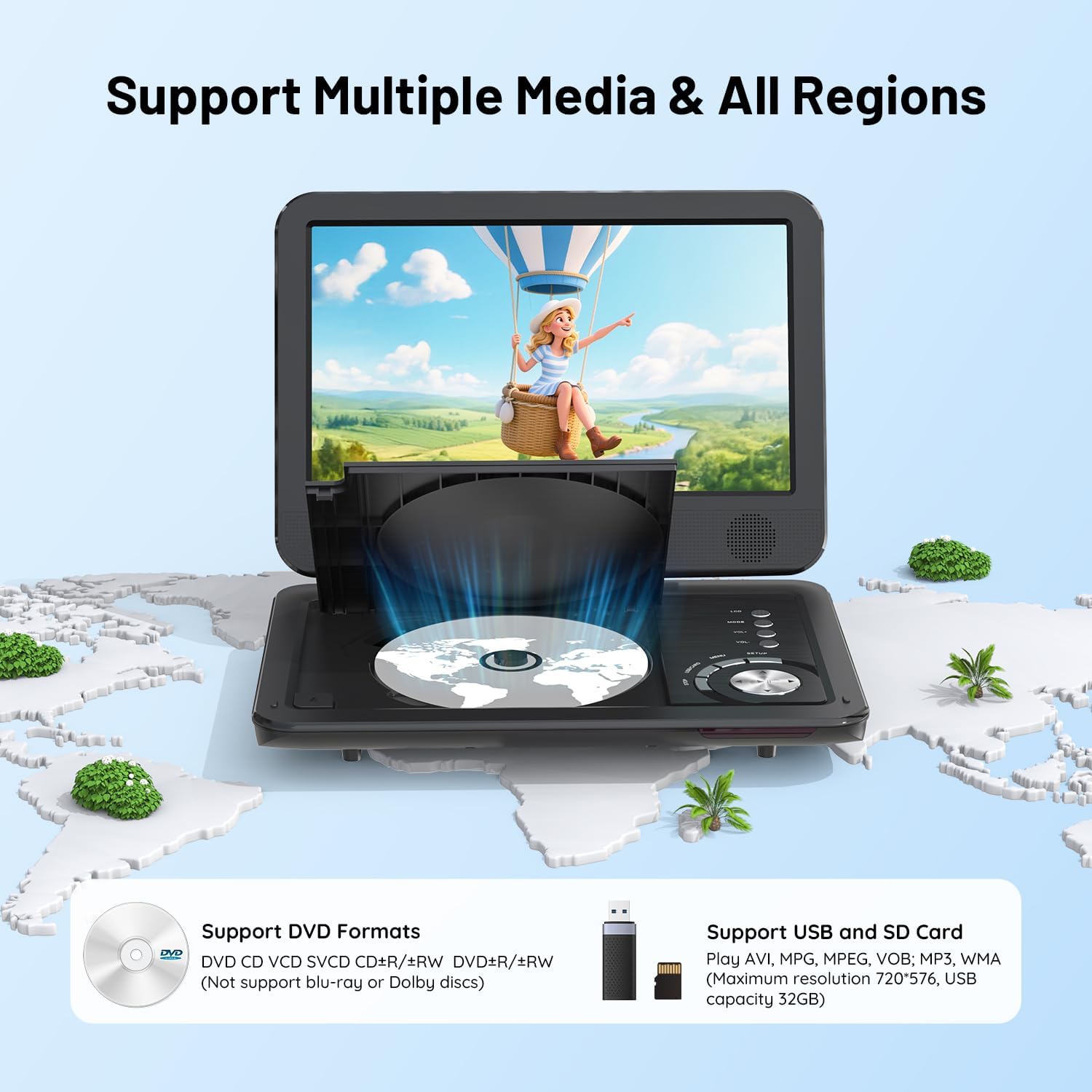
Image: The remote control for the ieGeek Portable DVD Player, showing all buttons for navigation, playback, volume, and menu access.
4. Setup
4.1 Charging the Battery
Before first use, fully charge the internal lithium battery. Connect the AC power adapter to the DC IN 12V port on the player and plug it into a wall outlet. The charging indicator light will typically show red while charging and turn green when fully charged. A full charge provides approximately 5 hours of playback.

Image: The ieGeek Portable DVD Player with an overlay indicating 5 hours of battery life, along with icons for power adapter, battery capacity, and car charger.
4.2 Powering On/Off
Slide the ON/OFF switch to the 'ON' position to power on the player. To power off, slide the switch to the 'OFF' position.
4.3 Inserting a Disc
Gently open the disc cover. Place a DVD or CD onto the spindle with the label side facing up. Press down lightly until the disc clicks into place. Close the disc cover firmly.
5. Operating Instructions
5.1 Basic Disc Playback
After inserting a disc and powering on the player, it will typically begin playback automatically. Use the remote control or the player's buttons for functions such as Play/Pause, Stop, Fast Forward, Rewind, and Chapter Skip.
5.2 Media Playback from USB/SD Card
Insert a USB flash drive into the USB port or an SD card into the SD card slot. The player will detect the media and usually display a menu to select the file type (e.g., Movie, Music, Photo). Navigate using the remote or player buttons to select and play your desired files.
Supported formats include: AVI, MPG, MPVG4, VOB, FLV, RMVB (video resolution within 720*576); MP3, WMA, OGG, AAC (audio).

Image: Close-up view of the USB port and SD card slot on the ieGeek Portable DVD Player, indicating their function for media playback.
5.3 Swivel Screen Functionality
The 10.5-inch HD screen can rotate 270 degrees and fold back 180 degrees, allowing for various viewing angles or compact storage. Adjust the screen to your preferred position for optimal viewing.

Image: A visual representation of the ieGeek Portable DVD Player's screen swiveling 270 degrees and folding back 180 degrees.
5.4 Connecting to an External Display (TV/Projector)
Use the included 3-in-1 AV cable to connect the player's AV OUT port to the AV IN ports (typically yellow for video, white/red for audio) on your television or projector. Select the correct input source on your external display to view the player's content.

Image: A family watching a movie on a large TV screen, with the ieGeek Portable DVD Player connected via AV cables, demonstrating the sync to TV feature.
5.5 Connecting to Another Portable DVD Player
An AV to AV cable (not always included, may require separate purchase) can be used to connect the AV OUT of one player to the AV IN of another, allowing two players to display the same content simultaneously.
5.6 Anti-Shock Technology
The player features anti-shock technology to minimize playback interruptions caused by vibrations, making it suitable for use in vehicles or during travel.

Image: A child watching the ieGeek Portable DVD Player in the back seat of a car, illustrating the anti-shock feature for stable playback during travel.
5.7 Resume Function
The player is equipped with a resume function that allows it to remember the last playback point of a disc or file, so you can continue watching from where you left off after powering off and on.

Image: A visual representation of the ieGeek Portable DVD Player's breakpoint memory function, showing how it resumes playback after being powered off and on.
6. Maintenance
- Cleaning: Use a soft, dry cloth to clean the player's exterior. For the screen, use a specialized screen cleaning solution and a microfiber cloth. Do not use abrasive cleaners or solvents.
- Disc Care: Handle discs by their edges. Clean discs with a soft, lint-free cloth, wiping from the center outwards.
- Storage: Store the player in a cool, dry place away from direct sunlight and extreme temperatures.
- Battery: For optimal battery life, avoid fully discharging the battery frequently. If storing for extended periods, charge the battery to about 50% every few months.
7. Troubleshooting
If you encounter issues with your ieGeek Portable DVD Player, refer to the following common problems and solutions:
| Problem | Possible Cause | Solution |
|---|---|---|
| Player does not power on | Battery is discharged; Power adapter not connected or faulty; ON/OFF switch is off. | Charge the battery; Ensure power adapter is securely connected and functional; Slide ON/OFF switch to 'ON'. |
| "No Disc" error message | Disc is inserted incorrectly; Disc is dirty or damaged; Disc format is not supported. | Reinsert disc correctly (label side up); Clean or replace disc; Ensure disc is a supported format (CD, DVD, VCD, etc., not Blu-ray). |
| No sound | Volume is too low or muted; Headphones not connected properly; External speakers not connected. | Increase volume; Check mute setting; Ensure headphones/external speakers are correctly connected. |
| Distorted picture | Disc is dirty or scratched; Incorrect video settings; External display connection issue. | Clean or replace disc; Reset video settings to default; Check AV cable connections to external display. |
| Cannot read USB/SD card | Card/drive not inserted correctly; Unsupported file format; Card/drive capacity too large. | Reinsert USB/SD card; Ensure files are supported (AVI, MP3, etc.); Max 32GB USB/SD card supported. |
8. Specifications
| Feature | Detail |
|---|---|
| Product Dimensions | 16.2 x 9 x 3.2 inches |
| Item Weight | 3.84 pounds |
| Screen Size | 10.5 Inches (diagonal) |
| Display Type | LCD |
| Battery Type | Lithium Polymer (included) |
| Battery Life | Approximately 5 hours |
| Supported Disc Media | CD, DVD, VCD, DVD±R, DVD±RW, CD-R, CD-RW, CVD, SVCD (Not Blu-ray) |
| Supported Digital Media | USB, SD Card (Max 32GB) |
| Supported Video Formats | AVI, MPG, MPVG4, VOB, FLV, RMVB (resolution within 720*576) |
| Supported Audio Formats | MP3, WMA, OGG, AAC |
| Color | Black |
| Manufacturer | ieGeek |
9. Warranty and Support
ieGeek is committed to providing excellent customer service and technical support. If you encounter any issues or have questions regarding your product, please contact us.
- Customer Service Response: Your inquiries will be responded to within 24 hours.
- Technical Support: Lifetime technical support is available for your product.
For support, please refer to the contact information provided with your purchase or visit the official ieGeek website.


