
1. Introduction
This user manual provides detailed instructions for the installation, operation, and maintenance of your CHORTAU Full HD 1080P WiFi Dashcam. Please read this manual thoroughly before using the device to ensure proper functionality and safety.
2. Package Contents
Verify that all items are present in the package:
- CHORTAU Full HD 1080P WiFi Dashcam
- Car Charger
- Car Mount (with adhesive and suction cup options)
- User Manual
- USB Cable (for PC connection)
3. Product Overview
Familiarize yourself with the components of your dashcam.

Image: Front and side view of the CHORTAU Dashcam, showing the screen, control buttons, lens, USB port, and microSD card slot.
Key Features:
- SONY IMX323 Sensor: Captures clear Full HD 1080P video with F2.0 large aperture and 170° wide-angle lens, suitable for day and night recording.
- WiFi Connectivity: Integrated WiFi module for connecting to the "RoadCam" app on smartphones or tablets. Allows real-time viewing, saving, and sharing of recorded files.
- Temperature Resistance: Designed to operate in temperatures from -20°C to 70°C.
- G-Sensor: Automatically detects sudden shakes or collisions and locks the current video footage to prevent overwriting.
- Motion Detection: Initiates recording when motion is detected in front of the vehicle.
- Parking Monitor: Provides 24-hour surveillance for your parked vehicle.
- 2-inch Screen: Compact display that does not obstruct the driver's view.
4. Installation
The dashcam can be easily installed on your windshield using the provided removable plate or suction cup mount.
- Choose Mounting Location: Select a location on your windshield that does not obstruct your view of the road. Typically, this is behind the rearview mirror.
- Clean Surface: Ensure the windshield surface is clean and dry before attaching the mount.
- Attach Mount: Securely attach the chosen mount (adhesive or suction cup) to the windshield.
- Attach Dashcam: Slide the dashcam onto the mount until it clicks into place.
- Connect Power: Connect the car charger to the dashcam and plug it into your vehicle's cigarette lighter socket. Route the cable neatly to avoid interference with driving.
- Insert MicroSD Card: Insert a Class 10 or higher microSD card (up to 32GB, not included) into the designated slot. Ensure it is inserted correctly.

Image: The CHORTAU Dashcam mounted on a car's windshield, showing its compact size and placement.

Image: A visual guide demonstrating the easy installation process of the dashcam onto its removable plate.
5. Initial Setup and Wi-Fi Connection
Before first use, format the microSD card and set up basic preferences.
5.1. Formatting the MicroSD Card
- Power on the dashcam.
- Press the M button to enter the menu.
- Navigate to the "Format" option using the arrow buttons.
- Press OK to confirm and format the card. This will erase all data on the card.
5.2. Wi-Fi Connection
Connect your dashcam to your smartphone or tablet via Wi-Fi using the "RoadCam" app.
- On the dashcam, press the M button to enter the menu.
- Navigate to the "Wi-Fi" option.
- Press OK to turn Wi-Fi ON. The dashcam display will show the Wi-Fi network name (SSID) and password.
- On your smartphone/tablet, download and install the "RoadCam" app.
- Go to your device's Wi-Fi settings and connect to the dashcam's Wi-Fi network (SSID).
- Enter the default password (usually 12345678).
- Open the "RoadCam" app and select the dashcam to establish a connection. You can now view live footage, access recorded files, and adjust settings via the app.
Video: This video demonstrates how to connect the CHORTAU B-T007 dashcam's Wi-Fi to a smartphone, including navigating the dashcam menu, finding the Wi-Fi network, entering the password, and connecting via the RoadCam app.
6. Operating Instructions
6.1. Automatic Recording
The dashcam automatically starts recording when connected to power and the vehicle engine is started. It will stop recording and save the file when the engine is turned off.
6.2. Loop Recording
The dashcam records video in continuous loops (e.g., 1, 3, or 5-minute segments). When the memory card is full, the oldest unlocked files will be overwritten by new recordings. You can adjust the loop recording duration in the settings menu.
6.3. G-Sensor (Emergency Lock)
The built-in G-Sensor detects sudden impacts or rapid acceleration/deceleration. When triggered, it automatically locks the current video segment, preventing it from being overwritten by loop recording. This ensures critical footage is preserved in case of an accident.

Image: Illustration of the G-Sensor function, which automatically locks video files during a collision to secure accident evidence.
6.4. Parking Monitor
When enabled, the parking monitor function allows the dashcam to automatically start recording if it detects a collision or vibration while your vehicle is parked. This provides surveillance for your car 24 hours a day.
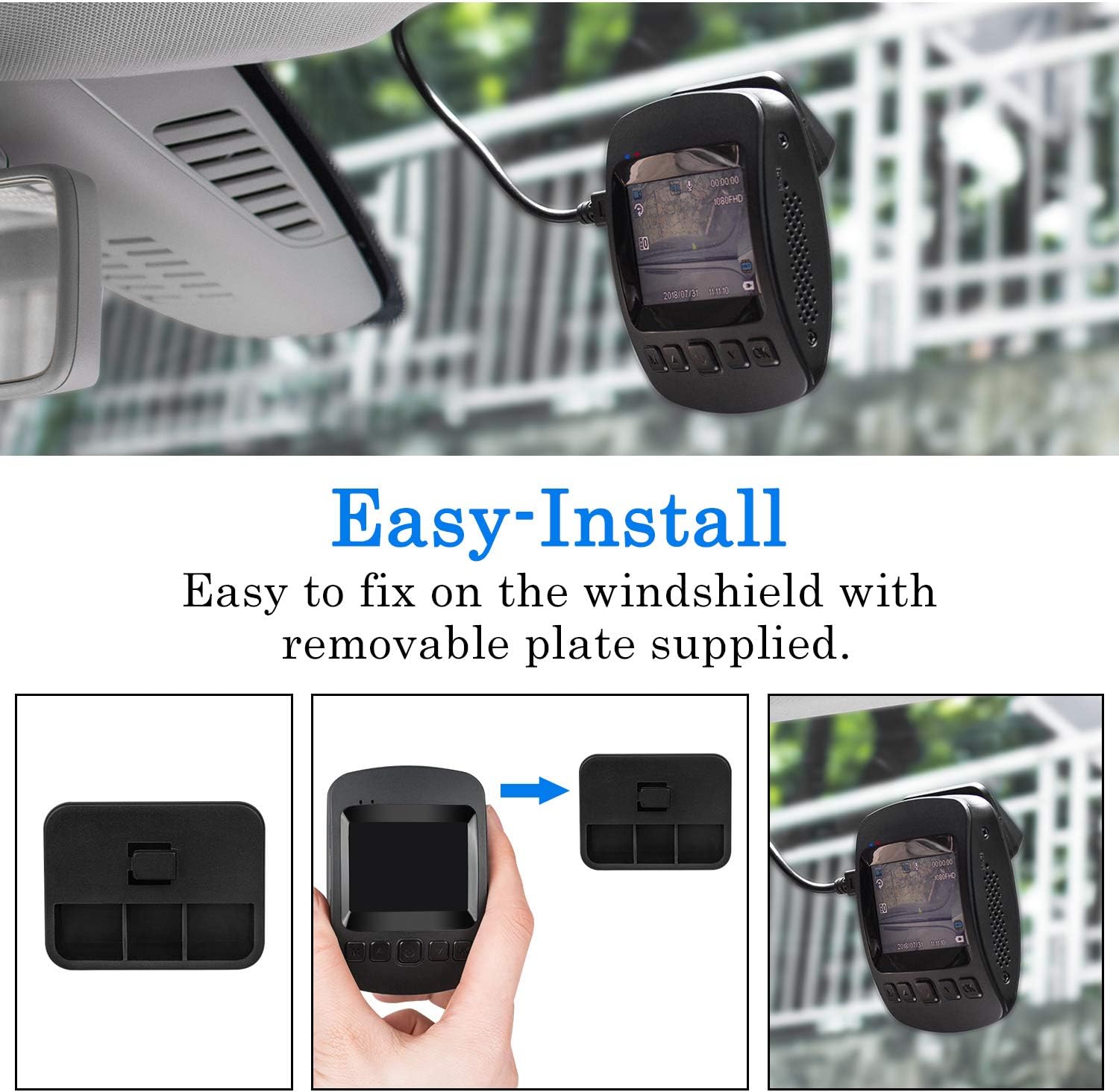
Image: The dashcam actively monitoring a parked car in a parking garage, demonstrating its 24-hour parking surveillance capability.
6.5. Motion Detection
With motion detection enabled, the dashcam will begin recording automatically if it senses movement in its field of view while the vehicle is stationary. This is useful for capturing events around your parked car.
7. Viewing Playback
You can view recorded videos directly on the dashcam or through the "RoadCam" app on your smartphone/tablet.
7.1. On the Dashcam
- Stop recording by pressing the OK button if it's currently recording.
- Long press the M button twice to enter playback mode.
- Use the arrow buttons to navigate through the recorded files.
- Press OK to play the selected video.
Video: This video demonstrates how to view recorded footage directly on the CHORTAU B-T007 dashcam's screen, including stopping recording and navigating to playback mode.
7.2. Via RoadCam App
Once connected via Wi-Fi (as described in Section 5.2), open the "RoadCam" app. You can access live view, browse recorded videos, download them to your device, or share them.
8. Maintenance
- MicroSD Card: Regularly format the microSD card (at least once a month) to ensure optimal performance and prevent data corruption. Replace the card if it shows signs of wear or error.
- Lens Cleaning: Keep the camera lens clean for clear recordings. Use a soft, lint-free cloth.
- Firmware Updates: Check the CHORTAU official website or app for any available firmware updates to improve performance and add features.
- Temperature: Avoid exposing the dashcam to extreme temperatures outside its operating range (-20°C to 70°C) for extended periods.
9. Troubleshooting
| Problem | Possible Cause | Solution |
|---|---|---|
| Dashcam does not power on. | No power supply; faulty car charger; loose connection. | Check car charger connection and vehicle's cigarette lighter socket. Ensure the car charger is functional. |
| Recording stops unexpectedly. | MicroSD card full; card error; low power. | Format the microSD card. Replace the card if errors persist. Ensure continuous power supply. |
| Video footage is blurry. | Dirty lens; protective film still on lens; incorrect focus. | Clean the lens. Remove any protective film. Ensure the lens is not obstructed. |
| Wi-Fi connection issues. | Incorrect password; app not updated; interference. | Verify Wi-Fi password (default: 12345678). Update the "RoadCam" app. Try connecting in a different location. |
| G-Sensor too sensitive/not sensitive enough. | G-Sensor sensitivity setting. | Adjust G-Sensor sensitivity in the dashcam's settings menu. |
10. Specifications
| Brand: | CHORTAU |
| Model: | B-T007 (also known as B-T006) |
| Dimensions: | 1.52 x 7.98 x 4.98 cm |
| Weight: | 310 grams |
| Display Size: | 2 inches |
| Video Resolution: | 1080p Full HD |
| Sensor: | SONY IMX323 |
| Lens Aperture: | F2.0 |
| Viewing Angle: | 170 degrees |
| Connectivity: | USB, Wi-Fi |
| Storage: | MicroSD (up to 32GB, Class 10 recommended) |
| Battery: | 1 Lithium Polymer battery (included) |
| Operating Temperature: | -20°C to 70°C |
| Special Features: | G-Sensor, Motion Detection, Parking Monitor, Loop Recording |
11. Warranty and Support
CHORTAU products typically come with a warranty. Please refer to the warranty information provided with your purchase or visit the official CHORTAU website for details regarding warranty terms and conditions.
For technical support or further assistance, please contact CHORTAU customer service. Contact information can usually be found on the product packaging or the official brand website.
You can visit the CHORTAU Store on Amazon for more information.


