
1. Product Overview
The LeeKooLuu Wireless Backup Camera System provides a clear, stable digital signal for enhanced visibility when reversing or monitoring your vehicle's rear. This system includes a 5-inch touch button monitor and a wireless camera, suitable for various vehicles including cars, trucks, SUVs, sedans, RVs, and trailers.

Image 1.1: LeeKooLuu Wireless Backup Camera System components, including the 5-inch monitor and the license plate mount camera.
Key Features:
- Wireless Digital Signal: Stable point-to-point transmission, reducing interference.
- 5-Inch Touch Button Monitor: High-definition 1080P display with intuitive touch controls.
- Dual Channel Support: Ability to add a second wireless camera for front view, hitch view, or additional rear coverage (second camera sold separately).
- DIY Parking Grid Lines: Adjustable parking guidelines for width, position (Left/Right/Up/Down), and option to turn off.
- Wide Vehicle Compatibility: Designed for cars, sedans, SUVs, pickups, trucks, vans, RVs, and trailers.
- Easy Installation: Simplified wiring for both monitor and camera.
2. Setup and Installation
Proper installation is crucial for optimal performance. Please follow these steps carefully.
2.1 Package Contents:
- 5-inch Wireless Monitor
- Wireless Backup Camera (with integrated transmitter)
- Car Charger (with ON/OFF switch)
- Power Cable for Camera
- Monitor Mounting Bracket (Dashboard/Windshield options)
- Installation Hardware (screws, wire connectors)
2.2 Camera Installation:
- Mounting: Attach the wireless backup camera to your vehicle's license plate frame. Ensure the camera lens has a clear, unobstructed view.
- Power Connection: Connect the camera's power cable to a 11V-24V DC power supply. This can be the vehicle's reverse lights (for reverse-only activation), running lights, or license plate lights (for continuous use).
- Identify the positive (+) and negative (-) wires of your chosen power source using a multimeter.
- Connect the red wire of the camera's power cable to the positive (+) wire and the black wire to the negative (-) or ground. Use the provided wire connectors for a secure connection.
- Secure Wiring: Route and secure all wiring to prevent damage from vehicle movement, weather, or road debris.
2.3 Monitor Installation:
- Mounting: Choose between dashboard mount or windshield suction mount. Secure the monitor in a position that does not obstruct your view of the road.
- Power Connection: Plug the monitor's car charger into your vehicle's cigarette lighter socket. The charger includes an ON/OFF adapter for convenience.
- Power On: Turn on the monitor using the power button on the car charger or the touch button on the monitor itself.
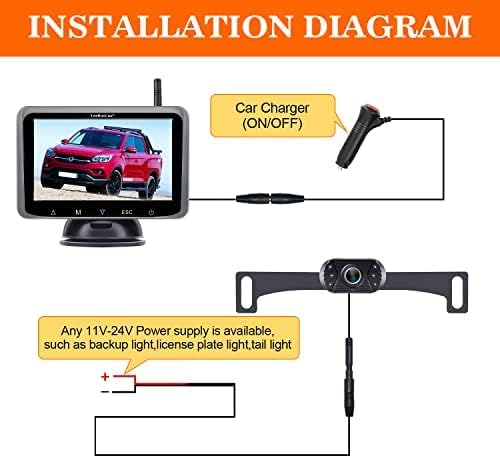
Image 2.1: Wiring diagram for the camera and monitor power connections.

Image 2.2: Monitor installation options: dashboard and windshield mounting.
2.4 Initial Pairing (if necessary):
The camera and monitor are typically pre-paired at the factory. If no image appears after installation, manual pairing may be required. Refer to the monitor's on-screen menu for pairing instructions (usually accessed via the 'M' button).
3. Operating Instructions
Familiarize yourself with the monitor's functions for safe and effective use.
3.1 Monitor Controls:
The 5-inch monitor features touch buttons for easy navigation and settings adjustment.
- Power Button: Turns the monitor ON/OFF.
- 'M' Button (Menu): Accesses the main menu for settings like pairing, image adjustments, and grid line customization.
- Arrow Buttons (Up/Down): Navigate menu options or adjust values.
- 'ESC' Button: Exits current menu or setting.
3.2 Parking Grid Lines:
The system allows for customization of parking guidelines to match your vehicle and preferences.
- Access the menu via the 'M' button.
- Navigate to the 'Parking Line' or 'Guideline' settings.
- Adjust the width, and move the lines Left/Right/Up/Down to accurately reflect your vehicle's dimensions and the desired parking path.
- You can also choose to disable the parking guidelines if preferred.
3.3 Dual Camera Functionality:
The monitor supports two camera inputs (CAM1 and CAM2) and a split-screen view.

Image 3.1: Monitor display modes: CAM1, CAM2, and Split Screen, demonstrating the option to add a second camera for RVs or trailers.
- If a second camera is installed, you can switch between CAM1, CAM2, or a split-screen view using the monitor's controls.
- This feature is useful for monitoring both the rear of your primary vehicle and a towed RV or trailer.
3.4 Image Quality and Vision:
The camera features an upgraded 6-glass lens for clear images and includes night vision capabilities.

Image 3.2: Comparison of camera's day and night vision capabilities.
4. Maintenance
Regular maintenance ensures the longevity and optimal performance of your backup camera system.
- Cleaning the Camera Lens: Periodically clean the camera lens with a soft, damp cloth to remove dirt, dust, or water spots that may obscure the view. Avoid abrasive cleaners.
- Monitor Care: Wipe the monitor screen with a soft, dry, or slightly damp cloth. Do not spray cleaning solutions directly onto the screen.
- Wiring Inspection: Periodically check all wiring connections for tightness and signs of wear or damage. Ensure wires are securely fastened and not exposed to excessive heat or sharp edges.
- Weather Protection: While the camera is designed for outdoor use, extreme weather conditions (heavy rain, snow, extreme temperatures) can affect performance. Ensure the camera is free of ice or snow before use in cold climates.
5. Troubleshooting
If you encounter issues with your LeeKooLuu Wireless Backup Camera System, refer to the following troubleshooting guide.
5.1 No Image on Monitor:
- Check Power: Ensure both the monitor and camera are receiving power. Verify the car charger is firmly plugged into the cigarette lighter and the camera's power wires are correctly connected to a functional power source.
- Check Connections: Confirm all cable connections are secure.
- Re-pair Devices: If the devices were previously working, try re-pairing the camera and monitor through the monitor's menu settings.
- Interference: Wireless signals can be affected by other electronic devices. Try moving the monitor slightly or ensuring no large metal objects are blocking the signal path.
5.2 Image Flickering or Unstable Signal:
- Signal Range: Ensure the distance between the camera and monitor is within the effective wireless range (up to 40ft, or 450ft in open areas).
- Interference: Other wireless devices (e.g., Wi-Fi, Bluetooth) can cause interference. Try to minimize their use or reposition the monitor.
- Power Fluctuation: Ensure the camera is receiving a stable power supply. Fluctuations in voltage can affect signal stability.
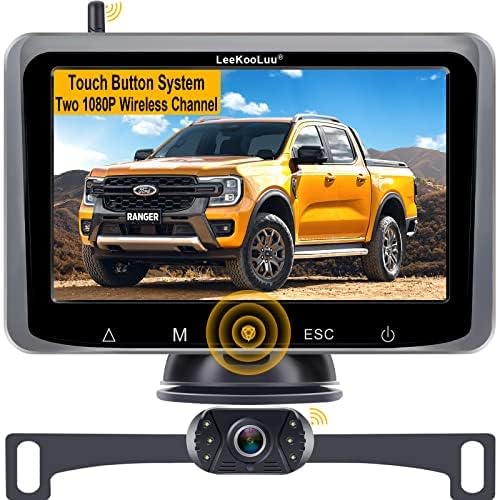
Image 5.1: Wireless signal transmission range and vehicle compatibility.
5.3 Image Delay:
- A slight delay (e.g., 1-2 seconds) is normal for wireless systems. Significant delays (e.g., 4 seconds or more) may indicate signal interference or a weak power supply. Review the steps for 'Image Flickering or Unstable Signal'.
5.4 Parking Lines Incorrect:
- Adjust the parking grid lines through the monitor's menu settings to accurately align with your vehicle's perspective.
6. Specifications
| Feature | Specification |
|---|---|
| Model Number | 8523722953 |
| Screen Size | 5 Inches |
| Display Technology | LCD |
| Connectivity | Wireless |
| Voltage | 12 Volts (Monitor), 11V-24V (Camera) |
| Optical Sensor Technology | CMOS |
| Lens Type | Fixed Wide Angle (6-glass lens) |
| Real Angle of View | 150 Degrees |
| Installation Type | Surface Mount, Dashboard Mount |
| Item Weight | 1.87 pounds |
| Package Dimensions | 9.33 x 6.02 x 4.29 inches |
7. Warranty and Support
LeeKooLuu stands behind the quality of its products.
7.1 Product Warranty:
This product comes with a 2-year warranty from the date of purchase. This warranty covers manufacturing defects and malfunctions under normal use.
7.2 Technical Support:
For any technical assistance, installation questions, or troubleshooting, LeeKooLuu offers 24-hour technical support. Please contact our customer service team for prompt assistance.

Image 7.1: LeeKooLuu provides 24-hour customer support.
7.3 Replacement Service:
In case of a confirmed product defect covered under warranty, a replacement service is available. Contact customer support to initiate a replacement.