
Introduction
The Razer Nommo Pro is a THX Certified 2.1 gaming speaker system designed to deliver high-fidelity audio. It features Dolby Virtual Surround Sound, a dedicated downward-firing subwoofer, and customizable Razer Chroma lighting. This manual provides essential information for setting up, operating, maintaining, and troubleshooting your speaker system.
What's in the Box
- Two Satellite Speakers
- One Downward-Firing Subwoofer
- LED Illuminated Control Pod
- Power Adapter
- USB Cable
- 3.5mm Audio Cable
- Optical Cable
Product Overview
The Razer Nommo Pro system includes two satellite speakers, a powerful subwoofer, and an intuitive control pod, all designed for an enhanced audio experience.
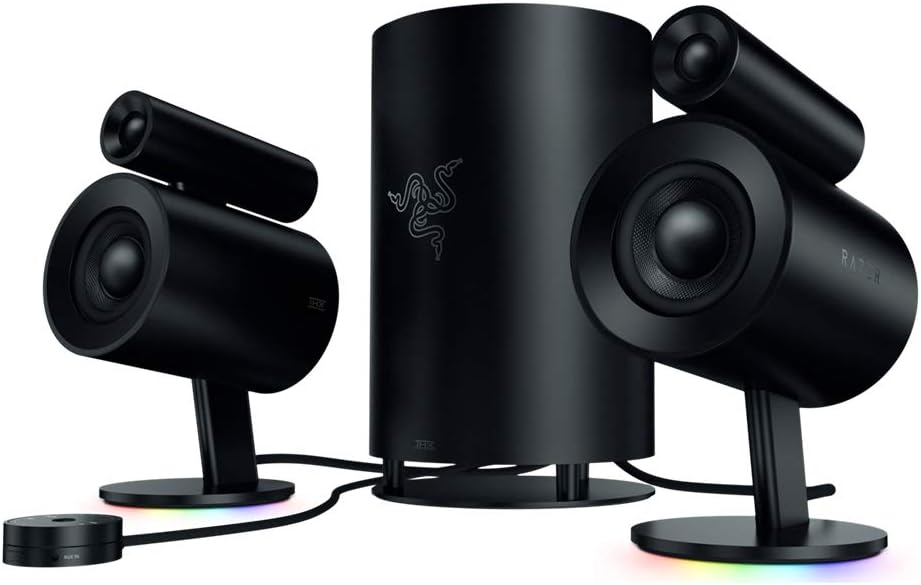
The complete Razer Nommo Pro 2.1 speaker system, featuring two satellite speakers, a central subwoofer, and a circular control pod.
THX Certified Premium Audio
The speakers are THX Certified, ensuring a high standard of audio fidelity and clarity. This certification guarantees that the sound output is precise and powerful, delivering an immersive listening experience.

A single Razer Nommo Pro satellite speaker, highlighting its THX Certified Premium Audio capabilities for clear and powerful sound.
Dolby Virtual Surround Sound Technology
Experience powerful cinematic immersion with Dolby Virtual Surround Sound. This technology enhances spatial audio, making games and movies more engaging by creating a wider soundstage.

Two Razer Nommo Pro satellite speakers, illustrating the Dolby Virtual Surround Sound Technology for immersive audio.
Downward Firing Subwoofer
The dedicated downward-firing subwoofer provides deep, powerful, and unrestricted bass, adding significant impact to your audio. It's designed to deliver desk-shaking, room-thumping low-end sound.

The Razer Nommo Pro downward-firing subwoofer, engineered for powerful and deep bass performance.
LED Illuminated Control Pod
The LED illuminated control pod offers convenient access to volume, mute, and input selection. Its intuitive design allows for quick and easy adjustments.

The LED illuminated control pod for the Razer Nommo Pro, providing easy access to audio controls and input selection.
Versatile Connectivity
Connect your Razer Nommo Pro speakers via multiple options including USB, Bluetooth 4.2, optical, or a 3.5 mm audio jack, ensuring compatibility with various devices.

Illustration of the Razer Nommo Pro's versatile connectivity, showing connections to a laptop and tablet via USB, Bluetooth, Optical, and 3.5mm jack.
Powered by Razer Chroma
Customize your audio setup with 16.8 million color options, thanks to Razer Chroma integration. The lighting can be synchronized with your games and other Chroma-enabled devices.

The base of a Razer Nommo Pro speaker displaying its customizable Razer Chroma RGB lighting.
Setup
- Placement: Position the two satellite speakers on either side of your monitor or listening area. Place the subwoofer on the floor, ideally near your desk, for optimal bass delivery.
- Connect Satellite Speakers: Connect the satellite speakers to the subwoofer using the provided cables. Ensure the left speaker connects to the 'L' input and the right speaker to the 'R' input on the subwoofer.
- Connect Control Pod: Plug the control pod cable into the designated port on the subwoofer.
- Power Connection: Connect the power adapter to the subwoofer and then plug it into a power outlet.
- Connect to Device: Choose your preferred connection method (USB, Bluetooth, Optical, or 3.5mm audio jack) and connect the subwoofer to your audio source (PC, console, mobile device).
Operating Instructions
Control Pod Functions
- Volume Control: Rotate the outer ring of the control pod to adjust the master volume.
- Mute/Unmute: Press the center button of the control pod to mute or unmute the audio.
- Input Selection: Press the input buttons (USB, Bluetooth, Optical, Analog) on the control pod to switch between audio sources.
- Headphone Jack: A 3.5mm headphone jack is available on the control pod for private listening. Plugging in headphones will automatically mute the speakers.
Razer Synapse Software
For advanced customization of audio settings and Razer Chroma lighting, download and install the Razer Synapse software on your PC. This software allows you to:
- Adjust equalizer settings and create custom audio profiles.
- Control subwoofer level independently.
- Customize RGB lighting effects and colors.
- Set up game-specific audio and lighting profiles.
Maintenance
- Cleaning: Use a soft, dry cloth to clean the surfaces of the speakers, subwoofer, and control pod. Avoid using abrasive cleaners or solvents.
- Cable Management: Ensure all cables are neatly organized and not tangled to prevent damage or interference.
- Environment: Keep the speakers in a dry environment, away from extreme temperatures and direct sunlight.
Troubleshooting
- No Sound:
- Check all cable connections (power, speakers to subwoofer, audio source).
- Ensure the correct input source is selected on the control pod.
- Verify that the volume is not muted or set too low.
- Confirm that your audio source device's volume is up and not muted.
- Distorted Audio:
- Lower the volume on both the speakers and your audio source.
- Check for loose cable connections.
- Test with a different audio source or cable.
- RGB Lighting Not Working:
- Ensure Razer Synapse software is installed and updated.
- Check lighting settings within Razer Synapse.
- Verify USB connection to your PC.
- Bluetooth Pairing Issues:
- Ensure the speakers are in Bluetooth pairing mode (indicated by a blinking light on the control pod).
- Remove the speakers from your device's Bluetooth list and attempt to re-pair.
- Ensure no other devices are actively connected to the speakers via Bluetooth.
Official Product Video
Official video showcasing the Razer Nommo Pro THX Certified speakers, highlighting their features and design.
Specifications
| Feature | Detail |
|---|---|
| Brand | Razer |
| Model Name | RZ0502470100R3U1 |
| Speaker Type | Subwoofer |
| Mounting Type | Tabletop Mount |
| Special Feature | Bluetooth |
| Recommended Uses For Product | For Computers |
| Compatible Devices | Personal Computer |
| Subwoofer Diameter | 3 Inches |
| Unit Count | 1.0 Count |
| Surround Sound Channel Configuration | 2.1 |
| Color | Black |
| Product Dimensions | 10.63"D x 10.63"W x 15.35"H |
| Item Weight | 12500 Grams (27.6 pounds) |
| Maximum Range | 10 Meters |
| Control Method | Touch |
| Wireless Communication Technology | Bluetooth |
| Speaker Size | 3 Inches |
| Power Source | Corded Electric |
| Woofer Diameter | 7 Inches |
| Tweeter Diameter | 20 Millimeters |
| Audio Driver Type | Dynamic Driver |
| Bluetooth Range | 10 Meters |
| Subwoofer Connectivity Technology | Wired |
| Speaker Maximum Output Power | 25 Watts |
| Frequency Response | 20 KHz |
| Connectivity Technology | Bluetooth, USB |
| Audio Output Mode | Surround |
Warranty and Support
The Razer Nommo Pro comes with a Limited Warranty. For assistance, troubleshooting, or to view the full warranty details, please visit the Official Razer Support website.


