
1. Overview
The Orbit B-hyve 4-Zone Indoor Smart Sprinkler Controller is designed to provide efficient and convenient control over your irrigation system. This device allows you to manage watering schedules remotely via a user-friendly application, optimizing water usage and promoting healthy plant growth. It integrates Wi-Fi and Bluetooth connectivity for seamless operation.
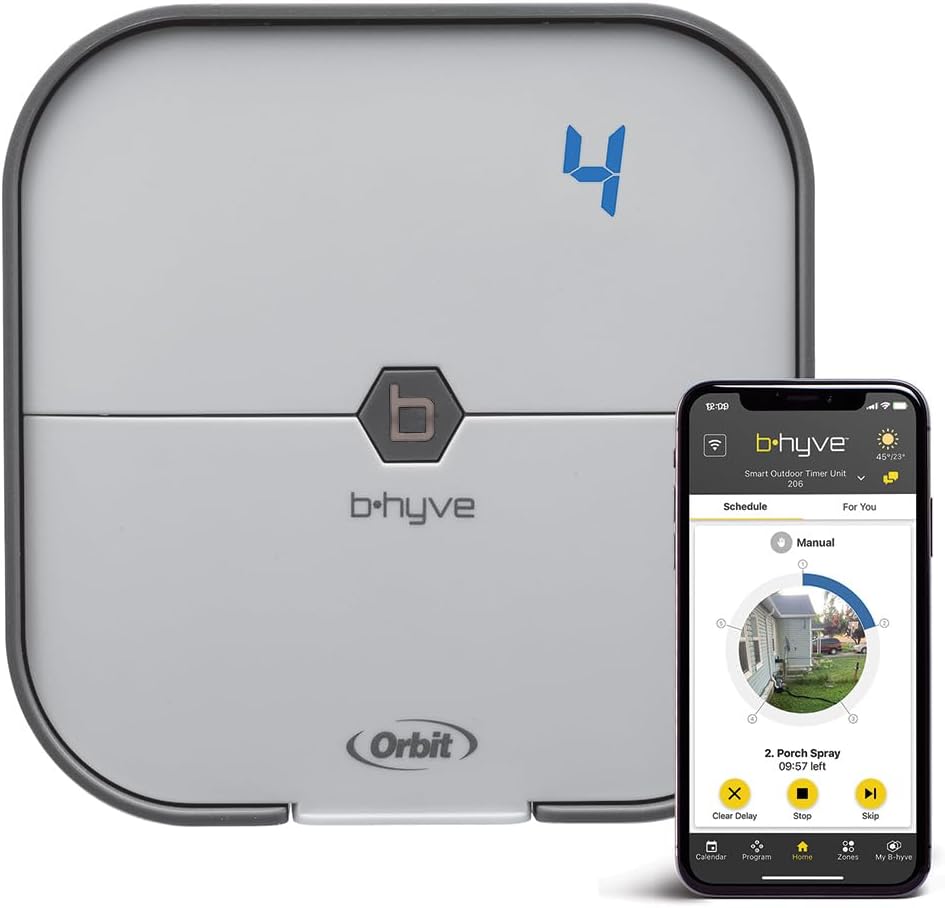
Figure 1: Orbit B-hyve 4-Zone Indoor Smart Sprinkler Controller.
Key Features
- Smart Sprinkler Control: Remote management of your irrigation system via a dedicated app.
- Efficient Watering: Compatible with water-saving technologies like drip irrigation and multipoint rotators for precise water distribution.
- Automated Schedules: Set consistent watering times for indoor plants and outdoor zones.
- Advanced Connectivity: Equipped with Wi-Fi and Bluetooth for flexible control and customization.
- Easy Installation: User-friendly setup designed for both DIY users and professionals.
2. Setup
2.1 Physical Installation
Before beginning installation, ensure the main power to your existing sprinkler system is turned off. The Orbit B-hyve controller is designed for indoor use. Mount the controller on a wall in a suitable indoor location, ensuring it is protected from direct weather exposure.
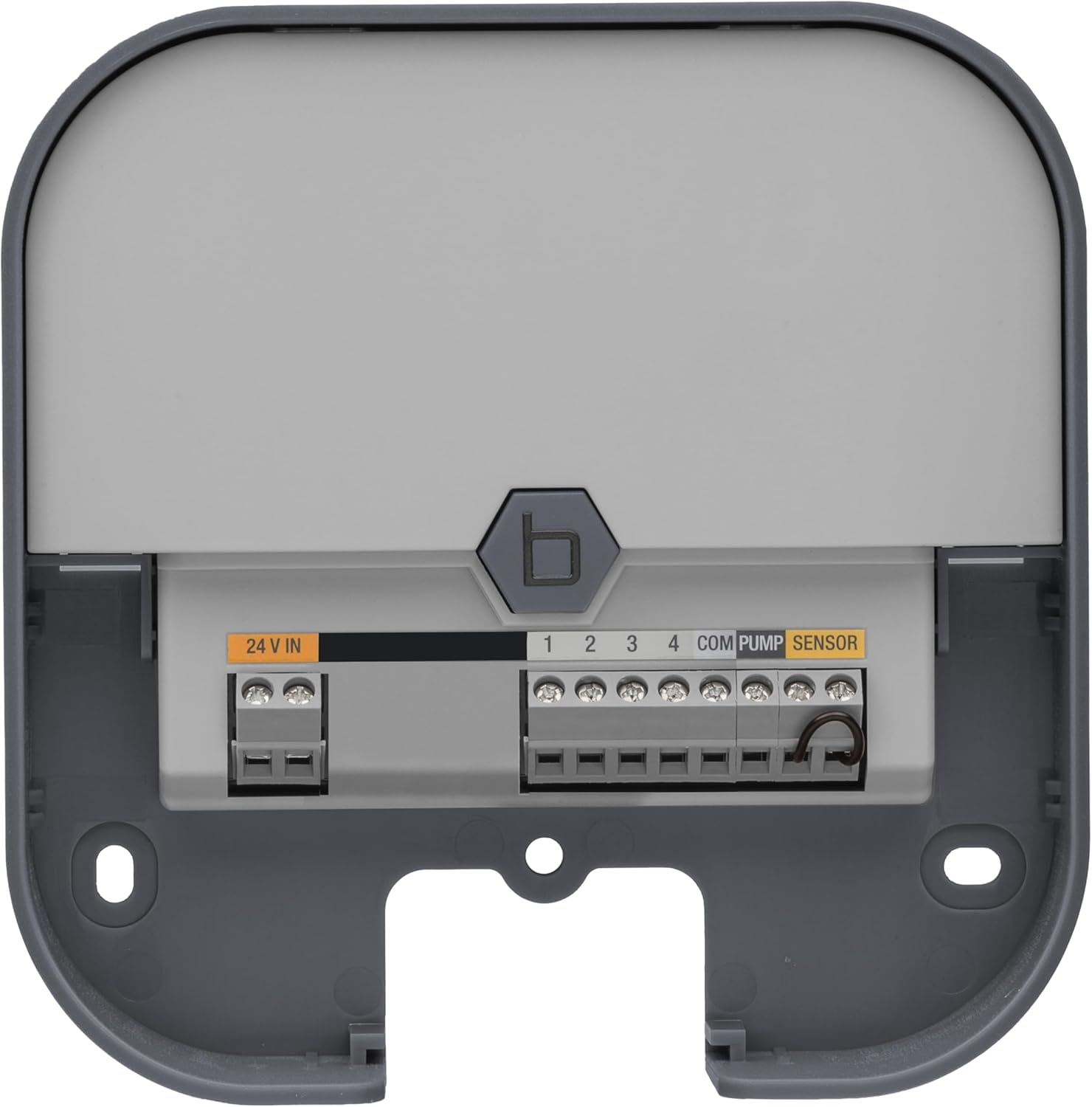
Figure 2: Front view of the Orbit B-hyve controller, showing its compact design.
Wiring:
- Carefully remove the cover of the B-hyve controller to access the wiring terminals.
- Connect the 24V AC power wires from your power supply to the '24V IN' terminals.
- Connect the common wire from your sprinkler valves to the 'COM' terminal.
- Connect each zone wire from your sprinkler valves to the numbered terminals (1, 2, 3, 4) corresponding to your desired zones.
- If using a rain sensor or pump, connect its wires to the 'SENSOR' or 'PUMP' terminals as indicated.
- Ensure all connections are secure.

Figure 3: Detailed view of the wiring terminals for power, common, zones, pump, and sensor connections.
2.2 App Setup and Wi-Fi Connection
Download the Orbit B-hyve app from your device's app store. Follow the in-app instructions to create an account and connect your controller to your home Wi-Fi network. This process typically involves selecting your B-hyve device, entering your Wi-Fi credentials, and confirming the connection.

Figure 4: The Orbit B-hyve mobile application interface, showing various control options.
Once connected, you can configure each watering zone within the app. This includes naming zones, specifying plant types, soil types, and sun exposure to enable smart watering features.
3. Operating the Controller
3.1 Scheduling Watering Programs
The B-hyve app allows you to create customized watering schedules. You can set specific start times, run durations for each zone, and select watering days (e.g., weekdays, even/odd days, or intervals).

Figure 5: Screenshot of the B-hyve app displaying smart watering settings and zone configuration.
Smart Watering: Enable the Smart Watering feature to allow the controller to automatically adjust schedules based on local weather conditions, soil moisture, and plant needs. This feature helps conserve water by preventing unnecessary watering.
3.2 Manual Control
You can manually start or stop watering for individual zones or all zones directly from the B-hyve app. This is useful for spot watering or testing your system. The app also provides options for rain delays, pausing schedules for a set period.

Figure 6: The B-hyve app showing manual control options for individual zones.
4. Maintenance
To ensure optimal performance and longevity of your Orbit B-hyve controller, consider the following maintenance tips:
- Regular Cleaning: Keep the controller unit clean and free from dust and debris. Use a soft, dry cloth for cleaning.
- Connection Checks: Periodically inspect all wiring connections to ensure they remain secure and free from corrosion.
- Software Updates: Ensure your B-hyve app and controller firmware are up to date to benefit from the latest features and improvements. The app will typically notify you of available updates.
- Winterization: In regions with freezing temperatures, follow proper winterization procedures for your entire irrigation system, including disconnecting the controller if necessary, to prevent damage.
5. Troubleshooting
5.1 Common Issues and Solutions
| Issue | Possible Cause | Solution |
|---|---|---|
| Controller not connecting to Wi-Fi | Weak Wi-Fi signal, incorrect password, router issues. | Ensure controller is within Wi-Fi range, verify password, restart router, or try re-pairing through the app. |
| Zones not watering | Power outage, wiring issue, rain delay active, schedule conflict. | Check power supply, inspect wiring connections, disable rain delay in app, review and adjust watering schedules. |
| App not responding | App requires update, device connectivity issue. | Update the B-hyve app, restart your mobile device, check internet connection. |
6. Specifications
| Feature | Detail |
|---|---|
| Model Number | Orbit 57915 B-hyve Smart Sprinkler Timer |
| Zones | 4-Zone |
| Connectivity | Wi-Fi, Bluetooth |
| Installation | Indoor Mount |
| Voltage | 120 Volts |
| Item Weight | 1.9 pounds |
| Product Dimensions | 3.5 x 7 x 8.75 inches (7"L x 3.5"W x 8.75"H) |
| Material | Plastic |
| Display Type | LCD |
| Operating Temperature | 59 Degrees Fahrenheit |
| Smart Home Compatibility | Smart Home Compatible |
7. Warranty and Support
For warranty information and technical support, please refer to the official Orbit website or contact their customer service. Keep your purchase receipt as proof of purchase for any warranty claims.
Online resources, FAQs, and contact details can typically be found on the Orbit Support Page.


