
Introduction
This user manual provides detailed instructions for the DinoFire USB Rechargeable RF 2.4 GHz Green Light Presentation Remote. Designed for seamless presentations, this wireless presenter offers a bright green laser pointer, long-range control, and multi-functional buttons for an enhanced user experience. Please read this manual thoroughly before use to ensure optimal performance and safety.
Product Features
- Rechargeable Design: Built-in battery provides weeks of use on a single 1-hour charge, eliminating the need for frequent battery replacement.
- Bright Green Laser Pointer: Features a green laser that is 6 times brighter than red lasers, ensuring clear visibility on various backgrounds up to 300 feet.
- Plug & Play Connectivity: Simply plug the USB receiver into your computer's USB port for immediate use, no software installation required.
- Multi-functional Control: Includes buttons for Page Forward/Backward, Hyperlink activation, Window Switching, and Volume Control.
- Long Wireless Range: Offers a wireless control range of up to 100 feet, allowing freedom of movement during presentations.
- Portable and Ergonomic: Pen-like size with magnetic USB storage for the receiver, designed for comfortable handling and easy portability.
- Wide Compatibility: Supports Windows 2003 / XP / Vista / 7 / 8 / 10, Mac OS, Linux, Android, and software like PowerPoint, Google Slides, Keynote, Prezi, PDF, MS Word, ACD See.
Package Contents
- 1 x DinoFire Wireless Presenter Remote
- 1 x Wireless USB Receiver (2-in-1 USB-A and Type-C)
- 1 x USB Charging Cable
- 1 x User Manual
- 1 x Carrying Case

Image: The DinoFire presentation remote, its USB receiver, and the included carrying case.
Setup
- Charge the Presenter: Before first use, connect the presenter to a USB power source using the provided USB charging cable. A full charge takes approximately 1-2 hours. The indicator light will change to show charging status.
- Insert USB Receiver: Locate the USB receiver stored magnetically within the presenter. Plug the receiver into an available USB-A or USB-C port on your computer.
- Power On: Turn on the presenter using the ON/OFF switch, usually located on the side.
- Automatic Connection: The presenter should automatically connect to your computer. No additional drivers or software are typically required.

Image: The presentation remote connected via USB for charging, illustrating the USB Fast Charging feature.
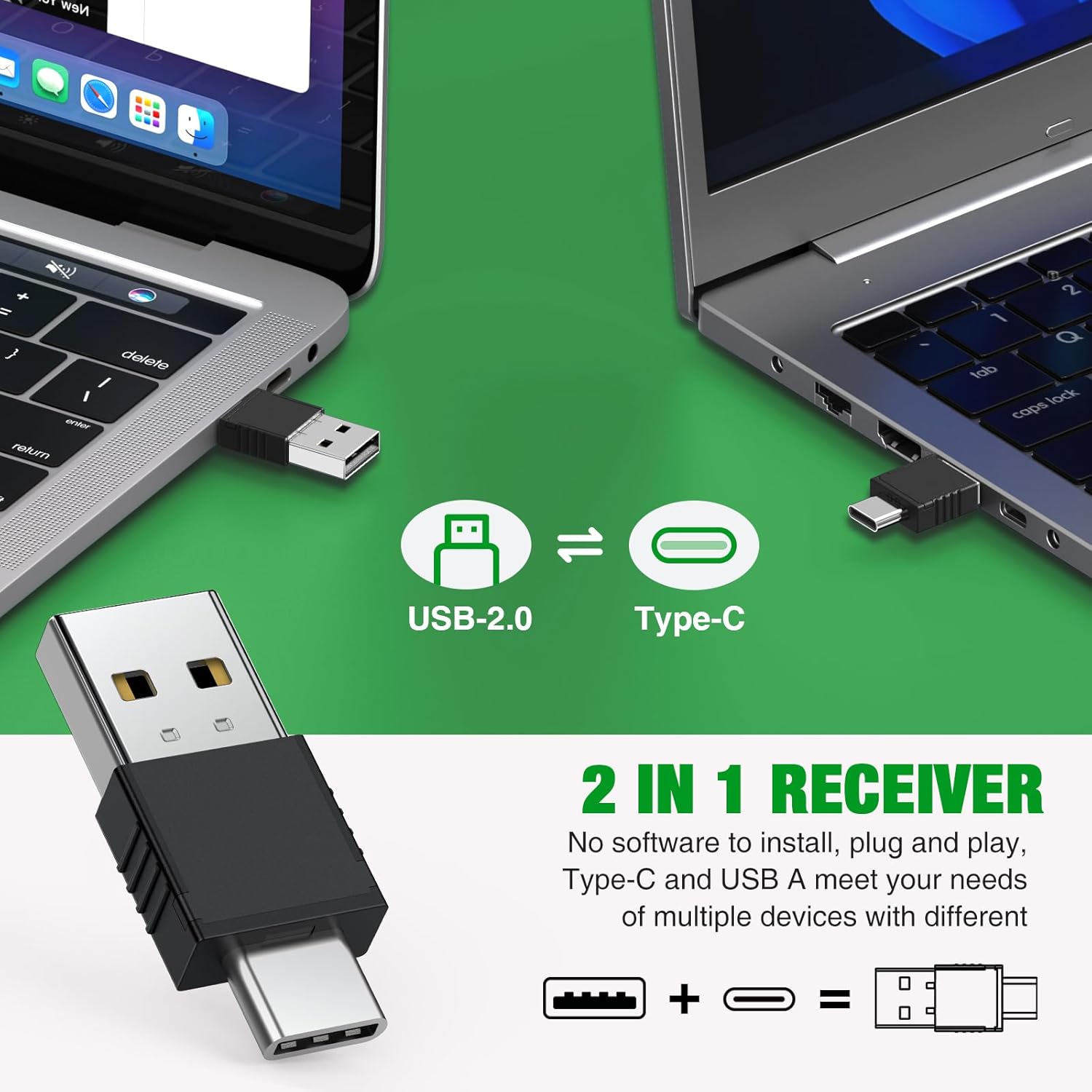
Image: The versatile 2-in-1 USB receiver, featuring both USB-A and Type-C connections for broad compatibility.
Operating Instructions
Familiarize yourself with the buttons on your DinoFire presentation remote:
- Green Laser Pointer Button: Press and hold to activate the green laser pointer. Release to turn off.
- Page Up/Forward Button (▲): Press to advance to the next slide or page in your presentation.
- Page Down/Backward Button (▼): Press to go back to the previous slide or page.
- Hyperlink Button: Used to activate hyperlinks within your presentation.
- Switch Windows Button: Allows you to switch between open applications or windows on your computer.
- Volume Control Buttons (+/-): Adjust the system volume up or down.

Image: A close-up view of the green laser light, highlighting its brightness and visibility.

Image: Visual representation of how to manage volume using the dedicated buttons on the remote.
Video: An official product video demonstrating the key features and functions of the DinoFire Rechargeable Presentation Clicker with Green Light, including charging, laser operation, and slide control.
Compatibility
The DinoFire Presentation Remote is designed for broad compatibility:
- Operating Systems: Windows 2003 / XP / Vista / 7 / 8 / 10, Mac OS, Linux, Android.
- Software: PowerPoint, Google Slides, Keynote, Prezi, PDF, MS Word, ACD See, and other presentation software.

Image: Visual representation of the wide range of operating systems and presentation software compatible with the device.
Charging and Battery Life
The DinoFire presenter features a built-in rechargeable Lithium Polymer battery. To charge, connect the included USB cable to the presenter and a USB power source (e.g., computer USB port, wall adapter). A full charge typically takes 1-2 hours and provides several weeks of usage, depending on frequency of use.
Image: The presentation remote connected via USB for charging, indicating its long battery life after a short charge.
Troubleshooting
| Problem | Possible Solution |
|---|---|
| Presenter not responding. |
|
| Laser pointer is dim or not working. |
|
| Limited wireless range. |
|
| Buttons not functioning correctly in specific software. |
|
Specifications
- Model Number: Q06
- Connectivity: RF 2.4 GHz Wireless
- Laser Color: Green Light
- Wireless Range: Up to 100 feet (30 meters)
- Laser Range: Up to 300 feet (90 meters)
- Battery Type: Rechargeable Lithium Polymer (included)
- Charging Time: Approximately 1-2 hours
- Item Weight: 3.52 ounces (approximately 100 grams)
- Package Dimensions: 6.85 x 1.69 x 1.46 inches
- Compatible Devices: Laptop, PC, Mac, Android devices with USB port
Safety Information
Please observe the following safety precautions:
- Laser Safety: Do not point the laser beam directly at people's eyes or at aircraft. Laser radiation can be harmful.
- Children: Keep the device out of reach of children.
- Disassembly: Do not attempt to disassemble or modify the device. This will void the warranty and may cause damage or injury.
- Temperature: Avoid exposing the device to extreme temperatures or direct sunlight.
- Water: Do not expose the device to water or excessive moisture.
Image: A visual reminder to never point the laser directly at faces or eyes.
Warranty and Support
DinoFire products are designed for reliability and performance. For any questions, technical support, or warranty inquiries, please refer to the contact information provided with your purchase or visit the official DinoFire website. Keep your purchase receipt for warranty claims.
For more information, visit the DinoFire Store on Amazon.


