
1. Introduction
The Cooler Master CK550 is a full-sized mechanical gaming keyboard designed for performance and durability. It features per-key RGB backlighting, on-the-fly controls for lighting and macros, and a robust brushed aluminum design. This manual provides detailed instructions for setting up, operating, maintaining, and troubleshooting your CK550 keyboard.
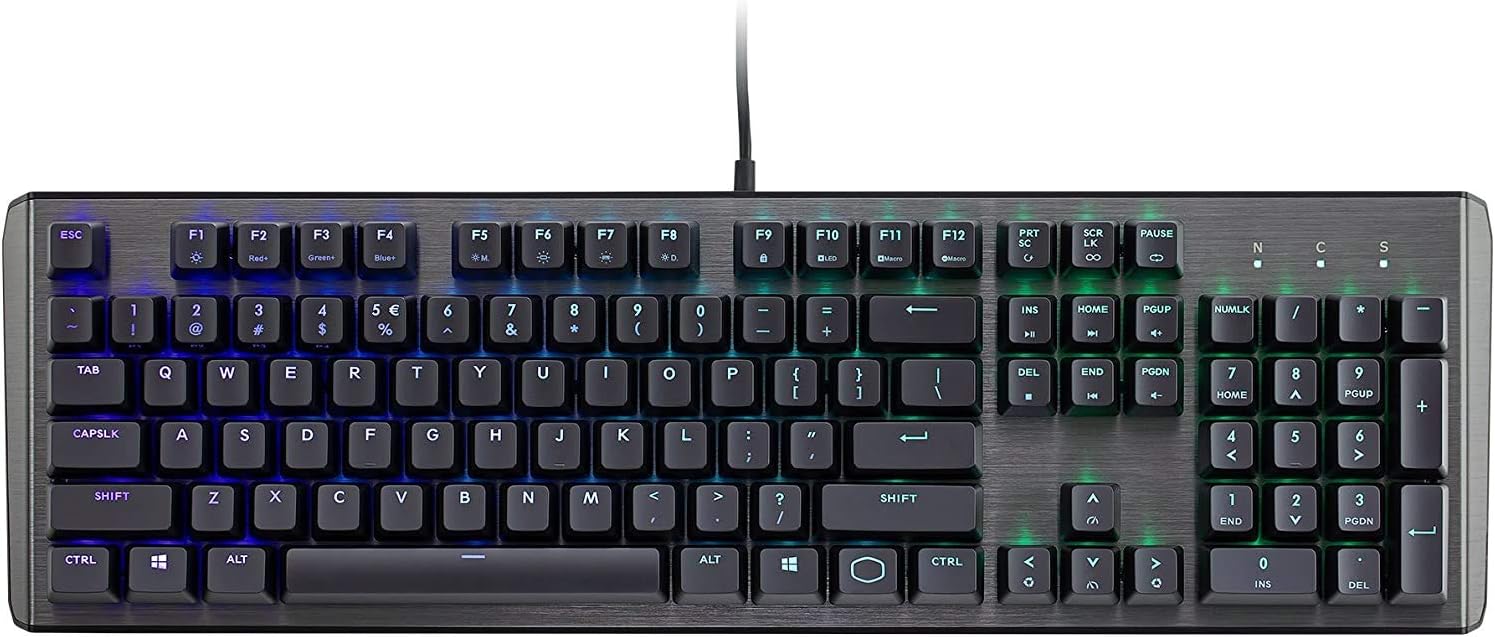
Image 1.1: Top view of the Cooler Master CK550 Gaming Mechanical Keyboard.
2. Package Contents
Verify that all items are present in your package:
- 1 x Cooler Master CK550 Gaming Mechanical Keyboard
3. Setup
3.1 Connecting the Keyboard
- Unpack the Cooler Master CK550 keyboard from its packaging.
- Locate an available USB 2.0 port on your computer.
- Plug the USB connector from the keyboard into the USB port on your computer.
- The keyboard will automatically install the necessary drivers. This process may take a few moments.
- Once the drivers are installed, the keyboard's RGB backlighting will illuminate, indicating it is ready for use.

Image 3.1: Angled view of the Cooler Master CK550, showing the USB cable connection.
3.2 Software Installation (Optional)
While the CK550 offers extensive on-the-fly controls, Cooler Master provides optional software for advanced customization. This software allows you to map 16.7 million colors to any key, customize lighting modes, and fine-tune macros with greater precision.
- Visit the official Cooler Master website and navigate to the support section for the CK550 keyboard.
- Download the Cooler Master Portal software.
- Install the Cooler Master Portal, then download the specific CK550 keyboard software through the portal.
- Follow the on-screen instructions to complete the installation.
4. Operating Instructions
4.1 RGB Backlighting Control
The CK550 features per-key RGB LEDs with multiple lighting modes and effects. These can be adjusted directly on the keyboard using the 'Fn' key in combination with specific function keys.
- Fn + F1: Cycle through Red LED brightness levels.
- Fn + F2: Cycle through Green LED brightness levels.
- Fn + F3: Cycle through Blue LED brightness levels.
- Fn + F4: Cycle through lighting effects/modes.
- Fn + F5: Adjust lighting speed.
- Fn + F6: Adjust lighting direction.
- Fn + F7: Change color palette.
- Fn + F8: Toggle between different lighting presets.

Image 4.1: Close-up of the CK550 showcasing RGB per-key backlighting.
4.2 On-the-Fly Controls
The CK550 allows for real-time adjustments to lighting and macros without the need for software. This functionality is accessed using the 'Fn' key in combination with other keys.
- Macro Recording: Use Fn + M1/M2/M3 (or other designated macro keys) to record and assign macros. Consult the full manual or software for specific macro programming instructions.
- Media Controls: Fn + F9-F12 typically control media playback (play/pause, stop, previous, next).
- Volume Controls: Fn + Print Screen, Scroll Lock, Pause Break keys may control volume (mute, volume down, volume up).
4.3 Hybrid Key Rollover
The CK550 features hybrid key rollover, ensuring that multiple simultaneous key presses are registered accurately, which is crucial for fast-paced gaming and typing.
5. Key Features
5.1 Mechanical Switches
The CK550 is equipped with durable Blue Mechanical Switches, rated for over 50 million keypresses. These switches provide a tactile bump and an audible click, offering distinct feedback for each keystroke.

Image 5.1: Close-up of a Cooler Master Blue Mechanical Switch.
5.2 Durable Brushed Aluminum Design
The keyboard features a contoured top plate made of brushed aluminum, providing both a premium aesthetic and enhanced structural integrity. The floating keycap design contributes to its minimalistic appearance and facilitates easier cleaning.

Image 5.2: Close-up of the CK550's durable brushed aluminum top plate.
6. Maintenance
6.1 Cleaning
Regular cleaning helps maintain the performance and appearance of your keyboard.
- Disconnect the keyboard from your computer before cleaning.
- Use a can of compressed air to remove dust and debris from between the keycaps.
- Wipe the keycaps and the aluminum surface with a soft, slightly damp cloth. Avoid using harsh chemicals or abrasive materials.
- For deeper cleaning, keycaps can be carefully removed using a keycap puller (not included) and cleaned separately. Ensure they are completely dry before reattaching.
6.2 Storage
When not in use for extended periods, store the keyboard in a cool, dry place away from direct sunlight and extreme temperatures. Protect it from dust by covering it or storing it in its original packaging.
7. Troubleshooting
If you encounter issues with your Cooler Master CK550 keyboard, refer to the following common solutions:
- Keyboard Not Responding: Ensure the USB cable is securely connected to both the keyboard and the computer. Try a different USB port. Restart your computer.
- Keys Not Registering or Double-Pressing: This can sometimes be resolved by cleaning the switches with compressed air. If the issue persists, ensure your keyboard's firmware is up to date via the Cooler Master Portal software.
- RGB Lighting Issues: Check the on-the-fly lighting controls (Fn + F1-F8) to ensure the desired mode and brightness are selected. If using software, verify settings there. Ensure the keyboard's firmware is current.
- Macro Issues: Re-record your macros using the on-the-fly controls or the Cooler Master software. Ensure no conflicts exist with other software or system shortcuts.
- Software Not Detecting Keyboard: Ensure the keyboard is connected and recognized by the operating system. Reinstall the Cooler Master Portal and CK550 specific software.
For further assistance, visit the Cooler Master support website or contact their customer service.
8. Specifications
| Feature | Description |
|---|---|
| Brand | Cooler Master |
| Model Number | CK-550-GKGL1-US |
| Keyboard Description | Gaming Mechanical Keyboard |
| Switch Type | Blue Mechanical Switches |
| Backlighting | Per-key RGB |
| Connectivity | USB 2.0 (Corded Electric) |
| Hardware Platform | PC |
| Operating System | Windows 10 |
| Material | Aluminum, Plastic |
| Dimensions (LxWxH) | 18.11 x 5.31 x 1.61 inches |
| Item Weight | 1.87 pounds |
9. Warranty and Support
9.1 Warranty Information
Cooler Master products are covered by a limited warranty. The specific terms and duration of the warranty may vary by region and product. Please retain your proof of purchase for warranty claims.
9.2 Technical Support
For technical assistance, driver downloads, firmware updates, or further product information, please visit the official Cooler Master support website:
You may also find FAQs and community forums on their website for additional help.


