
Introduction
This manual provides essential information for the proper installation, operation, and maintenance of your Intel Xeon Silver 4116 Twelve-Core Skylake Processor. Please read this guide thoroughly before proceeding with any installation or configuration to ensure optimal performance and system stability.
Safety Information
Always observe the following safety precautions when handling computer components:
- Ensure your system is powered off and unplugged from the electrical outlet before installation.
- Discharge static electricity by touching a grounded metal object or wearing an anti-static wrist strap.
- Handle the processor by its edges to avoid touching the gold contacts or the integrated heat spreader (IHS).
- Keep the processor in its protective packaging until ready for installation.
Setup and Installation
1. Pre-installation Checks
- Verify that your motherboard supports the Intel Xeon Silver 4116 processor and has an LGA 3647 socket. Consult your motherboard's manual for compatibility.
- Ensure you have a compatible CPU cooler designed for the LGA 3647 socket and appropriate thermal paste.
- Gather necessary tools, such as a Phillips head screwdriver.
2. Processor Installation
- Carefully open the CPU socket retention mechanism on the motherboard.
- Align the processor with the socket. The processor has specific notches that must align with the socket keys. Do not force the processor into the socket.
- Gently lower the processor into the socket.
- Close the socket retention mechanism to secure the processor.
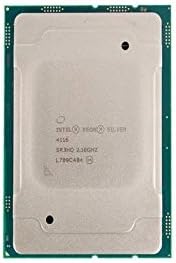
Image: Top view of the Intel Xeon Silver 4116 processor, showing the integrated heat spreader and Intel branding.

Image: Side-by-side view of the Intel Xeon Silver 4116 processor, displaying both the top (integrated heat spreader) and bottom (LGA 3647 contact array) surfaces.
3. CPU Cooler Installation
- Apply a thin, even layer of thermal paste to the center of the processor's integrated heat spreader (IHS). Refer to the thermal paste manufacturer's instructions for specific application methods.
- Mount the CPU cooler according to its manufacturer's instructions, ensuring even pressure distribution.
- Connect the CPU cooler's fan cable to the designated CPU fan header on the motherboard.
Operating Instructions
1. Initial System Boot
- After completing hardware installation, connect all necessary peripherals and power cables.
- Power on your system. The system should initiate the boot process.
- Access the BIOS/UEFI setup utility (typically by pressing DEL, F2, or F10 during startup, depending on your motherboard).
2. BIOS/UEFI Configuration
- Verify that the BIOS/UEFI recognizes the Intel Xeon Silver 4116 processor correctly.
- Configure memory settings (e.g., XMP profiles) if applicable.
- Adjust fan speed curves for the CPU cooler to maintain optimal temperatures.
- Save changes and exit the BIOS/UEFI.
3. Driver Installation
- Install the operating system.
- Install the latest chipset drivers for your motherboard, typically available from the motherboard manufacturer's website. These drivers ensure proper communication between the CPU and other system components.
Maintenance
Regular maintenance helps ensure the longevity and stable operation of your processor and system.
- Dust Cleaning: Periodically clean dust from the CPU cooler heatsink and fan using compressed air. Ensure the system is powered off and unplugged before cleaning.
- Thermal Paste: If CPU temperatures become consistently high, consider reapplying thermal paste. This typically involves removing the CPU cooler, cleaning off old thermal paste from both the CPU and cooler base, and applying new thermal paste.
- Temperature Monitoring: Use system monitoring software to keep track of CPU temperatures, especially under load, to prevent overheating.
Troubleshooting
If you encounter issues, refer to the following common troubleshooting steps:
- No Boot/No Display:
- Verify all power connections to the motherboard and CPU.
- Reseat the CPU, RAM, and graphics card.
- Check for bent pins on the CPU or in the socket (handle with extreme care).
- System Instability/Crashes:
- Ensure CPU temperatures are within acceptable limits.
- Run memory diagnostic tools to check RAM integrity.
- Update motherboard BIOS/UEFI to the latest version.
- Overheating:
- Confirm the CPU cooler is properly installed and making good contact with the CPU.
- Check if the CPU fan is spinning correctly.
- Ensure adequate airflow within the computer case.
For persistent issues, consult your motherboard's manual for specific diagnostic LED codes or beep codes.
Specifications
| Feature | Specification |
|---|---|
| Brand | Intel |
| Model Number | SR3HQ |
| CPU Manufacturer | Intel |
| CPU Model | Xeon Silver 4116 (Twelve-Core) |
| CPU Speed | 2.1 GHz |
| CPU Socket | LGA 3647 |
| L3 Cache | 16.5 MB |
| Date First Available | May 19, 2018 |
Warranty Information
Intel processors typically come with a limited warranty. For detailed information regarding the warranty period, terms, and conditions for your Intel Xeon Silver 4116 processor, please refer to the official Intel website or the documentation provided with your purchase. Keep your proof of purchase for warranty claims.
Support
For further technical assistance, driver downloads, or additional product information, please visit the official Intel support website:
You may also consult your system integrator or motherboard manufacturer for system-specific support.