
1. Introduction
This manual provides comprehensive instructions for the safe and efficient operation of your ieGeek 9.5-inch Portable DVD Player, Model IK-902. Please read this manual thoroughly before using the device and retain it for future reference.
2. Product Overview and Package Contents
The ieGeek Portable DVD Player is designed for versatile media playback, featuring a 9.5-inch eye-protective swivel screen and a long-lasting rechargeable battery. It supports various disc and digital media formats, making it suitable for use at home, in a car, or during travel.
2.1 Package Contents
- 1 x ieGeek 9.5-inch Portable DVD Player (Black)
- 1 x Car Charger
- 1 x AC Power Adapter
- 1 x AV Cable
- 1 x Remote Control
2.2 Device Features
- Screen: 9.5-inch HD Eye-protective Swivel Screen (270° rotation, 180° flip)
- Battery: 2500mAh rechargeable Lithium Polymer battery, providing approximately 5 hours of playback.
- Audio: Dual high-power speakers for clear sound. 3.5mm earphone jack for private listening.
- Disc Compatibility: Region-free support for CD, DVD, VCD, SVCD, CD±R/±RW, DVD±R/±RW. (Note: Blu-ray and pirated discs are not supported).
- Digital Media: Supports USB and SD Card (16-32GB) playback of VOB, AVI, MPEG, MP3, WMA, JPEG formats.
- Connectivity: AV output for connecting to an external display (e.g., TV).
- Convenience: Break-point memory function to resume playback from where you left off.

Figure 1: ieGeek Portable DVD Player with its screen open.
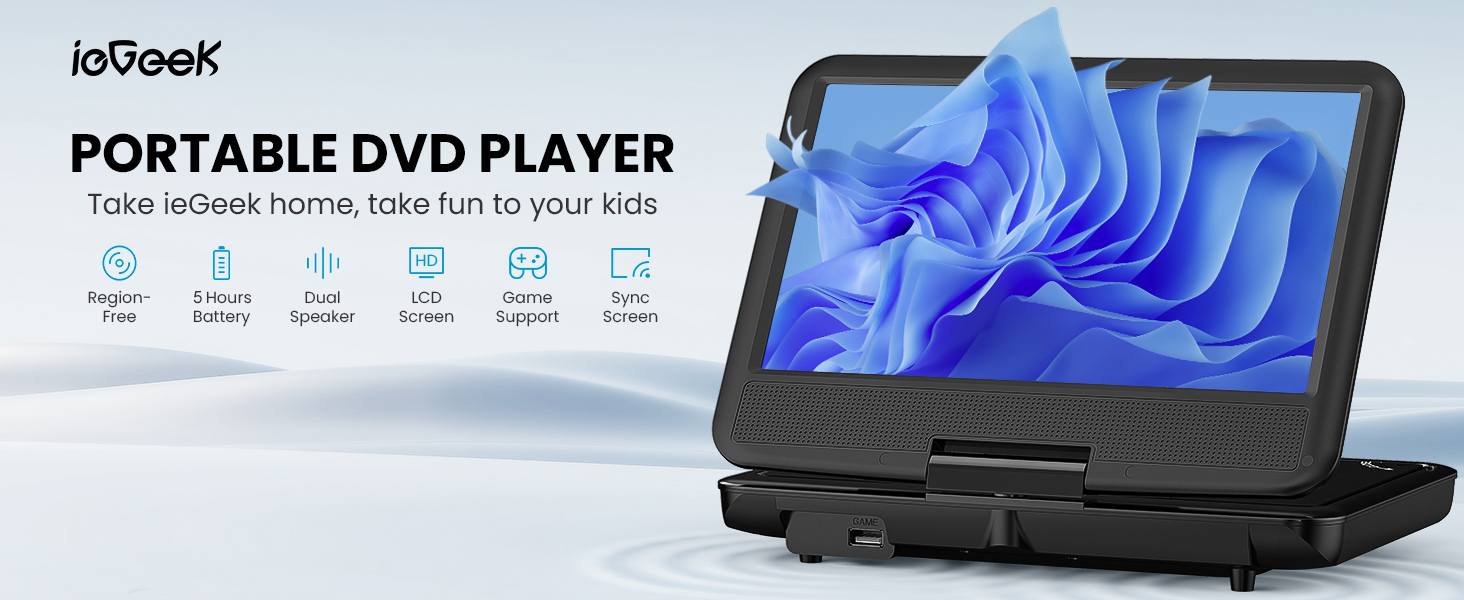
Figure 2: Overview of the ieGeek Portable DVD Player's main features.
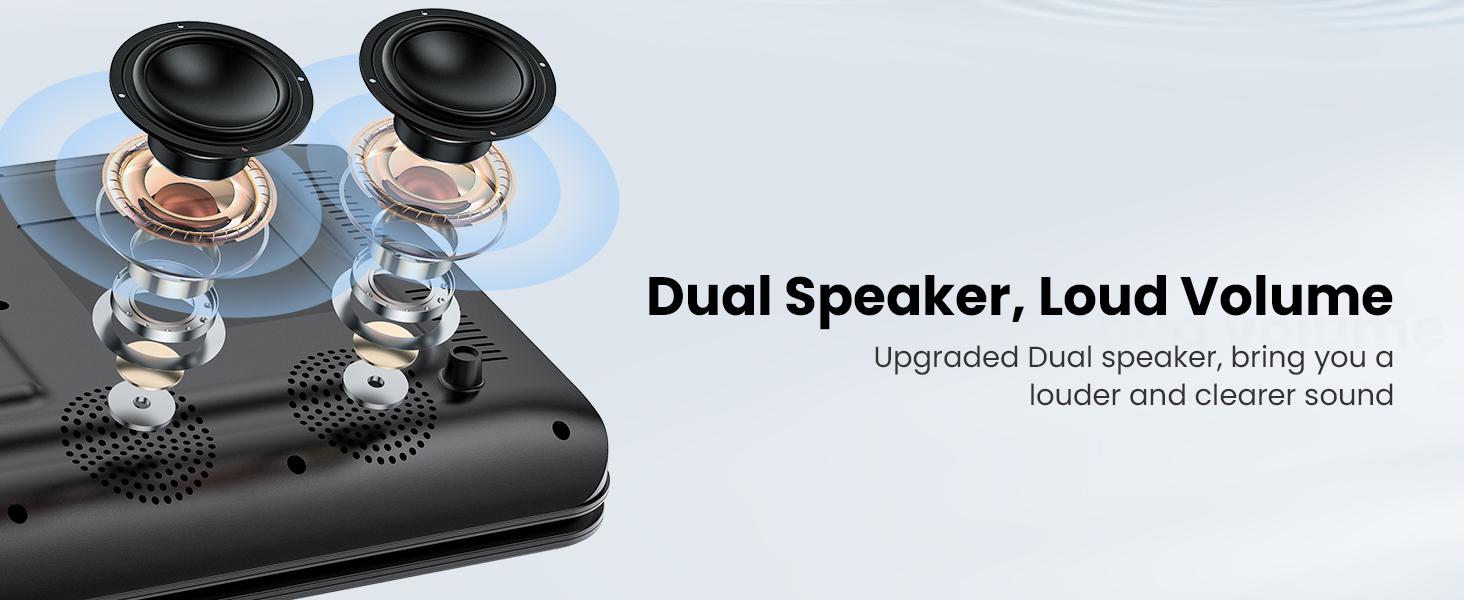
Figure 3: The player features dual speakers for enhanced audio output.
3. Setup and Initial Use
3.1 Charging the Battery
Before first use, fully charge the player's internal battery. Connect the provided AC Power Adapter to the player's DC IN port and then to a wall outlet. Alternatively, use the Car Charger to power the device or charge it in a vehicle.
- A full charge provides approximately 5 hours of playback.
- The charging indicator light will typically change color or turn off when charging is complete.
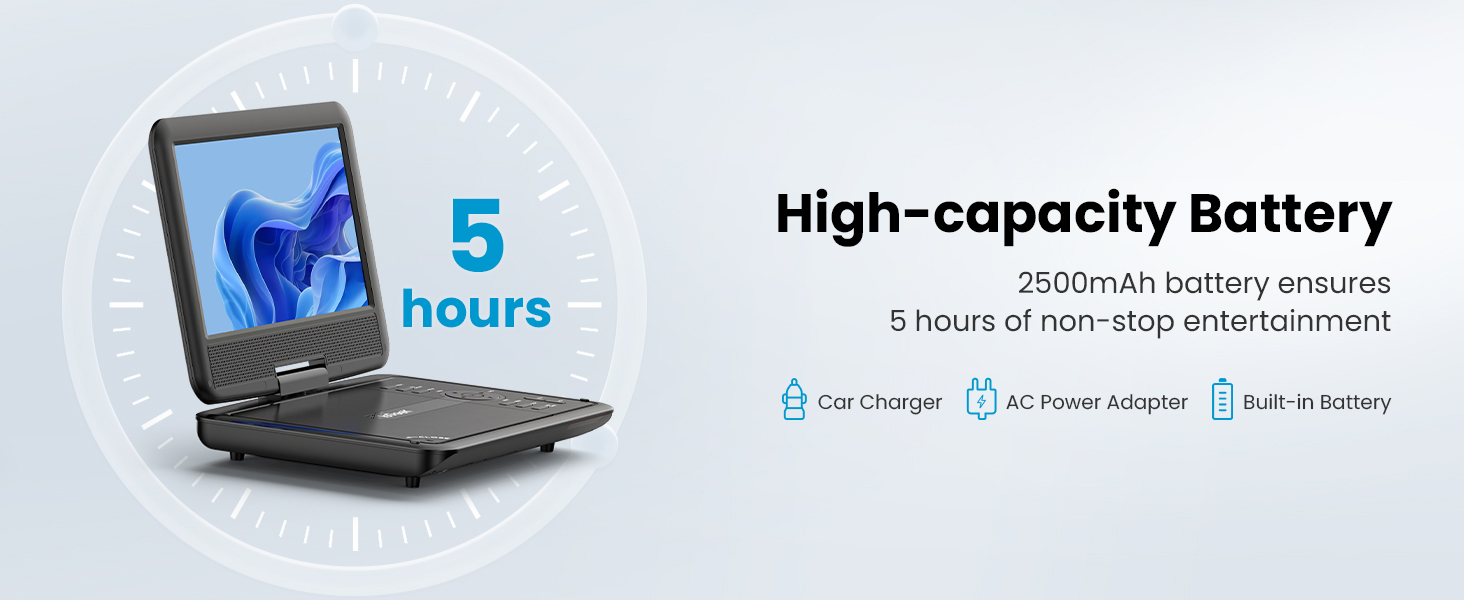
Figure 4: The player features a high-capacity 2500mAh battery for up to 5 hours of entertainment.
3.2 Powering On/Off
Locate the Power button on the device. Press and hold it for a few seconds to turn the player on or off. The screen will illuminate upon successful power-on.
4. Operating Instructions
4.1 Disc Playback
- Open the disc cover gently.
- Place a compatible disc (CD, DVD, VCD, SVCD, CD±R/±RW, DVD±R/±RW) onto the spindle, ensuring it is seated correctly.
- Close the disc cover. The player will automatically detect and begin playing the disc.
- Use the control buttons on the player or the remote control to manage playback (Play, Pause, Stop, Skip, Volume).
Note: This player is region-free, supporting discs from all regions. Blu-ray discs and pirated discs are not supported.
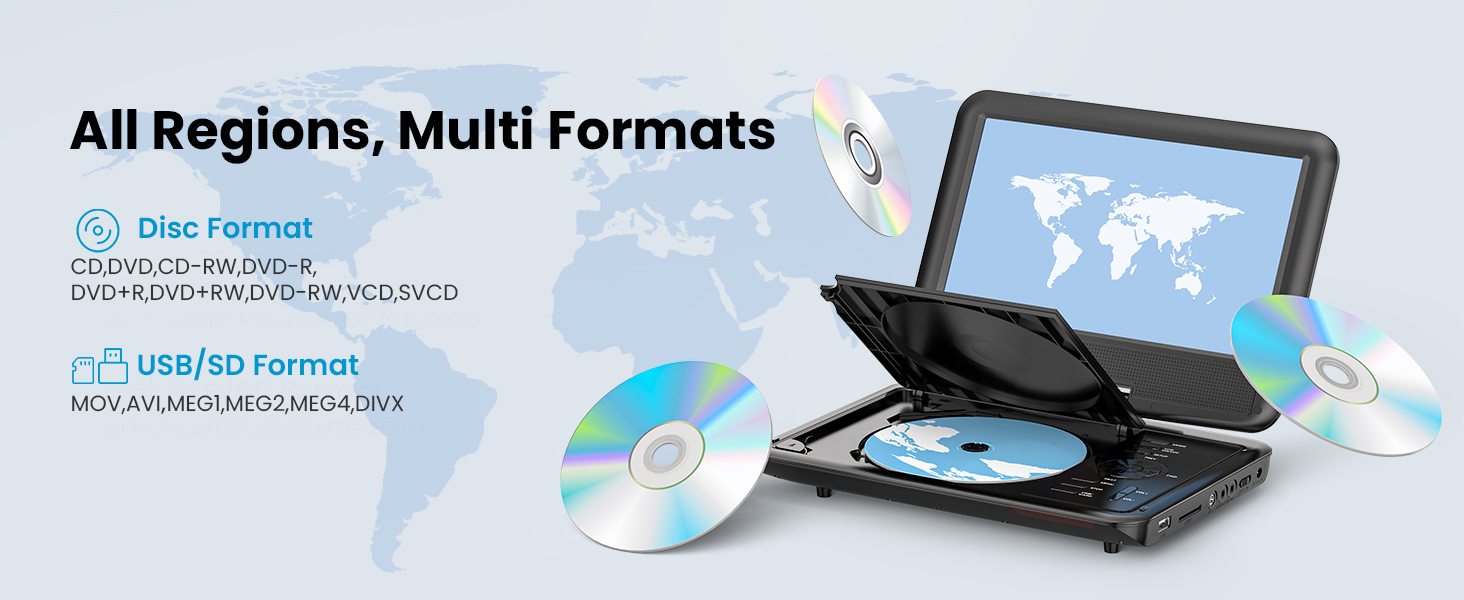
Figure 5: The player supports all regions and multiple disc and digital media formats.
4.2 USB and SD Card Playback
- Insert a USB flash drive or an SD card (16-32GB) into the respective port on the player.
- The player should automatically detect the media. Navigate through the files using the control buttons or remote.
- Select the desired media file (VOB, AVI, MPEG, MP3, WMA, JPEG) to begin playback.
4.3 Connecting to an External Display (TV)
Use the provided AV cable to connect the portable DVD player to a television or other external display. Connect one end of the AV cable to the AV OUT port on the player and the other end to the AV IN ports on your TV (typically yellow for video, white/red for audio). Select the correct input source on your TV to view the player's output.
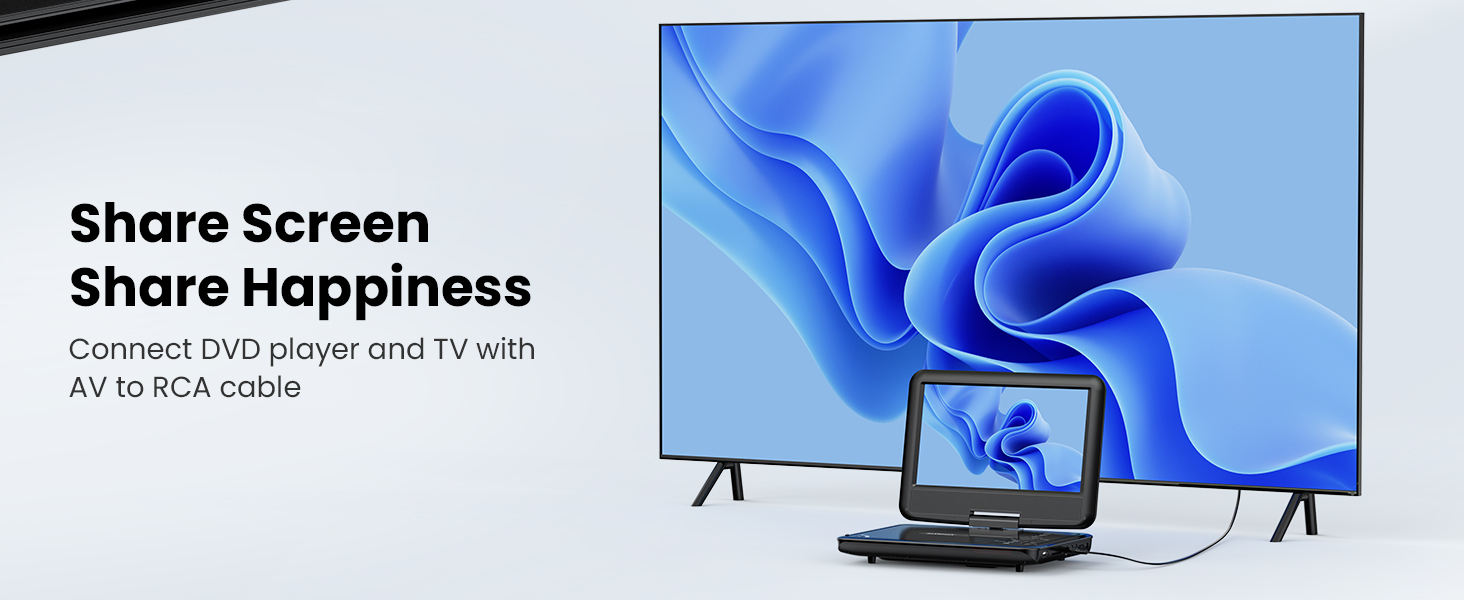
Figure 6: Connect the DVD player to a TV to share the screen.
4.4 Swivel Screen Functionality
The screen can be rotated up to 270 degrees and flipped 180 degrees, allowing for various viewing angles or folding it flat like a tablet. This feature is useful for mounting in a car or for comfortable personal viewing.
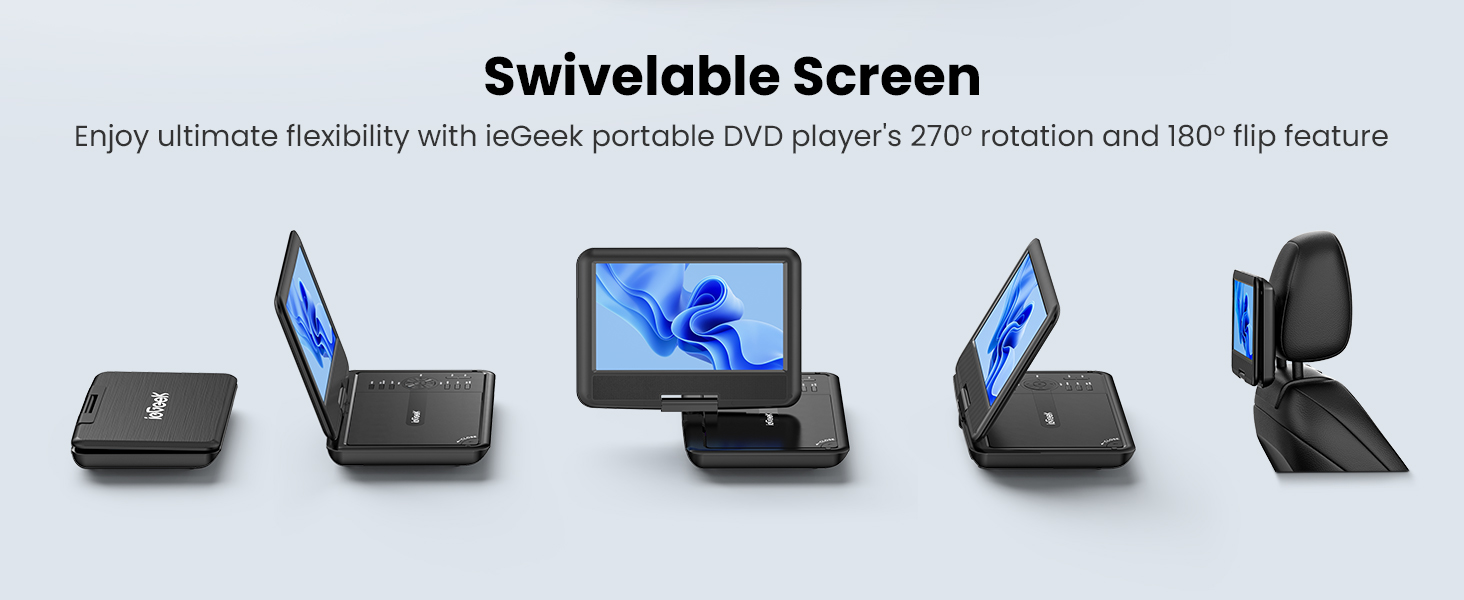
Figure 7: The swivelable screen offers ultimate flexibility for viewing.
4.5 Last Memory Function
The player features a break-point memory function. If the device is turned off or playback is interrupted, it will resume from the last played position when powered on again.
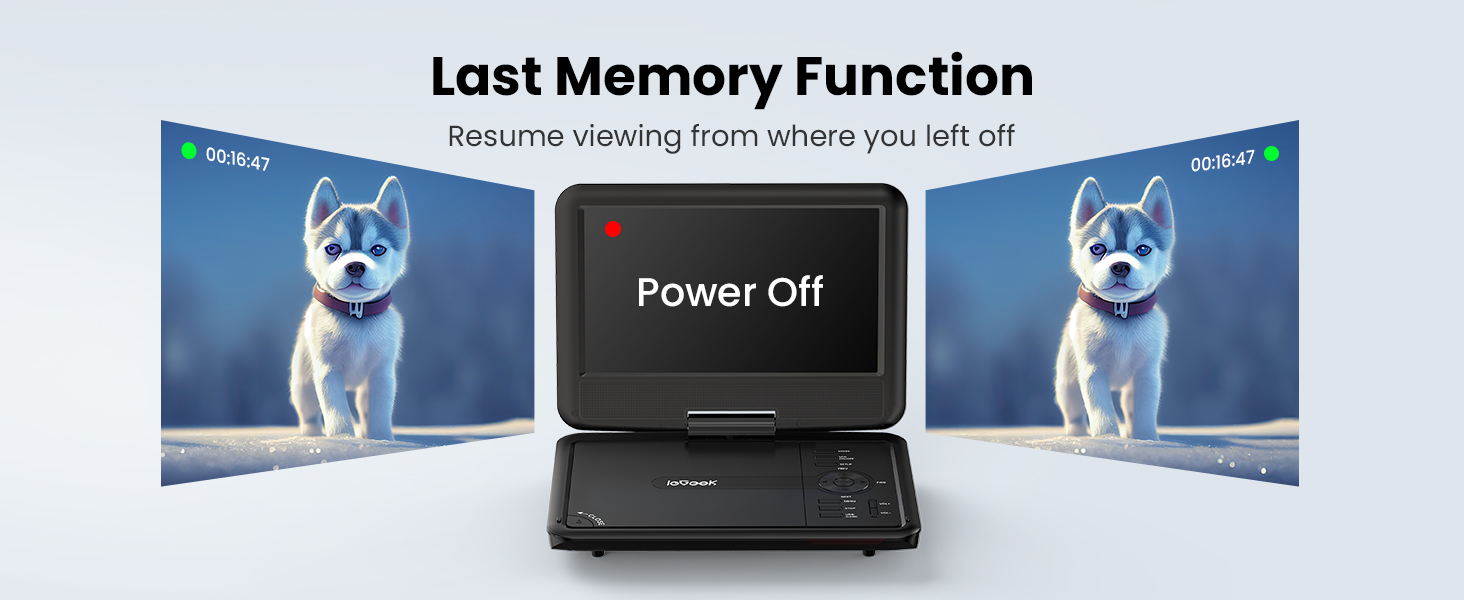
Figure 8: The last memory function allows resuming viewing from the previous stopping point.
4.6 Remote Control
The included remote control provides convenient access to all playback functions, menu navigation, and settings adjustments from a distance.
5. Maintenance
- Cleaning: Use a soft, dry cloth to clean the screen and exterior of the player. Do not use liquid cleaners or abrasive materials.
- Disc Care: Handle discs by their edges. Keep them clean and free of scratches to ensure optimal playback.
- Storage: Store the player in a cool, dry place away from direct sunlight and extreme temperatures.
- Battery: To prolong battery life, avoid fully discharging the battery frequently. Charge it regularly, even if not in use for extended periods.
6. Troubleshooting
| Problem | Possible Cause | Solution |
|---|---|---|
| Player does not power on. | Battery is depleted or power adapter is not connected properly. | Connect the AC adapter or car charger and allow the battery to charge. Ensure power connections are secure. |
| Disc does not play or skips. | Disc is dirty, scratched, or incompatible format. Disc cover not fully closed. | Clean the disc with a soft cloth. Try a different, known-good disc. Ensure the disc cover is securely closed. Verify disc format compatibility (no Blu-ray). |
| No sound or low volume. | Volume is too low, mute is active, or external speakers/headphones are not connected correctly. | Increase volume using the player's controls or remote. Check if mute is active. Ensure headphones or external speakers are properly plugged into the 3.5mm jack. |
| No picture when connected to TV. | AV cable is incorrectly connected or TV input source is wrong. | Ensure the AV cable is securely connected to both the player's AV OUT and the TV's AV IN ports. Select the correct AV input source on your television. |
| USB/SD card not recognized. | Incompatible format, card/drive size exceeds limit, or improper insertion. | Ensure the USB drive or SD card is formatted to a compatible file system (e.g., FAT32) and is within the 16-32GB size limit. Reinsert the media correctly. |
7. Specifications
| Feature | Detail |
|---|---|
| Brand | ieGeek |
| Model Number | IK-902 |
| Screen Size | 9.5 Inches (visible diagonal 10" / 25 cm) |
| Display Type | LCD |
| Product Dimensions | 9.5 x 6.75 x 1.25 inches |
| Item Weight | 2.85 pounds |
| Batteries | 1 Lithium Polymer battery (included) |
| Media Type | DVD |
| Color | Black |
8. Warranty and Support
ieGeek is committed to providing excellent customer service and support for your product.
- Warranty: The product includes a 24-month return and exchange policy.
- Technical Support: Lifetime technical support is available for your device.
- Response Time: Expect a quick reply to inquiries within 24 hours.
For any questions, concerns, or issues with your ieGeek Portable DVD Player, please contact ieGeek customer service.


