
Aftershokz AS650CR
AfterShokz Air Wireless Bone Conduction Headphones User Manual
Model: AS650CR
Introduction
The AfterShokz Air Open Ear Wireless Bone Conduction Headphones (Model AS650CR) utilize patented bone conduction technology to deliver audio through your cheekbones, leaving your ears open to your surroundings. This design enhances situational awareness, making them ideal for outdoor activities and daily use where hearing ambient sounds is crucial for safety and connection.
These headphones are designed for comfort, durability, and a reliable wireless experience, featuring a lightweight titanium frame and IP55 sweat resistance.
Package Contents
Before you begin, please ensure all items are present in your package:
- AfterShokz Air Wireless Bone Conduction Headphones
- Magnetic Charging Cable
- Carrying Case
- Earplugs (for enhanced audio in quiet environments)

Image: Contents of the AfterShokz Air package, showing the headphones, charging cable, carrying case, and a pair of earplugs.
Setup
1. Charging Your Headphones
Before first use, fully charge your AfterShokz Air headphones. Connect the magnetic charging cable to the charging port on the headphones and plug the USB end into a compatible USB power adapter or computer USB port. The LED indicator will show charging status.
- Charging: Solid Red LED
- Fully Charged: Solid Blue LED
A full charge provides approximately 6 hours of continuous music and calls.

Image: The AfterShokz Air headphones, highlighting their 6-hour battery life for music and calls, and Bluetooth V4.2 connectivity.
2. Pairing with a Bluetooth Device
The AfterShokz Air headphones use Bluetooth for wireless connectivity. Follow these steps to pair them with your smartphone, tablet, or computer:
- Power On: Press and hold the power button (usually the multifunction button) for 3-5 seconds until the LED indicator flashes red and blue, and you hear "pairing."
- Activate Bluetooth: On your device (smartphone, tablet, etc.), go to the Bluetooth settings and ensure Bluetooth is turned on.
- Select Device: Look for "AfterShokz Air" or "AS650CR" in the list of available Bluetooth devices and select it.
- Confirm Pairing: Once successfully paired, the LED indicator will flash blue once, and you will hear "connected."
The headphones have a Bluetooth range of approximately 10 meters (33 feet).
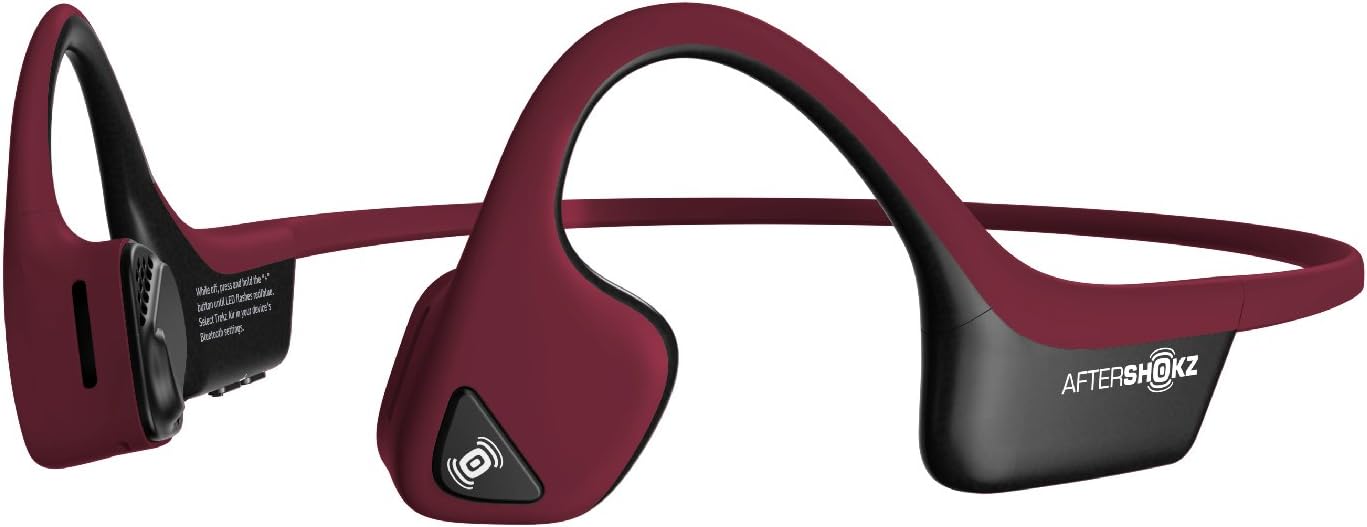
Image: The AfterShokz Air headphones, showcasing their open-ear design and flexible frame, ready for pairing.
Operating Instructions
Wearing the Headphones
Place the headphones so that the transducers rest on your cheekbones, just in front of your ears. The band should wrap around the back of your head. Adjust for a comfortable and secure fit.

Image: A user wearing the AfterShokz Air headphones, illustrating how the open-ear design allows awareness of surroundings.
Multifunction Button Controls
The multifunction button provides easy control over audio playback and calls:
- Play/Pause: Press once.
- Skip Forward: Double-press.
- Answer/End Call: Press once.
- Reject Call: Press and hold for 2 seconds.
- Activate Voice Assistant (Siri/Google Assistant): Press and hold for 2 seconds (when not on a call).
Volume Controls
Dedicated volume buttons allow you to adjust the audio level:
- Volume Up: Press the '+' button.
- Volume Down: Press the '-' button.
Situational Awareness
The open-ear design allows you to hear ambient sounds, which is crucial for safety during outdoor activities like running or cycling. This feature ensures you remain aware of traffic and other environmental noises.

Image: A man cycling while wearing AfterShokz Air headphones, emphasizing the ability to hear both music and surrounding traffic for safer outdoor activities.
Maintenance
Cleaning
Wipe the headphones with a soft, damp cloth after each use, especially after workouts, to remove sweat and dirt. Do not use harsh chemicals or abrasive cleaners.
Water Resistance
The AfterShokz Air headphones are IP55 certified, meaning they are sweatproof and resistant to light splashes of water. They are not designed for submersion in water. Ensure the charging port is dry before charging.
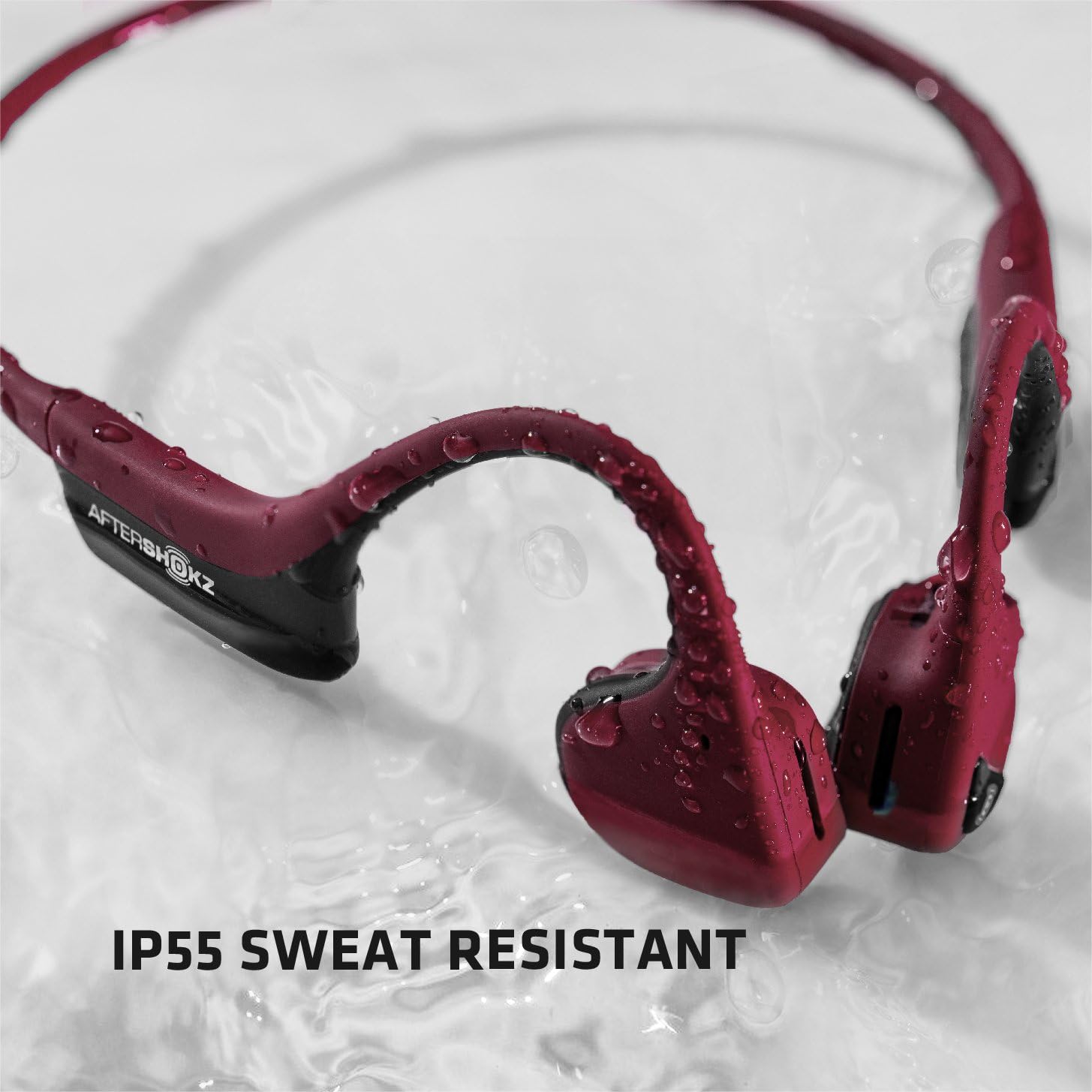
Image: The AfterShokz Air headphones covered in water droplets, demonstrating their IP55 sweat and water resistance.
Storage
Store your headphones in the provided carrying case when not in use to protect them from dust and damage. Avoid storing them in extreme temperatures.
Troubleshooting
No Power
- Ensure the headphones are fully charged.
- Check the charging cable and power source for proper connection.
Cannot Pair
- Make sure the headphones are in pairing mode (flashing red and blue LED).
- Ensure Bluetooth is enabled on your device.
- Move the headphones closer to your device.
- Try turning off and on Bluetooth on your device, or restarting your device.
- If previously paired, try "forgetting" the device in your Bluetooth settings and re-pairing.
Poor Sound Quality or Low Volume
- Adjust the volume on both the headphones and your connected device.
- Ensure the transducers are positioned correctly on your cheekbones.
- Move closer to your connected device to avoid Bluetooth interference.
- In noisy environments, consider using the included earplugs to enhance audio perception.
Specifications
| Model Name | AS650CR |
| Connectivity Technology | Bluetooth |
| Bluetooth Version | V4.2 |
| Bluetooth Range | Up to 10 meters (33 feet) |
| Audio Driver Type | Bone Conduction Driver |
| Frequency Response | 20 Hz - 20,000 Hz |
| Battery Life | Up to 6 hours of continuous music and calls |
| Water Resistance | IP55 (Sweatproof, water-resistant) |
| Weight | 31.8 Grams (1.12 ounces) |
| Material | Titanium frame |
| Special Features | Microphone Included, Wind Noise Reduction (for calls) |
Warranty and Support
AfterShokz (now Shokz) products typically come with a manufacturer's warranty. Please refer to the official AfterShokz/Shokz website or your purchase documentation for specific warranty terms and conditions.
For technical support, troubleshooting assistance, or warranty claims, please visit the official AfterShokz/Shokz support page or contact their customer service directly. Keep your proof of purchase handy.
Official Website: shokz.com
Ask a question about this manual
Ask about setup, troubleshooting, compatibility, parts, safety, or missing instructions. Manuals+ will review the question and use this page’s manual context to help answer it.