
1. Introduction
This manual provides comprehensive instructions for the setup, operation, and maintenance of your ELECOM DEFT PRO Trackball Mouse, model M-DPT1MRBK. This high-performance trackball mouse offers versatile connectivity options including wired, 2.4GHz wireless, and Bluetooth, designed for enhanced precision and ergonomic comfort across various operating systems.

The ELECOM DEFT PRO Trackball Mouse, showcasing its ergonomic design and prominent red trackball.
2. Package Contents
Verify that all items are present in your product package:
- ELECOM DEFT PRO Trackball Mouse (M-DPT1MRBK)
- USB-A to USB-C Cable (for wired connection and charging)
- USB Wireless Receiver (2.4GHz)
- Lithium Polymer Battery (pre-installed or included separately)
- User Manual (this document)

The trackball mouse accompanied by its USB-A to USB-C cable for wired connection and charging, and a USB wireless receiver for 2.4GHz wireless mode.
3. Product Overview
Familiarize yourself with the components of your ELECOM DEFT PRO Trackball Mouse:
- Trackball: For cursor movement.
- Left/Right Click Buttons: Standard mouse functions.
- Scroll Wheel: For vertical scrolling and tilt for horizontal scrolling.
- DPI Switch Button: Adjusts cursor speed.
- Function Buttons (Fn1, Fn2, Fn3, etc.): Programmable buttons for custom actions.
- Connectivity Mode Switch: Selects Wired, Wireless (2.4GHz), or Bluetooth mode.
- Power Switch: Turns the device on/off.
- USB-C Port: For wired connection and battery charging.
- Wireless Receiver Storage: Compartment for the USB wireless receiver.
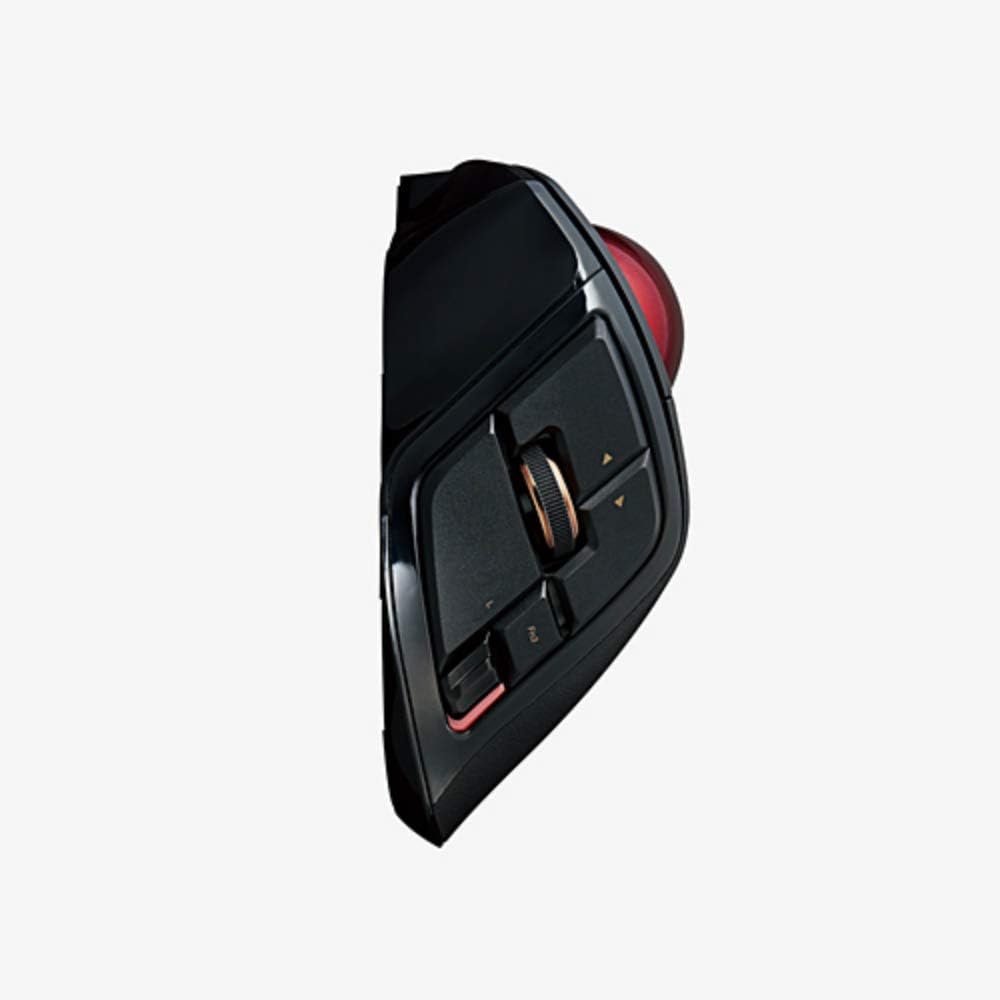
A side profile of the trackball mouse, illustrating the placement of the scroll wheel, tilt functions, and programmable side buttons.

A detailed view of the ELECOM DEFT PRO's buttons, including the main click buttons, scroll wheel, and additional programmable function buttons.
4. Setup
4.1. Battery Installation and Charging
The ELECOM DEFT PRO uses a Lithium Polymer battery. If not pre-installed, open the battery compartment and insert the battery according to the polarity indicators. To charge, connect the mouse to a USB power source using the provided USB-A to USB-C cable. The LED indicator will show charging status.
4.2. Connectivity Options
The mouse supports three connection methods:
- Wired Connection: Connect the mouse directly to your computer using the USB-A to USB-C cable.
- 2.4GHz Wireless Connection:
- Insert the USB wireless receiver into an available USB port on your computer.
- Set the connectivity mode switch on the mouse to the 'Wireless' position.
- Turn on the mouse using the power switch. The mouse should automatically connect.
- Bluetooth Connection:
- Set the connectivity mode switch on the mouse to the 'Bluetooth' position.
- Turn on the mouse using the power switch.
- On your computer or device, navigate to Bluetooth settings and search for new devices.
- Select 'ELECOM DEFT PRO' from the list of available devices to pair.
4.3. Software Installation (ELECOM Mouse Assistant)
For full customization of buttons and advanced settings, download and install the ELECOM Mouse Assistant software from the official ELECOM website. This software allows you to remap buttons, adjust DPI settings, and configure other functions specific to your workflow. Ensure you download the correct version for your operating system (Windows or macOS).
5. Operation
5.1. Basic Cursor Control
Use your fingers to roll the red trackball to move the cursor on the screen. The optical tracking technology provides precise and smooth cursor movement.

An illustration of a hand comfortably resting on the ELECOM DEFT PRO Trackball Mouse, showing the natural finger placement for operating the trackball and buttons.
5.2. Button Functions
The ELECOM DEFT PRO features 8 physical buttons and scroll wheel tilt functionality. Default functions are:
- Left/Right Click: Standard primary and secondary click actions.
- Scroll Wheel: Vertical scrolling.
- Scroll Wheel Tilt (Left/Right): Horizontal scrolling.
- DPI Switch: Cycles through DPI settings (500, 1000, 1500).
- Programmable Buttons (Fn1, Fn2, Fn3, etc.): Customizable via ELECOM Mouse Assistant.
5.3. DPI Adjustment
Press the DPI switch button located near the trackball to cycle through the available cursor speeds: 500 DPI, 1000 DPI, and 1500 DPI. Select the sensitivity that best suits your task or preference.
6. Maintenance
6.1. Cleaning the Trackball
Regular cleaning of the trackball and its bearings is essential for optimal performance. Dust and debris can accumulate and affect cursor smoothness.
- Turn off the mouse using the power switch.
- Locate the small hole on the underside of the mouse.
- Gently push the trackball out from the bottom using a pen or similar blunt object.
- Wipe the trackball with a soft, lint-free cloth.
- Clean the three ruby ball bearings inside the trackball housing with a cotton swab lightly dampened with isopropyl alcohol. Ensure no residue remains.
- Reinsert the trackball into its housing.
7. Troubleshooting
- Cursor not moving or erratic:
- Ensure the mouse is powered on and the correct connectivity mode (Wired, Wireless, Bluetooth) is selected.
- Check battery level and charge if necessary.
- For wireless, ensure the USB receiver is securely plugged in. For Bluetooth, verify pairing in your device's settings.
- Clean the trackball and its bearings as described in Section 6.1.
- Buttons not responding:
- Verify the mouse is connected and powered on.
- If using custom button assignments, check the ELECOM Mouse Assistant software for correct configuration.
- Software issues (ELECOM Mouse Assistant):
- Ensure you have downloaded the latest version of the software for your operating system.
- Restart your computer after installation.
- If issues persist, try reinstalling the software.
8. Specifications
| Feature | Detail |
|---|---|
| Model Number | M-DPT1MRBK |
| Connectivity | Wired (USB), 2.4GHz Wireless (USB Receiver), Bluetooth |
| DPI Settings | 500 / 1000 / 1500 count (switchable) |
| Buttons | 8 physical buttons + Scroll Wheel Tilt |
| Movement Detection | Optical, Trackball |
| Dimensions (W x L x H) | 3.6" x 5.3" x 2.3" (91.4mm x 133.4mm x 57.3mm) |
| Weight | 5.7 oz (without battery) |
| Battery | 1 Lithium Polymer battery (included) |
| System Requirements | Windows 7, 8, 10 or later; macOS 10.13 or later |

An image comparing the dimensions of various ELECOM trackball mouse models, with the DEFT PRO (M-DPT1MRBK) positioned in the center, showing its length, width, and height.
9. Warranty and Support
For warranty information, technical support, or further assistance, please refer to the official ELECOM website or contact ELECOM customer service. Keep your proof of purchase for warranty claims.


