
Apple MJVM2LL/A
Apple MacBook Air MJVM2LL/A 11.6-Inch Laptop User Manual
Model: MJVM2LL/A
Introduction
This manual provides essential instructions for setting up, operating, maintaining, and troubleshooting your Apple MacBook Air 11.6-inch laptop, model MJVM2LL/A. Please read this guide thoroughly to ensure proper use and longevity of your device.
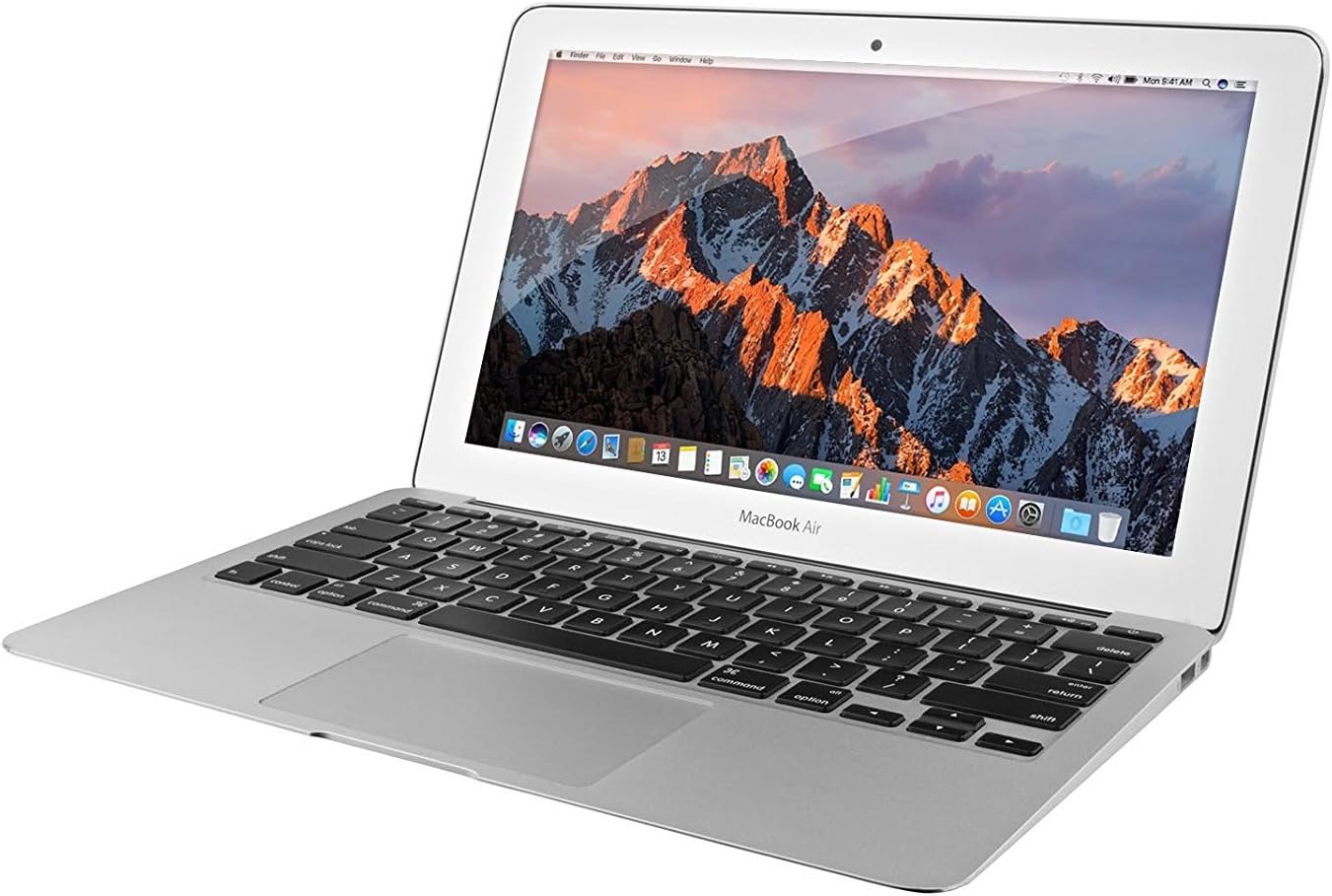
Image: The Apple MacBook Air 11.6-inch laptop, shown open with the screen displaying the macOS desktop environment.
1. Setup
1.1 Unpacking and Initial Inspection
Carefully remove your MacBook Air and its accessories from the packaging. Inspect the device for any visible damage. The package should contain:
- Apple MacBook Air 11.6-inch
- MagSafe 2 Power Adapter
- AC Wall Plug
- Power Cord
1.2 Connecting the Power Adapter
Before first use, connect the MagSafe 2 Power Adapter to your MacBook Air and a power outlet. The MagSafe 2 connector is magnetic and will snap into place on the left side of the laptop. The indicator light on the connector will glow amber when charging and green when fully charged.
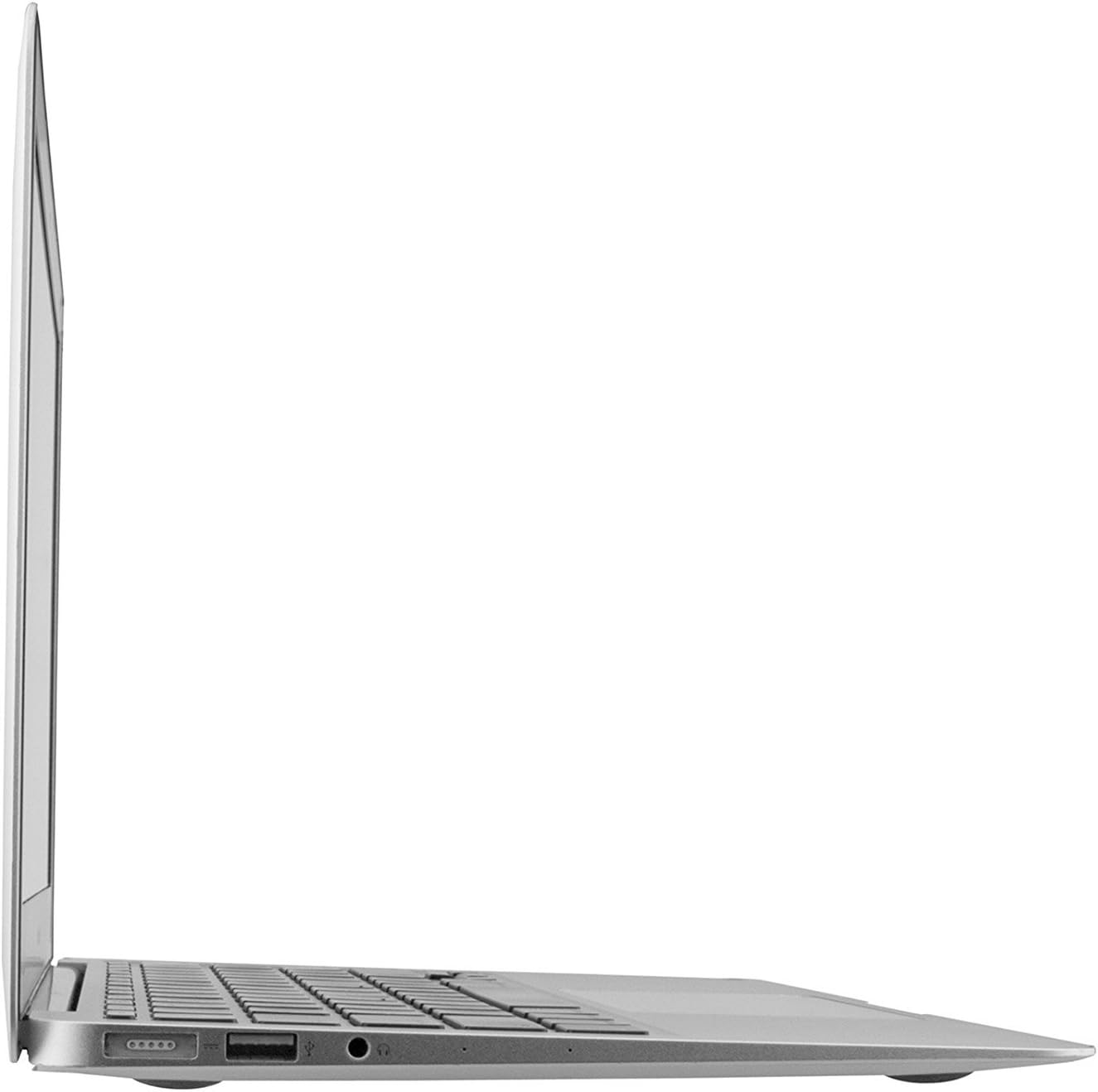
Image: The left side of the MacBook Air, highlighting the MagSafe 2 power port, a USB port, and the headphone jack.
1.3 Initial Power On and Setup Assistant
Open the lid of your MacBook Air. The device may power on automatically. If not, press the power button located in the upper-right corner of the keyboard. Follow the on-screen instructions of the macOS Setup Assistant to:
- Select your country or region.
- Choose your keyboard layout.
- Connect to a Wi-Fi network.
- Transfer information to this Mac (optional).
- Sign in with your Apple ID or create a new one.
- Agree to the terms and conditions.
- Create a computer account (username and password).
- Set up Location Services and Analytics (optional).
2. Operating Your MacBook Air
2.1 Basic Navigation
The MacBook Air features a multi-touch trackpad and a full-size keyboard for interaction.
- Trackpad: Use one finger to move the pointer, two fingers to scroll, pinch to zoom, and other gestures for navigation. Refer to System Preferences > Trackpad for full gesture customization.
- Keyboard: Standard QWERTY layout with function keys for brightness, volume, media control, and Mission Control.

Image: A top-down view of the MacBook Air, showcasing the keyboard and multi-touch trackpad.
2.2 macOS Yosemite Overview
Your MacBook Air runs macOS X 10.10 Yosemite. Key elements of the interface include:
- Finder: For managing files, folders, and applications. Accessible from the Dock.
- Dock: A row of icons at the bottom of the screen for quick access to frequently used applications and documents.
- Menu Bar: Located at the top of the screen, providing access to application menus, system status icons, and Spotlight search.
- Launchpad: A full-screen view of all your applications.
2.3 Connecting Peripherals
The MacBook Air MJVM2LL/A includes various ports for connecting external devices:
- USB 3.0 Ports: Two ports (one on each side) for connecting USB devices like external drives, keyboards, or mice.
- Thunderbolt 2 Port: For high-speed data transfer and connecting external displays.
- Headphone Jack: For audio output.
- Bluetooth: For wireless connection to compatible devices such as headphones, speakers, and input devices. Enable and manage Bluetooth in System Preferences.
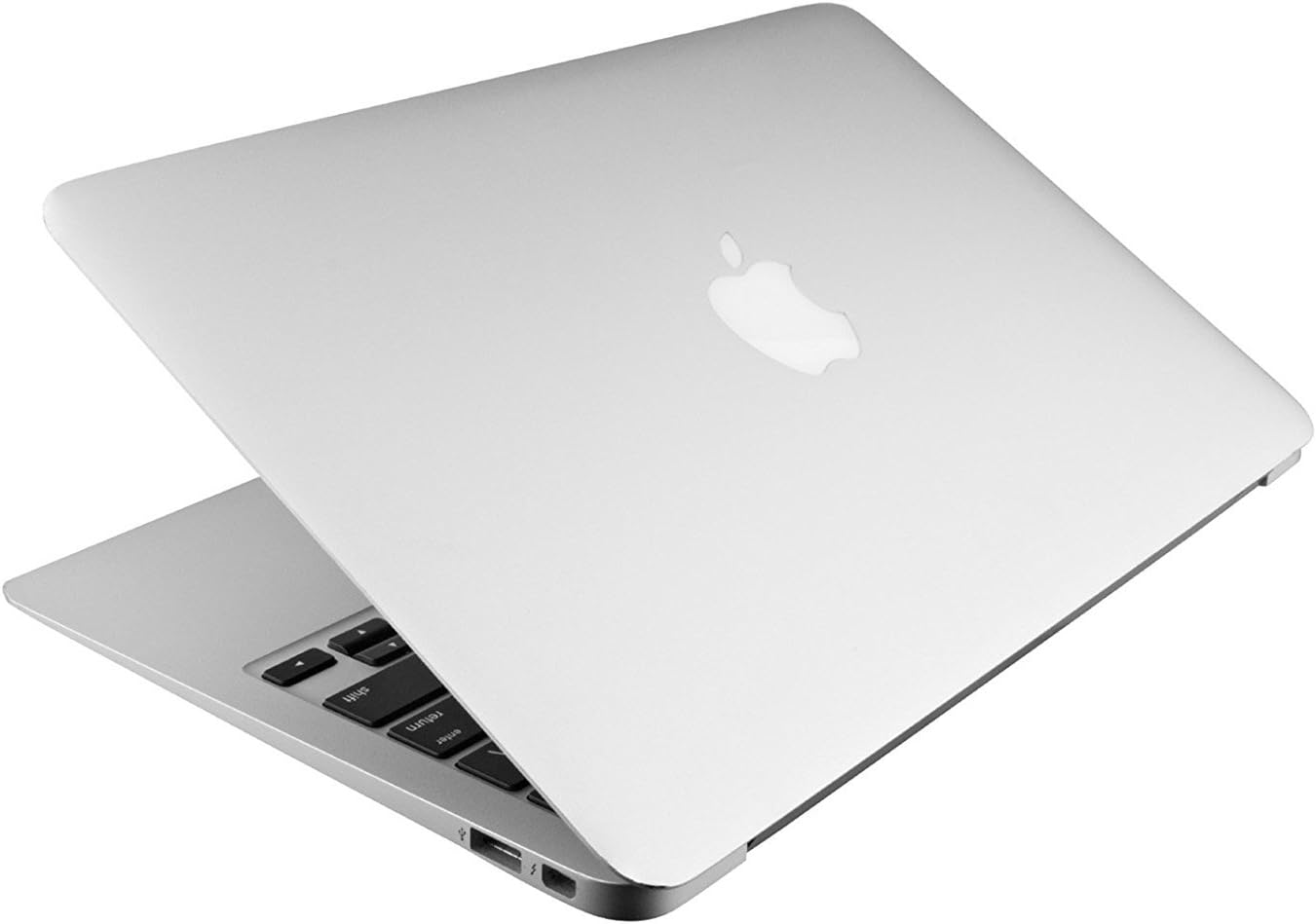
Image: The right side of the MacBook Air, displaying the Thunderbolt 2 port and a USB port.
3. Maintenance
3.1 Cleaning Your MacBook Air
To clean the exterior of your MacBook Air, use a soft, lint-free cloth slightly dampened with water. Avoid spraying cleaners directly onto the device. For the screen, use a soft, dry, lint-free cloth. Do not use aerosol sprays, solvents, abrasives, or cleaners containing hydrogen peroxide.
3.2 Software Updates
Regularly check for software updates to ensure optimal performance and security. Go to the Apple menu () > App Store > Updates. Note that older MacBook Air models, such as this one running macOS Yosemite, may have limitations on upgrading to the latest macOS versions. Ensure compatibility before attempting major OS upgrades.
3.3 Data Backup
Regularly back up your data using Time Machine (built into macOS) or a third-party backup solution. This protects your important files in case of data loss or hardware failure.
3.4 Battery Care
To maximize battery lifespan:
- Avoid extreme temperatures.
- Keep the battery charged between 20% and 80% for daily use.
- If storing the laptop for an extended period, charge it to about 50%.
4. Troubleshooting
4.1 Common Issues and Solutions
- MacBook Air does not turn on: Ensure the power adapter is securely connected and the power outlet is functional. Try pressing the power button. If unresponsive, perform a System Management Controller (SMC) reset (refer to Apple Support documentation for specific steps for your model).
- Wi-Fi connection issues: Check if Wi-Fi is enabled in the Menu Bar or System Preferences. Restart your router and MacBook Air. Try connecting to a different network to isolate the issue.
- Slow performance: Close unnecessary applications. Check Activity Monitor (Applications > Utilities) for processes consuming high CPU or memory. Ensure sufficient free storage space.
- Applications are unresponsive: Force Quit the application by pressing Command + Option + Esc, then select the application and click "Force Quit".
4.2 Restarting and Safe Mode
- Restart: Go to the Apple menu () > Restart.
- Safe Mode: To start in Safe Mode (which performs disk checks and disables non-essential software), restart your Mac and immediately press and hold the Shift key until the login window appears.
5. Specifications
Below are the key technical specifications for the Apple MacBook Air MJVM2LL/A:
| Feature | Detail |
|---|---|
| Model Number | MJVM2LL/A |
| Display | 11.6-inch (diagonal) LED-backlit Glossy Widescreen Display |
| Resolution | 1366 x 768 pixels |
| Processor | 1.6 GHz dual-core Intel Core i5 (Turbo Boost up to 2.7 GHz) |
| RAM | 4 GB 1600 MHz LPDDR3 |
| Storage | 128 GB PCIe-based flash storage (SSD) |
| Graphics | Integrated Intel HD Graphics 6000 |
| Operating System | macOS X 10.10 Yosemite (initial) |
| Wireless | Wi-Fi (802.11ac), Bluetooth 4.0 |
| Ports | 2x USB 3.0, 1x Thunderbolt 2, 1x MagSafe 2 power port, 1x Headphone jack |
| Dimensions (HxWxD) | 0.11-0.68 x 11.8 x 7.56 inches (0.3-1.7 x 30 x 19.2 cm) |
| Weight | 2.38 pounds (1.08 kg) |

Image: The MacBook Air in a closed position, viewed from the front, emphasizing its slim design.
6. Warranty and Support
6.1 Warranty Information
This product, being a renewed item, typically comes with a supplier-backed warranty. For specific warranty details, including duration and coverage, please refer to the documentation provided at the time of purchase or contact your reseller. Apple's standard warranty may not apply to renewed products unless explicitly stated by the reseller.
6.2 Technical Support
For technical assistance, you can refer to Apple's official support website for macOS Yosemite documentation and troubleshooting guides. If your product is covered by a reseller's warranty, contact the reseller for support related to hardware issues.
- Apple Support Website: support.apple.com
- macOS Yosemite Support: Search for "macOS Yosemite support" on the Apple Support website for specific guides.
Related documentsMJVM2LL/A


Ask a question about this manual
Ask about setup, troubleshooting, compatibility, parts, safety, or missing instructions. Manuals+ will review the question and use this page’s manual context to help answer it.