
Introduction
This manual provides detailed instructions for the CELLSTAR CSD-750FHG drive recorder, covering installation, operation, maintenance, and troubleshooting. This device features Full HD recording, HDR, STARVIS, GPS notification, and parking surveillance. It is a Japanese-made product with a 3-year warranty and requires no microSD card maintenance.
Key Features:
- Included Mount Base
- GPS Notification Function (alerts for reverse driving warning areas, accident-prone areas, etc.)
- microSD Maintenance-Free Function
- Night Vision Ver.2 for clear night recordings
- HDR (High Dynamic Range) equipped
- Parking Mode compatible (requires optional accessory)
Product Overview
The CELLSTAR CSD-750FHG is a front-facing drive recorder designed to capture high-quality video footage of your journeys. Its compact design and advanced features ensure reliable performance and enhanced safety on the road.
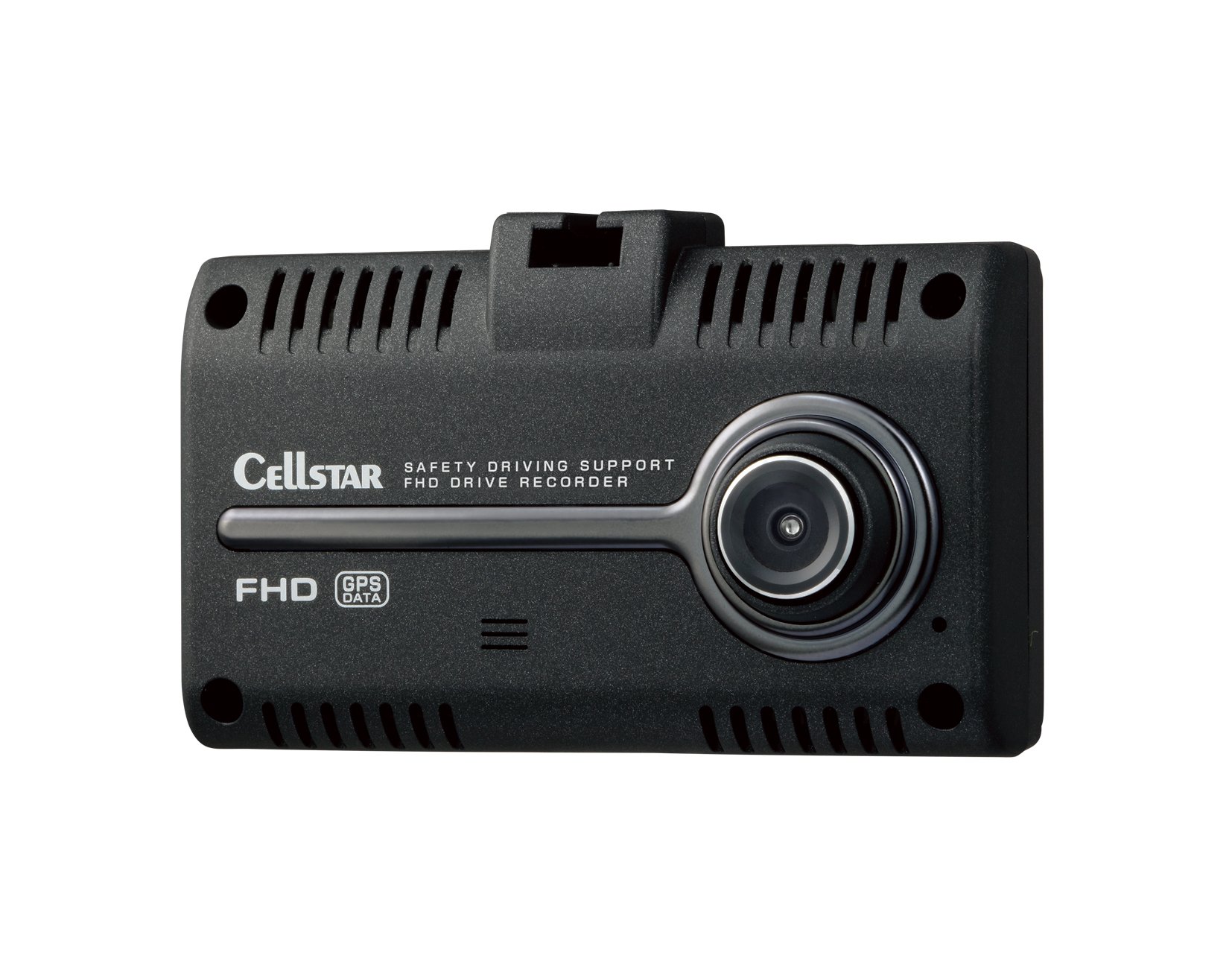
Figure 1: Front view of the CELLSTAR CSD-750FHG Drive Recorder, showing the 2.4-inch touch panel display with various menu options and a road view.
Setup and Installation
Follow these steps to properly set up and install your CSD-750FHG drive recorder in your vehicle.
- Prepare the Mount Base: Ensure the windshield area where the drive recorder will be mounted is clean and dry.
- Attach the Mount Base: Securely attach the included mount base to the desired location on your windshield, ensuring it does not obstruct your view.
- Mount the Device: Slide the CSD-750FHG drive recorder onto the mount base until it clicks into place.
- Connect Power: Plug the included cigar plug cord into your vehicle's cigarette lighter socket and connect the other end to the drive recorder. Route the cable neatly to avoid interference with driving.
- Insert microSD Card: Insert the provided 16GB microSD card into the designated slot on the device.
- Adjust Camera Angle: Power on the device and adjust the camera angle to ensure it captures the road ahead clearly.

Figure 2: Side view of the drive recorder, illustrating how the mounting bracket attaches and the location of various ports for power and memory card.
Operating Instructions
This section details the main functions and how to operate your drive recorder.
Basic Recording
Once powered on, the device will automatically begin continuous recording. The recording status is indicated on the screen.
Night Vision Ver.2
The Night Vision Ver.2 feature enhances recording clarity in low-light conditions, such as at night or in tunnels, ensuring important details are captured.

Figure 3: A visual comparison demonstrating the improved clarity of recordings with Night Vision Ver.2 enabled (left) versus disabled (right) in a city at night.
GPS Notification Function
The integrated Super GPS system utilizes multiple satellite constellations (GPS, GLONASS, Galileo, SBAS) to provide highly accurate location and speed data. It also offers notifications for specific areas like reverse driving warnings or accident-prone zones.

Figure 4: Diagram showing the Super GPS system, indicating the number of satellites from Michibiki, GLONASS, Galileo, GPS, and SBAS used for precise positioning.
Parking Surveillance Mode
When an optional constant power supply cord (GDO-10) is connected, the parking surveillance mode can record events for up to 12 hours after the engine is turned off. This mode uses motion detection and impact detection to record incidents like bumps or vandalism.
- Battery Protection: A timer can be set to automatically cut off power after a specified duration (0-12 hours) to prevent battery drain.
- Voltage Monitoring: The device monitors vehicle battery voltage and automatically cuts off power if the voltage drops below a set level, further protecting your battery.

Figure 5: An example of parking surveillance mode, showing motion detection capturing an event around the parked vehicle.
Maintenance
The CSD-750FHG features a microSD maintenance-free function, which means you generally do not need to manually format the microSD card. The device manages the card's lifespan and data integrity automatically.
- Regular Cleaning: Periodically clean the camera lens and the device screen with a soft, dry cloth to ensure clear recordings and optimal display visibility.
- Firmware Updates: Check the CELLSTAR official website for any available firmware updates to ensure your device has the latest features and performance improvements. GPS data updates are free.
- Storage: When not in use for extended periods, store the device in a cool, dry place away from direct sunlight.
Troubleshooting
If you encounter issues with your CSD-750FHG, refer to the following common problems and solutions.
| Problem | Possible Cause / Solution |
|---|---|
| Device does not power on. |
|
| Recording does not start. |
|
| GPS signal is not acquired or inaccurate. |
|
| Unexpected warnings or alerts. |
|
Specifications
Detailed technical specifications for the CELLSTAR CSD-750FHG drive recorder.

Figure 6: A comparison table highlighting the features and specifications of various CELLSTAR drive recorder models, including the CSD-750FHG.
| Specification | Detail |
|---|---|
| Manufacturer | CELLSTAR |
| Brand | CELLSTAR |
| Model Name | CSD750FHG |
| Product Size (D x W x H) | 2.35 x 8.7 x 5 cm |
| Product Model Number | CSD750FHG |
| Special Features | Parking Monitor |
| Resolution | 2 Million Pixels (Full HD) |
| Mounting Size | 87(W) x 23.5(D) x 80(H) mm |
| Color | Black |
| Certification / Warranty | 3 Years |
| Item Weight | 90 g |
| Compatible Vehicle Type | Car |
| Video Capture Resolution | 1080p |
| Included Components | Cigar plug cord, Mount base, User manual |
| Mounting Type | Adhesive |
| Control Method | Touch |
| Date First Available on Amazon.co.jp | 2018/4/5 |
Warranty and Support
The CELLSTAR CSD-750FHG drive recorder comes with a 3-year manufacturer's warranty from the date of purchase. This warranty covers defects in materials and workmanship under normal use.
For technical support, warranty claims, or further assistance, please contact CELLSTAR customer service. You can find contact information on the official CELLSTAR website or through your local dealer.
Important: Keep your proof of purchase for warranty validation.
GPS data updates are provided free of charge. Please visit the CELLSTAR website for instructions on how to update your GPS data.