
Introduction
The Sony DPT-CP1/B Digital Paper is a lightweight, 10.3-inch e-note device designed for reading, annotating documents, and taking handwritten notes. It offers a low-glare display and a paper-like texture for a comfortable writing experience, aiming to streamline your workflow by reducing reliance on physical paper.
This manual provides essential information for the proper setup, operation, maintenance, and troubleshooting of your Digital Paper device.
What's in the Box
Verify that all the following items are included in your package:
- Digital Paper device
- Quick Start Guide
- Stylus
- Stylus Tips (replacement nibs)
- Tip Puller
- USB Cable (1.5M)
- Warranty Cards

Image: The Sony DPT-CP1/B Digital Paper device shown with its accompanying stylus.
Setup
1. Initial Charging
Before first use, ensure the device is fully charged. Connect the Digital Paper to a computer using the supplied USB cable or to an AC adapter (not included) for charging.
- Computer-based Charging: Approximately 5.5 hours.
- AC Adaptor-based Charging: Approximately 3.5 hours.

Image: The Sony Digital Paper connected via USB for charging.
2. Installing the Digital Paper Application
To transfer documents and notes between your computer and the Digital Paper, you must install the dedicated Digital Paper application. This application is compatible with:
- Windows: 10 Home, 10 Pro, 8.1, 8.1 Pro, 7 Home Premium (SP1 or later), 7 Professional (SP1 or later), 7 Ultimate (SP1 or later)
- macOS: 10.13 (High Sierra), 10.12 (Sierra), Mac OS X 10.11 (El Capitan)
Download the application from the official Sony support website.
3. Wi-Fi Connectivity
The device supports Wi-Fi connectivity (IEEE 802.11a/b/g/n/ac MIMO) for wireless document transfer. Follow the on-screen instructions on the Digital Paper to connect to your preferred Wi-Fi network after initial setup.
Operating Instructions
1. Power On/Off
Press and hold the power button located on the top edge of the device to power it on or off.
2. Navigating the Interface
The Digital Paper features a simple, intuitive interface. Use the stylus to tap on menu options, open documents, and navigate through pages.
3. Reading Documents
Transfer PDF documents to your device using the Digital Paper application. The 10.3-inch high-contrast display (1404 x 1872 dots) provides a low-glare viewing experience suitable for extended reading.

Image: The Digital Paper screen showing a document with text and a pie chart, demonstrating its e-paper display.
4. Taking Notes and Annotating
The included stylus allows for precise writing and drawing directly on documents. The screen's paper-like texture enhances the writing experience. The stylus offers 8192 levels of pressure sensitivity for varied line thickness.
Use the stylus buttons for quick access to highlighting and erasing functions. The device is ideal for marking up PDFs, taking meeting notes, or sketching ideas.
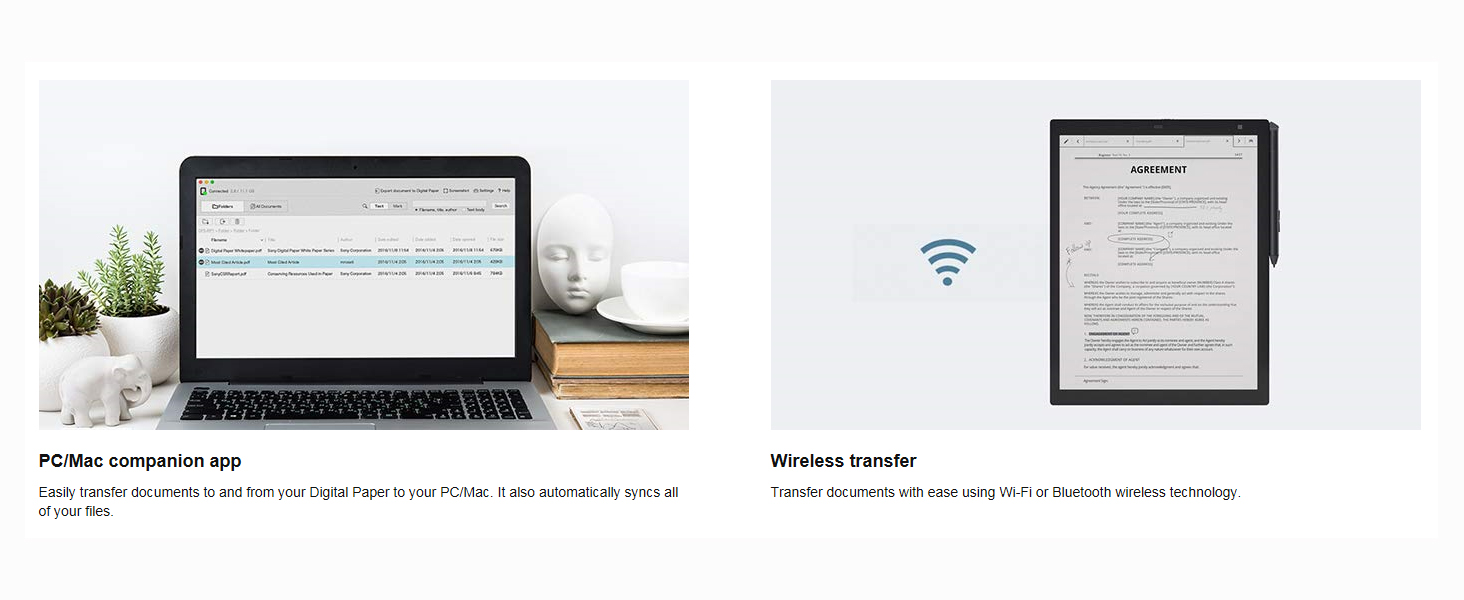
Image: A hand using the stylus to write on the Sony Digital Paper, highlighting its digital note-taking capability.
5. Document Transfer
Documents can be transferred to and from the Digital Paper via:
- USB Cable: Connect the device to your computer and use the Digital Paper application.
- Wi-Fi: Utilize the Digital Paper application on your computer to wirelessly sync documents.
The device is designed to work seamlessly with your personal computer for document management.
6. Video Demonstration
Video: An official demonstration of the Sony DPT-CP1/B Digital Paper in use, showcasing its features and portability in various professional settings.
Maintenance
1. Battery Management
To maximize battery life, ensure the device is fully charged before use. Typical battery life is approximately 1 week with Wi-Fi on, and up to 3 weeks with Wi-Fi off.
Regular charging helps maintain battery health. Avoid completely draining the battery frequently.
2. Stylus Tip Replacement
The stylus tips are consumable items and will wear down with use. Replace them when they show signs of significant wear to maintain optimal writing performance. Use the provided tip puller to safely remove and replace tips.
Replacement stylus tips can be purchased separately from authorized retailers.
3. Cleaning the Device
Gently wipe the screen and body of the Digital Paper with a soft, dry, lint-free cloth. Do not use liquid cleaners, aerosols, or abrasive materials, as these can damage the screen or finish.
Troubleshooting
Device Not Responding
If the device becomes unresponsive, perform a reset:
- Ensure the device is fully charged.
- Locate the reset button at the top of the device.
- Gently press the reset button using a thin, pointed object (e.g., a paperclip).
Connectivity Issues
If you experience problems transferring documents or connecting via Wi-Fi:
- Verify that your Wi-Fi network is active and the password is correct.
- Ensure the Digital Paper application on your computer is up-to-date.
- Try restarting both your computer and the Digital Paper device.
- Check the USB cable for damage if using a wired connection.
Stylus Not Working
If the stylus is not responding or writing incorrectly:
- Check if the stylus tip is worn and replace it if necessary.
- Ensure the stylus is properly paired with the device (if applicable, refer to the Quick Start Guide for initial pairing).
Specifications
| Feature | Detail |
|---|---|
| Brand | Sony |
| Model Number | DPTCP1/B |
| Model Name | Digital Paper |
| Screen Size | 10.3 Inches (diagonal) |
| Native Resolution | 1404 x 1872 dots |
| Display Type | Passive matrix, Low-glare |
| Item Weight | Approximately 8.5 oz (240 Grams) |
| Dimensions (L x W) | 7.36"L x 1.08"W (Note: This dimension likely refers to thickness or a specific part, not overall width.) |
| Connectivity Technology | USB, Wi-Fi (IEEE 802.11a/b/g/n/ac MIMO) |
| Operating System Compatibility | Windows 10/8.1/7, macOS 10.13/10.12/10.11 |
| Stylus Pressure Sensitivity | 8192 Levels |
| Battery Life (Wi-Fi On) | Approx. 1 week |
| Battery Life (Wi-Fi Off) | Approx. 3 weeks |
Warranty and Support
The Sony DPT-CP1/B Digital Paper comes with a 1-year warranty from the date of purchase.
For detailed warranty terms, technical support, driver downloads, and additional resources, please visit the official Sony support website. You can find contact information and FAQs there.
Keep your purchase receipt and warranty cards in a safe place as proof of purchase may be required for warranty claims.


