
1. Introduction
This instruction manual provides detailed guidance for the proper use and care of your Olympus DS-9500 Digital Voice Recorder. The DS-9500 is designed for professional dictation, offering enhanced clarity and flexible workflow management through features such as WiFi connectivity, advanced noise cancellation, and robust construction. Please read this manual thoroughly to ensure optimal performance and longevity of your device.
2. Product Overview
The Olympus DS-9500 is a sophisticated digital voice recorder equipped with various controls and ports for efficient operation. Familiarize yourself with the device's components as illustrated below.
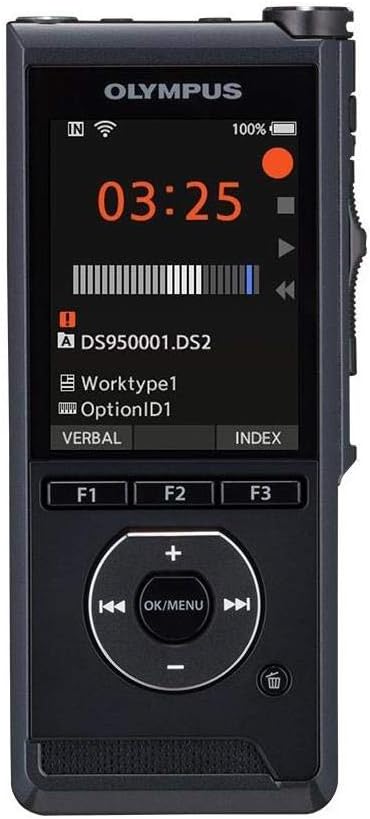
Figure 2.1: Front View. This image displays the front of the Olympus DS-9500, highlighting its color display, recording status indicators, and the central navigation pad with OK/MENU button, along with three programmable function buttons (F1, F2, F3).
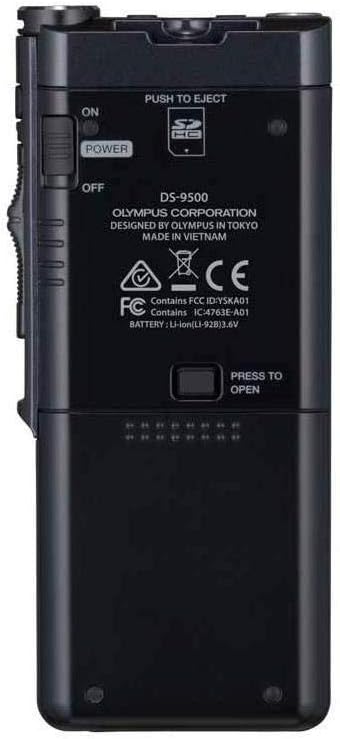
Figure 2.2: Back View. The rear of the DS-9500 features the power switch (ON/OFF), a 'PUSH TO EJECT' mechanism for the SD card slot, and the battery compartment release. Model information and regulatory markings are also visible.

Figure 2.3: Left Side View. This image shows the left side of the device, which typically houses volume controls or other secondary buttons, contributing to its ergonomic design.

Figure 2.4: Right Side View. The right side of the DS-9500 features the optical slide switch, a key control for recording, stopping, and playback functions, designed for tactile and reliable operation.

Figure 2.5: Bottom View. The bottom of the device includes the USB ports for charging and data transfer, facilitating connectivity with a computer or docking station.
3. Setup
3.1. Battery Installation
- Ensure the device is powered off.
- Locate the battery compartment on the back of the device (refer to Figure 2.2).
- Slide the battery cover release and open the compartment.
- Insert the supplied Li-ion battery, ensuring correct polarity.
- Close the battery compartment cover until it clicks securely into place.
3.2. Initial Power On and Basic Settings
- Slide the power switch (located on the back, Figure 2.2) to the 'ON' position.
- Upon first use, the device may prompt you to set the date and time. Follow the on-screen instructions using the navigation pad.
- Charge the device fully before first use using the supplied USB cable.
4. Operating Instructions
4.1. Recording
The DS-9500 features intelligent dual microphones and a studio-quality pop filter for clear audio capture.
- Start Recording: Slide the optical slide switch (Figure 2.4) to the 'REC' position. The recording indicator will illuminate.
- Pause Recording: Slide the optical slide switch to the 'STOP' position to pause. Slide back to 'REC' to resume.
- Stop Recording: Slide the optical slide switch to the 'STOP' position and hold briefly, or press the 'STOP' button on the navigation pad.
- Microphone Directionality: Access the menu to select between 'Narrow' directionality for single-speaker dictation in noisy environments (e.g., airports) or 'Wide' directionality for conference settings with multiple speakers.
4.2. Playback
- Select File: Use the navigation pad to browse and select the desired audio file from the list on the display.
- Start Playback: Press the 'PLAY' button on the navigation pad or slide the optical slide switch to the 'PLAY' position.
- Adjust Volume: Use the volume buttons (typically on the side or navigation pad) to increase or decrease playback volume.
- Fast Forward/Rewind: Use the fast forward and rewind buttons on the navigation pad to navigate within the audio file.
- Stop Playback: Press the 'STOP' button on the navigation pad or slide the optical slide switch to the 'STOP' position.
4.3. WiFi Functionality
The DS-9500's WiFi capability allows for wireless transfer of dictation files.
- Connect to WiFi: Navigate to the WiFi settings in the device menu. Select your desired network (e.g., personal hotspot or office network) and enter the password if required.
- File Transfer: Once connected, files can be sent to a designated transcriptionist or server. Refer to the accompanying software manual for detailed instructions on configuring wireless transfer destinations.
- Check Status: The device allows you to check the status of transcription files directly on its display.
4.4. Security Features
The DS-9500 incorporates security measures to protect sensitive information.
- AES Encryption: The device supports 256-bit AES encryption for recorded files. Enable this feature through the device settings to secure your dictations.
- Device PIN Lock: Set a PIN lock to prevent unauthorized access to the device and its contents.
5. Maintenance
- Cleaning: Use a soft, dry cloth to clean the exterior of the device. Do not use liquid cleaners or solvents.
- Storage: Store the device in a cool, dry place away from direct sunlight and extreme temperatures.
- Battery Care: For optimal battery life, avoid fully discharging the battery frequently. If storing for an extended period, charge the battery to approximately 50%.
- Firmware Updates: Periodically check the Olympus support website for firmware updates to ensure your device has the latest features and performance enhancements.
6. Troubleshooting
If you encounter issues with your DS-9500, refer to the following common solutions:
- Device Not Powering On: Ensure the battery is correctly installed and charged. Connect the device to a power source using the USB cable.
- Recording Issues: Check microphone settings (directionality). Ensure the pop filter is clean. Verify sufficient storage space on the SD card.
- WiFi Connection Problems: Confirm correct network password. Ensure the device is within range of the WiFi signal. Restart the device and attempt reconnection.
- Device Freezing/Unresponsive: If the device becomes unresponsive, try performing a soft reset by holding down the power button for several seconds. If this does not work, temporarily remove and reinsert the battery.
- Slow Startup/Battery Drain: Ensure all unnecessary background processes or WiFi connections are disabled when not in use. Consider performing a factory reset if issues persist after backing up data.
- Software Compatibility: Ensure you are using the latest version of the Olympus dictation management software compatible with your operating system.
For persistent issues, contact Olympus customer support.
7. Specifications
| Feature | Specification |
|---|---|
| Brand | Olympus |
| Model Number | DS-9500 |
| Item Weight | 1.82 pounds |
| Product Dimensions | 7.4 x 6.5 x 4.2 inches |
| Memory Storage Capacity | 16 GB |
| Screen Size | 2.4 Inches |
| Digital Recording Time | 1275 hours |
| Microphone Operation Mode | Stereo |
| Hardware Interface | Secure Digital Card, USB |
| Headphones Jack | 3.5 millimeters |
| Compatible Devices | Personal Computer |
| Manufacturer Part Number | V741010BU000 |
8. Warranty and Support
For information regarding the product warranty, please refer to the warranty card included with your purchase or visit the official Olympus support website. For technical assistance, software downloads, or further inquiries, please contact Olympus customer support directly. Contact details can typically be found on the Olympus website or in the product packaging.


