
1. Introduction
The Feiyu Vimble 2 is a 3-axis handheld gimbal stabilizer designed for smartphones, offering enhanced stability and creative control for video recording and photography. It features an extendable handle, intelligent tracking, and versatile shooting modes to capture smooth, professional-looking footage.
2. Package Contents
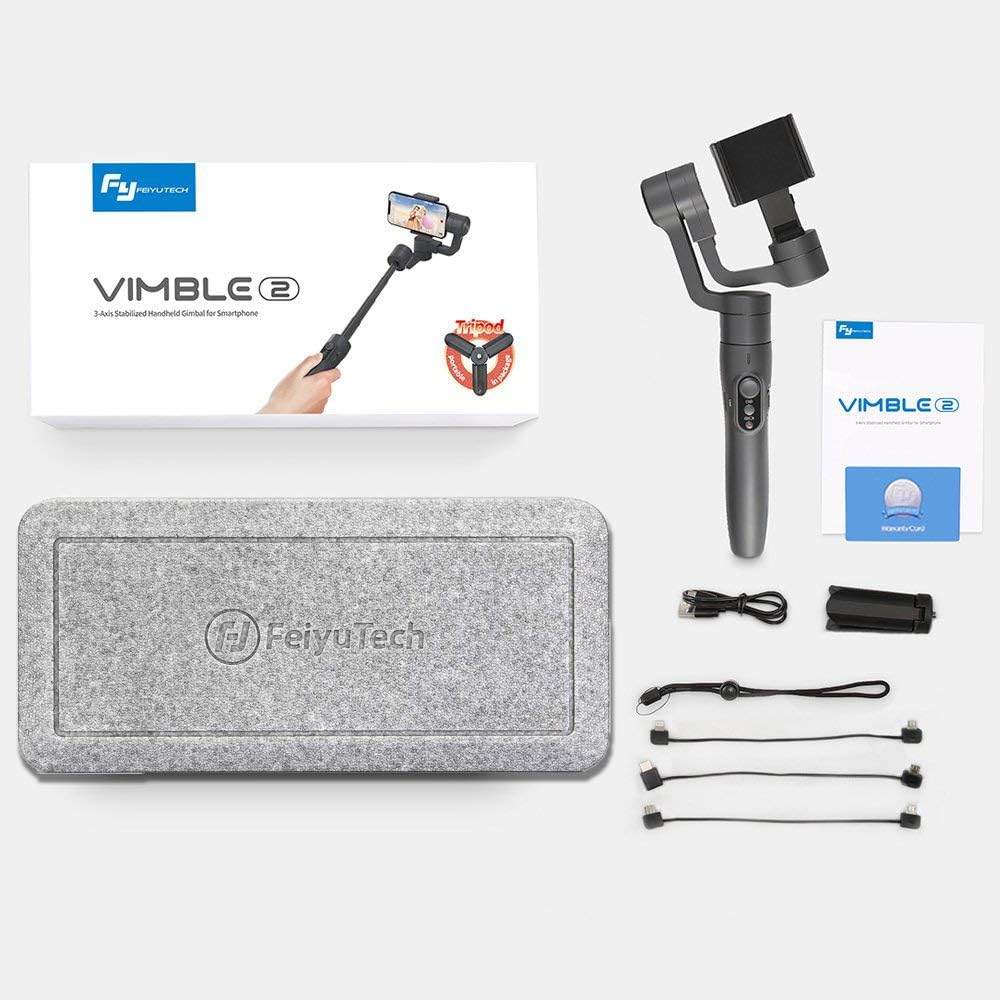
Please check the package to ensure all items are present:
- 1 x Feiyu Vimble 2 Gimbal Body
- 1 x Mini Tripod
- 1 x USB Charging Cable
- 1 x Anti-loss Rope
3. Product Overview and Features
The Vimble 2 incorporates several features to enhance your mobile videography experience:
- Integrated Extension Bar: A newly added 18cm extendable bar allows for wider shots, perfect for selfies and group photos.
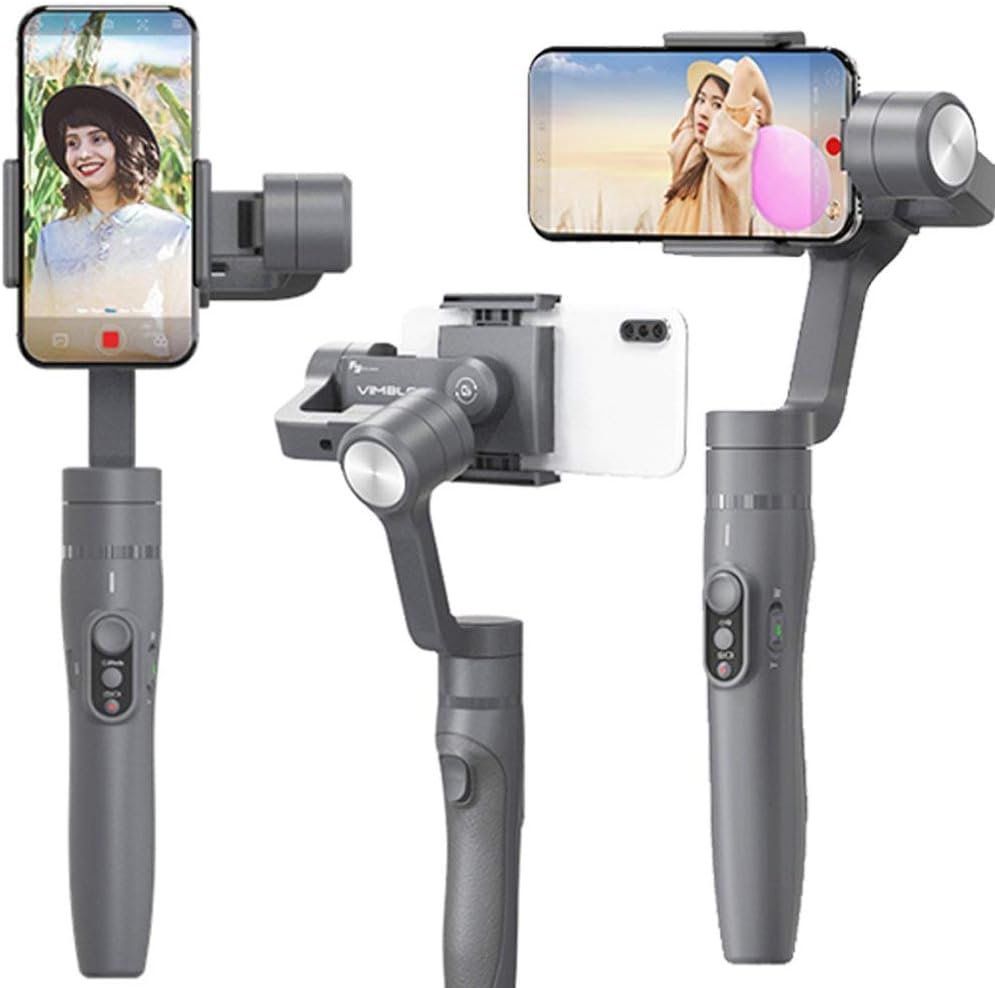
- Quick Shooting Direction Change: Easily switch between horizontal and vertical shooting orientations to adapt to various scenes.
- Bluetooth Shutter Button: Control your smartphone's camera directly from the gimbal handle via Bluetooth for convenient photo and video capture.
- Face and Object Tracking: Utilize intelligent tracking features to keep your subject in focus and within the frame.
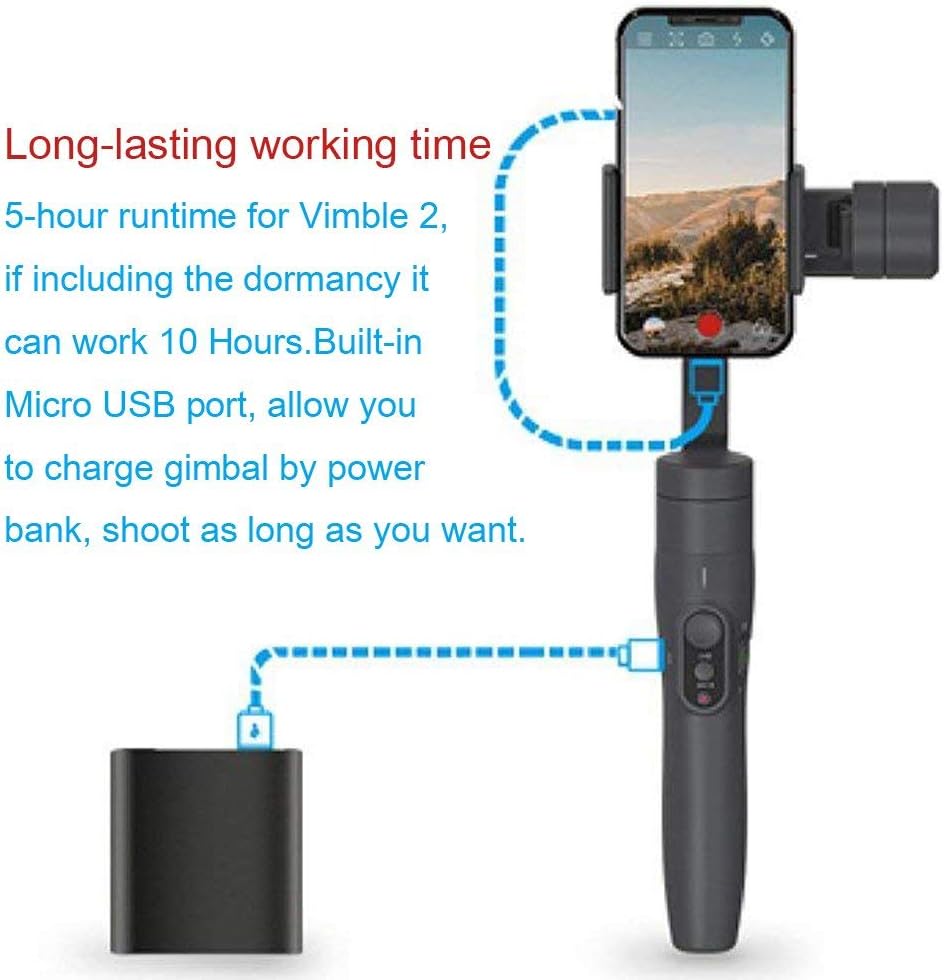
- Long-lasting Battery: Enjoy up to 5 hours of continuous operation, extending to 10 hours with dormancy. The built-in Micro USB port allows charging via a power bank.
- Self-Adaptive Control: An advanced algorithm simplifies smartphone balancing and provides gradual power-off descent for phone protection.
- Ergonomic Design: Constructed from durable, lightweight, and high-strength materials with an ergonomic shape for comfortable handling.


4. Setup
4.1. Charging the Gimbal
Before first use, fully charge the gimbal. Connect the provided USB cable to the Micro USB port on the gimbal and to a 5V/2A power adapter (recommended). Charging typically takes 2 hours or more.
4.2. Mounting Your Smartphone
- Extend the smartphone clamp and carefully place your smartphone into it.
- Ensure the phone is securely held and centered within the clamp.
4.3. Balancing the Gimbal
Proper balancing is crucial for optimal performance and battery life. The Vimble 2 features a self-adaptive control algorithm that reduces strict balancing requirements, but manual adjustment is still recommended:
- With the smartphone mounted, adjust the sliding arm until the phone remains level when the gimbal is powered off.
- The phone should stay relatively horizontal without external support.
4.4. Connecting via Bluetooth
- Download and install the 'Vicool' app on your smartphone.
- Turn on the gimbal.
- Enable Bluetooth on your smartphone and open the Vicool app.
- Search for and connect to the 'Vimble 2' device within the app.
5. Operating Instructions
5.1. Power On/Off
- Power On: Press and hold the power button until the indicator light turns on.
- Power Off: Press and hold the power button until the indicator light turns off.
5.2. Mode Switching
The gimbal offers several operating modes, which can typically be cycled through using the mode button:
- Pan Mode (Default): The camera pans left and right following your hand movements, while tilt and roll axes are locked.
- Follow Mode: The camera follows both pan and tilt movements of your hand, keeping the roll axis locked.
- Lock Mode: All three axes (pan, tilt, roll) are locked, keeping the camera pointed in a fixed direction.
- Reset: Returns the gimbal to its initial position and Pan Mode.
- Motion Control Mode: Allows for programmed movements, often used for time-lapse photography.

5.3. Shutter Button and Zoom Control
- Shutter Button: Press once to take a photo or start/stop video recording (requires Bluetooth connection to the Vicool app).
- Zoom Slider: Use the slider on the handle to zoom in or out within the Vicool app.

5.4. Quick Shift to Selfie Mode
With the gimbal connected to the Vicool app, quickly switch your smartphone's camera between front and rear lenses by clicking the function button three times consecutively.
5.5. Quickly Change Shooting Direction
The innovative smartphone mount allows for rapid switching between horizontal (landscape) and vertical (portrait) shooting orientations. Simply adjust the phone holder as needed.

5.6. Face and Object Tracking
Within the Vicool app, tap on the screen to select a face or object. The gimbal will then intelligently track the selected subject, keeping it centered in the frame.
6. Maintenance
- Keep the gimbal clean and free from dust and debris. Use a soft, dry cloth for cleaning.
- Avoid exposing the gimbal to extreme temperatures or moisture.
- Store the gimbal in its protective case when not in use.
- Do not attempt to disassemble the gimbal, as this will void the warranty.
7. Troubleshooting
- Gimbal not powering on: Ensure the battery is fully charged.
- Unstable footage: Verify that the smartphone is properly balanced on the gimbal. Recalibrate the gimbal if necessary (refer to the Vicool app for calibration options).
- Bluetooth connectivity issues: Ensure Bluetooth is enabled on your phone and the gimbal is powered on. Restart both devices and try reconnecting via the Vicool app.
- Motors behaving erratically: This can occur if the gimbal is not properly balanced or if there is an obstruction. Ensure the phone is balanced and there are no physical impediments to the motors' movement.
- App not responding: Close and reopen the Vicool app. Ensure your smartphone's operating system is up to date.
8. Specifications
| Tilting Angle | 320° |
| Rolling Angle | 320° |
| Panning Angle | 320° |
| Runtime | 5 hours (up to 10 hours including dormancy) |
| Battery | Built-in, 7.4V / 9.62Wh |
| Charging Time | ≥ 2 hours (with 5V/2A adapter) |
| Maximum Payload (Landscape) | 210g |
| Maximum Payload (Portrait) | 200g |
| Product Weight | 0.43 kg |
| Compatible Devices | Smartphones, Cameras (within payload limits) |
9. Warranty and Support
For warranty information and technical support, please refer to the official FeiyuTech website or contact your local distributor. Keep your purchase receipt as proof of purchase for warranty claims.
Official FeiyuTech Website: www.feiyu-tech.com


