
1. Introduction
The ZEBRONICS ZEB-DB250JP is a versatile Bluetooth wireless gamepad designed for an enhanced gaming experience across multiple platforms. It features 17 buttons, dual analog sticks, dual vibration motors, and quad front triggers for precise control. This gamepad is compatible with Android smartphones, tablets, Android TV boxes, Android TVs, and PCs running Windows 98 / 2000 / ME / XP / NT / VISTA / 7 / 8 / 10. It also supports PS3 consoles. The ergonomic design ensures comfortable use, and a phone mount is included for mobile gaming.
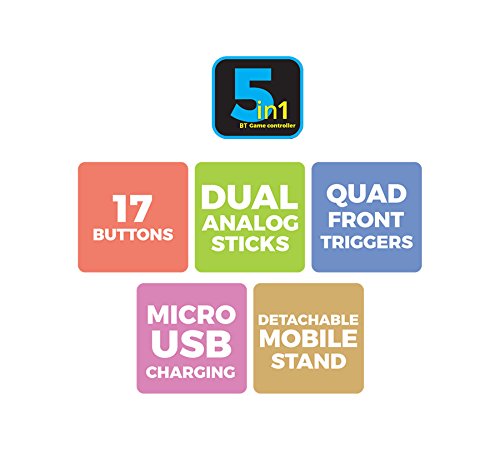
Image 1: Overview of ZEB-DB250JP key features including 17 buttons, dual analog sticks, quad front triggers, micro USB charging, and a detachable mobile stand.
2. What's in the Box
- 1 x ZEB-DB250JP Joypad
- 1 x Micro USB Charging Cable
- 1 x Detachable Phone Mount
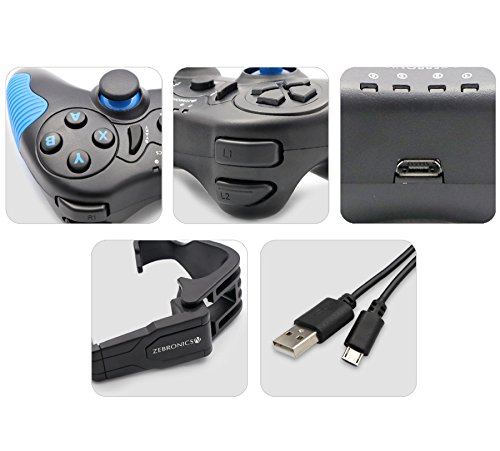
Image 2: A collage showing the ZEB-DB250JP gamepad, its triggers, micro USB port, detachable phone mount, and charging cable.
3. Setup
3.1 Charging the Gamepad
Before initial use, fully charge the gamepad. Connect the provided Micro USB cable to the gamepad's charging port and the other end to a USB power source (e.g., computer USB port, USB wall adapter). The built-in 300mAh battery provides extended playtime.

Image 3: Top view of the ZEB-DB250JP gamepad, highlighting the Micro USB charging port located between the L1/R1 and L2/R2 triggers.
3.2 Bluetooth Pairing (Android Devices & PS3)
- Ensure the gamepad is charged.
- Press and hold the HOME button along with the X button simultaneously until the indicator lights on the gamepad begin to flash, indicating it is in pairing mode.
- On your Android smartphone, tablet, Android TV box, or Android TV, navigate to the Bluetooth settings.
- Search for available devices and select "ZEB-DB250JP" (or similar name) from the list.
- Once connected, the indicator light on the gamepad will become solid. The Bluetooth range is approximately 8 meters.
- For PS3, connect the gamepad via USB cable first, then follow the console's instructions for pairing a new controller.
3.3 PC Connection
For PC gaming, the ZEB-DB250JP can be connected via the provided USB cable. Simply plug the Micro USB end into the gamepad and the USB-A end into an available USB port on your computer. The gamepad is compatible with Windows 98 / 2000 / ME / XP / NT / VISTA / 7 / 8 / 10 and should be recognized automatically.
3.4 Attaching the Phone Mount
To use the gamepad with your smartphone, attach the included phone mount to the designated slot on the gamepad. Secure your smartphone firmly into the mount.
4. Operating Instructions
4.1 Button Layout
The ZEB-DB250JP features a standard gamepad layout with 17 buttons, including:
- Dual Analog Sticks: For precise movement and camera control.
- D-Pad: Directional pad for menu navigation and specific game inputs.
- Action Buttons (A, B, X, Y): For in-game actions.
- Quad Front Triggers (L1, L2, R1, R2): For additional actions, often used for shooting or accelerating.
- HOME Button: For power on/off and system functions.
- SELECT/BACK and START/MENU Buttons: For game menus and options.


Image 4: Left side of the ZEB-DB250JP gamepad showing the D-pad and left analog stick. Image 5: Right side of the ZEB-DB250JP gamepad showing the action buttons (A, B, X, Y) and right analog stick.
4.2 Power On/Off
- To power on, press the HOME button.
- To power off, press and hold the HOME button for a few seconds until the gamepad shuts down.
4.3 Gaming
Once connected, the gamepad should be recognized by compatible games. Refer to your game's settings for controller configuration and button mapping. The dual vibration motors provide haptic feedback for an immersive gaming experience.
5. Maintenance
- Cleaning: Use a soft, dry cloth to clean the gamepad. Avoid using harsh chemicals or abrasive materials.
- Storage: Store the gamepad in a cool, dry place away from direct sunlight and extreme temperatures.
- Battery Care: To prolong battery life, avoid fully discharging the battery frequently. Charge the gamepad regularly, even if not in use for extended periods.
6. Troubleshooting
- Gamepad not connecting via Bluetooth:
- Ensure the gamepad is charged.
- Make sure the gamepad is in pairing mode (HOME + X).
- Turn off and on Bluetooth on your device.
- Forget the device from your Bluetooth settings and try pairing again.
- Ensure your device is within the 8-meter Bluetooth range. - Buttons unresponsive or delayed input:
- Check battery level and charge if low.
- Ensure there are no obstructions between the gamepad and the connected device.
- For PC, try connecting via USB cable to rule out wireless interference.
- Restart the gamepad and the connected device. - Gamepad not charging:
- Verify the Micro USB cable is securely connected to both the gamepad and the power source.
- Try a different Micro USB cable or power adapter.
- Ensure the power source is functional. - Vibration not working:
- Check if the game supports vibration feedback.
- Ensure vibration settings are enabled in the game or device settings.
7. Specifications
| Brand | ZEBRONICS |
| Model Name | analog stick |
| Compatible Devices | Android, PC, PS3 |
| Controller Type | Gamepad |
| Connectivity Technology | Bluetooth (v3.0) |
| Product Features | Wireless, Dual Vibration Motors |
| Button Quantity | 17 |
| Power Source Type | Battery Powered |
| Battery | Built-in 300mAH |
| Bluetooth Range | 8m |
| Item Weight | 370 Grams |
| Item Dimensions | 17 x 12 x 6 Centimeters |
| Color | Red (as per product details, though main image shows black/red) |
| Model Number | DB250JP |
8. Warranty and Support
The ZEBRONICS ZEB-DB250JP Bluetooth Gamepad Joystick comes with a 1 Year Warranty. For any warranty claims or service, please carry the product to an authorized ZEBRONICS Service Center. For a list of service centers, refer to the product information provided at the time of purchase or visit the official ZEBRONICS website.
For further assistance or technical support, please contact ZEBRONICS customer service.

