
Go Power GP-HD-R
Go Power! GP-HD-R Inverter Remote User Manual
Model: GP-HD-R
1. Introduction
This manual provides essential information for the proper installation, operation, and maintenance of your Go Power! GP-HD-R Inverter Remote. Please read this manual thoroughly before using the product to ensure safe and efficient operation.
2. Product Overview
The Go Power! GP-HD-R Inverter Remote is designed to provide convenient remote control for compatible Go Power! HD series inverters. It allows users to turn the inverter on or off from a distance, offering flexibility in system management.
2.1 What's in the Box
- Go Power! GP-HD-R Inverter Remote
2.2 Key Features
- Remote ON/OFF control for compatible inverters.
- Compact and easy-to-mount design.
- Visual indicator for inverter status.
2.3 Compatible Inverters
The GP-HD-R remote is compatible with the following Go Power! HD series inverters:
- GP-5000HD
- GP-3000HD
- GP-1750HD
- GP-1000HD
- GP-800HD
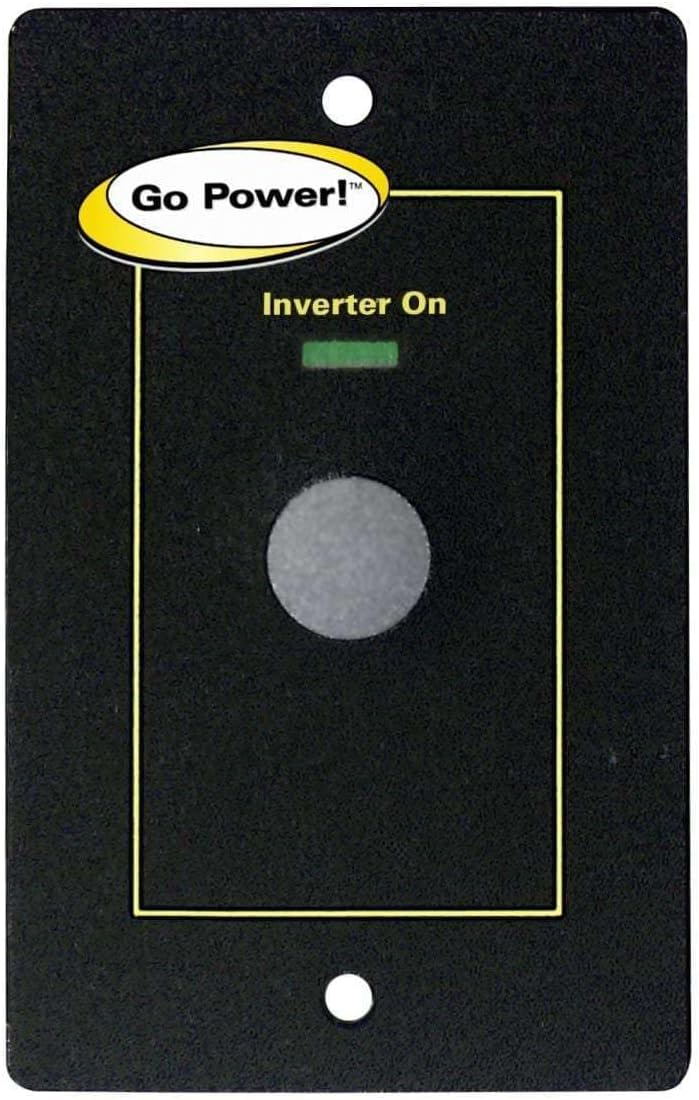
Figure 1: Front view of the Go Power! GP-HD-R Inverter Remote, showing the 'Go Power!' logo and 'Inverter On' indicator.
3. Setup
The GP-HD-R Inverter Remote is designed for straightforward installation. It connects directly to your compatible Go Power! HD series inverter.
3.1 Installation Steps
- Locate the Remote Port: Identify the dedicated remote port on your Go Power! HD series inverter. This port is typically labeled for remote control connection.
- Connect the Remote Cable: Plug the cable from the GP-HD-R Inverter Remote firmly into the remote port on your inverter. Ensure the connection is secure.
- Mount the Remote: Choose a convenient and accessible location to mount the remote. The remote is designed for panel mounting. Secure it using appropriate fasteners (not included, as mounting surfaces vary).
- Verify Connection: Once connected, the remote should be ready for operation. No additional configuration is typically required.
4. Operating Instructions
Operating the GP-HD-R Inverter Remote is simple and intuitive.
4.1 Turning the Inverter ON/OFF
- To turn the inverter ON, press the central button on the remote. The 'Inverter On' indicator light (typically green) will illuminate, confirming the inverter is active.
- To turn the inverter OFF, press the central button again. The 'Inverter On' indicator light will turn off, indicating the inverter is no longer supplying power.

Figure 2: Close-up of the Go Power! GP-HD-R Inverter Remote, highlighting the 'PUSH ON/OFF' button for operation.
5. Maintenance
The Go Power! GP-HD-R Inverter Remote requires minimal maintenance.
- Cleaning: Use a soft, dry cloth to clean the surface of the remote. Avoid using abrasive cleaners or solvents, as they may damage the finish.
- Connection Check: Periodically check the connection cable to ensure it remains securely plugged into the inverter's remote port.
- Environmental Protection: While designed for vehicle environments, avoid exposing the remote to extreme moisture, dust, or direct sunlight for prolonged periods to ensure longevity.
6. Troubleshooting
If you encounter issues with your GP-HD-R Inverter Remote, consider the following:
- Remote Not Responding:
- Ensure the remote cable is securely connected to both the remote and the inverter.
- Verify that the inverter itself is powered on and functioning correctly. The remote only controls the inverter's ON/OFF state, it does not power the inverter.
- Check for any visible damage to the remote cable or the remote unit.
- Indicator Light Not Illuminating:
- Confirm the inverter is actually turned on. The light reflects the inverter's status.
- If the inverter is on but the light is off, there might be an issue with the remote unit or its connection.
If troubleshooting steps do not resolve the issue, please contact Go Power! customer support for further assistance.
7. Specifications
| Attribute | Value |
|---|---|
| Product Type | Auto Accessory |
| Brand | Go Power |
| Model Number | GP-HD-R (Manufacturer Part Number: 82016) |
| Item Weight | 7.1 ounces |
| Product Dimensions | 8 x 6 x 3 inches |
| Country of Origin | China |
| Date First Available | March 15, 2018 |
8. Warranty and Support
For information regarding warranty coverage, technical support, or service inquiries, please contact Go Power! directly through their official website or customer service channels. Retain your purchase receipt for warranty claims.
Related documentsGP-HD-R


Ask a question about this manual
Ask about setup, troubleshooting, compatibility, parts, safety, or missing instructions. Manuals+ will review the question and use this page’s manual context to help answer it.