
Goolsky FS-SM100
Goolsky FS SM100 Helicopter Simulator Cable User Manual
Model: FS-SM100
1. Product Overview
The Goolsky FS SM100 Helicopter Simulator Cable is designed to connect your Flysky remote control to a personal computer, enabling the use of flight simulator software for practice and training. This cable system facilitates the transmission of 4-8 channel PPM signals from your remote control to the PC's internal channel control vector, supporting various simulator software platforms.
It is compatible with a range of Flysky remote controls, including FS-i6, FS-i4, FS-T9, FS-T6, FS-T6B, FS-T4B, FS-GT3, FS-GT3B, and FS-GT2.

Image 1.1: The Goolsky FS SM100 Helicopter Simulator Cable kit, showing the main USB cable and two adapter cables.
2. System Requirements
Before installing and using the simulator cable, ensure your computer meets the following minimum system requirements:
- Operating System: Windows 98/2000/NT/XP
- Processor: Intel Pentium 600 or higher
- Graphics Card: 32MB AGP-3D graphics card
- RAM: 128MB or more
- Hard Disk Drive: 10GB or more free space
- Optical Drive: 52X CD-ROM (if installing from disc)
- USB Port: Available USB 1.1 or 2.0 port
3. Setup and Installation
Follow these steps to set up your Goolsky FS SM100 simulator cable:
- Install Simulator Software: Ensure you have compatible flight simulator software installed on your computer (e.g., Esky, Futaba, JR, FS simulator software). Refer to your simulator software's manual for installation instructions.
- Connect Adapter Cable: Identify the correct adapter cable for your specific Flysky remote control. The kit includes two adapter cables, typically with a 5-pin DIN connector on one end and a 3.5mm audio jack on the other.
- Connect to Remote Control: Plug the 5-pin DIN connector of the adapter cable into the trainer port or simulator port of your Flysky remote control.
- Connect USB Cable: Plug the 3.5mm audio jack end of the adapter cable into the corresponding jack on the main USB simulator cable.
- Connect to Computer: Insert the USB connector of the main simulator cable into an available USB port on your computer.
- Driver Installation: The necessary drivers should install automatically upon connecting the USB cable. If prompted, allow the system to install the drivers. You may need to restart your computer after driver installation.
- Configure Simulator Software: Open your flight simulator software. Navigate to the controller or joystick settings. Select the newly detected USB device (often labeled as a USB Game Controller or similar) as your input device. Calibrate the controls as per the simulator software's instructions.
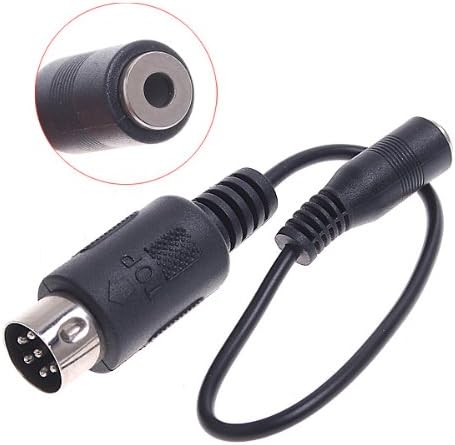
Image 3.1: One of the adapter cables, featuring a 5-pin DIN connector and a 3.5mm jack.

Image 3.2: The main USB simulator cable, which connects to the computer.
4. Operating Instructions
Once the setup is complete and the simulator software is configured, you can begin using the Goolsky FS SM100 cable for flight simulation:
- Ensure your remote control is powered on and connected to the simulator cable.
- Launch your preferred flight simulator software.
- Verify that the simulator recognizes the input from your remote control. You should see the virtual controls respond to your physical stick movements.
- Practice various flight maneuvers and scenarios within the simulator environment. The cable transmits the PPM signal, allowing for realistic control input.
- For optimal performance, ensure no other conflicting input devices are active.
5. Maintenance
To ensure the longevity and proper functioning of your Goolsky FS SM100 simulator cable, follow these maintenance guidelines:
- Storage: Store the cable in a cool, dry place, away from direct sunlight and extreme temperatures.
- Cleaning: Use a soft, dry cloth to clean the cable and connectors. Do not use liquid cleaners or abrasive materials.
- Handling: Avoid bending or kinking the cable excessively, especially near the connectors, as this can damage internal wires. Always pull from the plug, not the cable, when disconnecting.
- Inspection: Periodically inspect the cable and connectors for any signs of wear, fraying, or damage. Discontinue use if damage is observed.
6. Troubleshooting
If you encounter issues while using your Goolsky FS SM100 simulator cable, refer to the following common troubleshooting steps:
| Problem | Possible Cause | Solution |
|---|---|---|
| Cable not recognized by computer. |
|
|
| Remote control input not detected in simulator. |
|
|
| Controls are erratic or unresponsive. |
|
|
7. Specifications
| Feature | Detail |
|---|---|
| Model | FS-SM100 |
| Input Signal | 4-8 Channel PPM signal |
| Cable Length | 1.5 meters |
| Net Weight | 87g |
| Gross Weight | 97g |
| Compatible Remote Controls | Flysky FS-i6, FS-i4, FS-T9, FS-T6, FS-T6B, FS-T4B, FS-GT3, FS-GT3B, FS-GT2 |
| Special Feature | RC USB Simulator Cable, supports parallel and serial interface connections |
| Main Material | Polycarbonate (PC) |
| Manufacturer Reference | RM185 |
8. Warranty and Support
Information regarding product warranty and dedicated customer support for the Goolsky FS SM100 Helicopter Simulator Cable was not available in the provided product data. Please refer to the seller or manufacturer's official website for the most current warranty terms and support contact information.
Ask a question about this manual
Ask about setup, troubleshooting, compatibility, parts, safety, or missing instructions. Manuals+ will review the question and use this page’s manual context to help answer it.