
Introduction
Welcome to the VTech KidiZoom Touch 5.0 Pink digital camera user manual. This guide provides comprehensive instructions for setting up, operating, and maintaining your new camera. Designed for children aged 5-12 years, the KidiZoom Touch 5.0 offers a robust and interactive experience with its touch display, dual cameras, and a variety of creative features.
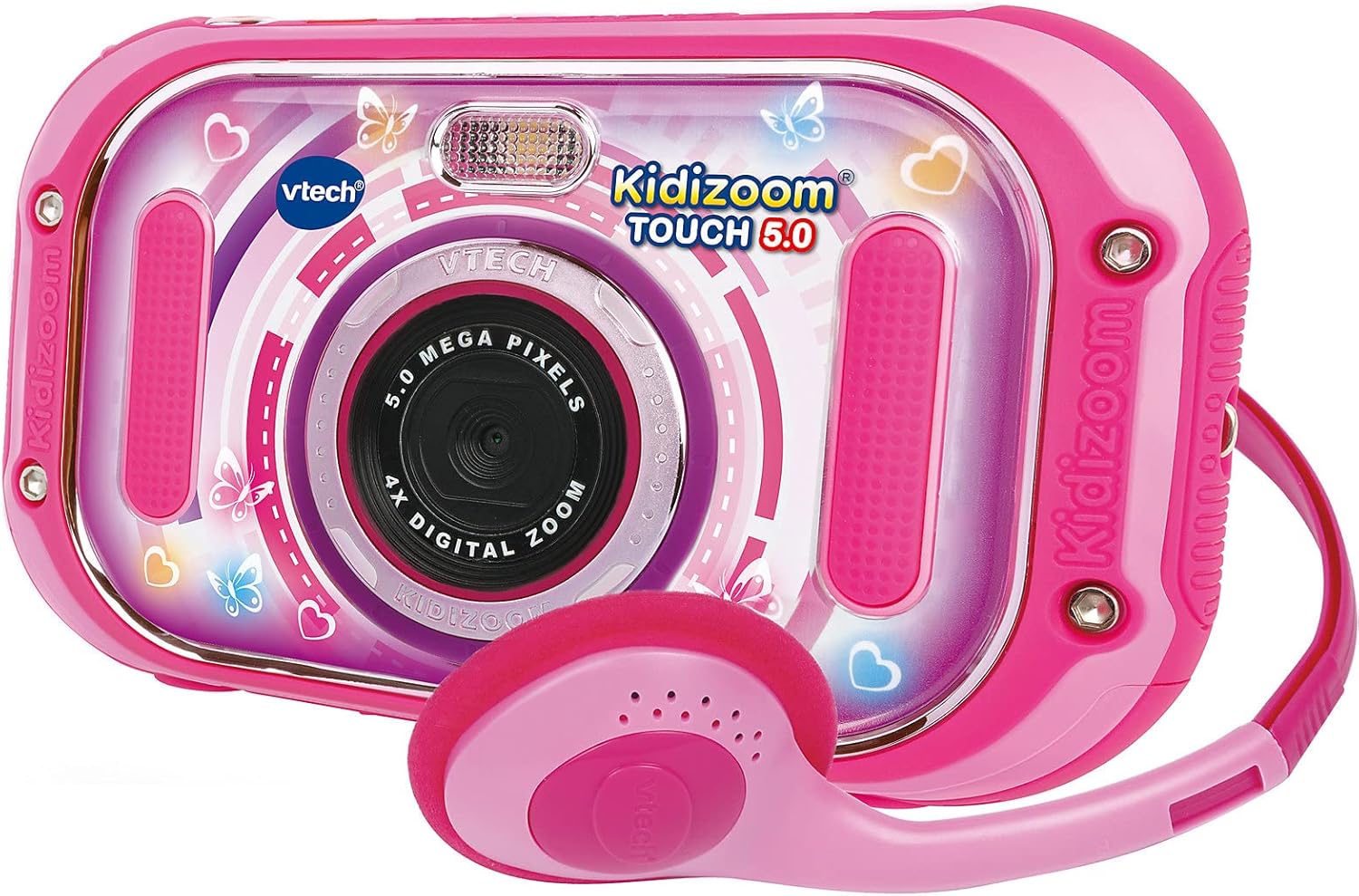
Figure 1: The VTech KidiZoom Touch 5.0 Pink camera shown with its accompanying pink headphones.
Package Contents
Please ensure all items listed below are present in your package:
- 1 x VTech KidiZoom Touch 5.0 Pink Digital Camera
- 1 x USB Cable
- 1 x Headphones
- 4 x AA Demo Batteries (pre-installed)
- 1 x Wrist Strap

Figure 2: The included headphones and wrist strap, essential accessories for the KidiZoom Touch 5.0.
Setup
Battery Installation
The camera comes with 4 AA demo batteries pre-installed. For optimal performance and extended use, it is recommended to replace these with new, high-quality alkaline batteries or rechargeable AA batteries. Ensure correct polarity when inserting batteries.
- Locate the battery compartment on the back of the camera.
- Use a small screwdriver to open the battery compartment cover.
- Remove the old batteries (if any) and insert 4 new AA batteries, matching the +/- indicators.
- Replace the cover and tighten the screw.
Memory Card (Optional)
The KidiZoom Touch 5.0 has an internal memory for approximately 100 photos (5.0 MP) or 10 minutes of video (640x480 px). To expand storage for more photos, videos, or MP3 files, an external microSD card (not included) is required.
- Locate the microSD card slot on the side of the camera.
- Insert a microSD card (up to 32GB, Class 10 recommended) into the slot until it clicks into place.
- To remove, gently push the card in until it springs out.
Product Features and Controls
Familiarize yourself with the camera's interface and controls for a seamless experience.

Figure 3: The camera's 3.5-inch LCD color touch display showing the main menu with icons for photos, video recorder, music player, games, playback, panorama, 'You and Me' mode, and animation studio.
- 3.5" LCD Colour Touch Display: Capacitive touch panel for easy navigation and personalized backgrounds.
- Front Camera: 5.0 Megapixels for high-resolution photos and videos.
- Rear Camera: 2.0 Megapixels for selfies and dual-camera mode.
- 4x Digital Zoom: Magnify your subjects.
- Automatic Flash: For improved lighting in low-light conditions.
- USB Port: For connecting to a PC to transfer files.
- Headphone Jack: For private listening of music or audio.
Operating Instructions
Taking Photos
To capture still images:
- Turn on the camera using the power button.
- Tap the "Photos" icon on the touch screen.
- Aim the camera at your subject. Use the front camera for regular photos or the rear camera for selfies.
- Press the shutter button or tap the screen to take a picture.
- Explore various photo effects and filters available before or after taking a photo.

Figure 4: Children demonstrating the ease of taking a selfie with the KidiZoom Touch 5.0's rear camera.
Recording Videos
To record moving footage:
- From the main menu, tap the "Video Recorder" icon.
- Press the record button on the screen to start recording.
- Press the button again to stop recording.
- Utilize the dual camera mode to record simultaneously with both front and rear cameras.
Playing Games
The camera includes 6 interactive touchscreen games for entertainment.
- Tap the "Games" icon on the main menu.
- Select your desired game from the list.
- Follow the on-screen instructions to play.
Music Player
Listen to your favorite MP3s on the go. An external microSD card is required to store MP3 files.
- Ensure an external microSD card with MP3 files is inserted.
- Tap the "Music Player" icon.
- Browse and select songs to play.
- Connect the included headphones for private listening.
Editing Photos and Videos
Unleash your creativity with the built-in editing tools.
- Photo Effects: Apply over 60 different effects, filters, and stamps to your photos.
- Crazy Painting Studio: Draw and paint on your images.
- Animation Studio: Create stop-motion videos from individual pictures with music and voice.
- Voice Distortion: Record your voice and apply fun effects.
Maintenance
Proper care will extend the life of your KidiZoom Touch 5.0.
- Cleaning: Wipe the camera and screen with a soft, slightly damp cloth. Do not use harsh chemicals or abrasive cleaners.
- Storage: Store the camera in a cool, dry place away from direct sunlight and extreme temperatures. If storing for an extended period, remove the batteries.
- Water Exposure: The camera is not waterproof. Avoid contact with water or other liquids.
- Impact: While robust, avoid dropping the camera or subjecting it to strong impacts.
Troubleshooting
If you encounter issues, refer to the following table for common problems and solutions.
| Problem | Solution |
|---|---|
| Camera does not turn on. | Check battery installation and replace with new batteries if necessary. Ensure the power button is pressed firmly. |
| Screen is unresponsive. | Restart the camera. If the issue persists, ensure the screen is clean and free of debris. |
| Cannot save photos/videos. | Check if the internal memory or inserted microSD card is full. Delete unnecessary files or insert a new microSD card. Ensure the microSD card is properly inserted. |
| Poor image quality. | Ensure the camera lens is clean. Check lighting conditions; use flash if needed. |
| Camera freezes or crashes. | Remove and reinsert batteries to perform a hard reset. If using a microSD card, try removing it and see if the issue resolves. |
Specifications
| Feature | Detail |
|---|---|
| Model Number | 80-163554 |
| Display | 3.5" LCD Colour Touch Display (Capacitive) |
| Front Camera Resolution | 5.0 Megapixels |
| Rear Camera Resolution | 2.0 Megapixels |
| Internal Memory | Approx. 100 photos (5.0 MB) or 10 min video (640x480 px) |
| External Memory | microSD card slot (card not included) |
| Digital Zoom | 4x |
| Power Source | 4 x AA Batteries (included for demo) |
| Connectivity | USB port, Headphone jack |
| Dimensions | 3.1 x 15 x 8.6 cm |
| Weight | 100 g |
Warranty and Support
For warranty information and technical support, please refer to the official VTech website or contact VTech customer service directly. Keep your purchase receipt as proof of purchase.
VTech Customer Support: www.vtechkids.com/support


