
1. Product Overview
The MICROSEVEN M7B4K-WSAA is an outdoor IP camera featuring 4K/8MP Ultra HD resolution, dual-band WiFi (2.4/5 GHz), two-way audio, and advanced motion detection capabilities. It is designed for robust outdoor surveillance with an IP66 waterproof rating and supports various recording and integration options.

Figure 1.1: Overview of the MICROSEVEN 4K/8MP Ultra HD Duo 2 WiFi IP Camera.
2. What's in the Box
Verify that all components are present in the package:
- MICROSEVEN 4K/8MP IP Camera
- Power Adapter
- Ethernet Cable
- Mounting Screws and Anchors
- Quick Start Manual
- Waterproof Connector Kit
- Hex Key
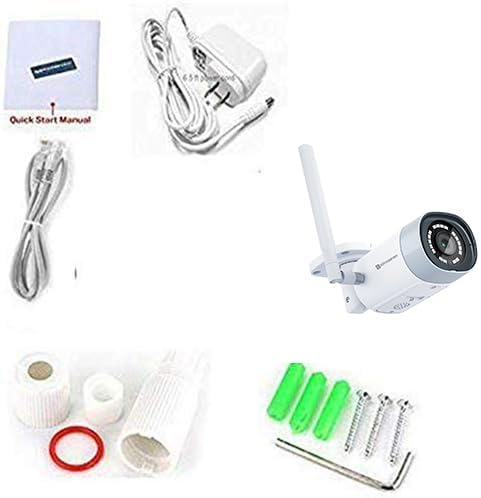
Figure 2.1: Included accessories and camera unit.
3. Setup and Installation
3.1 Initial Camera Discovery and Login
Before physical installation, it is recommended to connect the camera to your network via an Ethernet cable and power it on. Use the Microseven Cam Locator software on your PC to find the camera on your local network and access its web interface.
The default username is 'admin' and the default password is 'password' (all lowercase). It is strongly recommended to change these credentials after initial setup for security purposes.
3.2 Software Download
To manage your camera, download the Microseven software for Windows or macOS, or the mobile app for iOS/Android.
3.3 WiFi Setup
Configure the camera's WiFi settings for wireless operation. Ensure the camera is initially connected via Ethernet for this process.
3.4 Mobile App Setup
Download the Microseven app from your device's app store. Create an account if you are a new user, then add your camera by scanning the QR code or manually entering the camera ID and PIN.

Figure 3.4: The Microseven software platform supports MacOS, Windows, iOS, and Android devices, as well as Alexa and ONVIF.
3.5 Amazon Alexa Integration
Integrate your Microseven camera with Amazon Alexa for voice control and live streaming on compatible devices like Echo Show or Echo Spot.
4. Operating Instructions
4.1 Live View and Playback
Access live video streams and recorded footage from your PC, smartphone, or tablet using the Microseven app or web interface. The camera supports 4K/8MP Ultra HD resolution for clear viewing.

Figure 4.1: The Camera Management System (CMS) allows viewing up to 16 cameras on one screen.
4.2 Two-Way Audio
The camera features a built-in amplified microphone and speaker, enabling two-way communication. You can listen and talk back through the M7 App on your phone or tablet, or via M7 Software on your PC.
4.3 Motion Detection and Alerts
The camera offers intelligent human/vehicle motion detection, reducing false alerts. You can configure specific detection zones and set up various alert actions.

Figure 4.3: Real-time motion detection alerts with video clips sent to your phone or computer.

Figure 4.4: The camera features Human Motion Detection, WiFi, and Power over Ethernet (POE) capabilities.
4.4 Recording Options
Recordings can be saved 24/7, on a schedule, or triggered by motion. Storage options include a microSD card (up to 256GB, not included), Microseven Cloud, Microseven NVR, or an FTP server.
4.5 Night Vision
The camera is equipped with 18 IR LEDs, providing up to 100ft of clear night vision. The M7 Software allows manual disabling of IR lights and modification of camera properties remotely.

Figure 4.6: The camera provides clear vision both during the day and at night.
5. Maintenance
The camera features an all-metal casing with an IP66 waterproof rating, ensuring durability in various outdoor conditions. Regular cleaning of the lens may be required to maintain optimal image clarity. Firmware updates are provided by Microseven to enhance features and security.
6. Troubleshooting
6.1 Connectivity Issues
- Ensure the camera is powered on and the power adapter is securely connected.
- For initial setup, ensure the Ethernet cable is properly connected to both the camera and the router.
- Verify that your WiFi network is operational and the camera is within range.
- If using WiFi, double-check the entered WiFi password for accuracy.
- Use the Microseven Cam Locator to confirm the camera's presence on the network.
6.2 Image Quality Issues
- Clean the camera lens with a soft, dry cloth.
- Ensure there are no obstructions in the camera's field of view.
- Check network bandwidth if streaming quality is poor.
6.3 Motion Detection Not Triggering
- Verify that motion detection is enabled in the camera settings.
- Adjust the sensitivity level of the motion detection.
- Ensure detection zones are correctly configured and cover the desired areas.
7. Specifications
| Feature | Specification |
|---|---|
| Model Number | M7B4K-WSAA |
| Resolution | 4K/8MP Ultra HD (3840x2160) |
| Sensor | Sony CMOS Sensor |
| Lens | 2.8mm, 150° Wide-Angle |
| Connectivity | Dual-Band WiFi (2.4/5 GHz), Ethernet |
| Night Vision Range | Up to 100 ft (18 IR LEDs) |
| Audio | Two-Way Talk (Amplified Mic & Speaker) |
| Storage | MicroSD (up to 256GB, not included), Cloud, NVR, FTP |
| Weatherproof Rating | IP66 |
| Motion Detection | Human Motion Detection, Zone-based |
| Compatibility | Alexa, Blue Iris, Milestone, ZoneMinder, NAS, ONVIF 2.0 |
| Power Source | Corded Electric (5 watts) |
| Material | Metal |
| Item Dimensions | 6 x 5 x 4 inches |
| Item Weight | 1 Pound |
8. Warranty and Support
MICROSEVEN provides free software for Windows and MacOS, along with free apps for iOS and Android. These tools offer potent customizable configuration features within the camera firmware. For support, refer to the official Microseven website or contact their customer service. Information regarding specific warranty periods can typically be found on the product packaging or the official Microseven website.

