
Sharper Image
Sharper Image Musical Portable 37-Key Digital Roll Up Electronic Keyboard
Model: SI-KEY37
Introduction
Thank you for purchasing the Sharper Image Musical Portable 37-Key Digital Roll Up Electronic Keyboard. This innovative instrument offers a compact and flexible solution for musical expression, ideal for practice, learning, and entertainment on the go. Its roll-up design allows for easy storage and portability, while the 37 keys provide a full range for playing various melodies.
Safety Information
- Do not expose the keyboard to extreme temperatures, direct sunlight, or high humidity.
- Avoid placing heavy objects on the keyboard.
- Keep the keyboard away from water and other liquids. If liquid enters the device, discontinue use immediately and consult a qualified technician.
- Do not attempt to disassemble or modify the keyboard. This will void the warranty and may cause damage.
- Use only the specified battery type (4 AA Alkaline batteries). Ensure correct polarity when inserting batteries.
- Remove batteries if the keyboard will not be used for an extended period.
- This product is suitable for adults. Keep out of reach of small children to prevent choking hazards from small parts.
Package Contents
- 1 x Sharper Image Musical Portable 37-Key Digital Roll Up Electronic Keyboard
- 1 x USB Power Cable
- 4 x AA Alkaline Batteries (pre-installed or included separately)
- 1 x User Manual (this document)
Setup
1. Battery Installation (if not pre-installed)
- Locate the battery compartment on the control panel of the keyboard.
- Open the battery compartment cover.
- Insert 4 AA Alkaline batteries, ensuring the correct polarity (+ and -) as indicated inside the compartment.
- Close the battery compartment cover securely.
2. Powering On
- Place the keyboard on a flat, stable surface. Gently unroll the keyboard completely, ensuring the keys lay flat.
- Press the POWER button located on the control panel. The indicator light should illuminate, and the keyboard will be ready for use.
- Alternatively, connect the supplied USB cable to the keyboard's USB port and to a compatible USB power adapter (not included) or a computer USB port for continuous power.
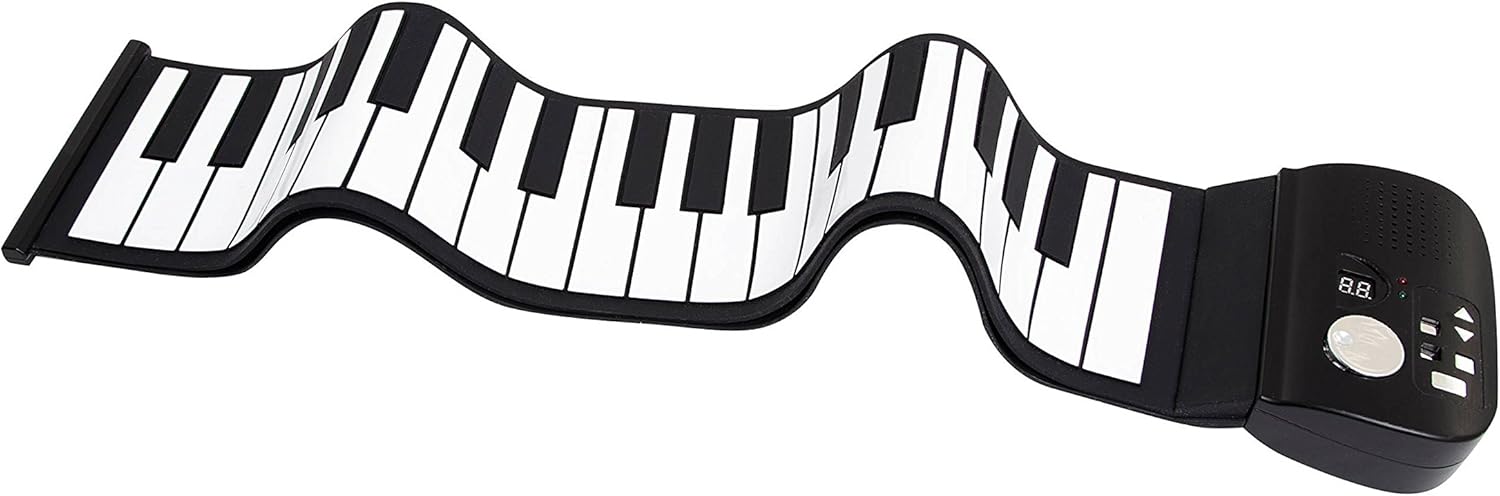
Figure 1: The Sharper Image 37-Key Digital Roll Up Electronic Keyboard fully unrolled, displaying its flexible design and integrated control panel.
Operating Instructions
1. Basic Play
- Once powered on, simply press any key to produce a sound.
- The keyboard features 37 standard-sized keys, allowing for a wide range of musical notes.
2. Volume Control
- Use the VOLUME UP and VOLUME DOWN buttons on the control panel to adjust the sound output.
- The current volume level may be indicated on a small display, if present.
3. Tone and Rhythm Selection (if applicable)
- Refer to the specific buttons on your control panel for changing instrument tones (e.g., piano, organ) or selecting pre-programmed rhythms.
- Press the respective buttons to cycle through available options.
4. Recording and Playback (if applicable)
- Some models may include a RECORD button. Press it once to start recording your performance.
- Press the PLAY button to listen to your recorded melody.
Features
- 37 Standard Keys: Provides a comprehensive range for playing various musical pieces.
- Portable & Roll-Up Design: Easily rolls up for compact storage and transport, making it ideal for travel.
- Digital Sound: Produces clear and consistent electronic keyboard sounds.
- Built-in Speaker: Integrated speaker for immediate audio output.
- USB Connectivity: Can be powered via USB for extended play sessions.
- Battery Operated: Operates on 4 AA batteries for wireless portability.

Figure 2: The Sharper Image 37-Key Digital Roll Up Electronic Keyboard in its packaging, highlighting its compact and portable nature.
Maintenance
- Cleaning: Wipe the keyboard surface with a soft, dry cloth. Do not use abrasive cleaners or solvents.
- Storage: When not in use, gently roll up the keyboard and store it in a cool, dry place, away from direct sunlight and extreme temperatures.
- Battery Care: Remove batteries if the device will not be used for an extended period to prevent leakage.
Troubleshooting
| Problem | Possible Cause | Solution |
|---|---|---|
| No sound from keyboard. | Keyboard is not powered on. Batteries are low or incorrectly installed. Volume is set to minimum. | Press the POWER button. Check battery installation and replace if necessary. Increase the volume using the VOLUME UP button. |
| Keys are not responding. | Keyboard is not fully unrolled or is on an uneven surface. Internal malfunction. | Ensure the keyboard is completely unrolled and laid flat on a smooth surface. If problem persists, contact customer support. |
| Distorted sound. | Low batteries. Speaker obstruction. | Replace batteries. Ensure the speaker area is clear of debris. |
Specifications
- Instrument Type: Electronic Keyboard
- Number of Keys: 37
- Connectivity: USB
- Power Source: 4 x AA Alkaline Batteries (included) or USB Power
- Item Weight: Approximately 998 g
- Package Dimensions: 70.36 x 18.29 x 4.57 cm (approx.)
- Special Features: Portable, Roll-Up Design
- UPC: 694202130285
Warranty and Support
Sharper Image products are manufactured with high-quality standards. For specific warranty information, please refer to the warranty card included with your purchase or visit the official Sharper Image website. For technical support, troubleshooting assistance, or to inquire about replacement parts, please contact Sharper Image customer service through their official channels.
You can often find contact information on the product packaging or on the brand's official website: www.sharperimage.com
Ask a question about this manual
Ask about setup, troubleshooting, compatibility, parts, safety, or missing instructions. Manuals+ will review the question and use this page’s manual context to help answer it.