
Introduction
This manual provides detailed instructions for the TECWARE Phantom 87 Key RGB Mechanical Gaming Keyboard. Please read this manual thoroughly before using the product to ensure proper operation and to maximize your experience.
Safety Information
- Do not expose the keyboard to liquids or excessive moisture.
- Avoid extreme temperatures.
- Do not attempt to disassemble or modify the keyboard. This may void your warranty.
- Keep out of reach of children.
- Use only with compatible devices and power sources.
Package Contents
Verify that all items are present in your package:
- TECWARE Phantom 87 Key RGB Mechanical Gaming Keyboard
- 4x Spare Mechanical Switches (Outemu Red)
- 1x Switch Puller
- 1x Keycap Puller
- 1x User Manual

Figure 1: TECWARE Phantom 87 Key RGB Mechanical Gaming Keyboard with key features such as low latency, 16.8M RGB colors, gaming-oriented design, full N-key rollover, and durable fiberglass PCB.
Setup
1. Connecting the Keyboard
- Locate the USB-A cable attached to your TECWARE Phantom keyboard.
- Plug the USB-A connector into an available USB port on your computer.
- The keyboard will automatically be detected and drivers will install (Windows/macOS).
2. Software Installation (Optional)
For advanced customization, including per-key RGB lighting, macro recording, and user profiles, download the TECWARE software from the official TECWARE website. Follow the on-screen instructions for installation.

Figure 2: The TECWARE software allows for custom per-key RGB lighting, 18 lighting effects control, macro recording and assignment, and up to 3 user profiles, along with brightness and speed adjustments.
Operating Instructions
Basic Functions
- Typing: The keyboard features Outemu Red linear switches for a smooth and quiet typing experience.
- N-Key Rollover: All key presses are registered simultaneously, preventing ghosting during rapid input.
- Windows Lock: Use the dedicated Windows Lock key (often Fn + Win key) to disable the Windows key during gaming to prevent accidental interruptions.
RGB Lighting Control
The Phantom keyboard offers 16.8 million RGB colors and 18 pre-set lighting effects. These can be controlled directly on the keyboard or through the TECWARE software.
- Changing Lighting Modes: Use the Fn key combined with specific function keys (refer to your keyboard's keycaps for symbols) to cycle through the 18 pre-set lighting modes.
- Adjusting Brightness/Speed: Use Fn + Arrow keys (or other designated keys) to adjust the brightness and speed of the lighting effects.
- Customization: For per-key lighting and advanced effects, use the TECWARE software.
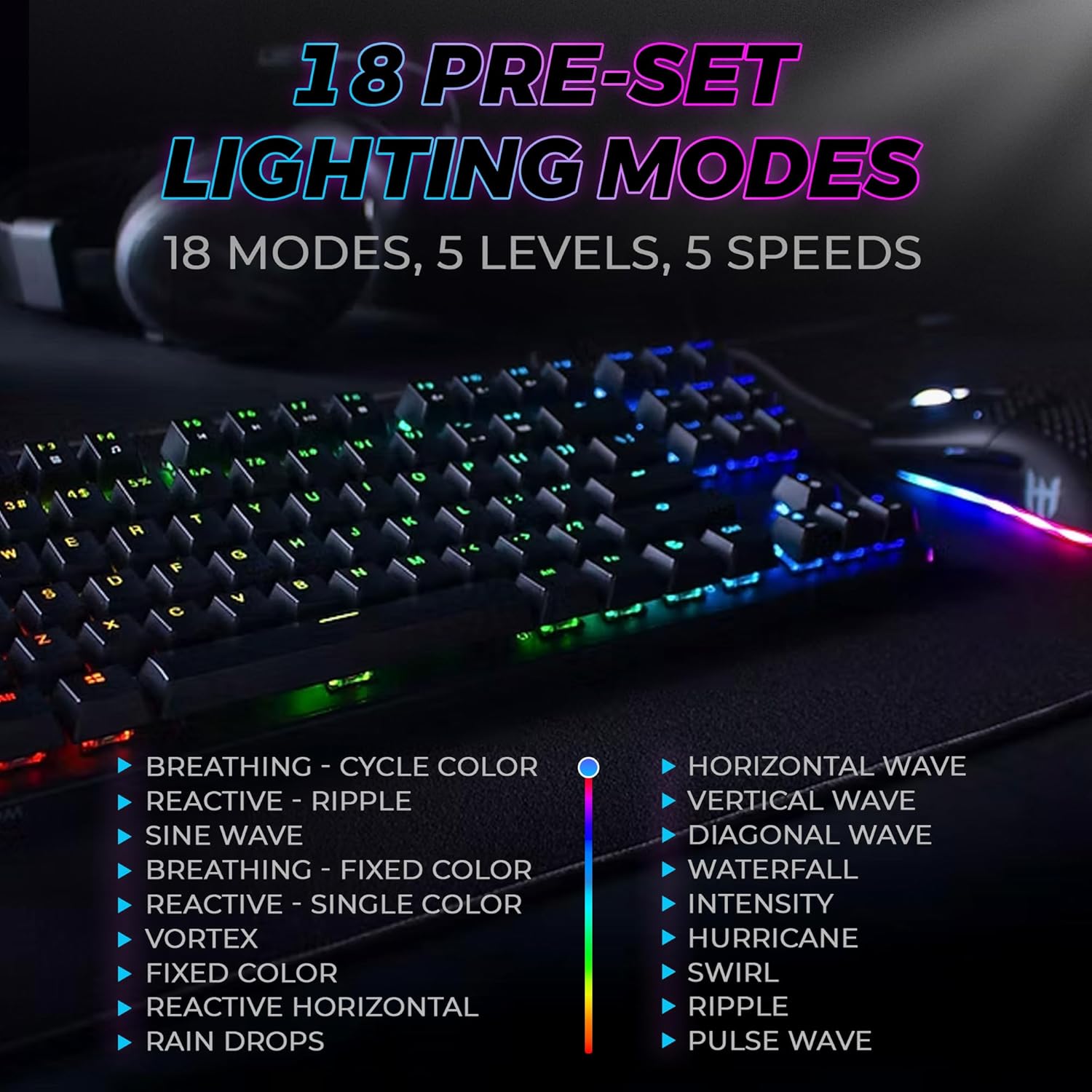
Figure 3: The keyboard features 18 pre-set lighting modes with 5 levels of brightness and 5 levels of speed, including effects like Breathing, Ripple, Sine Wave, Vortex, Waterfall, and Pulse Wave.
Multimedia Keys
Access multimedia controls by pressing the Fn key in combination with the F-keys (F1-F12). The specific functions are typically indicated by icons on the keycaps.
- Example: Fn + F7 (Play/Pause), Fn + F8 (Stop), Fn + F9 (Mute).
Video 1: Official TECWARE branded video showcasing various products, including the Phantom keyboard, highlighting its features and design philosophy.
Maintenance
Cleaning
- Disconnect the keyboard from your computer before cleaning.
- Use a soft, dry cloth to wipe down the keycaps and chassis.
- For deeper cleaning, use the provided keycap puller to remove keycaps and compressed air to clear debris from under the keys.
Switch Replacement
The TECWARE Phantom keyboard features hot-swappable Outemu mechanical switches, allowing for easy replacement without soldering.
- Using the provided keycap puller, gently remove the desired keycap.
- Use the provided switch puller to carefully grip the switch and pull it straight up to remove it.
- Align the pins of the new switch with the holes on the PCB.
- Gently press the new switch into place until it clicks securely.
- Re-attach the keycap.
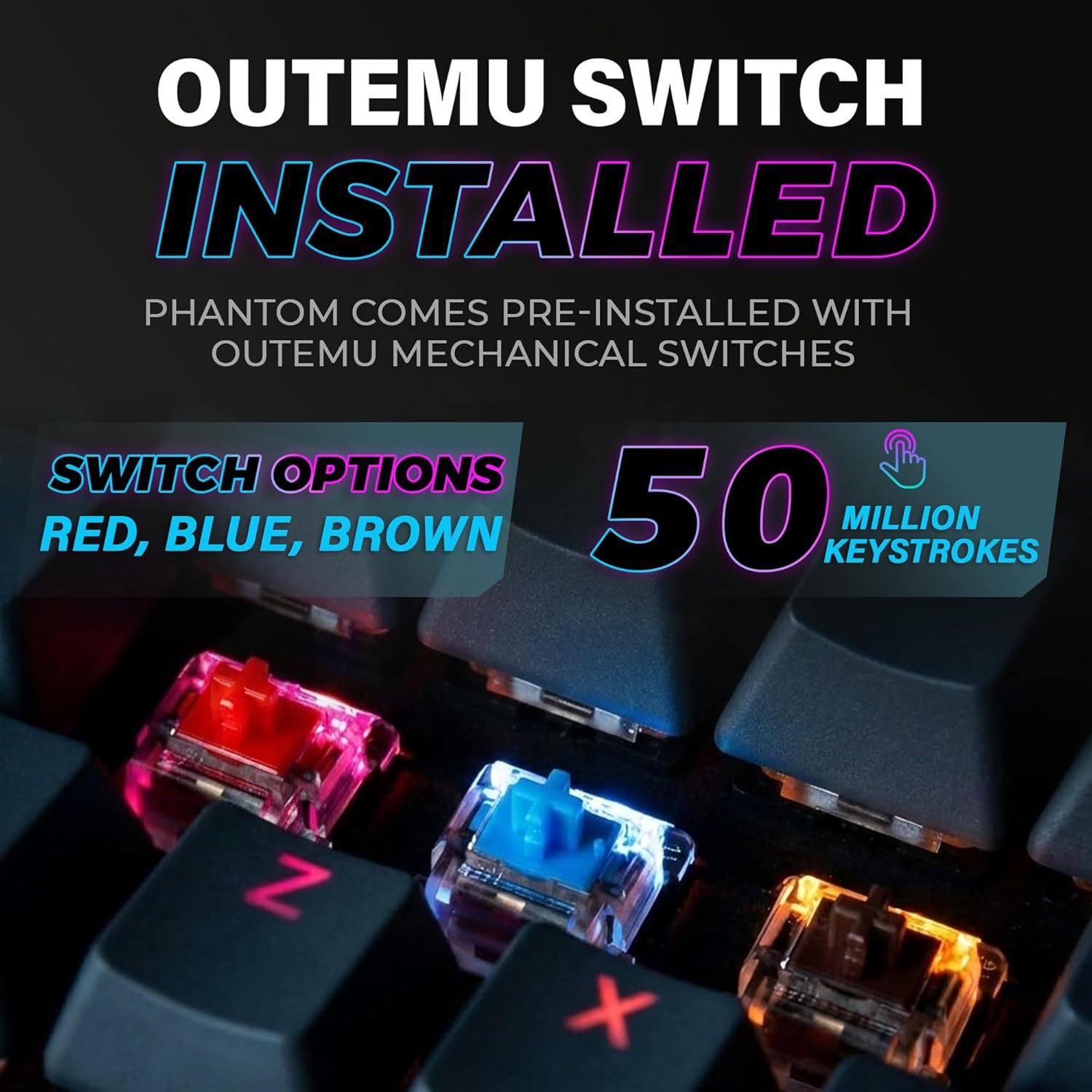
Figure 4: The keyboard comes with pre-installed Outemu switches, available in Red, Blue, and Brown options, rated for 50 million keystrokes.

Figure 5: An Outemu Red linear switch, detailing its pre-travel of 2.00mm, operating force of 45 gf/CN, and total travel of 4.00mm.
Troubleshooting
| Issue | Possible Solution |
|---|---|
| Keyboard not responding | Ensure the USB cable is securely connected to both the keyboard and the computer. Try a different USB port or computer. |
| RGB lighting not working | Check if the lighting is turned off or set to minimum brightness using the Fn key combinations. Reinstall the TECWARE software if using custom profiles. |
| Specific keys not working | If you have hot-swappable switches, try replacing the faulty switch with one of the spare switches provided. Ensure the switch is properly seated. |
| Keys feel inconsistent | Ensure keycaps are fully pressed down. Clean under the keycaps for any debris. |
Video 2: Official TECWARE Phantom video demonstrating various features and functionalities of the keyboard.
Specifications
| Feature | Detail |
|---|---|
| Model Number | TWKB-P87ZORD |
| Switch Type | Outemu Red Mechanical (Linear) |
| Key Count | 87 Keys |
| RGB Lighting | 16.8 Million Colors, 18 Pre-set Modes |
| Polling Rate | 1000Hz |
| N-Key Rollover | Full N-Key Rollover |
| Connectivity | Wired USB-A |
| PCB | Dual-layer Fiberglass PCB |
| Dimensions (L x W x H) | 14.21 x 5.24 x 1.61 inches |
| Weight | 2.53 pounds |
Warranty & Support
TECWARE products are designed for durability and performance. For warranty information, technical support, or to download the latest software and drivers, please visit the official TECWARE website or contact their customer service. Keep your purchase receipt as proof of purchase for warranty claims.
Online Resources:
- Official TECWARE Website: www.tecware.co
- Product Support Page: TECWARE Amazon Store


