
Introduction
This document serves as a user manual for the MSI Radeon RX 580 8G V1 graphics card. It contains essential information regarding the product's components, installation procedures, operational guidelines, maintenance recommendations, and troubleshooting tips. Adherence to these instructions will help ensure the proper functioning and longevity of your graphics card.
What's in the Box
Carefully unpack the contents and ensure all items are present:
- MSI Radeon RX 580 8G V1 Graphics Card
- Cables and connectors (if applicable)
- Quick setup guide

Figure 1: MSI Radeon RX 580 8G V1 Graphics Card
Setup
1. Pre-Installation Checks
- Power Supply Unit (PSU): Ensure your system's PSU meets the recommended 500W minimum.
- Motherboard Compatibility: Verify your motherboard has an available PCI Express x16 slot.
- Case Clearance: Confirm your computer case has adequate space for the graphics card (Item Dimensions L x W: 7.8"L x 4.41"W).
- System Drivers: Uninstall any previous graphics card drivers before installation.
2. Physical Installation
- Power off your computer and disconnect all cables.
- Open your computer case.
- Locate an available PCI Express x16 slot on your motherboard.
- Remove the corresponding expansion slot cover(s) from the back of your case.
- Carefully insert the MSI Radeon RX 580 8G V1 graphics card into the PCI Express x16 slot until it is firmly seated.
- Secure the graphics card to the case with the screw(s) removed earlier.
- Connect the required 8-pin PCIe power connector from your PSU to the graphics card.
- Close your computer case.

Figure 2: Angled view of the graphics card, showing the PCIe connector and fan.
3. Driver Installation
- Reconnect all cables and power on your computer.
- Upon booting into your operating system, download the latest drivers for the AMD Radeon RX 580 from the official MSI or AMD website.
- Follow the on-screen instructions to complete the driver installation. A system restart may be required.
Operating Instructions
1. Connecting Displays
The MSI Radeon RX 580 8G V1 graphics card features multiple video output interfaces:
- 3 x DisplayPort
- 1 x HDMI
Connect your monitor(s) to the appropriate ports on the graphics card. The card supports a maximum display resolution of 7680x4320.
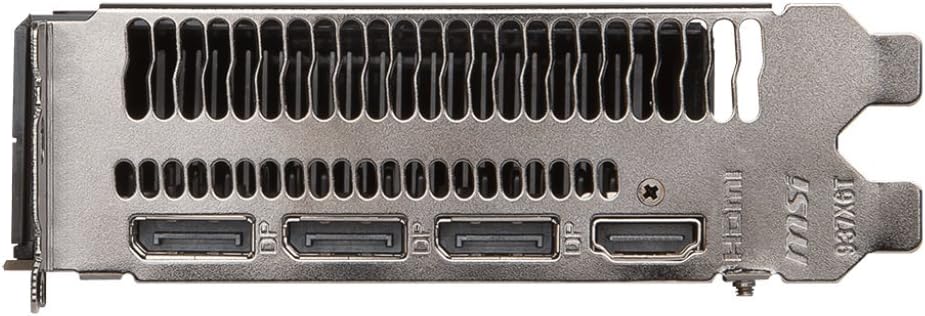
Figure 3: Display output ports (DisplayPort and HDMI) on the graphics card.
2. Software Configuration
After driver installation, you can access the AMD Radeon Software for advanced settings and optimizations. This software allows you to:
- Adjust display settings and resolutions.
- Configure game-specific profiles.
- Monitor GPU performance and temperature.
- Enable features like AMD FreeSync for compatible monitors.
For additional control and monitoring, MSI Afterburner software can be downloaded from the MSI website. This utility provides options for overclocking, fan speed control, and real-time hardware monitoring.
Maintenance
1. Cleaning
Regular cleaning helps maintain optimal performance and extends the lifespan of your graphics card. Dust accumulation can impede cooling efficiency.
- Periodically power off your computer and use compressed air to gently clear dust from the fan and heatsink fins.
- Ensure the fan blades are free from obstructions.
2. Driver Updates
Keep your graphics drivers updated to ensure compatibility with the latest software and games, and to benefit from performance improvements and bug fixes. Check the official MSI or AMD website regularly for new driver releases.
Troubleshooting
If you encounter issues with your graphics card, refer to the following common troubleshooting steps:
| Problem | Possible Solution |
|---|---|
| No display output |
|
| Poor performance in games/applications |
|
| System crashes or freezes |
|
For further assistance, consult the MSI support website or contact their customer service.
Specifications
Key technical specifications for the MSI Radeon RX 580 8G V1 graphics card:
- Graphics Coprocessor: AMD Radeon RX 480 (Note: Product is RX 580, but specification lists RX 480. Please verify with manufacturer if discrepancy exists.)
- Brand: MSI
- Graphics RAM Size: 8 GB GDDR5
- Video Output Interface: DisplayPort x 3, HDMI x 1
- Graphics Processor Manufacturer: AMD
- Compatible Devices: Desktop
- Display Resolution Maximum: 7680x4320
- Graphics Card Interface: PCI Express
- Memory Clock Speed: 1340 MHz
- Number of Fans: 1
- Item Dimensions (L x W): 7.8"L x 4.41"W
- Item Weight: 1.2 Pounds
- Recommended PSU: 500W
Warranty and Support
Warranty Information
The MSI Radeon RX 580 8G V1 graphics card comes with a 3-Year Warranty. Please retain your proof of purchase for warranty claims. For detailed terms and conditions, refer to the warranty documentation included with your product or visit the official MSI website.
Technical Support
For technical assistance, driver downloads, or further product information, please visit the official MSI support website:
You may also contact MSI customer service directly for personalized support.


