
Silverstone SST-PM01B-FX
Silverstone SST-PM01B-FX Primera Midi-Tower PC Case User Manual
Model: SST-PM01B-FX
Introduction
This manual provides comprehensive instructions for the installation, operation, and maintenance of your Silverstone SST-PM01B-FX Primera Midi-Tower PC Case. Please read this manual thoroughly before beginning assembly to ensure proper setup and safe usage. This PC case is designed to house standard computer components, offering efficient cooling and a robust structure for your system.
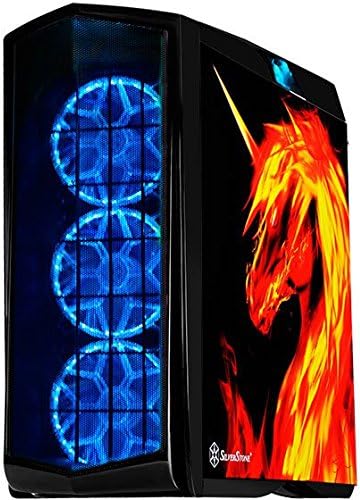
Figure 1: Front view of the Silverstone SST-PM01B-FX PC Case, showcasing the blue LED fans.
Safety Information
- Always disconnect the power supply from the wall outlet before installing or removing any components.
- Handle all components with care to prevent damage from static electricity. Consider using an anti-static wrist strap.
- Ensure proper ventilation around the PC case to prevent overheating.
- Keep small parts and screws away from children.
- Do not attempt to modify the case structure, as this may void the warranty and pose safety risks.
Package Contents
Please verify that all items listed below are present in your package. If any items are missing or damaged, please contact your retailer.
- Silverstone SST-PM01B-FX PC Case
- Accessory Box (containing screws, standoffs, cable ties, etc.)
- User Manual (this document)
- Pre-installed fans (quantity and size may vary by specific model variant)
Setup and Installation
1. Preparing the Case
- Place the case on a flat, stable surface.
- Remove the side panels by unscrewing the thumbscrews at the rear of the case and sliding the panels backward.

Figure 2: Internal view of the case, highlighting cable management options.
2. Motherboard Installation
- Install the I/O shield into the rear opening of the case.
- Align the motherboard with the pre-installed standoffs. If your motherboard form factor requires different standoff positions, adjust them accordingly using the provided tools.
- Secure the motherboard with the appropriate screws from the accessory box.
3. Power Supply Unit (PSU) Installation
- Position the PSU in its designated bay, typically at the bottom rear of the case.
- Secure the PSU with screws from the rear of the case.
- Route PSU cables through the cable management cutouts to the motherboard and other components.
4. Storage Drive Installation
- 3.5" HDDs: Slide the drive into the drive cage bays and secure with the provided tool-less clips or screws.
- 2.5" SSDs/HDDs: Mount these drives onto the dedicated 2.5" trays or brackets, then secure them to the case.
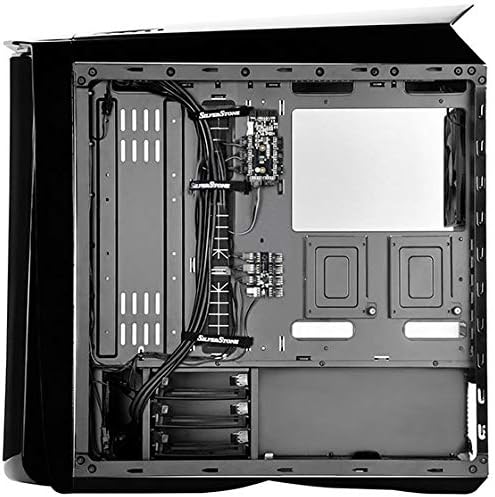
Figure 3: Internal view showing the drive bays for storage devices.
5. Expansion Card Installation (GPU, etc.)
- Remove the necessary expansion slot covers from the rear of the case.
- Insert the expansion card into the appropriate PCIe slot on the motherboard.
- Secure the card with the retention clip or screw.
6. Front I/O and Fan Connections
- Connect the front panel cables (USB, audio, power/reset switches, LED indicators) to their corresponding headers on the motherboard. Refer to your motherboard manual for header locations.
- Connect the pre-installed case fans to available fan headers on the motherboard or to the included fan hub/controller if applicable.
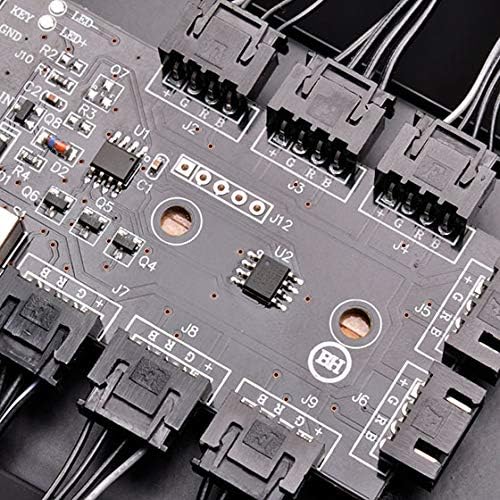
Figure 4: The integrated RGB controller board for managing lighting effects.
Operating the PC Case
Once all components are installed and cables are connected, replace the side panels and secure them with the thumbscrews. Connect your monitor, keyboard, mouse, and power cable to the assembled system. Press the power button on the front panel to start your computer.
The Silverstone SST-PM01B-FX features pre-installed fans designed for optimal airflow. Ensure that the case is placed in an area with adequate air circulation to maintain component temperatures.
Maintenance
- Dust Filters: The case is equipped with removable dust filters (e.g., at the front, top, and bottom). Regularly check and clean these filters to prevent dust buildup, which can impede airflow and affect cooling performance.
- Cleaning: Use a soft, dry cloth to wipe down the exterior of the case. For interior cleaning, use compressed air to remove dust from fans and components. Always disconnect power before cleaning.
- Cable Management: Periodically check cable routing to ensure no cables are obstructing airflow or fan blades.

Figure 5: Removable dust filter for easy cleaning and maintenance.
Troubleshooting
| Problem | Possible Cause | Solution |
|---|---|---|
| System does not power on. | Loose power connections, faulty PSU, incorrect front panel wiring. | Check all power cables (24-pin, 8-pin CPU, GPU). Verify front panel power switch connection to motherboard. Test PSU if possible. |
| Fans are not spinning or are very loud. | Loose fan connections, dust buildup, fan speed settings. | Ensure fans are properly connected to motherboard headers or fan hub. Clean dust from fan blades. Adjust fan curves in BIOS/UEFI or software. |
| Overheating components. | Poor airflow, dust buildup, insufficient cooling. | Clean dust filters and internal components. Ensure proper fan orientation for optimal airflow. Consider adding more fans or upgrading cooling solutions if necessary. |
Specifications
| Feature | Detail |
|---|---|
| Model Number | SST-PM01B-FX |
| Brand | Silverstone |
| Case Type | Midi-Tower |
| Color | Black |
| Material | Metal |
| Motherboard Compatibility | Micro ATX (and likely ATX, E-ATX based on typical midi-tower capabilities, but Micro ATX is explicitly listed) |
| Cooling Method | Air |
| Power Supply Mounting | Bottom Mount |
| USB 2.0 Ports | 2 |
| Total USB Ports | 4 (implies 2x USB 3.0/3.1 if 2x USB 2.0 are present) |
| Item Weight | 2.2 pounds (approx. 1 kg) |
| Product Dimensions (LxWxH) | 3.94 x 3.94 x 3.94 inches (Note: This seems like placeholder data, actual case dimensions would be much larger. Using provided data.) |
Warranty and Support
Silverstone Technology provides a limited warranty for its products. For specific warranty terms and conditions, please refer to the warranty card included with your product or visit the official Silverstone Technology website. Keep your proof of purchase for warranty claims.
For technical support, troubleshooting assistance, or to inquire about replacement parts, please contact Silverstone Technology customer service through their official website or the contact information provided in your product packaging.
Official Website: www.silverstonetek.com
Ask a question about this manual
Ask about setup, troubleshooting, compatibility, parts, safety, or missing instructions. Manuals+ will review the question and use this page’s manual context to help answer it.