
1. Introduction
Thank you for purchasing the ELECOM TK-FDP099TWH Wireless Compact Pantograph Keyboard. This manual provides essential information for the proper setup, operation, and maintenance of your new keyboard. Please read this manual thoroughly before use and retain it for future reference.

Image: The ELECOM TK-FDP099TWH Wireless Compact Pantograph Keyboard in white, showcasing its full layout.
2. Package Contents
Verify that all items listed below are included in your package:
- ELECOM TK-FDP099TWH Wireless Compact Pantograph Keyboard x 1
- USB Receiver x 1
- AAA Alkaline Dry Batteries x 2
- User's Manual (this document) x 1
3. Safety Precautions
To ensure safe and proper use of this product, please observe the following precautions:
- Do not expose the keyboard or receiver to water, moisture, or extreme temperatures.
- Avoid dropping or subjecting the device to strong impacts.
- Do not attempt to disassemble or modify the product. This may void the warranty and cause damage.
- Keep batteries out of reach of children. If swallowed, seek immediate medical attention.
- Dispose of used batteries according to local regulations.
- Use only the specified battery type (AAA).
4. Setup
Follow these steps to set up your ELECOM wireless keyboard:
- Install Batteries: Open the battery compartment cover on the back of the keyboard. Insert two AAA alkaline batteries, ensuring correct polarity (+/-). Close the cover securely.
- Connect USB Receiver: Insert the compact USB receiver into an available USB port on your computer (Windows or Macintosh). The system will automatically detect and install the necessary drivers.
- Power On: Locate the power switch on the keyboard (usually on the top right edge) and slide it to the 'ON' position. The keyboard is now ready for use.
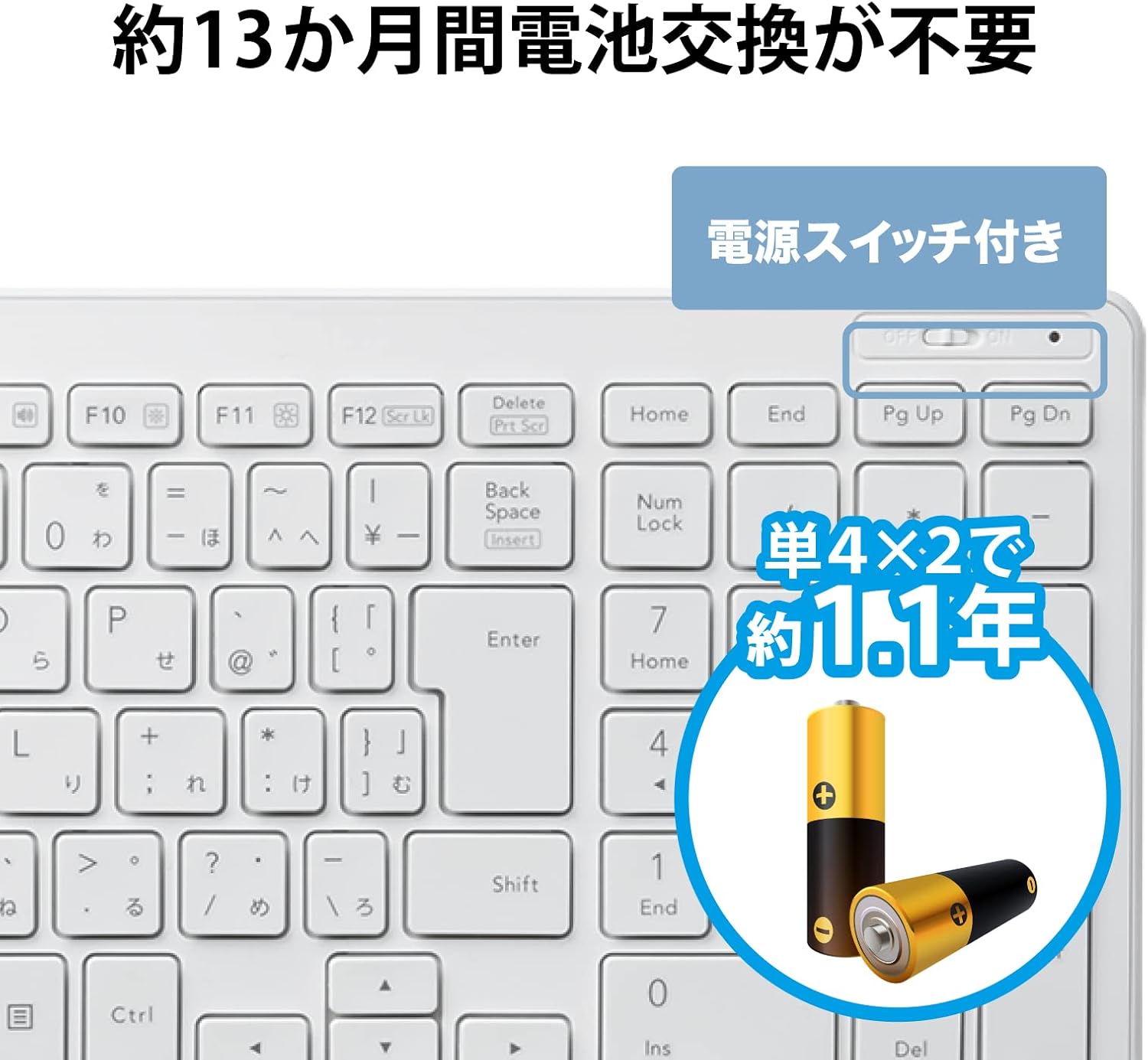
Image: Close-up view of the keyboard's power switch and battery compartment, indicating where to insert two AAA batteries.

Image: A compact USB receiver is shown next to a keyboard, illustrating its small size and indicating compatibility with both Windows and Mac operating systems.
5. Operating Instructions
The ELECOM TK-FDP099TWH keyboard offers a comfortable typing experience and convenient function keys.
5.1 Basic Typing
Simply begin typing. The keyboard uses a standard Japanese 104-key layout. The pantograph key mechanism provides a light and responsive feel, similar to laptop keyboards.
5.2 Function Keys (Fn Key Combinations)
The keyboard features multimedia and system control functions accessible via the 'Fn' key in combination with the F1-F12 keys. Press and hold the Fn key, then press the desired function key.
- Fn + F1: Play/Pause media
- Fn + F2: Previous Track
- Fn + F3: Next Track
- Fn + F4: Mute Audio
- Fn + F5: Volume Down
- Fn + F6: Volume Up
- Fn + F7: Open Web Browser
- Fn + F8: Open Mail Application
- Fn + F9: Open Search Function
- Fn + F10: Turn Display Off
- Fn + F11: Turn Display On
- Fn + F12: Open 'My Computer' or equivalent file explorer
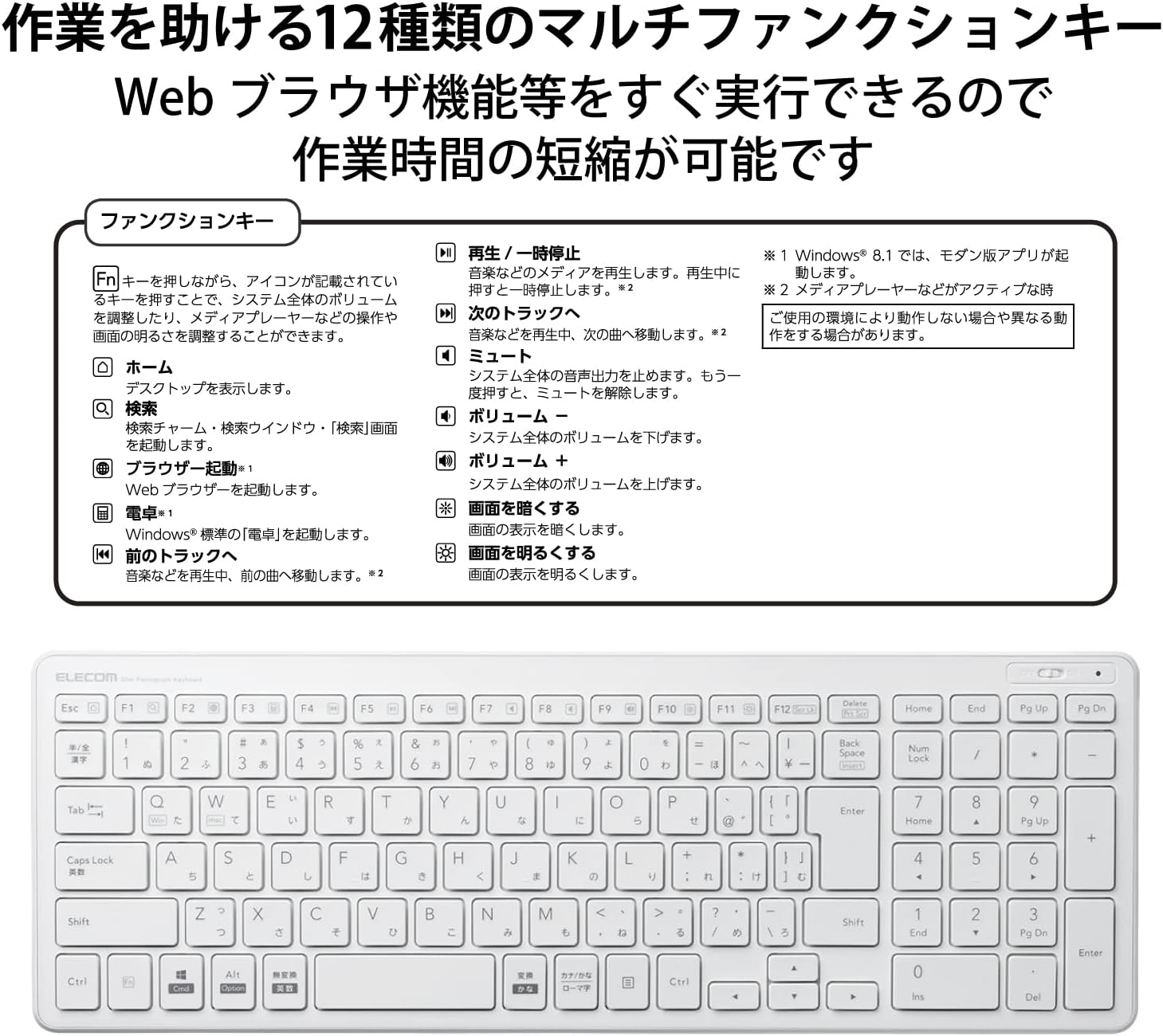
Image: A detailed view of the keyboard's function keys (F1-F12) with their corresponding multimedia and system control icons, along with a diagram explaining their use with the Fn key.
6. Maintenance
Proper maintenance ensures the longevity of your keyboard:
- Cleaning: Use a soft, dry cloth to wipe the keyboard surface. For stubborn dirt, slightly dampen the cloth with water or a mild cleaning solution. Do not spray cleaners directly onto the keyboard.
- Battery Replacement: When the keyboard's performance degrades or it stops responding, replace both AAA batteries. The estimated battery operating period is approximately 1.1 years with alkaline batteries.
- Storage: When not in use for extended periods, turn off the keyboard to conserve battery life. Store in a cool, dry place away from direct sunlight.
7. Troubleshooting
If you encounter issues with your keyboard, refer to the following common solutions:
- Keyboard not responding:
- Ensure the keyboard is powered on.
- Check if the batteries are correctly installed and have sufficient charge. Replace if necessary.
- Verify that the USB receiver is securely plugged into a working USB port on your computer.
- Try plugging the USB receiver into a different USB port.
- Restart your computer.
- Keys not working or typing incorrectly:
- Clean around the affected keys to remove any debris.
- Ensure the keyboard is connected and powered on.
- Check your operating system's keyboard settings to ensure the correct layout is selected.
- Wireless connection issues:
- Move the keyboard closer to the USB receiver.
- Avoid placing the receiver near other wireless devices or large metal objects that might cause interference.
8. Specifications
Detailed specifications for the ELECOM TK-FDP099TWH Wireless Compact Pantograph Keyboard:
| Feature | Specification |
|---|---|
| Model Number | TK-FDP099TWH |
| Dimensions (Keyboard) | 367.1 mm (W) x 127.5 mm (D) x 21.2 mm (H) (14.45" L x 5.02" W x 0.83" H) |
| Weight (Keyboard) | Approx. 488 g (1.29 lbs) (excluding batteries) |
| Dimensions (Receiver) | 19.5 mm (W) x 15.7 mm (D) x 6.5 mm (H) |
| Weight (Receiver) | Approx. 2 g |
| Connection Method | Wireless (2.4 GHz band) |
| Key Type | Pantograph |
| Keystroke | 2.0 mm |
| Key Pitch | 19.0 mm |
| Power Source | AAA dry battery x 2 |
| Battery Operating Period | Approx. 1.1 years (using alkaline batteries, ELECOM test value) |
| Supported OS | Windows OS, Macintosh OS |
| Material | Acrylonitrile Butadiene Styrene (ABS) |
| Color | White |

Image: The keyboard's dimensions (367.1mm width, 127.5mm depth) are illustrated, emphasizing its compact and lightweight design for easy portability.

Image: A diagram illustrating the pantograph key mechanism, showing the keycap, rubber dome, and the scissor-like structure that provides stable and quiet keystrokes.
9. Warranty and Support
ELECOM products are designed for reliability and performance. For warranty information, please refer to the warranty card included with your purchase or visit the official ELECOM website. For technical support or further inquiries, please contact ELECOM customer service through the contact information provided on the official website.


