
VERTIV IS-UNITY-SNMP
Vertiv Liebert IntelliSlot Unity Card User Manual
Model: IS-UNITY-SNMP
1. Introduction
The Vertiv Liebert IntelliSlot Unity Card, model IS-UNITY-SNMP, is a sophisticated UPS management adapter designed to integrate seamlessly with compatible Vertiv Liebert Uninterruptible Power Supply (UPS) systems. This card provides robust network communication capabilities, allowing for remote monitoring, management, and control of your UPS infrastructure. It supports a wide array of industry-standard protocols, ensuring compatibility with existing network management systems and facilitating efficient data center operations.
2. Safety Information
Please read and understand all safety instructions before installing or operating the IntelliSlot Unity Card. Failure to follow these instructions may result in injury, damage to the equipment, or voiding of the warranty.
- Qualified Personnel: Installation and servicing should only be performed by qualified service personnel.
- Power Disconnection: Always ensure the UPS system is powered off and disconnected from the main power source before installing or removing the card.
- Electrostatic Discharge (ESD): Take appropriate ESD precautions (e.g., wear an anti-static wrist strap) when handling the card to prevent damage to sensitive electronic components.
- Environmental Conditions: Operate the card within the specified environmental limits (temperature, humidity) to ensure proper function and longevity.
3. Product Overview
The IntelliSlot Unity Card is a compact, high-performance network interface card that plugs into a dedicated IntelliSlot on compatible Vertiv Liebert UPS units. It enables comprehensive monitoring and management of UPS parameters, alarms, and notifications.

Figure 3.1: Front view of the IntelliSlot Unity Card. This image displays the card's faceplate with the model number IS-UNITY-SNMP, the Vertiv logo, an Ethernet (RJ-45) port labeled 'Link' and 'Activity', and a micro-USB port for configuration or service.

Figure 3.2: Close-up of the card's front panel. This detailed view emphasizes the Ethernet port with its 'Link' and 'Activity' indicators, the micro-USB port, and the clear labeling of the IS-UNITY-SNMP model and Vertiv branding.

Figure 3.3: Top-down view of the circuit board. This image provides a perspective of the card's internal components, including chips, capacitors, and the main connector that interfaces with the UPS IntelliSlot.
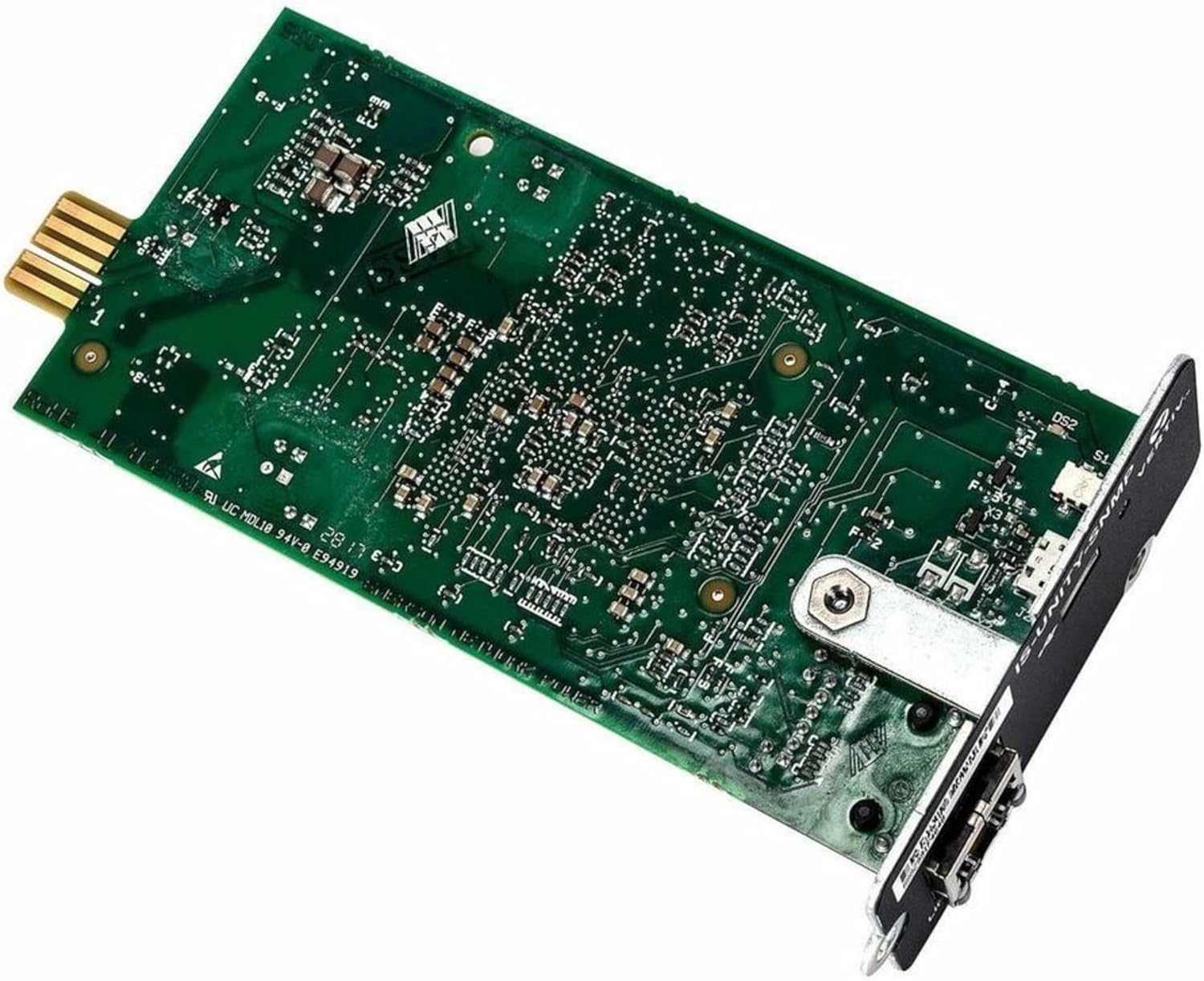
Figure 3.4: Angled view of the card's rear. This image shows the back of the circuit board, revealing additional electronic components and the overall compact design of the card.
Key Features:
- Multi-Protocol Support: Supports SNMP v1, SNMPv2c, SNMPv3, HTTP, HTTPS, BootP, DHCP, IPv6, and SMS for versatile network integration.
- Network Connectivity: Features an RJ-45 Ethernet port for network connection and an RS-485 network interface.
- Web Management: Built-in web server for easy configuration and monitoring via a standard web browser.
- Alarm and Notification: Provides real-time alerts for critical events and operational changes.
- LIFE Services Communication: Supports communication with VERTIV's LIFE Services for proactive maintenance and support.
- Wide Compatibility: Compatible with a broad range of Vertiv Liebert UPS models and other systems like the Alber BDSU-50 Universal Battery Diagnostic System.
4. Setup and Installation
Follow these steps to properly install the IntelliSlot Unity Card into your compatible Vertiv Liebert UPS system.
- Prepare the UPS: Ensure the UPS system is completely powered off and disconnected from all power sources. Refer to your UPS manual for specific power-down procedures.
- Locate the IntelliSlot: Identify the dedicated IntelliSlot on your UPS unit. This slot is typically located on the rear panel.
- Insert the Card: Carefully align the IntelliSlot Unity Card with the slot and gently push it in until it is fully seated. Do not force the card.
- Secure the Card: If applicable, use the provided screws or latches to secure the card in place.
- Connect Network Cable: Connect a standard Ethernet (RJ-45) cable from your network switch or router to the Ethernet port on the IntelliSlot Unity Card.
- Power On UPS: Reconnect the UPS to its power source and power it on according to its operational guidelines.
- Verify Connectivity: Once the UPS is powered on, observe the 'Link' and 'Activity' LEDs on the card's Ethernet port. A solid 'Link' LED indicates a successful physical connection, and a blinking 'Activity' LED indicates network traffic.
Initial Configuration:
Upon initial power-up, the card will attempt to obtain an IP address via DHCP. If DHCP is not available, it will revert to a default IP address (refer to the card's specific documentation for the default IP). You can then access the card's web interface via a web browser to configure network settings, user accounts, and monitoring parameters.
5. Operating Instructions
The IntelliSlot Unity Card allows for comprehensive monitoring and management of your UPS system. The primary method of interaction is through its built-in web interface.
Accessing the Web Interface:
- Open a web browser (e.g., Chrome, Firefox, Edge) on a computer connected to the same network as the IntelliSlot Unity Card.
- Enter the IP address of the IntelliSlot Unity Card into the browser's address bar and press Enter.
- Log in using the default credentials (refer to the card's specific documentation for default username and password, and change them immediately for security).
Monitoring and Management:
Once logged in, you can:
- View real-time UPS status, including input/output voltage, load, battery status, and temperature.
- Access event logs and alarm history.
- Configure notification settings (e.g., email alerts, SMS).
- Manage network settings (IP address, subnet mask, gateway, DNS).
- Perform firmware updates.
- Integrate with Network Management Systems (NMS) using supported protocols like SNMP.
LIFE Services Communication:
The card supports communication with VERTIV's LIFE Services, enabling proactive monitoring and diagnostics by Vertiv experts. Ensure this feature is enabled and configured if you subscribe to LIFE Services.
6. Maintenance
The IntelliSlot Unity Card is designed for reliable operation with minimal maintenance. However, periodic checks and best practices can ensure its longevity and optimal performance.
- Firmware Updates: Regularly check the Vertiv support website for the latest firmware updates for your IntelliSlot Unity Card. Firmware updates often include bug fixes, security enhancements, and new features.
- Environmental Control: Ensure the UPS environment (where the card is installed) is kept within recommended temperature and humidity ranges to prevent overheating or moisture damage.
- Physical Inspection: Periodically inspect the card and its connections for any signs of damage, loose cables, or dust accumulation.
- Cleaning: If necessary, gently clean the card's exterior with a soft, dry, lint-free cloth. Do not use liquid cleaners or solvents.
- Security: Regularly review and update login credentials for the web interface to maintain security.
7. Troubleshooting
This section provides solutions to common issues you might encounter with the IntelliSlot Unity Card.
| Problem | Possible Cause | Solution |
|---|---|---|
| Card not detected by UPS. | Card not fully seated; UPS not powered off during installation. | Ensure UPS is off, then re-seat the card firmly into the IntelliSlot. Power on the UPS. |
| No 'Link' LED on Ethernet port. | Faulty Ethernet cable; Network switch issue; Incorrect port. | Try a different Ethernet cable. Check the network switch port. Ensure the cable is connected to the correct port on the card. |
| Cannot access web interface. | Incorrect IP address; Network connectivity issue; Firewall blocking access. | Verify the card's IP address. Check network settings (subnet, gateway). Temporarily disable firewall on your computer. Ping the card's IP address. |
| Alarms not being sent. | Notification settings not configured; SMTP server issues; Network connectivity. | Check notification settings in the web interface. Verify SMTP server details and network connectivity to the SMTP server. |
8. Specifications
Detailed technical specifications for the Vertiv Liebert IntelliSlot Unity Card (IS-UNITY-SNMP).
| Feature | Description |
|---|---|
| Model Number | IS-UNITY-SNMP |
| Product Type | UPS Management Adapter |
| Slot Type | IntelliSlot (Proprietary) |
| Supported Protocols | SNMP v1, SNMPv2c, SNMPv3, HTTP, HTTPS, BootP, DHCP, IPv6, SMS |
| Network Interfaces | 1 x RJ-45 Ethernet, RS-485 |
| Ethernet Technology | Ethernet (10/100 Mbps) |
| Dimensions (H x W x D) | 1.5" x 3" x 5.2" (3.81 cm x 7.62 cm x 13.21 cm) |
| Weight (Approximate) | 7 ounces (0.3 lbs / 136.08 g) |
| Compatibility | Alber BDSU-50 Universal Battery Diagnostic System, Liebert Devices (APM, APS, Challenger 3000, CRV, CW, DCL, DCP, Delux System/3, DS, DSE, EPM, EXC, eXL, EXL S1, eXM, FDC, FPC, GXT3, GXT4, HPC, HPC-S/M/R/W/Generic, HPM, NX 225-600 kVA, NXC, NXL, NXR, PCW/PDX, PeX, PPC, RDC, RX, XDC, XDP, XDP-Cray) |
| Environmental Compliance | WEEE Compliant |
| UPC | 767041021332 |
9. Warranty and Support
For detailed warranty information, technical support, and service inquiries, please refer to the official Vertiv website or contact Vertiv customer support directly. Keep your product's model number (IS-UNITY-SNMP) and serial number (if applicable) ready when contacting support.
Vertiv Official Website: www.vertiv.com
Related documentsIS-UNITY-SNMP


Ask a question about this manual
Ask about setup, troubleshooting, compatibility, parts, safety, or missing instructions. Manuals+ will review the question and use this page’s manual context to help answer it.