
Introduction
Welcome to the user manual for your Vasco Translator Premium 5". This device is a portable electronic voice translator designed to facilitate communication across different languages. It features a 5-inch touch screen for intuitive operation and supports multi-language translation, making it an ideal companion for travel, business, and personal use. This manual provides essential information on setting up, operating, maintaining, and troubleshooting your device to ensure optimal performance.

Figure 1: Vasco Translator Premium 5" device overview.
1. Setup
1.1 Unpacking and Initial Charge
Upon receiving your Vasco Translator Premium 5", carefully unpack all components. Before first use, it is recommended to fully charge the device. Connect the provided USB cable to the device's charging port and plug the other end into a compatible USB power adapter or computer USB port. The charging indicator will show the charging status.
1.2 Powering On/Off
- To Power On: Press and hold the power button located on the side of the device until the Vasco logo appears on the screen.
- To Power Off: Press and hold the power button until a power-off menu appears. Select "Power Off" and confirm. A short press of the power button will turn the screen on or off.
1.3 Initial Language Configuration
The first time you power on the device, you will be guided through an initial setup process. This includes selecting the device's interface language and setting up network connectivity.
1.4 Connecting to Wi-Fi
For optimal translation accuracy and access to all features, connect your device to a stable Wi-Fi network. Go to Settings > Wi-Fi, select your desired network, and enter the password if prompted. The device requires an internet connection for most translation functions.
2. Operating Instructions
2.1 Basic Voice Translation
The primary function of your Vasco Translator is voice translation. Follow these steps:
- From the main screen, select the two languages you wish to translate between. Typically, there are flags representing the languages.
- Press and hold the microphone button corresponding to the language you will be speaking.
- Speak clearly into the device's microphone.
- Release the button. The device will process your speech and display the translation on the screen, then speak it aloud in the target language.
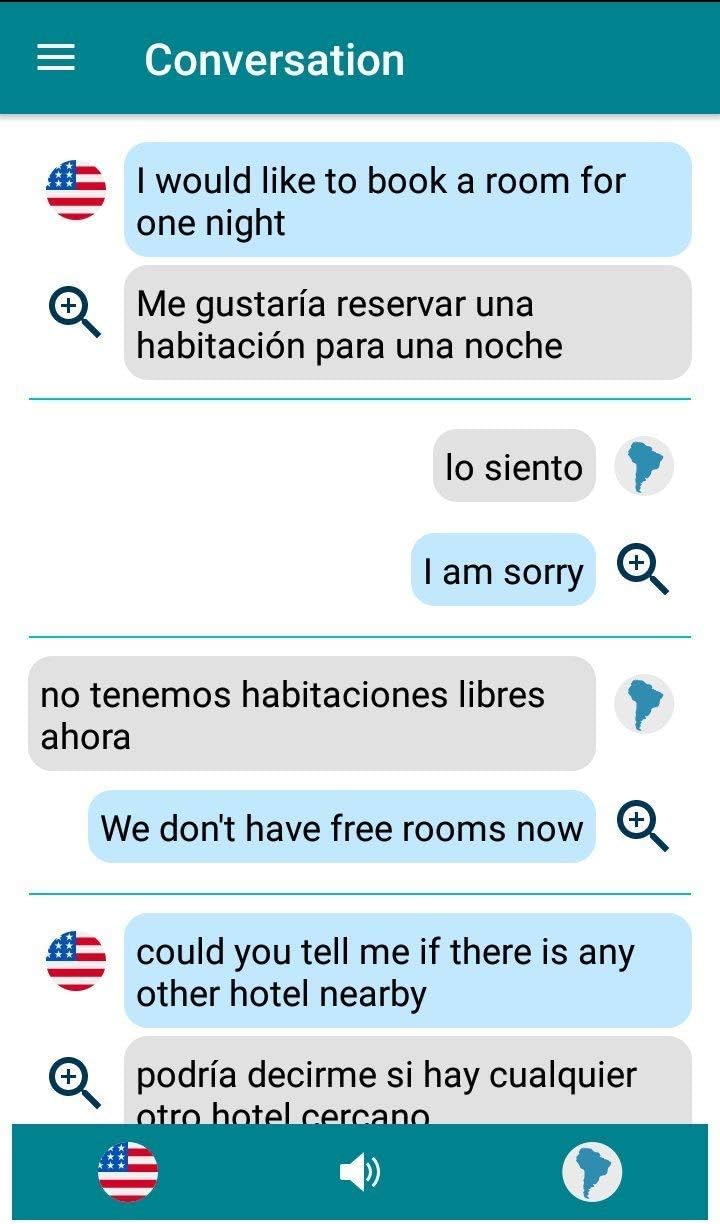
Figure 2: Example of a conversation translation on the device screen.
This image illustrates the conversation mode, where translated phrases appear in a chat-like format, allowing for easy follow-up in a dialogue. Users can see both the original and translated text, along with options to replay audio or zoom in on text.
2.2 Text Translation
In addition to voice, the device can translate typed text. This is useful for translating written content or when voice input is not convenient.
- Navigate to the text translation feature (often indicated by a keyboard icon).
- Select the source and target languages.
- Type your text using the on-screen keyboard.
- Press the translate button. The translated text will appear on the screen.

Figure 3: Example of text translation on the device screen.
This image demonstrates the text translation interface, where a user has typed an English phrase and received its Italian equivalent. The interface includes options for microphone input, audio playback, and clearing text.
2.3 Using the Touch Screen
The 5-inch touch screen allows for intuitive navigation. Tap to select options, swipe to scroll through lists or screens, and pinch to zoom where applicable.
3. Maintenance
3.1 Cleaning the Device
To keep your device in optimal condition, clean it regularly. Use a soft, lint-free cloth to wipe the screen and body. For stubborn smudges, slightly dampen the cloth with water or a screen cleaner designed for electronics. Avoid using harsh chemicals or abrasive materials.
3.2 Battery Care
The device is powered by a Lithium-Ion battery. To prolong battery life:
- Avoid extreme temperatures.
- Do not allow the battery to fully discharge frequently.
- If storing the device for an extended period, charge it to about 50% before storage.
3.3 Software Updates
Periodically check for software updates to ensure your device has the latest features and performance improvements. Connect to Wi-Fi and go to Settings > About Device > Software Update.
4. Troubleshooting
| Problem | Possible Cause | Solution |
|---|---|---|
| Device does not turn on. | Battery is discharged. | Connect the device to a charger and allow it to charge for at least 30 minutes before attempting to power on again. |
| Translation is inaccurate or not working. | No internet connection; incorrect language selection; unclear speech. | Ensure the device is connected to Wi-Fi. Verify that the correct source and target languages are selected. Speak clearly and directly into the microphone. |
| Wi-Fi connection issues. | Incorrect password; out of range; router issue. | Double-check the Wi-Fi password. Move closer to the Wi-Fi router. Restart your Wi-Fi router and the Vasco Translator. |
| Touch screen is unresponsive. | Temporary software glitch; screen protector interference. | Restart the device. If a screen protector is installed, ensure it is properly applied and not interfering with touch sensitivity. |
5. Specifications
- Model: TNP5"
- Brand: Vasco Electronics
- Manufacturer: Vasco Electronics LLC
- Display: 5-inch Touch Screen
- Battery: 1 Lithium Ion battery required (contained in equipment)
- Lithium Battery Energy Content: 8.36 Watt Hours
- Number of Lithium Ion Cells: 1
- Package Dimensions: 27.18 x 18.54 x 6.86 cm
- Item Weight: 1.74 kg (as per package)
- ASIN: B077MKGJPL
- Date First Available: 20 November 2017
6. Warranty and Support
For detailed warranty information, please refer to the warranty card included with your product packaging or visit the official Vasco Electronics website. For technical support, frequently asked questions, or to contact customer service, please visit the manufacturer's support portal or use the contact information provided in your product documentation.
Manufacturer: Vasco Electronics LLC
Website: www.vasco-electronics.com (This is a placeholder link, please refer to official documentation for the correct support URL.)

