
Introduction
Thank you for choosing the KROM Kernel TKL Mechanical Gaming Keyboard. This compact, tenkeyless (TKL) keyboard is designed for gaming enthusiasts, offering a responsive mechanical experience with customizable RGB backlighting and a Spanish layout. This manual provides detailed instructions for setup, operation, maintenance, and troubleshooting to ensure optimal performance and longevity of your device.
Product Overview
Key Features
- Mechanical Switches: Durable and responsive mechanical key switches for precise input.
- Tenkeyless (TKL) Design: Compact form factor without a numeric keypad, ideal for saving desk space and improving mouse movement.
- RGB Backlighting: Customizable LED backlighting with various effects and colors.
- Macro Functionality: Assign macro functions to any key for personalized commands.
- Multimedia Keys: Dedicated or function-layer multimedia controls for convenience.
- Anti-Ghosting: Ensures all key presses are registered accurately, even during intense gaming sessions.
- Durable Construction: Built with quality materials for long-lasting performance.
- Spanish Layout: Designed with a QWERTY Spanish key layout.
Package Contents
- KROM Kernel TKL Mechanical Gaming Keyboard
- USB Cable (attached)
- User Manual (this document)
- (Note: Additional accessories may vary by region or specific product bundle.)
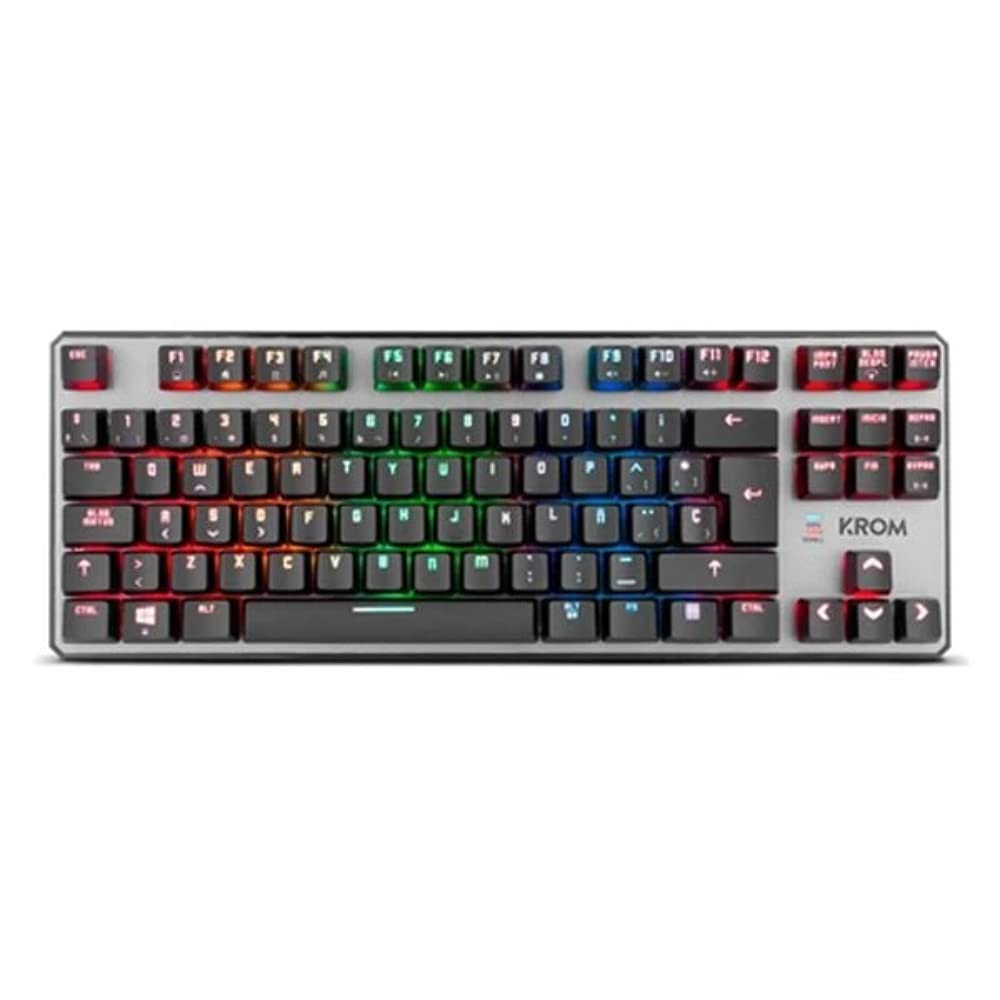
Image 1.1: KROM Kernel TKL Mechanical Gaming Keyboard packaging, showing the front and back of the box with product features and design.

Image 1.2: Top-down view of the KROM Kernel TKL keyboard, showcasing its compact design and vibrant RGB backlighting across all keys.
Setup
- Unpack the Keyboard: Carefully remove the KROM Kernel TKL keyboard from its packaging.
- Connect to Computer: Locate the USB cable attached to the keyboard. Plug the USB connector into an available USB port on your computer (PC or laptop).
- Driver Installation: The keyboard is plug-and-play. Your operating system (Windows 7/8/8.1/10) should automatically detect and install the necessary drivers. This process may take a few moments.
- Verify Functionality: Once drivers are installed, test the keyboard by typing in a text editor or browser to ensure all keys are responsive.
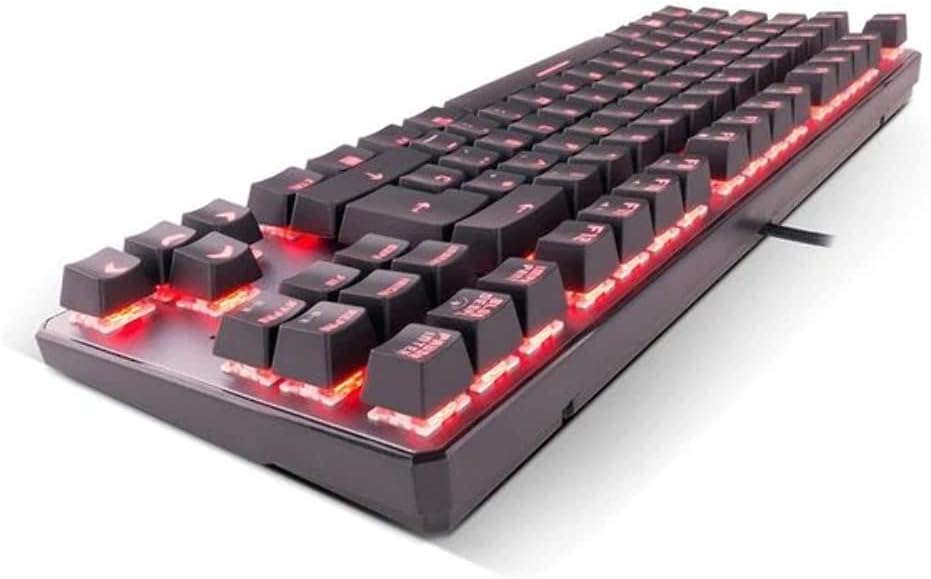
Image 2.1: Side view of the KROM Kernel TKL keyboard, highlighting the red backlighting visible beneath the keycaps and the compact profile.
Operating Instructions
RGB Backlighting Control
The KROM Kernel TKL keyboard features dynamic RGB backlighting. Use the following key combinations to adjust lighting effects:
- Fn + [Key]: Specific function keys (often F1-F12 or dedicated keys) are used in combination with the Function (Fn) key to cycle through lighting modes, adjust brightness, change speed, or select colors. Refer to the keyboard's keycap legends for specific symbols indicating lighting controls.
- Brightness Adjustment: Typically Fn + Up/Down arrow keys or dedicated brightness keys.
- Effect Speed: Often Fn + Left/Right arrow keys to increase or decrease the speed of dynamic lighting effects.
- Mode Switching: Cycle through various pre-set RGB lighting modes (e.g., wave, ripple, breathing, static color) using a dedicated Fn combination.

Image 3.1: The KROM Kernel TKL keyboard displaying its full RGB spectrum backlighting, enhancing the visual appeal during use.
Macro Function Assignment
The keyboard supports on-the-fly macro recording or software-based macro assignment. For on-the-fly recording:
- Initiate Recording: Press a specific Macro Record key (often labeled "MR" or a Fn combination).
- Select Target Key: Press the key you wish to assign the macro to.
- Record Sequence: Type the sequence of keys you want to record as the macro.
- End Recording: Press the Macro Record key again to save the macro.
Note: Detailed macro programming instructions may require specific software or refer to the full digital manual available on the KROM website.
Multimedia and Shortcut Keys
Access multimedia functions and system shortcuts using the Fn key in combination with the F-keys (F1-F12) or other designated keys. Common functions include:
- Volume Control: Fn + Fx (e.g., F1-F3 for Mute, Volume Down, Volume Up).
- Media Playback: Fn + Fx (e.g., F5-F8 for Play/Pause, Stop, Previous Track, Next Track).
- Application Shortcuts: Fn + Fx (e.g., F9-F12 for Email, Web Browser, My Computer, Calculator).

Image 3.2: A close-up view of the KROM Kernel TKL keyboard's keycaps, clearly showing the Spanish QWERTY layout and secondary functions.
Maintenance
Proper maintenance ensures the longevity and performance of your keyboard.
- Cleaning:
- Disconnect the keyboard from your computer before cleaning.
- Use a can of compressed air to remove dust and debris from between the keycaps.
- Wipe the keycaps and keyboard surface with a soft, slightly damp, lint-free cloth. Avoid excessive moisture.
- Do not use harsh chemicals, abrasive cleaners, or solvents.
- Storage: Store the keyboard in a dry, cool place away from direct sunlight and extreme temperatures.
- Handling: Avoid dropping the keyboard or exposing it to liquids. Do not attempt to disassemble the keyboard as this may void the warranty.

Image 4.1: A side profile view of the KROM Kernel TKL keyboard, illustrating its ergonomic tilt and compact design.

Image 4.2: A close-up image showing a mechanical switch on the KROM Kernel TKL keyboard, highlighting its design and potential for easy replacement (CIY Technology).

Image 4.3: The CIY Technology logo, indicating that the keyboard features hot-swappable mechanical switches for easy customization or replacement.
Troubleshooting
If you encounter issues with your KROM Kernel TKL keyboard, refer to the following common solutions:
- Keyboard Not Responding:
- Ensure the USB cable is securely plugged into both the keyboard and the computer.
- Try plugging the keyboard into a different USB port on your computer.
- Restart your computer.
- Test the keyboard on another computer to determine if the issue is with the keyboard or your system.
- Backlighting Not Working or Incorrect:
- Check if the backlighting is turned off. Use the Fn key combinations to cycle through lighting modes and adjust brightness.
- Ensure no software conflicts are interfering with the lighting controls.
- Keys Not Registering or Double-Typing:
- Clean the affected keys with compressed air to remove any debris.
- If the keyboard uses hot-swappable switches (like the "CIY Technology" mentioned in an image), try gently removing and re-inserting the switch for the problematic key.
- Ensure your operating system drivers are up to date.
- Macro Functions Not Working:
- Review the macro programming steps to ensure correct recording.
- Check if any software is overriding the keyboard's native macro functions.
Specifications
| Feature | Detail |
|---|---|
| Model Number | NXKROMKRNLTKL |
| Keyboard Type | Mechanical |
| Layout | Spanish QWERTY (TKL) |
| Backlighting | RGB LED |
| Connection | Wired USB (Gold-plated) |
| Cable Length | 180 cm (Braided) |
| Actuation Force | 60 +/- 10 g |
| Polling Rate | 1000 Hz |
| Internal Memory | 64 KB (for macros/profiles) |
| Current Consumption | 100-260mA |
| Voltage | 5.0 +/- 0.25 V |
| Dimensions (L x W x H) | 361 x 133.5 x 22.5 mm |
| Weight | 950 +/- 30 g |
| Compatibility | Windows 7 / 8 / 8.1 / 10 |
| Special Features | Macro function assignment, Multimedia keys, Shortcut keys |
Warranty and Support
KROM products are designed for reliability and performance. This product comes with a standard manufacturer's warranty. For specific warranty terms and conditions, please refer to the warranty card included with your product or visit the official KROM website.
For technical support, driver downloads, or further assistance, please visit the KROM official support page or contact their customer service. Contact information can typically be found on the KROM website or product packaging.
KROM Official Website: www.kromgaming.com (Note: This is a placeholder URL, please verify the actual KROM support website.)


