
Azpen D108
Azpen Dockall D108 Wireless Charging Dock User Manual
Model: D108 | Brand: Azpen
1. Introduction
The Azpen Dockall D108 is a versatile device combining a Qi-certified fast wireless charger, a Bluetooth speaker system, and additional USB charging ports. It is designed to provide convenient charging and audio playback for compatible smartphones and other devices.
2. Package Contents
- Azpen Dockall D108 Wireless Charging Dock
- Power Adapter
- User Manual
3. Product Overview
Familiarize yourself with the various components and controls of your Dockall D108.
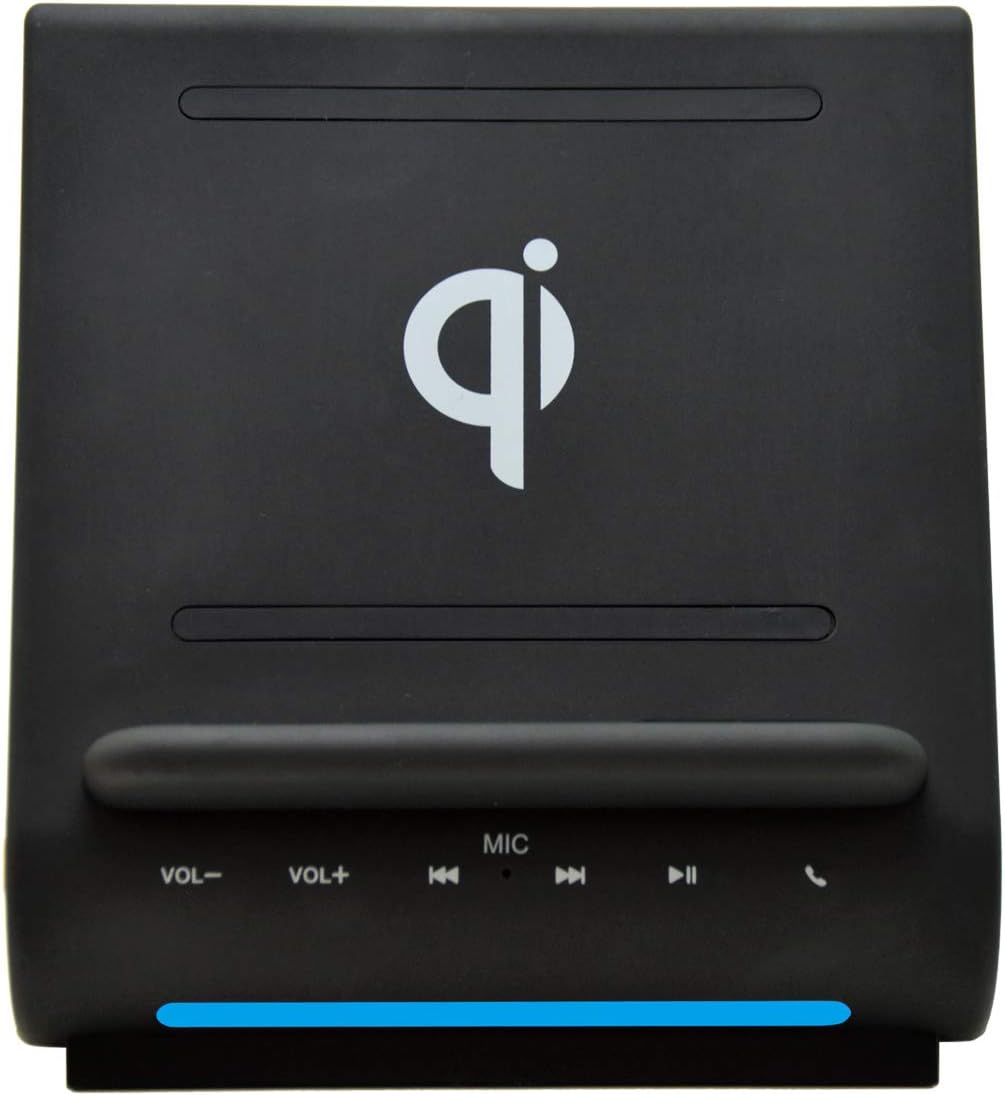
Figure 3.1: Front View. This image displays the front of the Azpen Dockall D108, highlighting the Qi wireless charging pad, the volume controls (VOL-, VOL+), track controls (previous, play/pause, next), microphone (MIC), and call answer/end button.

Figure 3.2: Back View. This image shows the rear of the Azpen Dockall D108, indicating the USB1A and USB2A charging ports, the DC power input, and the power button.
4. Setup
- Connect Power: Plug the provided power adapter into the DC input port on the back of the Dockall D108. Connect the other end of the adapter to a wall outlet.
- Power On: Press the Power button located on the back of the unit to turn on the Dockall D108.
5. Operating Instructions
5.1. Wireless Charging
The Dockall D108 features a Qi-certified fast wireless charger with three charging coils, allowing for flexible phone placement.
- Ensure the Dockall D108 is powered on.
- Place your Qi-compatible smartphone onto the charging pad, either vertically or horizontally. The phone should align with the charging coils for optimal performance.
- The phone's screen will indicate that charging has begun.

Figure 5.1.1: Wireless Charging in Progress. This image illustrates a smartphone placed on the Dockall D108, actively receiving a wireless charge, indicated by the charging icon on the phone's screen.
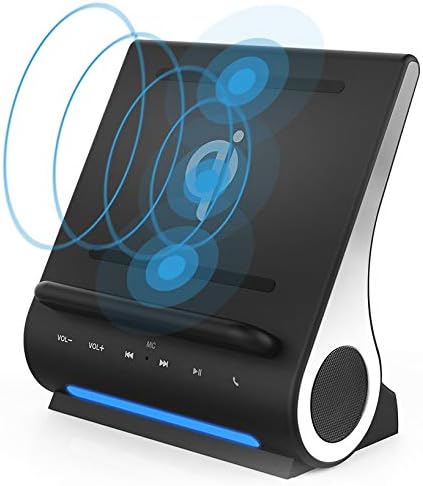
Figure 5.1.2: Wireless Charging Coils. This diagram highlights the internal arrangement of the three wireless charging coils, which enable flexible placement of devices for charging.
Note on Cases: The Dockall D108 is designed to charge through most plastic and rubber phone cases up to 5mm thick. Wireless charging is not possible through metal cases or cases with stick-on attachments like pop-sockets. If charging issues occur, remove the phone case.
Heat during Charging: It is normal for wireless charging to generate some heat. Your phone may become warm during the charging process due to Qi2 technology.
5.2. Bluetooth Speaker Function
The Dockall D108 features dual Bluetooth speakers for audio playback and a built-in microphone for hands-free calls.
- Pairing: With the Dockall D108 powered on, activate Bluetooth on your smartphone or other device. Search for "Dockall D108" in the list of available devices and select it to pair.
- Audio Playback: Once paired, audio from your device will play through the Dockall D108 speakers. Use the volume controls (VOL-, VOL+) and track controls (previous, play/pause, next) on the front of the unit, or your connected device, to manage playback.
- Hands-free Calls: When a call comes in, press the call button on the Dockall D108 to answer. Use the built-in microphone for communication. Press the call button again to end the call.
- Reconnection: If the Bluetooth connection is lost, hold down the Play/Pause button on the Dockall D108 to attempt reconnection.

Figure 5.2.1: Media Playback. This image shows a smartphone positioned on the Dockall D108, displaying a video, demonstrating its use as a media stand with integrated speakers.
5.3. USB Charging Ports
The Dockall D108 includes two USB charging ports on the back for additional wired charging options.
- Connect your device (e.g., tablet, smartwatch, non-Qi compatible phone) to either the USB1A or USB2A port using a compatible USB cable.
- The Dockall D108 can charge up to three devices simultaneously: one wirelessly and two via USB ports.

Figure 5.3.1: Simultaneous Charging. This image illustrates the capability of the Dockall D108 to charge three devices concurrently: one wirelessly on the pad, and two others connected via the USB ports.
6. Maintenance
To ensure the longevity and optimal performance of your Azpen Dockall D108, follow these maintenance guidelines:
- Cleaning: Use a soft, dry, lint-free cloth to clean the surface of the device. Do not use abrasive cleaners, solvents, or aerosol sprays, as these may damage the finish or internal components.
- Storage: When not in use for extended periods, store the device in a cool, dry place away from direct sunlight and extreme temperatures.
- Avoid Liquids: Keep the device away from water and other liquids.
7. Troubleshooting
If you encounter issues with your Dockall D108, refer to the following common problems and solutions:
| Problem | Possible Cause | Solution |
|---|---|---|
| Phone not charging wirelessly | Phone not Qi-compatible; improper placement; phone case interference; foreign objects on charging pad. | Ensure phone supports Qi wireless charging. Reposition phone on the charging pad. Remove phone case if it is thick, metal, or has attachments. Remove any foreign objects. |
| Phone gets hot during wireless charging | Normal operation for Qi2 technology; poor alignment; phone case. | This is often normal. Ensure proper phone alignment. Remove phone case if excessive heat is observed. If phone stops charging due to heat, allow it to cool. |
| Bluetooth connection issues | Device not in pairing mode; out of range; interference; previously paired devices. | Ensure Dockall D108 is powered on. Make sure other paired devices are turned off or out of range when pairing a new device. Hold the Play/Pause button to force reconnection. Ensure devices are within Bluetooth range. |
| No audio from speakers | Not paired; volume too low; audio source issue. | Verify Bluetooth pairing. Increase volume on both the Dockall D108 and the connected device. Check if audio is playing from the source device. |
| USB ports not charging | Cable issue; device not compatible; Dockall not powered on. | Ensure the Dockall D108 is powered on. Try a different USB cable. Verify the device can be charged via USB. |
8. Specifications
| Feature | Detail |
|---|---|
| Model Number | D108 |
| Wireless Charging | Qi-Certified, Fast Wireless Charging (10W for Android, 7.5W for iPhone) |
| Charging Coils | 3 |
| Bluetooth Version | Bluetooth 5 |
| Speaker Output | 5 Watts (HD sound) |
| USB Charging Ports | 2 (USB1A, USB2A) |
| Product Dimensions | 6.5 x 4 x 7.2 inches |
| Item Weight | 1 pound |
| Power Input | 12V==2A |
| Compatible Devices | iPhone 15/14/13/12/11/XR/XS/8 & Samsung Galaxy S23/S22/S21/S20/S10/S9/S9+ and other Qi-compatible devices. |
9. Warranty and Support
For warranty information or technical support, please refer to the official Azpen website or contact their customer service directly. Keep your purchase receipt for warranty claims.
Website: www.azpenpc.com
Related documentsD108


Ask a question about this manual
Ask about setup, troubleshooting, compatibility, parts, safety, or missing instructions. Manuals+ will review the question and use this page’s manual context to help answer it.