
Introduction
This manual provides essential information for the proper setup, operation, maintenance, and troubleshooting of your Razer Phone (1st Generation). Please read this guide thoroughly to ensure optimal performance and longevity of your device.
Product Overview
The Razer Phone (1st Generation) is designed for high-performance mobile computing and entertainment. It features a 120Hz Ultra Motion Display, Dolby ATMOS audio, and is powered by the Qualcomm Snapdragon 835 processor.

Figure 1: Front view of the Razer Phone, showcasing its display and front-facing speakers.
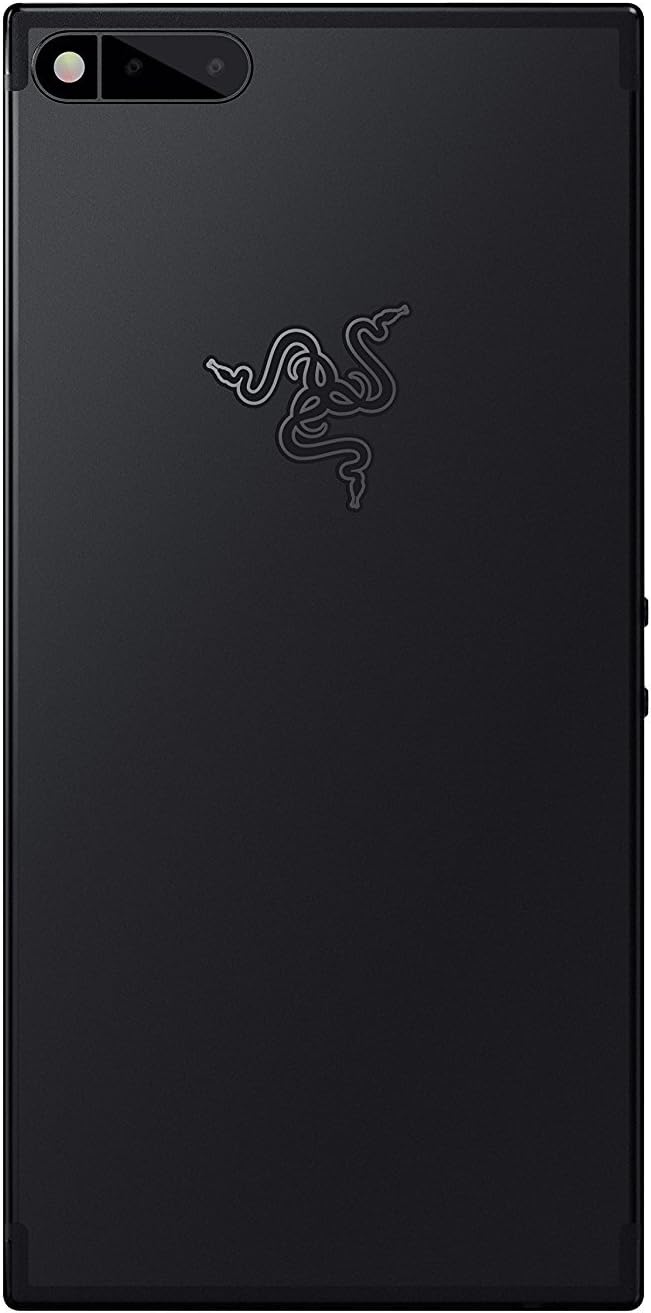
Figure 2: Rear view of the Razer Phone, highlighting the dual camera system and the Razer emblem.
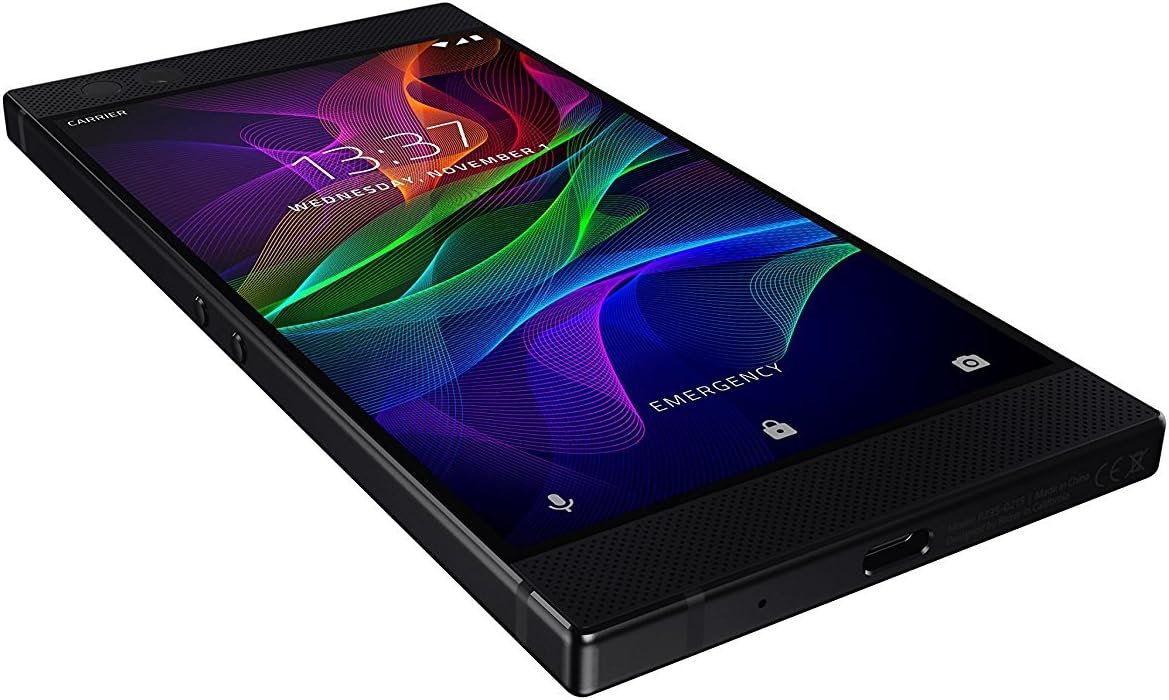
Figure 3: Side and bottom view of the Razer Phone, illustrating the physical buttons and connectivity port.
Setup
1. Unboxing and Initial Inspection
Upon opening the package, verify that all components are present and undamaged. The box should contain:
- Razer Phone (1st Generation) Smartphone
- Charger
2. SIM Card Installation
- Locate the SIM card tray on the side of the device.
- Insert the SIM ejector tool (not included, typically comes with SIM cards) into the small hole on the tray.
- Gently pull out the SIM card tray.
- Place your Nano-SIM card into the tray with the gold contacts facing down.
- Carefully reinsert the tray into the phone until it clicks into place.
3. Initial Charging
Before first use, fully charge your Razer Phone. Connect the provided charger to the USB-C port at the bottom of the phone and plug it into a power outlet. The device supports fast charging.
4. Powering On
Press and hold the power button, located on the side of the device, until the Razer logo appears on the screen. Follow the on-screen prompts to complete the initial setup, including language selection, Wi-Fi connection, and Google account setup.
Operating
Display Features
The Razer Phone features a 120Hz Ultra Motion Display with Corning Gorilla Glass 3, providing smooth visuals and responsive touch interaction. This high refresh rate minimizes lag and stuttering, enhancing the user experience for all content.
Audio System
Experience cinematic sound with Dolby ATMOS powered and THX certified audio. The device incorporates dual front-firing speakers and dual amplifiers, delivering clear and immersive sound. An audio adapter with a THX certified DAC is included for wired audio connections, as the phone does not feature a standard 3.5mm headphone jack.
Camera Usage
The Razer Phone is equipped with a dual camera system. To access the camera, tap the camera icon on your home screen or lock screen. The camera interface allows for basic photo and video capture. For advanced features, third-party camera applications may be utilized.
Connectivity
The device supports cellular (GSM-compatible), Wi-Fi, and Bluetooth connectivity. Ensure your SIM card is properly installed for cellular network access. Connect to Wi-Fi networks via the Settings menu for internet access. The phone operates on Android 8.1.
Maintenance
Cleaning Your Device
To clean the screen, use a soft, lint-free cloth. For the body of the phone, a slightly damp cloth can be used. Avoid using harsh chemicals, abrasive materials, or aerosol sprays, as these can damage the device's finish and internal components.
Battery Care
The Razer Phone contains a 4000 mAh Lithium Ion battery. To prolong battery life, avoid exposing the device to extreme temperatures. Use only the provided charger or certified compatible chargers. Regular software updates can also optimize battery performance.
Software Updates
Periodically check for software updates in the device settings. Updates often include performance improvements, security enhancements, and new features. Ensure your device is sufficiently charged and connected to Wi-Fi before initiating an update.
Troubleshooting
| Problem | Possible Solution |
|---|---|
| Device does not power on | Ensure the battery is charged. Connect the charger and wait a few minutes before attempting to power on again. If unresponsive, perform a force restart by holding the power button for an extended period (e.g., 10-15 seconds). |
| Screen is unresponsive | Restart the device. If the issue persists, ensure the screen is clean and free of moisture. |
| Poor audio quality | Check volume settings. Ensure speakers are not obstructed. If using headphones, verify the connection and try another pair. |
| Cannot connect to Wi-Fi | Restart the phone and the Wi-Fi router. Forget the network in settings and reconnect. Ensure you are within range of the Wi-Fi signal. |
| Battery drains quickly | Reduce screen brightness, close unused apps, disable unnecessary background processes, and check for software updates. |
Specifications
| Feature | Detail |
|---|---|
| Model Number | RZ35-02150100-R3U1 |
| Operating System | Android 8.1 |
| Display | 5.72 Inches, 1440 x 2560 pixels, 120Hz Ultra Motion Display, Corning Gorilla Glass 3 |
| Processor | Qualcomm Snapdragon 835, 2.45 GHz |
| RAM | 8 GB |
| Internal Storage | 64 GB |
| Battery Capacity | 4000 mAh Lithium Ion |
| Audio | Dolby ATMOS, THX Certified, Dual Front-Facing Speakers, Dual Amplifiers |
| Camera | Dual Rear Camera (13.0 MP), Front Camera |
| Connectivity | Cellular (GSM-compatible), Wi-Fi |
| Dimensions | 6.26 x 3.05 x 0.31 inches |
| Weight | 1.4 pounds |
Warranty and Support
For warranty information and technical support, please refer to the official Razer website or contact Razer customer service. Specific warranty terms and conditions may vary by region and purchase location. Keep your proof of purchase for warranty claims.
Online resources and FAQs can be found on the Razer Store.