
1. Product Overview
The DTECH USB to RS422 RS485 Serial Port Converter Adapter Cable provides a reliable solution for connecting RS422 or RS485 serial devices to a computer via a standard USB port. This adapter is designed for industrial environments, offering robust protection and broad compatibility with various operating systems.
It facilitates communication with devices such as laboratory testing equipment, monitoring systems, material handling equipment, and other critical applications requiring RS-422/RS-485 serial connectivity.

Image 1.1: DTECH USB to RS422 RS485 Converter Cable with the included 9-pin terminal block adapter.
2. Key Features
- USB to RS485/RS422 Conversion: Connects RS485 or RS422 devices directly to a computer's USB port.
- Integrated FTDI Chipset: Utilizes a high-performance FTDI FT232 processor chip for reliable data conversion.
- Industrial Grade Protection: Features 600W surge protection and 15KV ESD (Electro-Static Discharge) protection on signal pins.
- LED Indicators: Built-in LED indicators for Power, Transmit (TXD), and Receive (RXD) data status, aiding in troubleshooting.
- Wide Operating System Compatibility: Supports Windows 11, 10, 8, 7, XP, and Mac operating systems.
- Plug-and-Play: No external power supply required.
- Automatic Data Control: Automatic send data control, auto-detection of data speed, and zero-delay automatic transmission.
- Flexible Communication Modes: Supports asynchronous, point-to-point or point-to-multipoint, 2-line half-duplex (RS485), and 4-line full-duplex (RS422) modes.
- Extended Transmission Distance: Supports transmission distances up to 1200 meters for RS-485/422.
- Multiple Terminal Support: Connects up to 32 RS-485 or RS-422 devices.
3. Package Contents
Verify that all items are present in the package:
- 1 x DTECH USB to RS-422 RS-485 Adapter Cable (1.5 feet)
- 1 x 9 Pin RS232 female to 5 position Terminal Board (Breakout Board)
- 1 x CD software driver (Note: Drivers may also be available online or installed automatically by the OS)

Image 3.1: The DTECH USB to RS422 RS485 Adapter Cable.
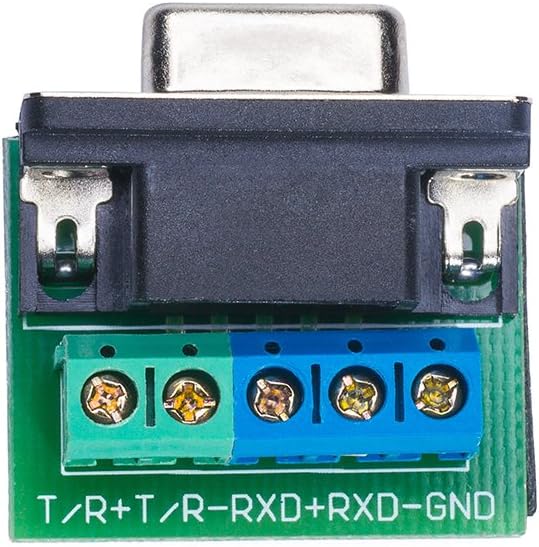
Image 3.2: The 9-pin terminal board (breakout board) for connecting wires.
4. Setup Instructions
4.1 Driver Installation
- Automatic Driver Installation (Recommended): In most modern operating systems (Windows 10/11, macOS), the necessary drivers for the FTDI chipset will be installed automatically upon connecting the adapter to a USB port. Allow a few moments for the system to detect and install the drivers.
- Manual Driver Installation: If automatic installation fails or if you are using an older operating system, insert the included driver CD into your computer's optical drive. Follow the on-screen instructions to install the drivers. Alternatively, the latest drivers can be downloaded from the official FTDI website or DTECH support page.
- Verification: After installation, open your computer's Device Manager (Windows) or System Information (macOS) to confirm that the adapter is recognized as a COM port.
4.2 Physical Connection
- Connect to Computer: Plug the USB end of the DTECH adapter cable into an available USB port on your computer.
- Connect to Serial Device:
- If your serial device has a 9-pin DB9 male connector, you can directly connect it to the adapter's DB9 female port.
- If your serial device uses bare wires for RS422 or RS485, connect these wires to the provided 5-position terminal board. Ensure correct polarity and pin assignment.

Image 4.1: The adapter uses a 9-pin DB9 connector, not a 15-pin VGA port.
5. Operating Instructions
5.1 Understanding LED Indicators
The adapter features three LED indicators to provide status information:
- Active LED: Indicates the device's connection status. A solid light typically means the device is powered and recognized by the computer.
- TXD LED (Transmit Data): Flashes when data is being transmitted from the computer through the adapter to the serial device.
- RXD LED (Receive Data): Flashes when data is being received by the adapter from the serial device and sent to the computer.
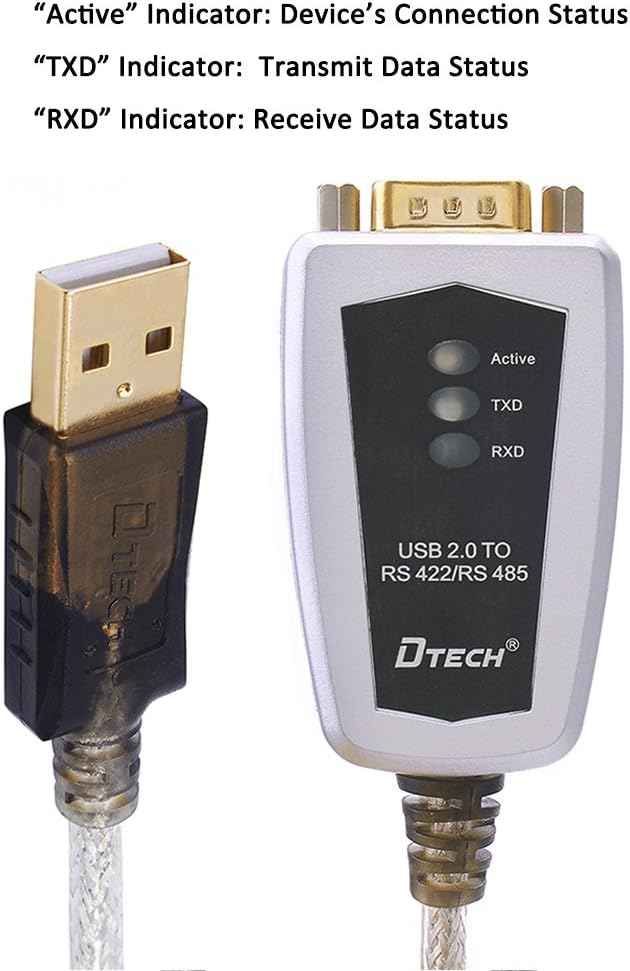
Image 5.1: LED indicators for Active, TXD, and RXD status.
5.2 Pin Assignment for Terminal Board
When using the 5-position terminal board, ensure correct wiring according to the RS422 or RS485 standard. The following table details the pin assignments:
| DB9 Pin | Output Signal | RS422 Full-duplex | RS422 Half-duplex | RS485 |
|---|---|---|---|---|
| 1 | T/R+ | TXD(A+) | TXD(A+) | RS485(A+) |
| 2 | T/R- | TXD(A-) | TXD(A-) | RS485(B-) |
| 3 | RXD+ | RXD(B+) | N/A | N/A |
| 4 | RXD- | RXD(B-) | N/A | N/A |
| 5 | GND | GND | GND | GND |

Image 5.2: Detailed pin assignment for the DB9 connector and terminal block.
Important: Ensure that the wiring polarity (e.g., A+ to A+, B- to B-) matches the requirements of your serial device. Incorrect wiring can prevent communication or damage equipment.
5.3 Software Configuration
Once the adapter is physically connected and drivers are installed, you will need to configure your serial communication software (e.g., terminal program, PLC programming software) with the correct COM port number, baud rate, data bits, parity, and stop bits to match your RS422/RS485 device settings.
6. Maintenance
- Cleaning: Use a soft, dry cloth to clean the adapter. Avoid using liquid cleaners or solvents.
- Storage: Store the adapter in a cool, dry place away from direct sunlight and extreme temperatures when not in use.
- Cable Care: Avoid bending or kinking the cable excessively to prevent internal wire damage.
- Firmware/Driver Updates: Periodically check the FTDI or DTECH website for updated drivers to ensure optimal performance and compatibility.
7. Troubleshooting
- No Power/Active LED Off:
- Ensure the USB cable is securely connected to both the computer and the adapter.
- Try a different USB port on your computer.
- Verify your computer's USB ports are functioning correctly.
- Drivers Not Installing/Device Not Recognized:
- Manually install drivers from the provided CD or download the latest drivers from the FTDI website.
- Check Device Manager (Windows) for any unknown devices or COM port errors. Reinstall drivers if necessary.
- Ensure your operating system is supported.
- No Communication with Serial Device (TXD/RXD LEDs not flashing):
- Verify Wiring: Double-check the pin assignments and polarity on the terminal board. Incorrect wiring (e.g., TX to TX instead of TX to RX, or reversed A/B polarity) is a common issue. Refer to Section 5.2.
- Software Settings: Confirm that your serial communication software settings (COM port, baud rate, data bits, parity, stop bits) exactly match those of your serial device.
- Device Status: Ensure the serial device is powered on and functioning correctly.
- Cable Length/Termination: For long RS485/RS422 cables, proper termination resistors (typically 120 ohms) at the ends of the bus may be required.
- LEDs Appear Blurred:
- This is a cosmetic observation by some users. It does not affect functionality.
8. Specifications (Model DT-5119)
- Model Number: DT-5119
- Interface: USB 2.0 (compatible with USB 1.1) to RS422/RS485
- Chipset: FTDI FT232
- Baud Rate: 300bps to 921Kbps
- Standards: TIA/EIA RS422/RS485
- Protection: Built-in static and 600W surge protection; 15KV ESD protection
- Working Modes: Asynchronous; point-to-point or point-to-multipoint; 2-line half-duplex (RS485) and 4-line full-duplex (RS422)
- Max Transmission Distance: 1200 meters (RS-485/422 end)
- Max Connected Devices: Up to 32 RS-485 or RS-422 devices
- Cable Length: 1.5 feet (approximately 0.45 meters)
- Dimensions (Product): 8.07 x 3.94 x 2.01 inches (L x W x H)
- Weight: 1.76 ounces
- Operating System Support: Windows 11, 10, 8, 7, XP, Mac
9. Warranty and Support
For warranty information or technical support, please contact DTECH Co.,Ltd, the manufacturer. Refer to the product packaging or the manufacturer's official website for the most current contact details and warranty terms.
