
1. Introduction
Thank you for purchasing the R-Music Linky RM31038 Bluetooth Speaker. This manual provides essential information for setting up, operating, and maintaining your speaker. Please read these instructions carefully before use and retain them for future reference.
2. Package Contents
Ensure all items are present in the package:
- R-Music Linky RM31038 Bluetooth Speaker
- User Manual (this document)
- (Note: Charging cable and AUX cable are typically included but not explicitly listed in the provided "whats_in_the_box" data.)
3. Product Features
- Compact and lightweight design for portability.
- Dual speakers with 6W (2x3W) output.
- Bluetooth connectivity for wireless audio streaming.
- Wireless range up to 10 meters (33 feet).
- Integrated microphone for hands-free calling.
- Multiple input options: USB, TF (MicroSD) card, and 3.5mm AUX jack.
- Supports MP3 audio format.
- Built-in rechargeable lithium-ion battery.
4. Controls and Ports

Image 1: Top View with Control Buttons
This image displays the top surface of the R-Music Linky RM31038 Bluetooth Speaker, highlighting the control panel. From left to right, the buttons are typically: Mode (M), Previous Track/Volume Down (-), Play/Pause/Call (▶/▌), Next Track/Volume Up (+). The R-MUSIC logo is visible on the right.
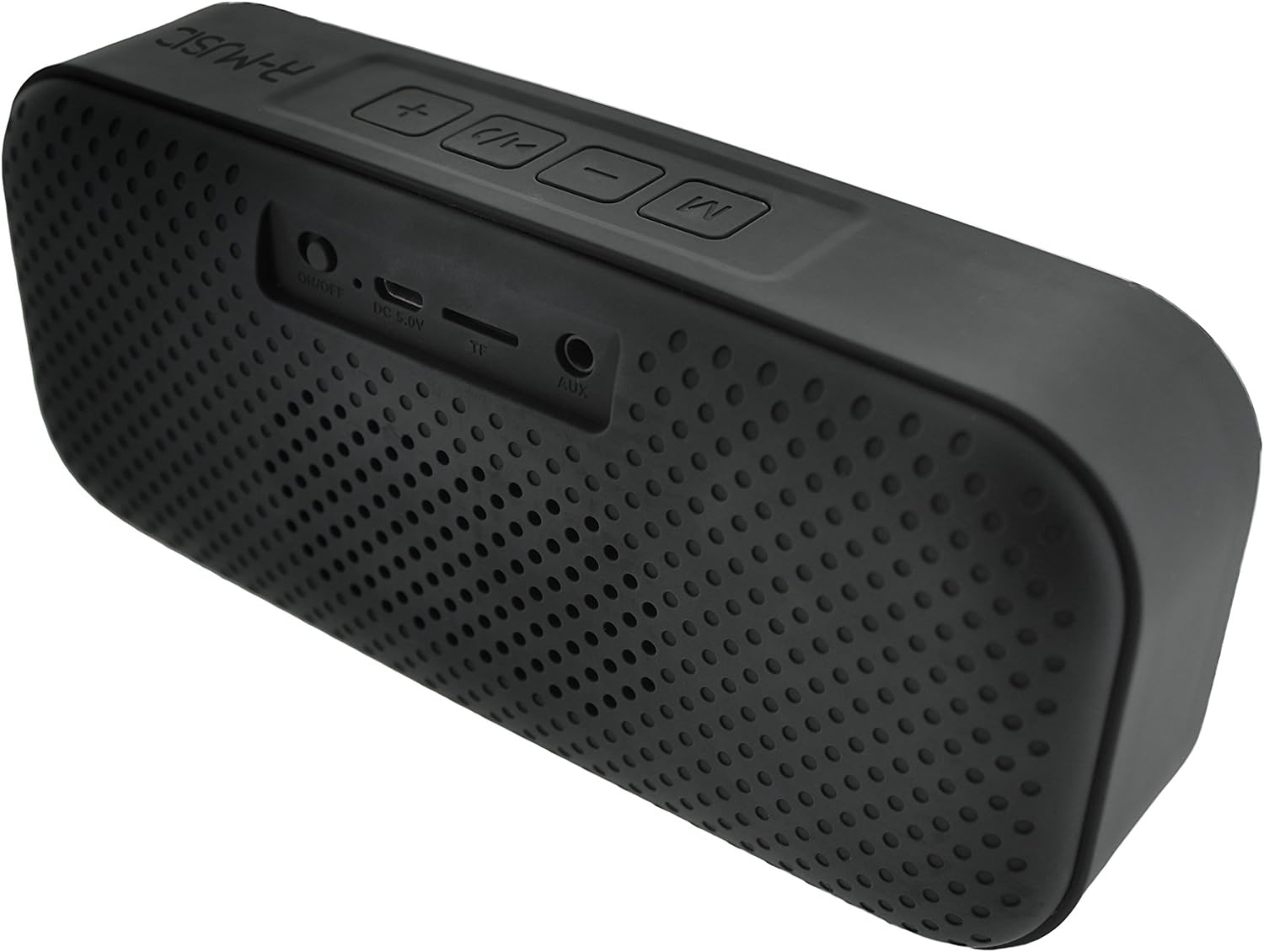
Image 2: Rear View with Input Ports
This image shows the rear panel of the R-Music Linky RM31038 Bluetooth Speaker, detailing the various input ports. From left to right, these include: ON/OFF switch, DC 5V charging port (Micro USB), TF (MicroSD) card slot, and AUX (3.5mm audio) input.
Control Button Functions:
- M (Mode) Button: Press to switch between Bluetooth, USB, TF Card, and AUX modes.
- - (Volume Down / Previous Track) Button:
- Short press: Decrease volume.
- Long press: Go to the previous track.
- ▶/▌ (Play/Pause / Call) Button:
- Short press: Play or pause music.
- Short press (during incoming call): Answer call.
- Short press (during call): End call.
- Long press: Reject incoming call.
- Double press: Redial last number.
- + (Volume Up / Next Track) Button:
- Short press: Increase volume.
- Long press: Go to the next track.
Port Functions:
- ON/OFF Switch: Powers the speaker on or off.
- DC 5V (Micro USB) Port: For charging the speaker's internal battery.
- TF (MicroSD) Card Slot: Insert a MicroSD card with MP3 audio files for playback.
- AUX (3.5mm) Input: Connect external audio devices using a 3.5mm audio cable.
5. Setup
5.1 Charging the Speaker
- Connect the Micro USB charging cable to the DC 5V port on the speaker.
- Connect the other end of the cable to a USB power adapter (5V, not included) or a computer's USB port.
- The charging indicator light will illuminate (color may vary, typically red) to show that the speaker is charging.
- Charging typically takes approximately 3 hours for a full charge.
- The indicator light will turn off or change color (e.g., blue) once fully charged.
Note: For optimal battery life, fully charge the speaker before first use.
5.2 Powering On/Off
- To power on: Slide the ON/OFF switch to the "ON" position. A power-on tone will sound, and the LED indicator will flash (typically blue).
- To power off: Slide the ON/OFF switch to the "OFF" position. A power-off tone will sound, and the LED indicator will turn off.
6. Operating Instructions
6.1 Bluetooth Pairing
- Ensure the speaker is powered on and in Bluetooth mode (the LED indicator will flash rapidly, indicating it's ready for pairing). If not, press the M (Mode) button to switch to Bluetooth mode.
- On your mobile device (smartphone, tablet, etc.), enable Bluetooth and search for available devices.
- Select "LINKY" from the list of found devices.
- Once paired, the speaker will emit a confirmation tone, and the LED indicator will glow solid blue.
- You can now play audio from your device through the speaker.
Note: The speaker will automatically attempt to reconnect to the last paired device when powered on, if the device is within range and has Bluetooth enabled.
6.2 Playing Music (Bluetooth, USB, TF Card, AUX)
- Bluetooth Mode: After successful pairing, play music from your connected device. Use the speaker's + and - buttons for volume control and track navigation, or control directly from your device.
- USB Mode: Insert a USB flash drive containing MP3 files into the USB port. The speaker will automatically switch to USB mode and begin playback. If not, press the M button to select USB mode.
- TF Card Mode: Insert a MicroSD (TF) card containing MP3 files into the TF card slot. The speaker will automatically switch to TF card mode and begin playback. If not, press the M button to select TF card mode.
- AUX Mode: Connect an external audio device (e.g., MP3 player, laptop) to the AUX port using a 3.5mm audio cable. Press the M button to switch to AUX mode. Audio playback will be controlled by the connected device.
6.3 Hands-Free Calling
When connected via Bluetooth to a smartphone:
- Answering a Call: When a call comes in, the music will pause. Short press the ▶/▌ button to answer the call.
- Ending a Call: During a call, short press the ▶/▌ button to end the call.
- Rejecting a Call: When a call comes in, long press the ▶/▌ button to reject the call.
- Redialing: Double press the ▶/▌ button to redial the last number called.
7. Maintenance
- Clean the speaker with a soft, dry cloth. Do not use abrasive cleaners or solvents.
- Avoid exposing the speaker to extreme temperatures, direct sunlight, or high humidity.
- Do not immerse the speaker in water or any other liquids.
- Store the speaker in a cool, dry place when not in use for extended periods.
- Charge the battery at least once every three months to maintain battery health if not used regularly.
8. Troubleshooting
| Problem | Possible Solution |
|---|---|
| Speaker does not power on. | Ensure the battery is charged. Connect the speaker to a power source using the USB cable. |
| Cannot pair with Bluetooth device. |
|
| No sound or low volume. |
|
| Poor sound quality. |
|
9. Specifications
| Feature | Detail |
|---|---|
| Model Number | RM31038 |
| Brand | R-Music |
| Output Power | 2 x 3W (6W total) |
| Frequency Response | 100Hz - 18kHz |
| SNR (Signal-to-Noise Ratio) | 55 dBA |
| Battery Type | Lithium-ion Polymer |
| Battery Capacity | 1200 mAh - 3.7 V |
| Charging Time | Approx. 3 hours |
| Playback Time | Approx. 5 hours (at moderate volume) |
| Bluetooth Range | Up to 10 meters (33 feet) |
| Dimensions (L x W x H) | 188 x 83 x 52 mm |
| Weight | 431 g |
| Supported Audio Formats | MP3 |
| Input Ports | USB, TF (MicroSD) Card, 3.5mm AUX |
| Special Features | Integrated Microphone, Hands-free Calling |
10. Warranty Information
This R-Music Linky RM31038 Bluetooth Speaker comes with a 24-month warranty from the date of purchase. This warranty covers manufacturing defects and workmanship under normal use. It does not cover damage caused by misuse, accidents, unauthorized modifications, or normal wear and tear. Please retain your proof of purchase for warranty claims.
11. Support
For further assistance, technical support, or warranty inquiries, please contact R-Music customer service. Refer to the product packaging or the retailer's website for contact details.


