
DIGOO DIGOOWolifui253
Digoo DG-HOSA Smart Home Security Alarm System User Manual
Model: DIGOOWolifui253 | Brand: DIGOO
1. Product Overview
The Digoo DG-HOSA Smart Home Security Alarm System is a comprehensive security solution designed to protect your home. This system supports Wi-Fi, GSM, 2G, and 3G networks, offering flexible connectivity options. It features an intuitive control panel with a keypad and display, along with various wireless sensors for motion detection and door/window monitoring. The system can be controlled remotely via the "Easy security" mobile application, providing real-time alerts and management capabilities.
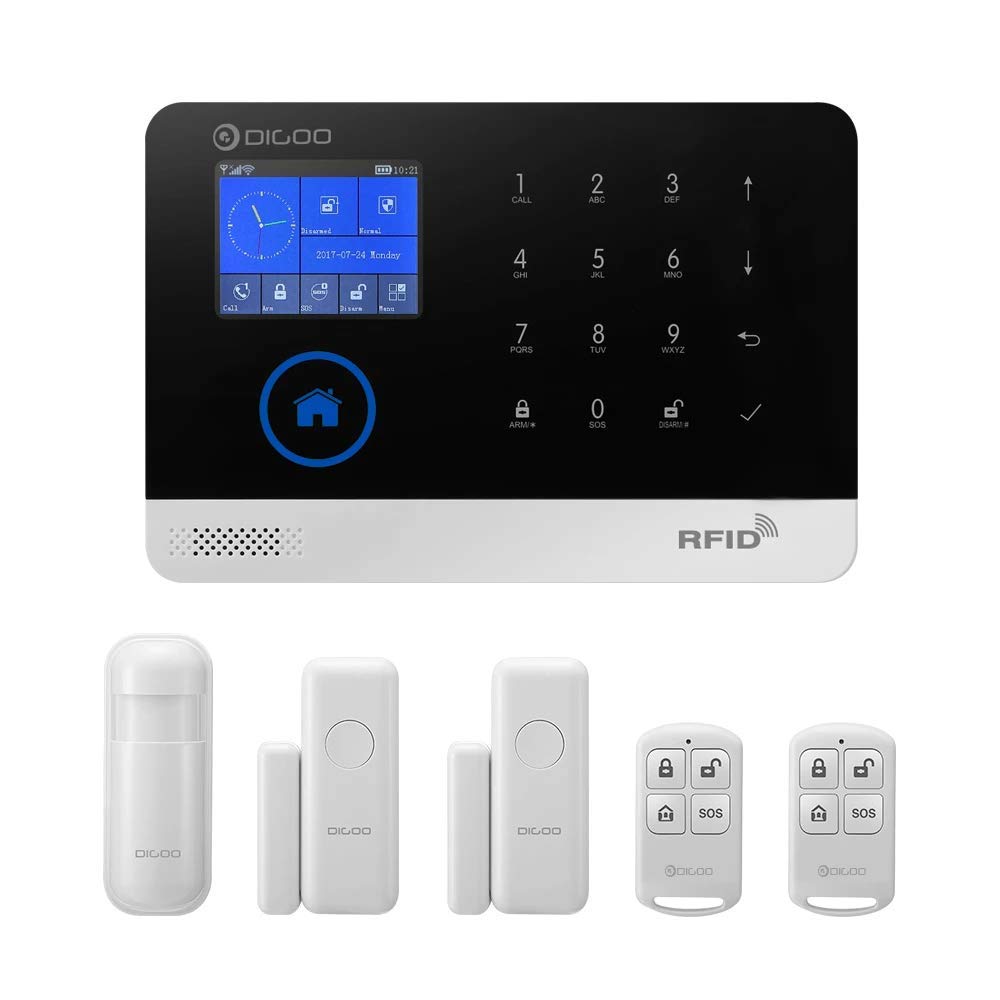
Figure 1.1: Complete Digoo DG-HOSA Smart Home Security Alarm System kit, including the main control panel, PIR motion detector, door/window sensors, and remote controllers.
2. What's in the Box
Upon opening the package, please verify that all the following components are included:
- 1 x Digoo DG-HOSA Home Security Alarm Host (Main Control Panel)
- 1 x Wireless PIR Detector (Passive Infrared Motion Sensor)
- 2 x Remote Controllers
- 2 x Door/Window Sensors
- 4 x Assist Installation Screws
- 4 x Wall-in Fixed Rubber Blocks
- 1 x 1M USB Power Cable (for 5V power supply)

Figure 2.1: Main control panel shown with a PIR motion detector, a door/window sensor, and a remote controller, representing key components of the system.
3. Setup Guide
3.1 Initial Power-Up and Network Connection
- Connect Power: Use the provided USB power cable to connect the alarm host to a 5V power source.
- SIM Card Installation (Optional): If using GSM/3G network, insert a compatible SIM card into the designated slot on the side of the control panel.
- Wi-Fi Configuration:
- Download the "Easy security" app from your smartphone's app store.
- Ensure your smartphone and the alarm host are connected to the same Wi-Fi network during the initial setup.
- Follow the in-app instructions to pair the alarm host with your Wi-Fi network.

Figure 3.1: Side view of the Digoo DG-HOSA control panel, highlighting the USB power port, SIM card slot, and reset button for initial setup and connectivity.
3.2 Sensor Installation and Pairing
The system supports up to 99 sensors. Each sensor needs to be installed and paired with the main control panel.
- PIR Motion Detector:
- Install the PIR detector in a corner or on a wall where it can cover the desired area, avoiding direct sunlight or heat sources.
- Ensure the detector is at an appropriate height (typically 2-2.2 meters) for optimal coverage.
- Pair the detector with the alarm host via the "Easy security" app or directly through the control panel's menu.
- Door/Window Sensors:
- Mount the two parts of the door/window sensor (magnet and main unit) on the door/window frame and the moving part, ensuring they are aligned and within 1 cm of each other when closed.
- Pair the sensors with the alarm host using the same method as the PIR detector.
- Remote Controllers:
- The remote controllers are typically pre-paired. If not, follow the pairing instructions in the app or manual.


Figure 3.2: Individual components: Wireless PIR Motion Detector (left) and Wireless Door/Window Sensor (right), essential for comprehensive home security coverage.
4. Operating Instructions
4.1 Using the Control Panel
The main control panel features a touchscreen display and a numeric keypad for direct interaction.
- Arming: Press the "ARM" button or enter your passcode followed by "ARM" to activate the alarm system.
- Disarming: Press the "DISARM" button or enter your passcode followed by "DISARM" to deactivate the alarm system.
- SOS Function: In an emergency, press the "SOS" button on the panel or remote controller to trigger an immediate alarm and send alerts to pre-programmed contacts.
- Settings: Navigate through the menu using the touchscreen to adjust system settings, add/remove sensors, set up alarm zones, and configure network preferences.

Figure 4.1: Front view of the Digoo DG-HOSA control panel, displaying the touchscreen interface, numeric keypad, and function buttons for system control.
4.2 Mobile App Control ("Easy security")
The "Easy security" app provides full remote control and monitoring capabilities for your alarm system.
- Remote Arm/Disarm: Activate or deactivate the system from anywhere with an internet connection.
- Real-time Notifications: Receive instant push notifications for alarm events, low battery alerts, and system status changes.
- Sensor Management: Add, remove, or configure individual sensors and their respective defense zones.
- Call and Message Settings: Set up emergency contacts to receive calls and SMS alerts during an alarm.
- System Status: View the current status of your alarm system and connected sensors.
5. Maintenance
- Battery Replacement: Replace batteries in wireless sensors and remote controllers as indicated by low battery alerts on the control panel or app.
- Cleaning: Gently wipe the control panel and sensors with a soft, dry cloth. Avoid using abrasive cleaners or solvents.
- Firmware Updates: Periodically check for firmware updates via the "Easy security" app to ensure optimal performance and security.
- Network Stability: Ensure a stable Wi-Fi and cellular network connection for reliable operation and remote access.
6. Troubleshooting
| Problem | Possible Cause | Solution |
|---|---|---|
| System not connecting to Wi-Fi | Incorrect Wi-Fi password; Host and phone not on same network during setup; Weak Wi-Fi signal. | Verify password; Ensure both devices are on the same 2.4GHz Wi-Fi network; Move host closer to router. |
| Sensors not triggering alarm | Sensor not paired; Low sensor battery; Sensor placed incorrectly. | Re-pair sensor; Replace sensor battery; Adjust sensor position according to installation guidelines. |
| No push notifications | App notification settings disabled; Network issues; App not running in background. | Enable notifications in app and phone settings; Check internet connection; Ensure app is allowed to run in background. |
| SOS function not calling contacts | No SIM card; Invalid SIM card; Emergency contacts not programmed correctly. | Install active SIM card; Verify SIM card balance/plan; Program emergency contacts via app or control panel. |
7. Specifications
| Feature | Detail |
|---|---|
| Brand | DIGOO |
| Model | DIGOOWolifui253 (DG-HOSA) |
| Connectivity Technology | Wireless (Wi-Fi, GSM, 2G, 3G) |
| Power Source | Battery Powered (5V USB Power Cable included) |
| Control Method | App ("Easy security"), Control Panel, Remote Control |
| Compatible Devices | Smartphone |
| Alert Type | Audio Only, Motion Only (configurable) |
| Max Sensors Supported | 99 |
| Product Dimensions (L x W x H) | 15 x 7 x 21 Centimeters |
| Item Weight | 408 g (0.9 Pounds) |
| Batteries Required | 1 Lithium Polymer battery (for host, typically internal/rechargeable) |
| Installation Type | Screw-In (for mounting) |
8. Warranty and Support
For warranty information and technical support, please refer to the official DIGOO website or contact their customer service. Keep your purchase receipt as proof of purchase for warranty claims.
Online Resources:
- Official DIGOO Website: www.digoo.cc (Note: This is a placeholder URL, please refer to actual product documentation for correct support links.)
- "Easy security" App Support: Check the app's 'Help' or 'About' section for in-app support options.
Related documentsDIGOOWolifui253

Ask a question about this manual
Ask about setup, troubleshooting, compatibility, parts, safety, or missing instructions. Manuals+ will review the question and use this page’s manual context to help answer it.