
1. Introduction
This manual provides essential information for setting up, operating, and maintaining your Apple TV 4K (32GB, Previous Model). Please read these instructions carefully to ensure optimal performance and a seamless user experience.
2. What's in the Box
Verify that all items are present in the packaging:
- Apple TV 4K unit
- Siri Remote
- Power cord
- Lightning to USB cable (for Siri Remote charging)
- Documentation
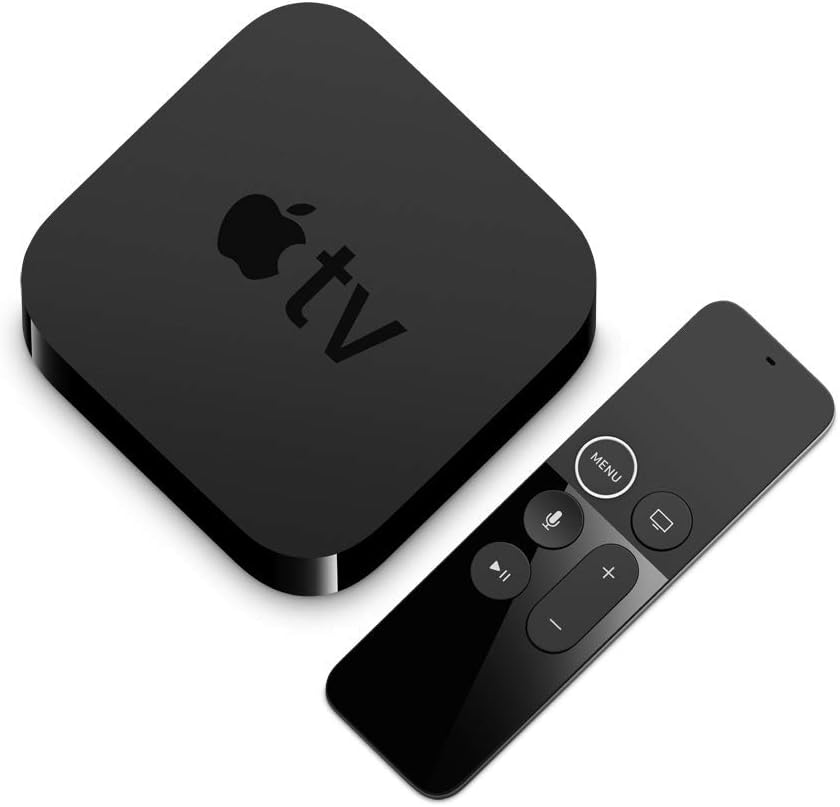
Image: The Apple TV 4K unit and its accompanying Siri Remote, as typically found in the product packaging.
3. Setup
3.1 Connecting to Your Television
- Connect one end of an HDMI 2.0a compatible cable (not included) to the HDMI port on the back of your Apple TV 4K.
- Connect the other end of the HDMI cable to an available HDMI input on your television. For 4K HDR content, ensure your TV supports HDMI 2.0a and is configured correctly.
- Connect the power cord to the power port on the back of your Apple TV 4K, then plug the other end into a wall outlet.

Image: The rear panel of the Apple TV 4K, showing the power input, HDMI port, and Gigabit Ethernet port.
3.2 Network Connection
Your Apple TV 4K can connect to the internet via Wi-Fi or Ethernet.
- Wi-Fi: During the initial setup process, you will be prompted to select your Wi-Fi network and enter the password. The device supports 802.11ac Wi-Fi with MIMO (simultaneous dual band 2.4GHz and 5GHz).
- Ethernet: For a wired connection, connect an Ethernet cable from your router to the Gigabit Ethernet port on the back of your Apple TV 4K.
3.3 Siri Remote Pairing
The Siri Remote typically pairs automatically with your Apple TV 4K. If it does not, point the remote at the Apple TV and press the Menu button and Volume Up button simultaneously for 5 seconds. Follow any on-screen instructions.
3.4 Initial Setup
Once connected and powered on, follow the on-screen instructions to complete the setup. This includes:
- Selecting your language and region.
- Connecting to Wi-Fi (if not using Ethernet).
- Signing in with your Apple ID.
- Enabling Siri.
- Adjusting display and audio settings.

Image: The Apple TV 4K user interface displayed on a television, showing various app icons and content.
4. Operating Your Apple TV 4K
4.1 Siri Remote Functions
The Siri Remote provides intuitive control over your Apple TV 4K:
- Touch Surface: Swipe to navigate, click to select.
- Menu Button: Press once to go back, press and hold to return to the Home screen.
- TV/Home Button: Press once to go to the TV app or Home screen, double-press to open the App Switcher, press and hold to access Control Center.
- Siri Button: Press and hold to activate Siri voice commands.
- Play/Pause Button: Controls media playback.
- Volume Buttons: Controls the volume of your television or connected audio system.

Image: The Apple TV 4K unit positioned next to its Siri Remote, highlighting the remote's design.
4.2 Navigation and App Store
The Apple TV interface consists of a grid of apps. Swipe on the Siri Remote's touch surface to move between apps. Click to open an app. The App Store allows you to download additional streaming services, games, and utilities.
4.3 Using AirPlay
AirPlay allows you to wirelessly stream content (photos, videos, music) from your iPhone, iPad, or Mac to your Apple TV 4K. Ensure your Apple device and Apple TV are on the same Wi-Fi network. Select the AirPlay icon on your Apple device and choose your Apple TV.
4.4 Siri Voice Commands
Press and hold the Siri button on your remote to issue commands. Examples include:
- "Find movies starring [actor's name]."
- "Open Netflix."
- "What's the weather like?"
- "Go back 30 seconds."
5. Maintenance
5.1 Cleaning
To clean your Apple TV 4K and Siri Remote, use a soft, lint-free cloth. Do not use abrasive cleaners, solvents, or aerosol sprays. Avoid getting moisture in any openings.
5.2 Software Updates
Your Apple TV 4K will periodically check for and download software updates automatically. You can also manually check for updates in Settings > System > Software Updates.
5.3 Siri Remote Charging
The Siri Remote has a rechargeable battery. Connect the remote to a power source using the included Lightning to USB cable. A full charge typically provides several weeks of use.
6. Troubleshooting
If you encounter issues with your Apple TV 4K, try the following steps:
- No Picture: Ensure all HDMI and power cables are securely connected. Verify your TV is set to the correct HDMI input. Try a different HDMI cable or port.
- No Sound: Check the volume on your TV and any connected audio systems. Ensure the HDMI cable is properly connected.
- Remote Not Responding: Ensure the Siri Remote is charged. Try re-pairing the remote (see Section 3.3).
- Network Issues: Restart your router and modem. Check your Wi-Fi password. If using Ethernet, ensure the cable is connected properly.
- App Freezing/Crashing: Double-press the TV/Home button on the remote, swipe up on the problematic app to force quit it, then reopen the app.
- Restart Apple TV: Go to Settings > System > Restart.
- Reset Apple TV: As a last resort, you can reset your Apple TV 4K in Settings > System > Reset. This will erase all data and settings.
Note on Content Availability: Not all content is available in 4K HDR. 4K resolution requires a 4K capable TV. Playback quality depends on hardware and internet connection. Requires HDCP when playing protected content. Services are not available in all countries or regions and are subject to change.
7. Specifications
| Feature | Specification |
|---|---|
| Model Number | MQD22LL/A |
| Dimensions (H x W x D) | 1.4 inches (35 mm) x 3.9 inches (98 mm) x 3.9 inches (98 mm) |
| Weight | 15 ounces (425 g) |
| Connectivity | Gigabit Ethernet; 802.11ac Wi-Fi with MIMO (simultaneous dual band 2.4GHz and 5GHz); Bluetooth 5.0 |
| Ports | HDMI 2.0a, Gigabit Ethernet, IR receiver |
| Resolution | 4K |
| Controller Type | Siri Remote (homekit, iOS compatible) |
| Power | Internal power supply |
8. Warranty and Support
Your Apple TV 4K is covered by a limited warranty. For detailed warranty information, please refer to the documentation included with your product or visit the official Apple support website. For technical assistance, troubleshooting, or service, contact Apple Support directly.
Online Support: support.apple.com/apple-tv


