Product Overview
The Honeywell Home RTH9585WF Wi-Fi Smart Colour Thermostat provides advanced control over your home's heating and cooling system. It features a customizable touchscreen display, flexible 7-day programming, and remote access via a smartphone or tablet application. This thermostat is designed to enhance comfort, manage energy consumption, and integrate with smart home ecosystems like Amazon Alexa and Google Assistant.

Figure 1: Front view of the Honeywell Home RTH9585WF Wi-Fi Smart Colour Thermostat, displaying current temperature and settings.
Setup and Installation
Proper installation is crucial for the optimal performance of your RTH9585WF thermostat. This thermostat requires a C-wire for continuous power. Before beginning installation, ensure your system is compatible and turn off power to your heating and cooling system at the circuit breaker.
Compatibility Check
The RTH9585WF thermostat is compatible with most common heating and cooling systems, including forced air (gas, oil, or electric), hot water and steam systems, and heat pumps with electric backup. It is not compatible with electric baseboard heating (120-240V) or systems requiring more than two cool stages or more than one compressor stage.

Figure 2: Compatibility chart for the RTH9585WF thermostat, detailing supported HVAC system types.
Wiring and Mounting
After confirming compatibility and turning off power, remove your old thermostat. Label existing wires before disconnecting them. Mount the new wall plate and connect the wires according to the provided wiring diagram. The C-wire connection is essential for power. Once wired, snap the thermostat onto the wall plate.

Figure 3: Detailed diagram of the thermostat's wiring terminals and their corresponding labels.

Figure 4: Example of an unused C-wire and its connection point for providing continuous power to the thermostat.
Initial Setup and Wi-Fi Connection
After installation, restore power. The thermostat will guide you through the initial setup, including language selection and system configuration. To enable remote control features, connect the thermostat to your home Wi-Fi network. Follow the on-screen prompts to select your network and enter the password. Download the Honeywell Home app on your smartphone or tablet to complete the setup and register your device.
Operating the Thermostat
The RTH9585WF thermostat offers intuitive control through its touchscreen interface and remote access via the Honeywell Home app.
Touchscreen Navigation
The main screen displays current indoor and outdoor conditions, along with the setpoint temperature. Use the up and down arrows to adjust the temperature. Navigate through different modes (Heat, Cool, Off) and fan settings (Auto, On) using the respective buttons on the display.

Figure 5: The thermostat's touchscreen, showing options for Home, Fan, Mode, and Settings.
Programming Schedules
The thermostat supports 7-day programming, allowing you to create customized heating and cooling schedules for each day of the week. Access the programming options through the 'Settings' menu on the touchscreen or via the Honeywell Home app. You can set different temperatures for various times of the day, such as 'Wake', 'Away', 'Home', and 'Sleep'.

Figure 6: The thermostat in a home setting, emphasizing its role in managing daily schedules.
Remote Control and Smart Home Integration
Manage your thermostat remotely using the Honeywell Home app. This allows you to adjust settings, view energy reports, and receive alerts from anywhere with an internet connection. The thermostat is also compatible with voice assistants like Amazon Alexa and Google Assistant, enabling hands-free control of your home's climate.
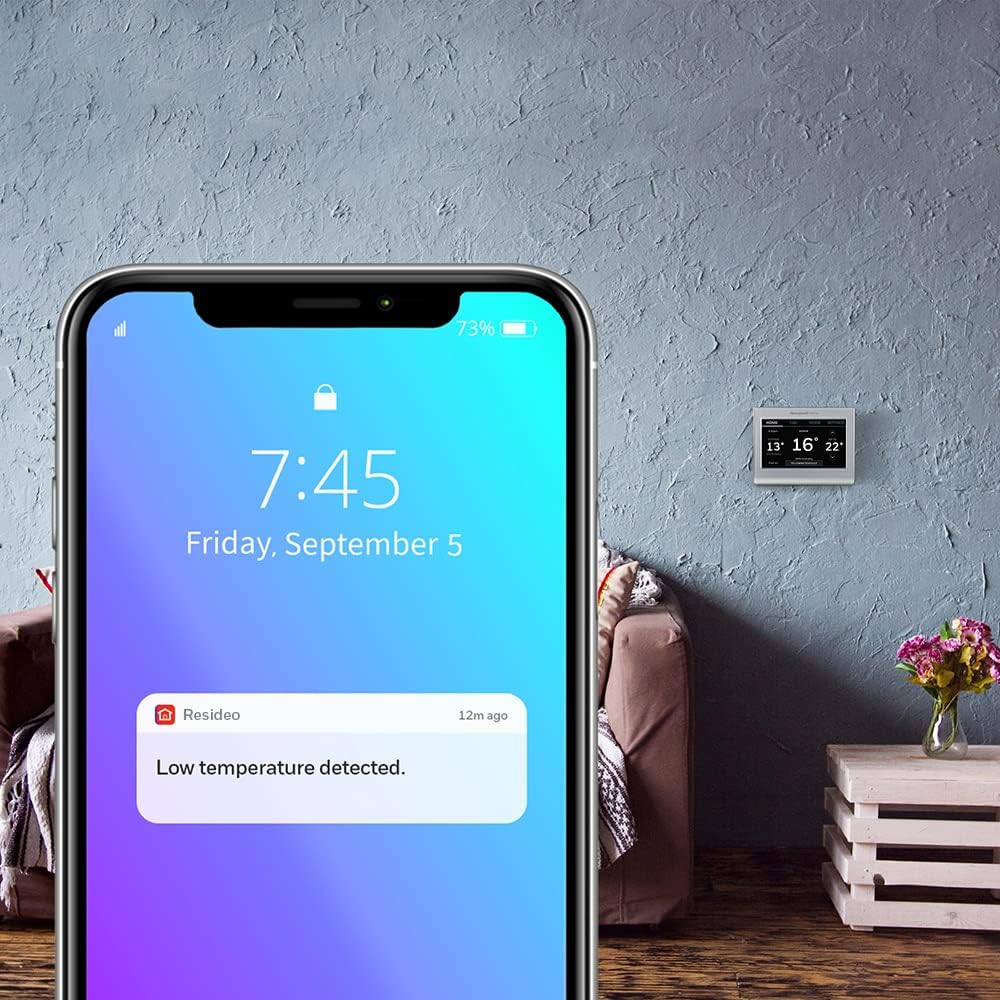
Figure 7: The thermostat's compatibility with Amazon Alexa and Google Assistant for voice control.
Customizing Display Color
Personalize your thermostat's appearance by changing the background color of the display. This feature allows you to match the thermostat to your home's decor or personal preference. Access the color customization options through the 'Settings' menu.

Figure 8: Examples of the thermostat display with various customizable background colors.
Maintenance
The Honeywell Home RTH9585WF thermostat requires minimal maintenance. Keep the screen clean by gently wiping it with a soft, damp cloth. Avoid using abrasive cleaners or solvents, as these can damage the display. Ensure the area around the thermostat is clear of obstructions to allow for accurate temperature readings.
Troubleshooting
If you encounter issues with your RTH9585WF thermostat, consider the following common troubleshooting steps:
- No Power/Blank Screen: Verify that the C-wire is correctly connected and that power is restored at the circuit breaker. A loose or disconnected C-wire is a common cause for power issues.
- Wi-Fi Connectivity Issues: Ensure your home Wi-Fi network is active and the thermostat is within range of your router. Try restarting your router and the thermostat. Re-enter your Wi-Fi password if necessary.
- Incorrect Temperature Readings: Ensure the thermostat is not exposed to direct sunlight, drafts, or heat sources (e.g., lamps, appliances) that could affect its internal temperature sensor.
- Programming Not Working: Double-check your programmed schedule settings in the thermostat or the Honeywell Home app. Ensure the thermostat is set to 'Following Schedule' mode.
- App Connection Problems: Confirm your smartphone or tablet has an active internet connection. Ensure the Honeywell Home app is updated to the latest version.
For persistent issues, refer to the detailed troubleshooting section in the full user guide or contact customer support.
Specifications
| Feature | Detail |
|---|---|
| Model Name | Honeywell Home RTH9585WF |
| Dimensions (H x W x D) | 8.9 x 12.1 x 2.5 Centimetres |
| Item Weight | 0.18 Kilograms |
| Connectivity Technology | Wi-Fi |
| Controller Type | Amazon Alexa, Google Assistant, Hand Control, IFTTT, SmartThings |
| Temperature Control Type | Heating and Cooling |
| Special Features | Auto Changeover, Clock Display, Date Display, Daylight Savings Time Ready, Lockable, Low Voltage, Programmable, Selectable Color Touchscreen, Temperature Display, Vacation Mode |
| Included Components | Anchors, Quick Start Guide, Screws, Thermostat, Thermostat ID Card, User Guide, Wall Plate, Wire Labels |
| Batteries Required | No |

Figure 9: Physical dimensions of the RTH9585WF thermostat.
Warranty Information
The Honeywell Home RTH9585WF Wi-Fi Smart Colour Thermostat comes with a 1-year limited warranty from the manufacturer. Please retain your proof of purchase for warranty claims. For specific terms and conditions, refer to the warranty documentation included with your product or visit the manufacturer's official website.
Support
For additional assistance, technical support, or to access the complete user manual, please visit the official Honeywell Home support website. You can also find FAQs and community forums for common inquiries.


