
1. Product Overview
The Cubetek 2-in-1 Bluetooth Transmitter & Receiver (Model CB-BTI-029) is a versatile audio adapter designed to enhance your audio experience. This compact device allows you to wirelessly stream audio from non-Bluetooth sources to Bluetooth-enabled headphones or speakers (Transmitter Mode), or to receive audio from your Bluetooth devices (smartphones, tablets) and play it through traditional wired audio systems (Receiver Mode).
Equipped with Bluetooth V5.0 and supporting aptX Low Latency technology, it ensures high-quality audio transmission with minimal delay. It offers flexible connectivity options including Digital Optical (TOSLINK/SPDIF), 3.5mm Aux, and RCA (via included adapter cable).

Image 1: Front view of the Cubetek Bluetooth V5.0 Transmitter Audio Adapter.
2. Package Contents
Please verify that all items listed below are included in your package:
- 1 x Cubetek Bluetooth Audio Adapter (CB-BTI-029)
- 1 x Digital Optical Toslink Cable
- 1 x 3.5mm Audio Cable
- 1 x Micro USB Charging Cable
- 1 x 3.5mm Female to 2 RCA Male Cable
- 1 x User Manual

Image 2: Contents of the Cubetek Bluetooth Adapter package, including the adapter, various cables, and user manual.
3. Setup and Connections
3.1 Charging the Device
Before first use, fully charge the adapter. Connect the supplied Micro USB charging cable to the adapter's Micro USB port and the other end to a USB power source (e.g., computer USB port, USB wall adapter). The charging indicator light will illuminate during charging and turn off when fully charged. A full charge typically takes approximately 2 hours.
3.2 Powering On/Off
- Power On: Press and hold the power button (⏻) for approximately 3 seconds until the indicator light flashes.
- Power Off: Press and hold the power button (⏻) for approximately 3 seconds until the indicator light turns off.
3.3 Mode Selection (TX/RX)
The device features a switch to select between Transmitter (TX) and Receiver (RX) modes. Ensure the switch is set to the desired mode before connecting audio cables and pairing.

Image 3: Side view of the Cubetek Bluetooth Adapter showing the TX/RX switch, SPDIF IN/OUT, AUX IN/OUT, and Micro USB charging port.
3.4 Connecting Audio Cables
Depending on your audio source/device and the selected mode, connect the appropriate cables:
- Digital Optical (TOSLINK/SPDIF): Use the included optical cable for high-quality digital audio connection. Connect one end to the adapter's SPDIF IN/OUT port and the other to your audio source/device's optical port.
- 3.5mm Aux: Use the included 3.5mm audio cable. Connect one end to the adapter's AUX port and the other to your audio source/device's 3.5mm audio jack.
- RCA: For devices with RCA audio outputs/inputs, use the included 3.5mm Female to 2 RCA Male Cable. Connect the 3.5mm end to the adapter's AUX port and the RCA ends to your audio source/device's RCA ports (red for right, white for left).
4. Operating Modes
4.1 Transmitter (TX) Mode
In TX mode, the adapter transmits audio from a non-Bluetooth source (e.g., TV, PC, CD player) to Bluetooth headphones or speakers.
- Set the mode switch to TX.
- Connect the adapter to your audio source (e.g., TV) using an optical, 3.5mm Aux, or RCA cable.
- Power on the adapter. It will automatically enter pairing mode (indicator light flashes rapidly).
- Place your Bluetooth headphones or speaker in pairing mode.
- The adapter will automatically search for and connect to nearby Bluetooth devices. Once connected, the indicator light will turn solid.
- Dual-Streaming: To connect a second pair of Bluetooth headphones/speaker, put the second device into pairing mode. The adapter will attempt to connect to it. Note that aptX Low Latency does not support Dual Pair mode.

Image 4: Diagram illustrating the Bluetooth Audio Transmitter (TX) mode, showing connections from TV, PC, MP3 players, and e-book readers to Bluetooth speakers and headphones.

Image 5: Illustration of the dual-stream feature, allowing two Bluetooth headphones or speakers to connect simultaneously to the adapter for shared audio.
4.2 Receiver (RX) Mode
In RX mode, the adapter receives audio from a Bluetooth-enabled device (e.g., smartphone, tablet) and plays it through a wired audio system (e.g., home stereo, car stereo, wired headphones).
- Set the mode switch to RX.
- Connect the adapter to your wired audio system (e.g., stereo receiver) using an optical, 3.5mm Aux, or RCA cable.
- Power on the adapter. It will automatically enter pairing mode (indicator light flashes rapidly).
- On your Bluetooth-enabled device (e.g., smartphone), enable Bluetooth and search for new devices. Select "CB-BTI-029" from the list of available devices.
- Once paired, the indicator light on the adapter will turn solid. You can now stream audio from your device to your wired audio system.
- Multi-point Feature: The adapter can receive signals from two wireless audio sources simultaneously in receiver mode, allowing you to switch between music libraries on both devices.
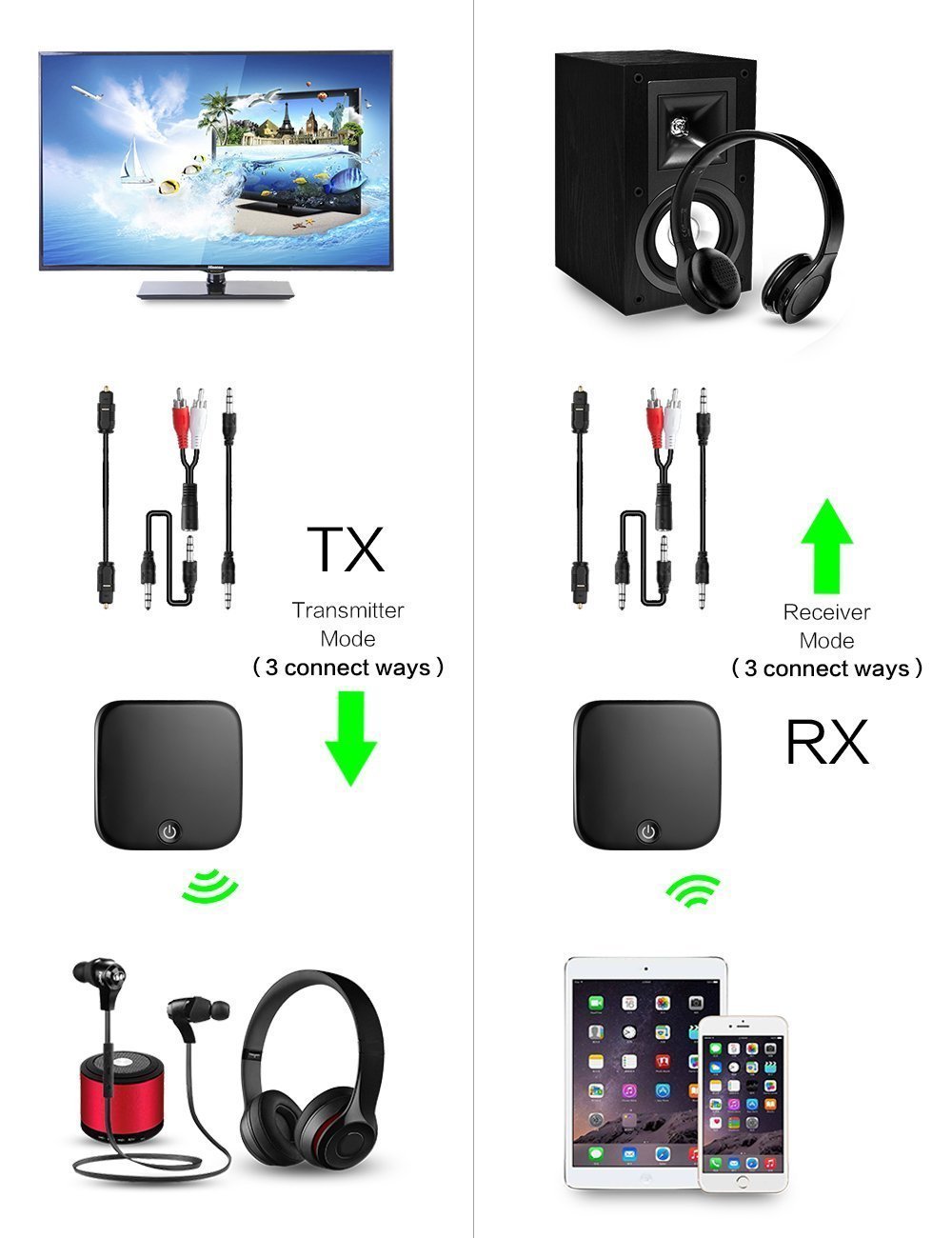
Image 6: Visual representation of connection methods for both Transmitter (TX) and Receiver (RX) modes, showing how the adapter integrates with various audio setups.
5. Maintenance
To ensure the longevity and optimal performance of your Cubetek Bluetooth Adapter, follow these maintenance guidelines:
- Cleaning: Use a soft, dry cloth to clean the device. Do not use liquid cleaners or aerosols.
- Storage: Store the device in a cool, dry place away from direct sunlight and extreme temperatures.
- Handling: Avoid dropping the device or subjecting it to strong impacts.
- Moisture: Keep the device away from water and high humidity.
6. Troubleshooting
If you encounter issues with your Cubetek Bluetooth Adapter, refer to the following common problems and solutions:
| Problem | Possible Cause | Solution |
|---|---|---|
| Device does not power on. | Low battery. | Charge the device fully using the provided Micro USB cable. |
| Cannot pair with Bluetooth device. | Device not in pairing mode; Bluetooth device too far; Interference. | Ensure the adapter is in the correct TX/RX mode and flashing rapidly. Move devices closer. Turn off other Bluetooth devices. Restart both devices. |
| No sound or poor sound quality. | Incorrect cable connection; Volume too low; Incorrect audio output/input selected on source device. | Verify all audio cables are securely connected. Adjust volume on both the adapter and connected devices. Ensure the correct audio output/input is selected on your TV/PC/stereo. |
| Audio delay/latency (especially in TX mode). | Connected Bluetooth device does not support aptX Low Latency; Using dual-pair mode. | Ensure your receiving Bluetooth headphones/speakers also support aptX Low Latency for optimal performance. Note that aptX Low Latency is not supported in Dual Pair mode. This device is not suitable for musical instruments due to inherent latency. |
| Difficulty connecting two devices simultaneously. | Pairing sequence; Device compatibility. | Ensure both secondary devices are in pairing mode. Some devices may require specific pairing steps. If one device experiences slight delay when two are connected, this is expected behavior. |
7. Specifications
| Feature | Specification |
|---|---|
| Model Number | CB-BTI-029 |
| Bluetooth Version | CSR BC8670 Bluetooth 5.0, Class II |
| Bluetooth Profiles | A2DP, APT-X LL (TX), APT-X (TX), SBC (TX), SBC (RX) |
| Transmission Range | Up to 10 meters (33 feet) |
| Working Time (TX Mode) | Up to 14 hours |
| Working Time (RX Mode) | Up to 14 hours |
| Battery Capacity | 280 mAh |
| Charging Time | Approximately 2 hours |
| Standby Time | 250 hours |
| Product Dimensions | 4.9 x 4.9 x 1.3 cm (49L x 49W x 13H Millimeters) |
| Item Weight | 21 g |
| Hardware Interface | Bluetooth, Bluetooth 5, USB |
| Compatible Devices | PC, PSP, Smartphone, Television, iPhone |
| Audio Input Compatible | TRS |
| Audio Output Mode | Stereo |
| Audio Output Type | Headphone, Speaker |
| Power Source | Battery Powered |
| Includes Rechargeable Battery | Yes |
| Country of Origin | China |
8. Warranty and Support
Warranty information for your Cubetek Bluetooth Adapter is typically provided with your purchase documentation or on the product packaging. Please refer to these resources for details regarding warranty coverage and terms.
For technical support, product inquiries, or assistance with troubleshooting beyond the scope of this manual, please visit the official CUBETEK website or contact their customer service department. Contact information can usually be found on the product packaging or the brand's official online presence.
You can visit the CUBETEK Store on Amazon for more information: CUBETEK Store
