
1. Introduction
This manual provides detailed instructions for the setup, operation, and maintenance of your myTouchSmart Indoor Plug-in Simple Set Digital Timer, Model 26892-T5. Please read this manual thoroughly before using the device to ensure proper function and safety.
The myTouchSmart Digital Timer is designed to automate indoor lighting and electronics, allowing you to schedule their operation for convenience and energy efficiency.
2. Product Overview
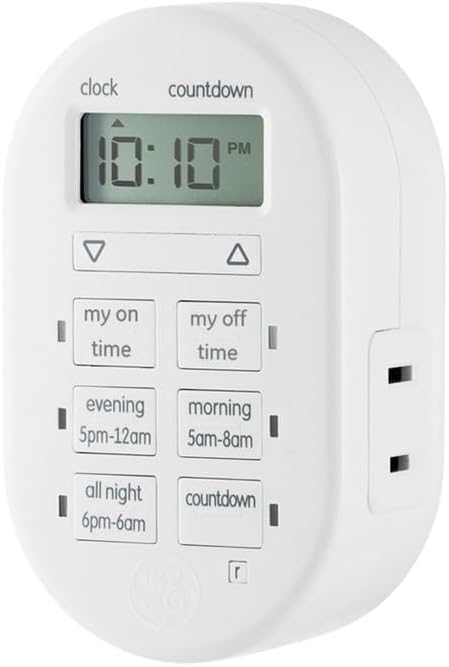
Figure 1: Front view of the myTouchSmart Indoor Plug-in Simple Set Digital Timer. The device is white, oval-shaped, with a digital display at the top showing "10:10 PM". Below the display are two arrow buttons (up and down). Further down are six rectangular buttons arranged in two columns: "my on time", "my off time", "evening 5pm-12am", "morning 5am-8am", "all night 6pm-6am", and "countdown". A polarized outlet is visible on the right side.
The myTouchSmart Digital Timer features a compact design with a clear digital display and intuitive control buttons. It includes a single polarized outlet for connecting your device.
Key Components:
- Digital Display: Shows current time, program settings, and countdown status.
- Up/Down Arrows: Used to adjust time and program settings.
- "My On Time" Button: Sets a custom turn-on time.
- "My Off Time" Button: Sets a custom turn-off time.
- Preset Buttons: "Evening (5pm-12am)", "Morning (5am-8am)", "All Night (6pm-6am)" for quick scheduling.
- "Countdown" Button: Activates a countdown timer.
- Polarized Outlet: For connecting the appliance or light to be controlled.
- Blue LED Indicators: Show active programs.
3. Features
- Easy-to-set digital timer for indoor lighting and electronics.
- Flexible scheduling options including custom daily On/Off times.
- Three available daily presets: Evening (5pm-12am), Morning (5am-8am), or All Night (6pm-6am).
- Customizable countdown feature (up to 24 hours in 1-minute intervals).
- Blue LED indicators show active programs.
- Large LCD screen for effortless viewing.
- One (1) polarized outlet.
- Compatible with LED, CFL, Incandescent, and Halogen bulbs, including dimmable LED and CFL bulbs.
- Backup battery saves timer settings during power outages or disconnections.
4. Setup
4.1 Initial Power-Up
- Unpack the timer from its packaging.
- Plug the timer into a standard 125V wall outlet. The display will illuminate.
- Allow the timer to charge its internal backup battery for approximately 15 minutes before programming. This ensures settings are retained during power interruptions.
4.2 Setting Current Time
- Press and hold the CLOCK button (located above the display) until the time digits begin to flash.
- Use the UP (▲) and DOWN (▼) arrow buttons to adjust the hour. Pay attention to the AM/PM indicator.
- Press the CLOCK button again to move to the minutes setting.
- Use the UP (▲) and DOWN (▼) arrow buttons to adjust the minutes.
- Press the CLOCK button one more time to save the current time and exit the setting mode.
5. Operating Instructions
Connect the appliance or light you wish to control into the polarized outlet on the right side of the timer.
5.1 Setting Custom On/Off Times ("My On Time" / "My Off Time")
- Press the MY ON TIME button. The display will show "ON" and the time will flash.
- Use the UP (▲) and DOWN (▼) arrow buttons to set the desired turn-on hour, then press MY ON TIME again to set minutes.
- Once the desired ON time is set, press MY ON TIME to confirm. A blue LED indicator next to the button will light up, indicating the program is active.
- Repeat the process for the MY OFF TIME button to set the desired turn-off time. A blue LED indicator next to the button will light up.
- To deactivate a custom program, press the corresponding MY ON TIME or MY OFF TIME button until the blue LED indicator turns off.
5.2 Using Preset Programs
The timer offers three convenient preset programs:
- EVENING (5pm-12am): Turns on at 5:00 PM and off at 12:00 AM.
- MORNING (5am-8am): Turns on at 5:00 AM and off at 8:00 AM.
- ALL NIGHT (6pm-6am): Turns on at 6:00 PM and off at 6:00 AM.
To activate a preset program, simply press the corresponding button (EVENING, MORNING, or ALL NIGHT). A blue LED indicator next to the button will light up, confirming the program is active. To deactivate, press the button again until the LED turns off.
5.3 Using the Countdown Timer
- Press the COUNTDOWN button. The display will show "CD" and the time will flash.
- Use the UP (▲) and DOWN (▼) arrow buttons to set the desired countdown duration (up to 24 hours, in 1-minute intervals).
- Press COUNTDOWN again to start the countdown. The blue LED indicator will light up.
- The connected device will turn ON (if currently OFF) or OFF (if currently ON) after the countdown duration expires.
- To cancel the countdown, press the COUNTDOWN button again until the blue LED indicator turns off.
Note: Only one program (custom or preset) can be active at a time. Activating a new program will deactivate any previously active program. The countdown timer operates independently but will override other programs for its duration.
6. Maintenance
6.1 Cleaning
To clean the timer, unplug it from the wall outlet. Use a soft, dry cloth to wipe the exterior. Do not use liquid cleaners or abrasive materials, as these may damage the device.
6.2 Battery Backup
The timer includes an internal backup battery to retain settings during power outages. This battery is not user-replaceable and is designed to last the lifetime of the product. Ensure the timer is plugged in for at least 15 minutes initially to charge this battery.
7. Troubleshooting
| Problem | Possible Cause | Solution |
|---|---|---|
| Timer display is blank. | No power to the outlet. | Check the wall outlet with another device. Ensure the timer is fully plugged in. |
| Connected device does not turn On/Off. | Program not active or incorrect settings. | Verify the blue LED indicator for the desired program is lit. Recheck your custom or preset time settings. Ensure the connected device is switched ON. |
| Settings are lost after power outage. | Backup battery not sufficiently charged. | Ensure the timer is plugged in for at least 15 minutes to charge the backup battery. If issues persist, the battery may be depleted (not user-replaceable). |
| Timer is not responding to button presses. | Temporary software glitch. | Unplug the timer from the wall outlet for 30 seconds, then plug it back in. This may reset the device. |
8. Specifications
- Model Number: 26892-T5
- Brand: myTouchSmart
- Color: White
- Electrical Ratings: 125V, 50/60 Hz, 15A 1875W General Purpose / Resistive, 10A 1250W Tungsten, ½ HP
- Product Dimensions: 2.55 x 5.92 x 7.3 inches
- Item Weight: 4 ounces
- Outlet Type: 1 Polarized Outlet
- Compatibility: LED, CFL, Incandescent, Halogen bulbs (including dimmable LED/CFL)
- Certifications: UL Listed
9. Warranty and Support
9.1 Limited Warranty
This myTouchSmart Digital Timer is backed by a one-year limited warranty. For details regarding warranty coverage and claims, please refer to the warranty card included with your product or visit the manufacturer's official website.
9.2 Customer Support
For technical assistance, troubleshooting not covered in this manual, or general inquiries, please contact myTouchSmart customer support. Contact information can typically be found on the product packaging or the official myTouchSmart website.
Please have your model number (26892-T5) and purchase date available when contacting support.


