
1. Introduction
Thank you for purchasing the LONPOO LP-077 Multi-Region DVD Player. This manual provides essential information for setting up, operating, and maintaining your new DVD player. Please read it thoroughly before use to ensure proper functionality and to maximize your viewing experience.
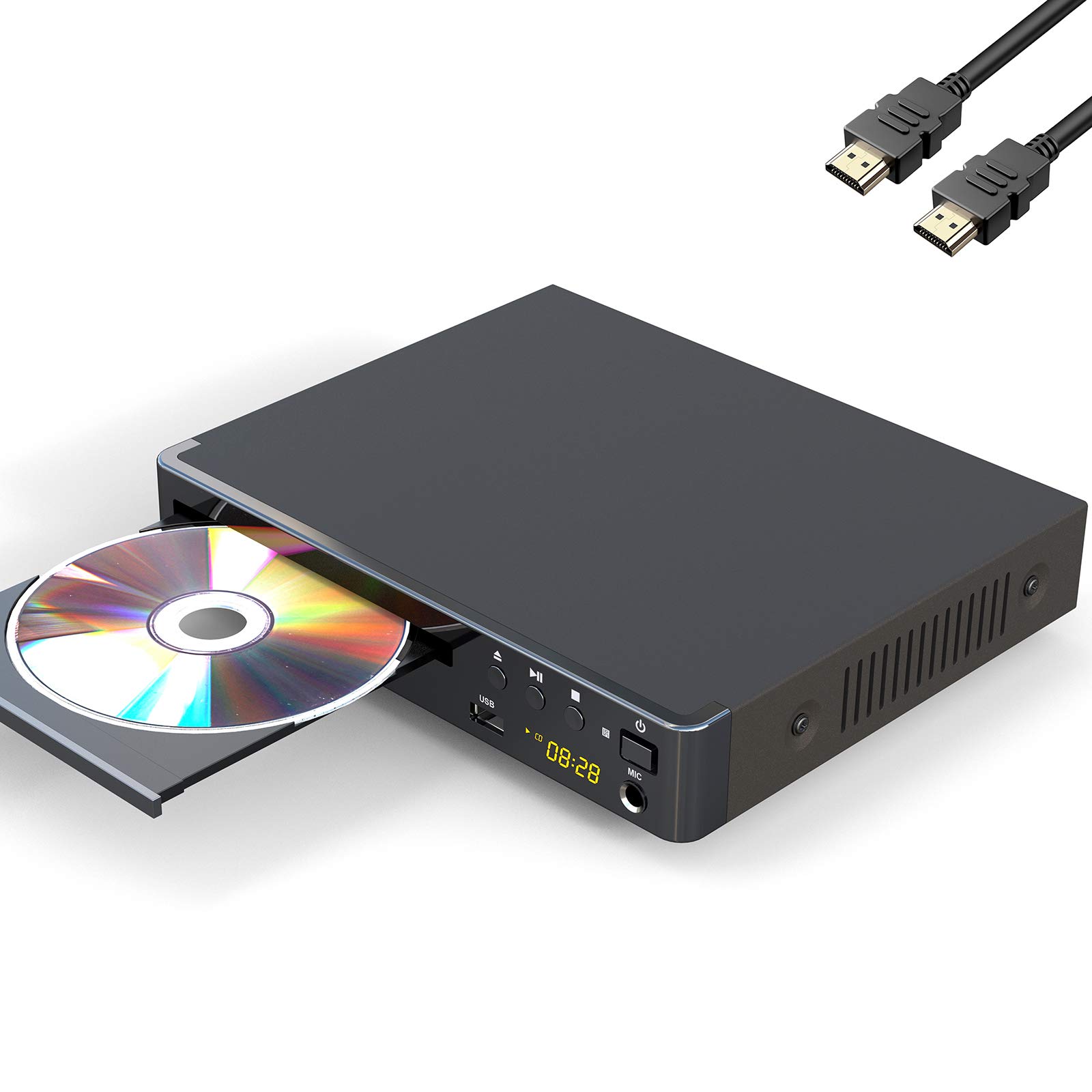
Image 1: The LONPOO LP-077 Multi-Region DVD Player.
2. Package Contents
Verify that all items listed below are included in your package:
- 1 x LONPOO LP-077 DVD Player
- 1 x HDMI Cable
- 1 x RCA Cable
- 1 x User Manual (this document)
- 1 x Remote Control (requires 2 AAA batteries, not included)
3. Product Features
The LONPOO LP-077 DVD Player offers a range of features for versatile media playback:
- Multi-Region Playback: Compatible with DVDs from any country or region worldwide.
- Compact Design: A space-saving 2-channel HD DVD player with an easy-to-read digital display. Note: This is not a Blu-ray player.
- USB Media Playback: Built-in USB 2.0 port supports flash drives up to 32GB for playing digital media (AVI(Xvid), VOB, MP3, JPG) on your TV. Note: Does not support USB 3.0 or MP4 file playback via USB.
- Video System Compatibility: Supports PAL/NTSC/Auto TV systems and progressive scan.
- Aspect Ratios: Selectable 16:9 and 4:3 aspect ratios for optimal viewing.
- Connectivity: HDMI, RCA, and USB connection options.
- Remote Control: Full-function remote control included for convenient operation.
4. Safety Information
To ensure safe operation and prevent damage, please observe the following:
- Do not expose the unit to rain or moisture.
- Do not block ventilation openings.
- Avoid placing the unit on unstable surfaces.
- Disconnect the power cord during lightning storms or when unused for long periods.
- Refer all servicing to qualified personnel.
5. Setup
5.1 Connecting to a Television
Your DVD player can be connected to your TV using either an HDMI cable or an RCA cable.
HDMI Connection (Recommended for best quality)
- Connect one end of the HDMI cable to the HDMI OUT port on the DVD player.
- Connect the other end of the HDMI cable to an available HDMI IN port on your television.
- Select the corresponding HDMI input on your TV using its remote control.
RCA Connection (Standard Definition)
- Connect the yellow plug of the RCA cable to the VIDEO OUT (yellow) port on the DVD player.
- Connect the red and white plugs of the RCA cable to the AUDIO OUT (red and white) ports on the DVD player.
- Connect the other end of the RCA cable's yellow plug to the VIDEO IN (yellow) port on your television.
- Connect the other end of the RCA cable's red and white plugs to the AUDIO IN (red and white) ports on your television.
- Select the corresponding AV input on your TV using its remote control.
5.2 Power Connection
Plug the power cord of the DVD player into a standard electrical outlet.
5.3 Remote Control Setup
Insert two AAA batteries (not included) into the remote control, ensuring correct polarity.

Image 2: Example setup of a DVD player connected to a television for home entertainment.
6. Operating Instructions
6.1 Basic Disc Playback
- Press the POWER button on the DVD player or remote control to turn on the unit.
- Press the OPEN/CLOSE button to open the disc tray.
- Place a DVD, CD, SVCD, or VCD disc onto the tray with the label side facing up.
- Press the OPEN/CLOSE button again to close the disc tray. The player will automatically begin reading the disc.
- Use the remote control's playback buttons (PLAY, PAUSE, STOP, FF, REW) to control playback.
6.2 USB Media Playback
- Insert a USB 2.0 flash drive (up to 32GB) into the USB port on the front of the DVD player.
- The player should automatically detect the USB device and display a menu. If not, press the DVD/USB button on the remote to switch to USB mode.
- Navigate through your files (AVI(Xvid), VOB, MP3, JPG) using the arrow keys on the remote and press ENTER to select and play.
6.3 System Settings
To access and adjust system settings:
- Press the SETUP button on the remote control.
- Use the arrow keys to navigate through the menu options (e.g., TV System, Aspect Ratio, Audio Settings).
- Press ENTER to confirm selections and SETUP again to exit the menu.
7. Maintenance
7.1 Cleaning the Unit
Wipe the exterior of the DVD player with a soft, dry cloth. Do not use liquid cleaners or abrasive materials.
7.2 Disc Care
Handle discs by their edges. Clean discs with a soft, lint-free cloth, wiping from the center outwards. Avoid touching the playback surface.
8. Troubleshooting
If you encounter issues with your DVD player, refer to the following common problems and solutions:
| Problem | Possible Cause | Solution |
|---|---|---|
| No power | Power cord not connected; power outlet faulty. | Ensure power cord is securely plugged in. Test the outlet with another device. |
| No picture/sound | Incorrect TV input selected; cables loose or damaged. | Select the correct HDMI/AV input on your TV. Check all cable connections. |
| Disc not playing | Disc inserted incorrectly; disc dirty or scratched; unsupported disc format. | Insert disc with label side up. Clean or replace the disc. Ensure the disc type is supported (DVD, CD, SVCD, VCD). |
| Remote control not working | Batteries depleted or inserted incorrectly; obstruction between remote and player. | Replace batteries, ensuring correct polarity. Remove any obstructions. Point remote directly at the player. |
| USB device not recognized | Unsupported USB version or capacity; unsupported file format. | Ensure USB is 2.0 and up to 32GB. Verify file formats are AVI(Xvid), VOB, MP3, or JPG. |
9. Specifications
| Feature | Description |
|---|---|
| Brand | LONPOO |
| Model Number | LP-077 |
| Media Type | CD, DVD, SVCD, VCD |
| Special Feature | Compact, Multi-Region |
| Connector Type | HDMI |
| Connectivity Technology | HDMI, RCA, USB |
| Color | Grey |
| Input Video Compatibility | NTSC (PAL/Auto selectable) |
| Number of Channels | 2 |
| File Formats (USB) | Video: AVI(Xvid), VOB; Audio: MP3; Image: JPG (USB 2.0 up to 32GB, no MP4) |
10. Warranty and Support
Your LONPOO LP-077 DVD Player comes with the following:
- 18-Month Warranty: Covers manufacturing defects and malfunctions under normal use.
- 90-Day Money Back Guarantee: If you are not satisfied with your purchase, you may return it within 90 days for a full refund.
- Lifetime Technical Support: For any questions or assistance, please contact our customer support team.
For technical support or warranty claims, please refer to the contact information provided on the LONPOO official website or your purchase documentation.


